

Exhibition halls often have weak mobile signal, so use a scanner that keeps each visiting card on the phone and sends it when the connection returns. Before the fair, sign in, test a scan in flight mode and charge a power bank. At the stall, keep scanning and never wait for a card to upload.
In short
- No signal
- JAI CRM keeps each card and its voice note on the phone
- Sending
- Automatic, once there is signal and Scan cards is open
- All sent
- The “to send” figure in the corner has gone
- Shared phone
- Lock to the stall, in the exhibition’s header
- Fallback
- A box of cards, one line in pen on each, scanned that evening
Why is there no signal in an exhibition hall?
Three things work against you at once. Steel and concrete halls weaken a mobile signal before it reaches your stall. Thousands of visitors and exhibitors share the same few towers at the same busy hours. And venue Wi-Fi, where there is any, is shared by every stall.
A scanner that cannot save a card until it reaches the server loses customers. Plan for no signal at all, and treat any signal as a bonus.
What should “works offline” mean in a lead capture app?
Many visiting card (business card) scanners say they work offline. Test any of them, ours included, against these five questions before a fair:
| Question | How to test it |
|---|---|
| Is the card saved on the phone before anything is sent? | Flight mode on, scan a card, look for a count of cards waiting |
| Does the voice note wait on the phone too? | Record a note in flight mode, reconnect, find it with the card |
| Does closing the app lose anything, and does it reopen with no signal? | Close the app fully in flight mode, then open it again |
| Does it send by itself when the signal returns? | Reconnect and watch, without pressing anything |
| Can you see how many cards are still waiting? | Watch that count fall to nothing as cards send |
Also ask: does each card record when it was taken, not when it arrived? And are waiting cards kept if you are signed out? In JAI CRM, both answers are yes.
What does JAI CRM show when there is no signal?
Cards are taken on the Scan cards screen, from the Exhibitions menu or from Scan into this folder on an exhibition. The screen opens and takes photographs without waiting for the network. Every card is written to the phone’s own storage first, and sent later. With no signal, you see:
- After each card: the camera stays open. About 20 seconds later a message reads “Kept on this phone”, with “It opens for checking once it has been sent.” (With signal, the card usually opens for checking at once.)
- In the top corner: a small count labelled “taken”. While cards wait, a second number follows it after a dot, and the label becomes “taken · to send”.
- Under the heading: “Sending” while the phone tries. Once a try fails, “No signal”, then “they are safe on this phone”. The line goes when nothing is waiting.
- At the foot: “Cards stay on this phone until they are sent. Closing the app does not lose them.”
The one message that means trouble is “That card was NOT kept”. The phone’s own storage refused the photograph, for example because the phone is full. Clear some space before the fair.
| What you do | With no signal |
|---|---|
| Take a card in Card or QR code mode | Kept on the phone: “Kept on this phone” |
| Hold a card’s picture on Scan cards and speak | The voice note is kept with that card |
| Take a Shot of a stand or product | Not kept: “That photograph was NOT kept” |
| Look up a card to see if you know the person | Needs signal: “That card could not be looked up” |
| Change the exhibition, or who is scanning | Needs signal; the last exhibition chosen is remembered |
| Check what was read, grade it, file it | Waits until the card has been sent |
| Lock the phone, or leave stall mode | Needs signal |
So in a dead hall, stay in Card mode and record notes on the scan screen. Skipping Look up costs little: people you already have are matched when you file the card, by GSTIN, mobile, email, or company and city.
Before the fair: the 10-minute phone setup
Do this for every scanning phone, a day or two before you travel, somewhere with good signal.
- Update and sign in with signal. On Android, use the JAI CRM app, updated first, because an installed app runs the build it was installed with (see The Android app). Sign in as the person who will scan, and allow the camera and microphone when asked.
- Take a test card in flight mode. Open Scan cards, tap Filing to, and under “Or make a new one” make a folder called Test. Turn on flight mode, with Wi-Fi off too. Press Take a card and photograph your own card. Close the camera, hold the card’s picture at the bottom of the screen, say a few words and let go.
- Check that it is waiting. You should see “Kept on this phone”, a second number labelled “taken · to send”, and within half a minute “No signal”. In the Android app, close it completely, reopen it and go back to Scan cards: the number to send is still there.
- Reconnect and watch it send. Turn flight mode off with Scan cards open. “Sending” appears, then the second number goes. In the Test folder the card waits under Still to file; open it, and your note plays under “What was said at the stall”.
- Point the phone at your exhibition. Open the exhibition and press Scan into this folder, then close the camera. The phone files cards there, even after a restart, until you change it. Check the line under “Scan cards” reads “Scanning as” with the right name.
- Charge it and set the clock. Charge the phone and a power bank. Keep the date and time on automatic: JAI CRM refuses a card dated in the future, and it would sit on the phone unsent.
At the stall: how do you keep the queue moving?
Scan the card, then turn back to the visitor. Never stand watching for a card to send.
- Stay in Card mode. The camera takes the photograph once the card is still. QR code mode also works with no signal.
- Say the grade out loud. Hot, warm or cold is set when you check the card, after it is sent. So start the note with it: “Hot. Wants 2 tonnes of 25 micron foil a month, quote by Friday.”
- Record the note straight away. Close the camera, hold the card’s picture and speak. The screen reads “Listening”, then “let go to keep it”. The last five pictures stay on screen, so you can return to one.
- Keep important backs aside. The back of a card is added on its own page, after it is sent. Put cards with a useful back in an envelope for the evening.
- No card? Write the name, firm and mobile on a slip, photograph it like a card, and check it carefully when you file it.
- Step out at lunch. A few minutes outside the hall, with Scan cards open, lets the phone send what it holds.
A bright screen and a radio hunting for signal drain a phone fast. Carry a power bank and cable per scanning phone, and an extension board; the exhibitor manual says what power point your stall gets. Spread phones across networks, such as Jio, Airtel and Vi. If venue or hotel Wi-Fi wants a sign-in page, complete it first, or the cards keep waiting. A phone that goes flat loses nothing: the cards are in its storage.
How do you lock a shared stall phone?
A stall phone gets passed around, sometimes to a helper hired for two days. Signed in as one person, it opens the whole business to whoever holds it.
Lock to the stall is a button in the exhibition’s header, beside Scan into this folder. Set it once, before the doors open:
- With signal, press Scan into this folder and check the “Scanning as” name. Neither can be changed while the phone is locked.
- Go back to the exhibition and press Lock to the stall. The phone checks with the server that somebody could release it, then opens Scan cards, locked.
- The locked screen fills the display and covers the menus. It shows the camera button, the count, where cards are filing to and Leave stall mode, above “Locked. Cards stay on this phone until they are sent.”
The lock is kept on the phone, so closing the app or a flat battery does not lift it. To leave, press Leave stall mode. A box labelled “Manager PIN” notes “The same PIN used at the counter. Checked on the server, so this needs signal.” Type the PIN and press Unlock, or Stay locked. The PIN must belong to an active member of staff who may open Exhibitions. A wrong PIN, or no signal, shows “It could not be unlocked”. JAI CRM records whose PIN released the phone.
The phone refuses to lock in two cases, so it is never locked with no way back:
- “Nobody can unlock this yet”: nobody who may open Exhibitions has a staff PIN yet, so the phone is left unlocked rather than locked with no way out.
- “Not while offline”: the check needs signal. Lock the phone before you walk into the hall.
Releasing needs signal too, so agree where the manager will do it, such as outside the hall at closing.
Somebody else is scanning on your phone: who gets the credit?
The person who met the visitor owns the record the card becomes, unless an assignment rule picks somebody else. On a shared phone, the name on each card decides the credit.
That name is the line under “Scan cards”, reading “Scanning as” and a name. To hand the phone over, tap the line. “Who is scanning?” lists the team, each with an email so two people with one name can be told apart. Choose the person; they must be allowed to scan cards.
- Choosing needs signal. With none, the list says “Nobody else here can be named as the scanner”. Name the scanner before you enter the hall.
- The choice lasts while Scan cards stays open. Come back to the screen and it names the signed-in person again. With signal each card opens for checking, so look at the line every time you return.
- “Working offline” means the signed-in person. If the line reads “Working offline”, then “kept on this phone”, the screen opened with no signal, and its cards go to whoever is signed in.
Simplest of all: one phone per person, signed in as themselves. See From a card to a record for how the owner is decided.
After the fair: how do you know every card has arrived?
Check before anyone leaves town, and before any phone is reset, returned or handed on. A card that has not been sent exists only on that phone.
- Open Scan cards on every phone, with signal. At the hotel, in the car, on the train home. Keep the screen open and on display: it sends straight away, then every 30 seconds.
- Watch the corner. That phone is done when the second number has gone, the label reads only “taken”, and the “Sending” line has gone. Watch the second number, not the first: the first can fall as cards leave the phone, and that is not a loss.
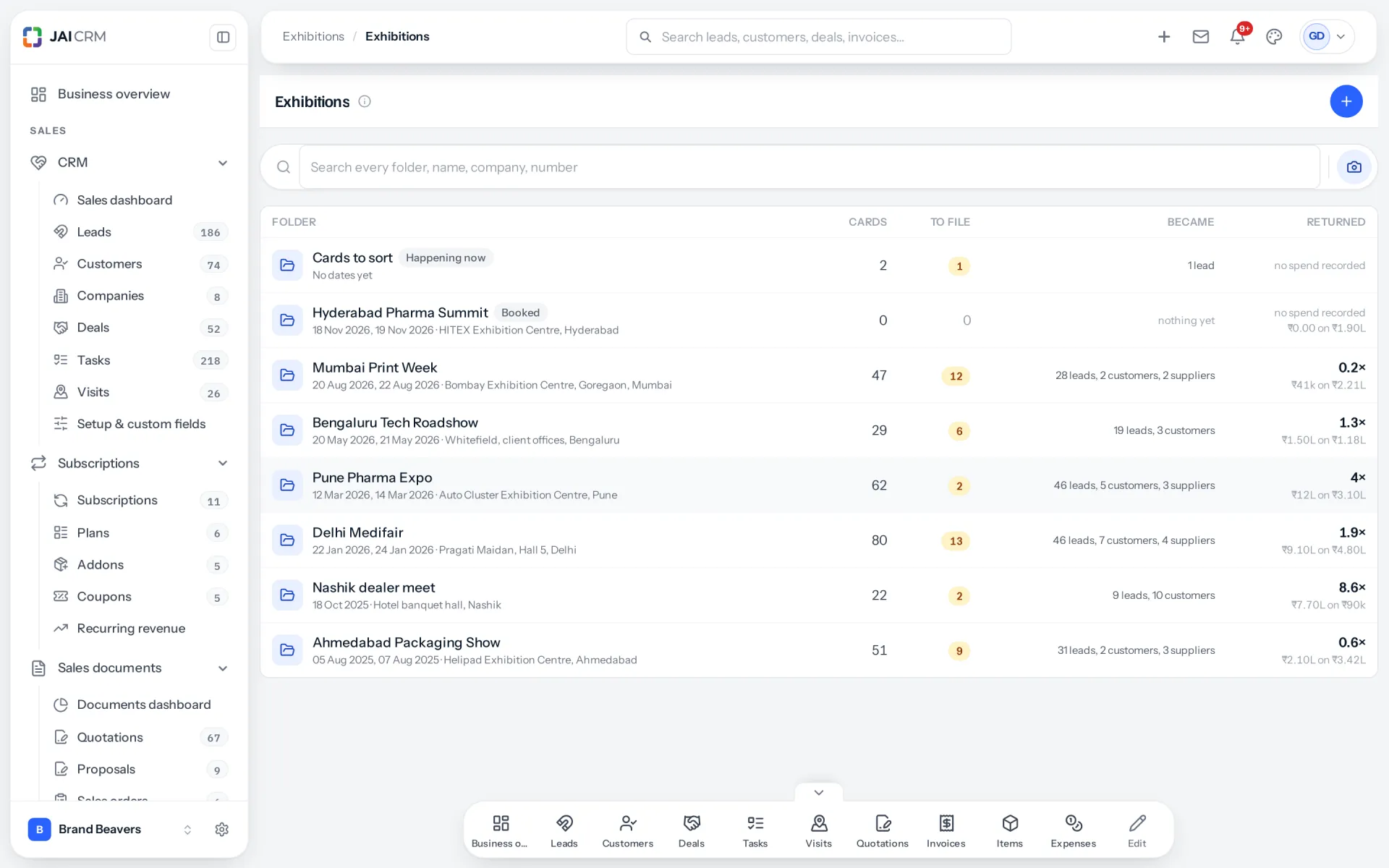
- Count on the server. On the Exhibitions list, the Cards column is counted by JAI CRM’s server. It should match the cards your team took.
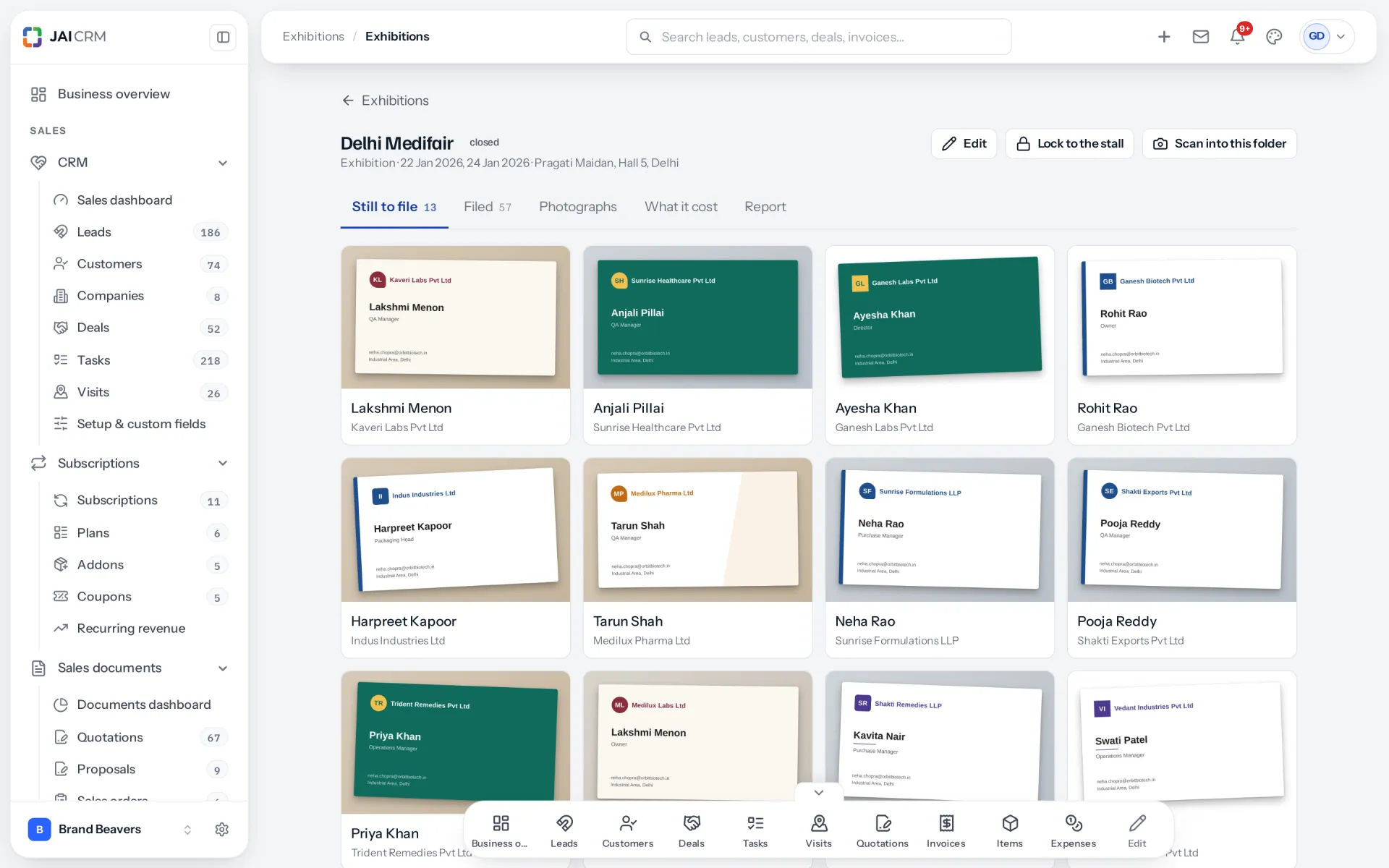
- Open a few cards. In Still to file, open the ones you remember best and check the photograph and the note are there.
A card leaves the phone only when the server has its details, photograph and note, and a card sent twice is stored once.
Why five minutes of checking matters (an example). Your team takes 150 cards over a three-day fair. A helper’s borrowed phone holds 40 of them, unsent, and its owner resets it on the last evening. Say one in twenty of your exhibition contacts usually becomes a customer, and a first order averages ₹85,000 before GST. Those 40 cards were worth about two first orders: ₹1,70,000 of business, gone unnoticed. Put in your own rate and order size.
Send every evening, not at the end of the fair. Filing a card as a lead or customer raises its follow-up task, due 48 hours later with the voice note. A card stuck on a phone for three days starts its follow-up three days late. Our 7-day follow-up plan takes over from there.
What is the paper fallback that still works?
Phones die, queues form, and some visitors hand over a card and walk on. Paper never needs signal. Use it on purpose:
- One box or envelope per day, labelled with the exhibition and the day.
- One line in pen on each card, before the next visitor: grade, what they want, what you promised and by when, and the initials of whoever met them.
- Scan the box that evening, each person their own cards, while the conversations are fresh. Keep the paper until each card shows under Still to file.
One line per card, to copy:
H · wants 2 tonnes of 25 micron foil a month · quote by Friday · PS
W · catalogue for printed cartons above 5,000 units · email Monday · RK
C · student, collecting brochures · nothing promised · PS
With signal, each card opens for checking as you scan it, so you can grade it and record its note there. With no signal, photograph the stack quickly, then hold any of the last five pictures to add a note.
Does the Android app behave differently from a phone browser?
The Scan cards screen and its words are the same in both, and both keep cards on the phone. The difference is opening JAI CRM from nothing.
| Android app | Phone browser | |
|---|---|---|
| Opening with no signal | Opens, if signed in on that phone recently, under a pale yellow bar: “Working offline”, your name, “Nothing is reaching the server.” | A closed or reloaded tab cannot load until there is signal |
| After closing | Reopen and keep scanning | Cards are safe; scanning waits for signal |
| Updates | Runs the installed build; update before the fair | Always the current version |
| Never, while cards wait | Clear the app’s storage or uninstall it | Scan in a private tab, or clear the site’s data |
The app carries JAI CRM inside it, so only your data travels. A browser must fetch the page itself, and a phone may reload a tab you switched away from. At a fair, use the Android app where you can. In a browser, open Scan cards with signal and stay on that tab.
Common questions
Can I scan visiting cards without internet?
With the right app, yes. It keeps each photograph and voice note on the phone and sends them when the connection returns, so scanning never waits for the network. JAI CRM says “Kept on this phone” for each card.
What happens to scanned cards if my phone loses signal?
In JAI CRM they stay on the phone, and the screen shows how many are still to send. They send by themselves once there is signal and Scan cards is open. Closing the app or a flat battery does not lose them.
How do I stop staff using the stall phone for other things?
Press Lock to the stall in the exhibition’s header while you have signal. The scan screen then covers the menus, and Leave stall mode asks for a manager’s PIN. At least one manager needs a staff PIN first.
Should I collect paper cards as a backup at a trade fair?
Yes. Keep a box of cards per day, with one line in pen on the back of each: grade, need, promise and who met them. Scan them the same evening, while you still remember the conversations.
Does the JAI CRM Android app work differently from a phone browser?
The scan screen is the same, and both keep cards on the phone. But the Android app opens with no signal, while a closed or reloaded browser tab needs signal to load again. At a fair, use the app.
How do I know every card has been sent?
Open Scan cards with signal and leave it open. When the second number in the corner has gone and the label reads only “taken”, nothing is waiting on that phone. Then check the exhibition’s Cards figure on the Exhibitions list.
Correct as of October 2026. Screen words are quoted from JAI CRM as it stood on 10 October 2026, with the Android app at version 1.3.95; where a message has two parts, they are quoted separately. The team, products, notes and rupee figures in the examples are examples, not a real business.
Next
See it with your own data
Start free, import a spreadsheet of your customers, and raise a real GST invoice in the first ten minutes. No card, no sales call.