
Make something
- Click an empty slot, drag across empty hours, or press the blue +.
- Choose what it is for: Meeting, Call, Visit, Follow-up, Task, Project task or Blocked time. Only the fields that kind needs appear.
- Fill them in and press Add. It is saved exactly as if you had made it on its own screen.
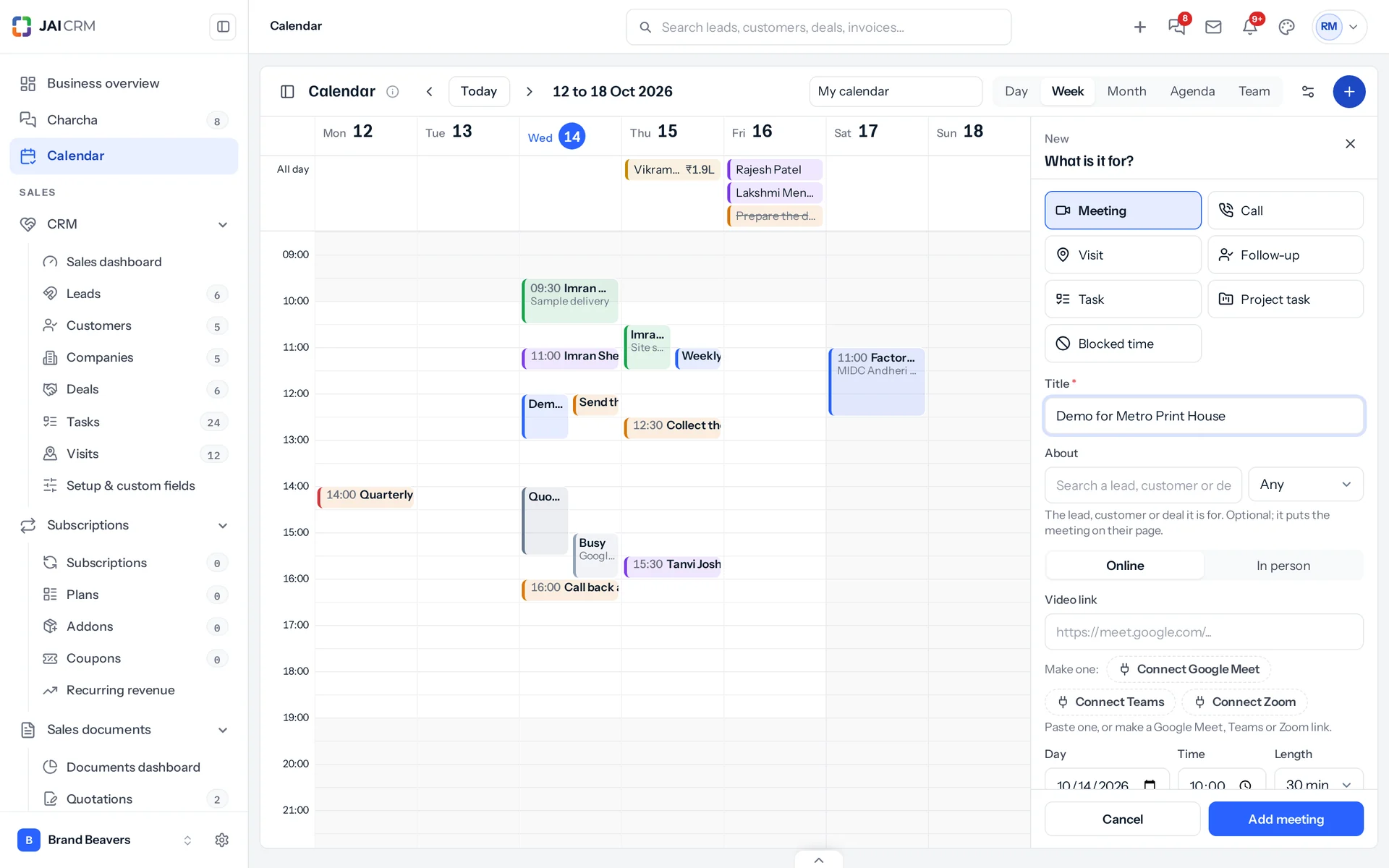
| Kind | What you give it |
|---|---|
| Meeting | A title, the lead, customer or deal it is about (optional), online with a video link or in person with a place, colleagues, customers to invite by email, and a reminder. See Meetings. |
| Call | Who the call is with and what about. It is a planned call on that lead, customer or deal. |
| Visit | What it is for, who you are visiting, and who goes. |
| Follow-up | The lead. Its next follow-up moves to the day and time you choose. |
| Task | What needs doing, its type, who it is for and what it is about. |
| Project task | The project, the task and who it is assigned to. |
| Blocked time | Focus, away, travel or other. Colleagues see only Busy. |
A kind whose module is not switched on says so in the panel, with who can switch it on.
Move something
- On a computer: drag an item to a new time or day. Drag its bottom edge to make it longer or shorter. Drop it on the All day strip to take its time away.
- Anywhere: open it and use An hour later, Tomorrow, Next Monday, or choose a day and time and press Move.
- In the month view, drag a thing to another day; it keeps its hour.
A move goes through the record’s own rules: a converted lead, a finished task or a meeting somebody else organised cannot be moved, and the calendar says why.
Work with no date, and leads with no next step
On the left, No date yet lists your tasks and project tasks with no due date, and No next step lists open leads and deals with nothing booked, biggest first. On a computer, drag one onto a time: a task gets that date, a lead gets a follow-up, a deal gets a follow-up task. On a phone, tap it to plan it.
Done, and cancelled
Open an item and press Mark done (a task, a project task, a call), Followed up (a follow-up) or Cancel (a meeting, a visit). Cancelled things leave the calendar; done things stay, struck through.
Something missing or wrong here? Tell us. A question that needed asking usually means a page that needed writing.