
Somebody in your office raises a quotation and has to pick a tax against each line. Somebody else pays a consultant and has to deduct TDS at the right section. Both of them are choosing from lists that live on one screen: Settings, then Taxes. It has three tabs — Tax rates, TDS / TCS, and HSN and SAC. This page covers what each one feeds, and the handful of controls on it that feed nothing.
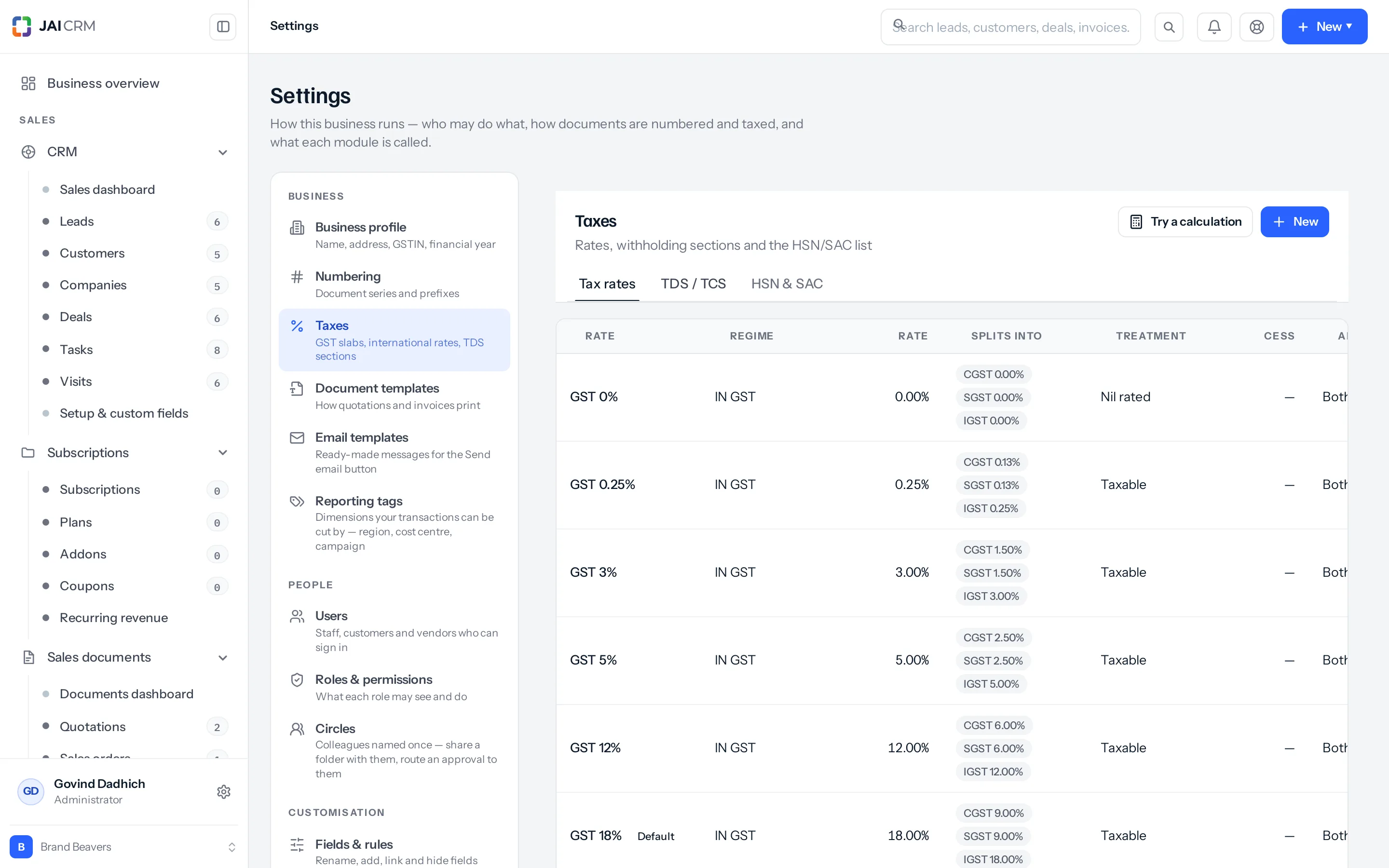
What a tax rate is
A rate is a container. GST 18% is not one tax of 18 per cent; it holds three components — CGST 9, SGST 9 and IGST 18 — and each one is marked as applying to a supply inside your state, outside it, or both. When a document is priced, only the components that fit the supply are charged. That is why the same rate produces CGST and SGST on a Pune-to-Pune invoice and IGST on a Pune-to-Bengaluru one, with nobody choosing between them.
A rate is picked in three places, and only the first of them is the tax dropdown people think of:
- The Tax column on a quotation, sales order, invoice, credit note, purchase order or bill line.
- The Tax rate field on an item in the catalogue, which is copied on to the line when that item is chosen.
- The Tax field on a subscription plan and on a subscription add-on.
A charge line (freight, packing, installation) is taxed in its own right, but it never reaches a rate from this screen. The charge row in the document editor offers a fixed choice of 0, 5, 12, 18 or 28 per cent and stores that bare percentage, so nothing you set up here — not the components, not the cess, not the default — applies to freight or packing.
What ships with a new business
An Indian business is created with seven GST slabs already built, plus four rows for supplies that carry no GST. Nothing is created on the TDS / TCS tab — that one starts empty.
| Rate | Name | Treatment | Inside your state | Outside your state |
|---|---|---|---|---|
| 0% | GST 0% | Nil rated | CGST 0% + SGST 0% | IGST 0% |
| 0.25% | GST 0.25% | Taxable | CGST 0.125% + SGST 0.125% | IGST 0.25% |
| 3% | GST 3% | Taxable | CGST 1.5% + SGST 1.5% | IGST 3% |
| 5% | GST 5% | Taxable | CGST 2.5% + SGST 2.5% | IGST 5% |
| 12% | GST 12% | Taxable | CGST 6% + SGST 6% | IGST 12% |
| 18% | GST 18% (the default) | Taxable | CGST 9% + SGST 9% | IGST 18% |
| 28% | GST 28% | Taxable | CGST 14% + SGST 14% | IGST 28% |
The four others are Exempt, Nil rated, Zero rated (export / SEZ) and Non-GST supply. All four sit at 0% and carry no components at all, so a line using one is priced with no tax and still appears in the GST summary under its own heading. Exempt and nil rated are different things in a return, which is why there are two of them.
A business whose regime is anything other than India — GST is created with VAT 0, 5, 10, 15 and 20 per cent instead, with VAT 20% as the default. That set is built once, when the business is created, from the country it was created in; changing the regime later on Settings, then Business profile does not build a different one. If you switch an existing business to VAT, the VAT rates are not seeded for you — you add them by hand.
The slab dropdown in the New rate dialog offers eleven values — 0, 0.1, 0.25, 1, 1.5, 3, 5, 6, 12, 18 and 28 — but only seven are created for you. If you need 1.5% or 6%, you add it; it is not missing by accident. Anything outside those eleven cannot be entered on an India — GST rate at all.
Adding a rate of your own
- Open Settings, then Taxes, and stay on the Tax rates tab.
- Click New.
- Type a Name. This is what the tax dropdown shows on every document line, so name it the way whoever raises one would look for it. No two rates may share a name, deleted ones included — reusing the name of a rate you deleted gets past the tidy “A rate with that name already exists” message and fails with a raw database error instead.
- Leave Regime on India — GST unless you are charging VAT or a sales tax.
- Pick the Rate % from the slab list.
- Leave Treatment on Taxable for an ordinary rate. Exempt, Nil rated, Zero rated and Outside GST all zero the tax on every line that uses the rate; Reverse charge still works the tax out in full and shows it as the buyer’s to pay rather than yours to collect.
- Fill Cess % only if compensation cess applies to what you sell.
- Tick Use as the default rate if every new line should start here. Ticking it unticks whatever rate held it before.
- Save.
As soon as the regime is India — GST and the rate is above nought, the dialog shows a How this splits strip: half the rate as CGST and half as SGST inside your state, the whole of it as IGST outside. That strip is the arithmetic the documents will actually use as long as Treatment is Taxable — the components are rebuilt from the headline rate every time you save, so the two cannot drift apart.
The strip never looks at Treatment, so it goes on promising CGST 9 + SGST 9 on a rate you are saving as something else — and on any treatment but Taxable the rate is saved with no components at all. For Exempt, Nil rated, Zero rated and Outside GST that is harmless enough: those charge nothing anyway. A Reverse charge rate is the one to watch. It saves no components either, but it is not zeroed: the tax is worked out in full from the business’s own regime and shown as the buyer’s to pay, whatever the strip said.
Editing the Rate % of an existing rate silently rebuilds its components. Change GST 12% to 18% and its CGST and SGST rows become 9 each. There is no way to hand-build an uneven split from this screen.
A worked example
Sunrise Polymers is registered in Pune, Maharashtra (state code 27). They sell 400 kg of masterbatch at 300 rupees a kilo — 1,20,000 rupees of taxable value — on GST 18%.
| Buyer | Place of supply | Tax charged | Invoice total |
|---|---|---|---|
| Deccan Mouldings, Pune | 27 Maharashtra | CGST 9% 10,800 + SGST 9% 10,800 | 1,41,600 |
| Nandi Plastics, Bengaluru | 29 Karnataka | IGST 18% 21,600 | 1,41,600 |
| Kaveri Packaging, Puducherry | 34 Puducherry | IGST 18% 21,600 | 1,41,600 |
The total is the same in all three. What changes is the heads it sits under, and that is what a return is filed on. Nobody at Sunrise chose between CGST/SGST and IGST — the customer’s state did it.
The Active tick, and what reads it
Untick Active on a rate and it stops being offered in the Tax column on a new quotation, order, invoice or bill line. It stays visible on this settings screen, so you can switch it back on, and every document already carrying it is untouched. Retiring a rate this way is the safe move, because deleting one that a document line has used is refused outright — though nothing stops you deleting a rate that only an item, a subscription plan or an add-on points at, and those keep pointing at it afterwards.
The tick is honoured in one place and ignored in three. The document line dropdown asks for active rates only. The generic lookup used by the Tax rate field on an item, and the Tax field on a subscription plan and on a subscription add-on, asks for all of them.
This is the one that catches people. Retire GST 12%, then open an item in the catalogue and its Tax rate field still lists it. Worse, an item already pointing at a retired rate goes on working: choose that item on a quotation line and the retired rate is copied across and charged, even though the Tax dropdown beside it would not have offered it. If you are taking a rate out of circulation, check the items that point at it as well.
An item carries two separate tax fields and they are copied on to a line independently. Tax rate is the saved rate; GST % is a bare percentage that is not on the item form at all, so it normally arrives blank or through an import. Choosing the item sets the line’s percentage from GST % — falling back to 18 when it is blank — and the line’s rate from Tax rate. When the two disagree, the server charges the rate’s own components and the document prints and reports the percentage: an item pointing at GST 5% with a blank GST % lands on a line showing 18%, is charged 5%, and is bucketed in the GSTR-1 HSN summary under 18%. On any item you import, set GST % to match the rate it points at, or leave the rate off and let the percentage stand alone.
Cess
The Cess % box appears only when the regime is India — GST. It is compensation cess, charged on the taxable value on top of the GST, and it prints as its own line named Cess.
Cool Springs Beverages, Nagpur, sells 50,000 rupees of aerated drinks on a rate of GST 28% with 12% cess, to a buyer in Nagpur:
- Taxable value 50,000
- CGST 14% — 7,000
- SGST 14% — 7,000
- Cess 12% — 6,000
- Total 70,000
Cess is charged only where the treatment is Taxable or Reverse charge. On an exempt, nil-rated, zero-rated or non-GST line it is zeroed along with the tax.
Cess reaches a line only when somebody opens the Tax column and picks the rate there. It is copied across at that moment as a figure on the line. Choosing a catalogue item does not bring cess with it, even when the item points at a rate that carries one, and a new blank line does not pick up the cess on the default rate. On a cess-bearing sale, re-pick the rate in the Tax column and check that the Cess line appears in the totals before you send it.
International rates, and when a business needs one
An Indian business selling abroad does not need an international rate. An export to an overseas or SEZ customer is handled by the customer record and the LUT tick, not by choosing a different rate — see the place of supply section below.
You need a VAT or sales tax rate when you invoice in another country’s tax system: a UAE arm charging 5% VAT, a UK entity charging 20%. Set Regime to VAT or Sales tax and type the percentage — the slab dropdown is replaced by a free number box for these. The rate then carries a single component named VAT or Sales tax, applying to every supply, and a document line using it is charged and printed under that name rather than being relabelled GST because the business happens to be Indian.
Two things do not follow that rule. First, on a purchase bill the line is priced from the business’s own regime rather than from the rate’s components, so a VAT rate used on a purchase bill of an Indian business is charged at the right number under CGST and SGST headings. Second, the running total shown while you are still typing in the document editor is worked out in the browser from the percentage alone, so it shows GST headings for a VAT rate until the document is saved and the server re-prices it. The figure does not change; the names do.
Setting Regime to No tax while leaving Treatment on Taxable does not produce a rate that charges nothing. It produces a rate with one component labelled Sales tax at the full percentage, so a rate you named “No tax 0%” is harmless only because the percentage is nought. To make a rate that charges nothing whatever the percentage says, set the Treatment to Outside GST.
TDS and TCS sections
The second tab is a separate list with its own purpose: the sections you deduct tax under when you pay a vendor. It is empty when a business is created — nothing is seeded — so if you deduct TDS, somebody has to build this list before it does anything.
- Open the TDS / TCS tab and click New.
- Leave Kind on TDS — deducted.
- Type the Section exactly as it appears on the vendor record, for example
194J. This is matched letter for letter. - Enter the Rate %, and the Rate without PAN % if the higher rate applies when a vendor has no PAN on file.
- Save.
The vendor record’s TDS section field is a dropdown seeded with seven values — 192, 194C, 194J, 194I, 194H, 194Q and 206C — so a section typed here that is not one the vendor list offers will never be matched to a vendor.
This list is read in exactly one place: when you record a payment made to a vendor. It is not read when a bill is entered. The TDS box on a bill or an invoice is a free-text section and a rate you type, both pre-filled from the party record, and no lookup against this list happens there at all.
On a vendor payment the order is: if the vendor has no PAN on file and the section carries a rate without PAN above nought, that higher rate wins outright and the confirmation says so; otherwise the vendor’s own TDS rate is used if one is set on their record; otherwise the section’s rate. A vendor whose section is not in this list at all falls back to their own rate, and to nothing if they have none.
A worked example: paying under 194J
Sunrise Polymers owe Kulkarni and Associates 80,000 rupees on a bill for professional fees. The vendor record has TDS applicable ticked, section 194J, no rate of its own, and a PAN on file. The settings list has 194J at 10%. This is what the deduction is meant to do — read the note after it before you rely on it.
- Record a payment made of 72,000 from the current account.
- Allocate the whole 72,000 against the 80,000 bill.
- The deduction is worked back from what you paid: 72,000 multiplied by 10 and divided by 90 comes to 8,000.
- The bill is settled in full — 72,000 paid plus 8,000 withheld clears the 80,000 balance.
- A TDS entry of 8,000 under section 194J is written for that quarter and financial year, ready for the challan.
Steps three to five do not happen from either payment screen in the app. That gross-up runs only when the payment arrives with no TDS figure of its own, and both screens always send one: the TDS boxes are drawn for money coming in only, so a payment made posts a TDS amount of zero on the payment and on every allocation. Record the payment above from the app and 72,000 is applied, the bill is left 8,000 outstanding, and no TDS entry is written. Until this is fixed, the vendor’s TDS applicable tick and this whole tab change nothing you can reach from the app — deduct by hand, and reconcile the shortfall on the bill.
Had the vendor had no PAN and the section carried 20% without PAN, the same arithmetic on a payment of 64,000 would have withheld 16,000 and cleared the same bill, and the confirmation would have said the higher no-PAN rate was used. Note that the no-PAN rate beats a rate set on the vendor’s own record, not just the section’s — it is tested first.
Three controls in this dialog are not read by anything. Yearly threshold is stored and no deduction anywhere consults it, so the hint “no deduction below this” does not describe what happens — a year’s running total never enters the calculation at any point. Applies to (Everyone, Individuals, Companies) is stored and forms part of what makes a row a duplicate, but the payment lookup does not filter on it: set up 194C twice, once for individuals and once for companies, and which of the two rates is used is not decided by the party at all. And a TCS row is stored and listed and never looked up, because the payment lookup asks for TDS rows only.
Editing a section that already exists saves less than it appears to. Only the description, the rate, the rate without PAN and the threshold are written back. Change the Section code, the Kind or Applies to on an existing row and the screen says Saved and the row is unchanged. To correct a section code, remove the row and add it again.
The HSN and SAC tab
The third tab lists HSN and SAC codes with their default slab and cess. In practice it is read-only: there is no control anywhere on this screen that creates one. The New button in the corner belongs to the Tax rates tab and stays pointed at it — press it while you are looking at HSN codes and you get the New tax rate dialog. An HSN code is entered on the item that uses it, in the item’s own HSN / SAC box.
Place of supply: CGST and SGST, or IGST
Two states decide the split. Yours comes from the state on Settings, then Business profile; if that is blank, the first two digits of your GSTIN are used. The customer’s comes from their place of supply, falling back to the state on their billing address, falling back to the first two digits of their GSTIN. On a purchase it is the vendor’s place of supply, falling back to the state on their one address, falling back to the first two digits of their GSTIN.
| Situation | What is charged |
|---|---|
| Place of supply is your own state | CGST + SGST, each half the slab |
| The place of supply is a union territory and it is your own state | CGST + UTGST |
| Place of supply is a different state | IGST at the full slab |
| Overseas or SEZ customer, LUT ticked on the business profile | Zero rated, no tax charged |
| Overseas or SEZ customer, LUT not ticked | IGST at the full slab |
| Composition ticked on the business profile | No GST on any line, whatever the rate says |
| Vendor marked unregistered | Reverse charge: the tax is shown as yours to pay, not theirs to collect |
| Either state unknown | Treated as the same state, and an invoice is refused at send |
The UTGST row is worked out from the place of supply, not from where you are. A supplier sitting in a union territory whose customer has no state code at all is treated as an intra-state supply and charged CGST + SGST, not CGST + UTGST.
The LUT tick is off on a new business, so out of the box an export invoice carries IGST rather than being zero rated. If you export under an LUT, tick it on the business profile before you raise one.
The running total in the document editor does not read that tick. Tick Export on a quotation or invoice and the Under a Letter of Undertaking box beneath it comes up already ticked, whatever the business profile says — so the totals on screen show no tax. Save it and the server re-prices from the business profile, and with the LUT tick off the document comes back carrying IGST at the full slab. The figure on screen before you save is not the figure you will send.
An invoice, credit note or debit note that carries tax and does not know both states is refused when you send it, naming which one is missing. Quotations and proformas are not refused — a quotation is an offer and you often write one before you have the customer’s full details. Nor is an export, or a document whose tax works out to nought, or anything on the purchase side. That means the first time a missing state code stops anybody is at the invoice, on a document that was already quoted and accepted.
What happens to documents already raised
Changing a rate on this screen does not go back over your history. Specifically:
- Changing a rate’s percentage does not re-price a single quotation, order, invoice or bill that has already been saved. Each line stores the percentage, the tax amount and the components it was charged at.
- Ticking Use as the default rate changes where new lines start and nothing else.
- Unticking Active takes the rate out of the line dropdown and leaves every document that carries it alone.
- Deleting a rate is refused outright if any document line uses it, drafts included. The refusal names how many and shows you the first few.
- Deleting also switches Active off, and there is no undelete on this screen — so unlike the Active tick, a delete cannot be walked back from here.
- A deleted rate is only hidden, not removed, and it is still read when anything is priced. An item, a plan, an add-on or a document line still pointing at a deleted rate goes on being charged from it exactly as before, even though the rate has vanished from every list.
There is one way to move an old document on to a changed rate, and it is not obvious: editing and saving a document re-prices it in full, using the rate’s components as they stand today. A draft invoice raised in March at GST 12%, reopened and saved in September after somebody edited that rate to 18%, comes back at 18%. If you need to correct a rate, add a new one and retire the old rather than editing it.
Controls on this screen that do nothing
Some of what this screen offers is stored and never read. Knowing which is better than trusting it:
- Try a calculation is inert. The dialog lets you set an amount, a slab, your state, the place of supply, tax-inclusive pricing, export and the display style, and none of those reaches the calculation — the server discards all seven without a word and works out a fixed example instead: one unit at 10,000 on 18%, with your own state at both ends. Worse, the result is read from the wrong place in the reply, so every figure shows as zero, a “Round off 0.00” row always appears, and the sentence underneath always says “Same state, so it splits into CGST and SGST”. Nothing about the dialog is true. Check tax by raising a draft quotation and reading its totals.
- Applies to on a rate (Goods and services, Goods only, Services only) is stored and shown in the list. Nothing filters the tax dropdown by it, so marking a rate services-only does not keep it off a goods line.
- The In use column on the rates table shows a dash on every row. The count is never worked out. To find out whether a rate is in use, try to delete it: the refusal names the documents.
- Yearly threshold, Applies to and the TCS kind on a TDS section, as described above.
- The Description on a section is a note for whoever reads the list. A deduction records the section code only and this text prints nowhere.
- Three fields on a rate are stored and unreachable: a per-unit cess, which the API accepts but which is never copied on to a line, and a country and a region, which nothing reads. The rate dialog has no control for any of them, yet it sends a blank country on every save.
The rates table shows the first thirty rates and has no way to page past them. A business that has built a long list of international rates will find rate thirty-one invisible here, though the document line dropdown reads a longer list and will still offer it.
Who can open this screen
The screen needs the Settings, Taxes permission. Of the roles that ship, only Administrator has it. The Manager preset is given only view on Users and on Circles out of the whole of Settings, and the Accounts preset — the role most likely to maintain GST slabs and TDS sections — is given nothing from Settings at all.
If your accountant needs to maintain this list, add the Settings, Taxes permission to their role on Settings, then Roles and permissions. The row carries seven actions, of which four (view, create, edit, delete) show until you tick Show every action at the top of the grid. Those four are the ones the routes behind this screen check; export, import and manage are asked for by nothing, so three of the seven ticks grant nothing at all.
Something missing or wrong here? Tell us. A question that needed asking usually means a page that needed writing.