
This keeps a Shopify shop and this business in step: collections, products, locations, vendors, checkout buyers and orders come in; stock levels and fulfilment go back out. Each half is a switch, so you can take only what you want.
Two settings here are not obvious and cannot be guessed for you: whether your stock figures are good enough to overwrite what the storefront believes it has, and whether product photographs live on Shopify’s servers or on this one. Both default to the safe answer. Both are explained below before you meet them.
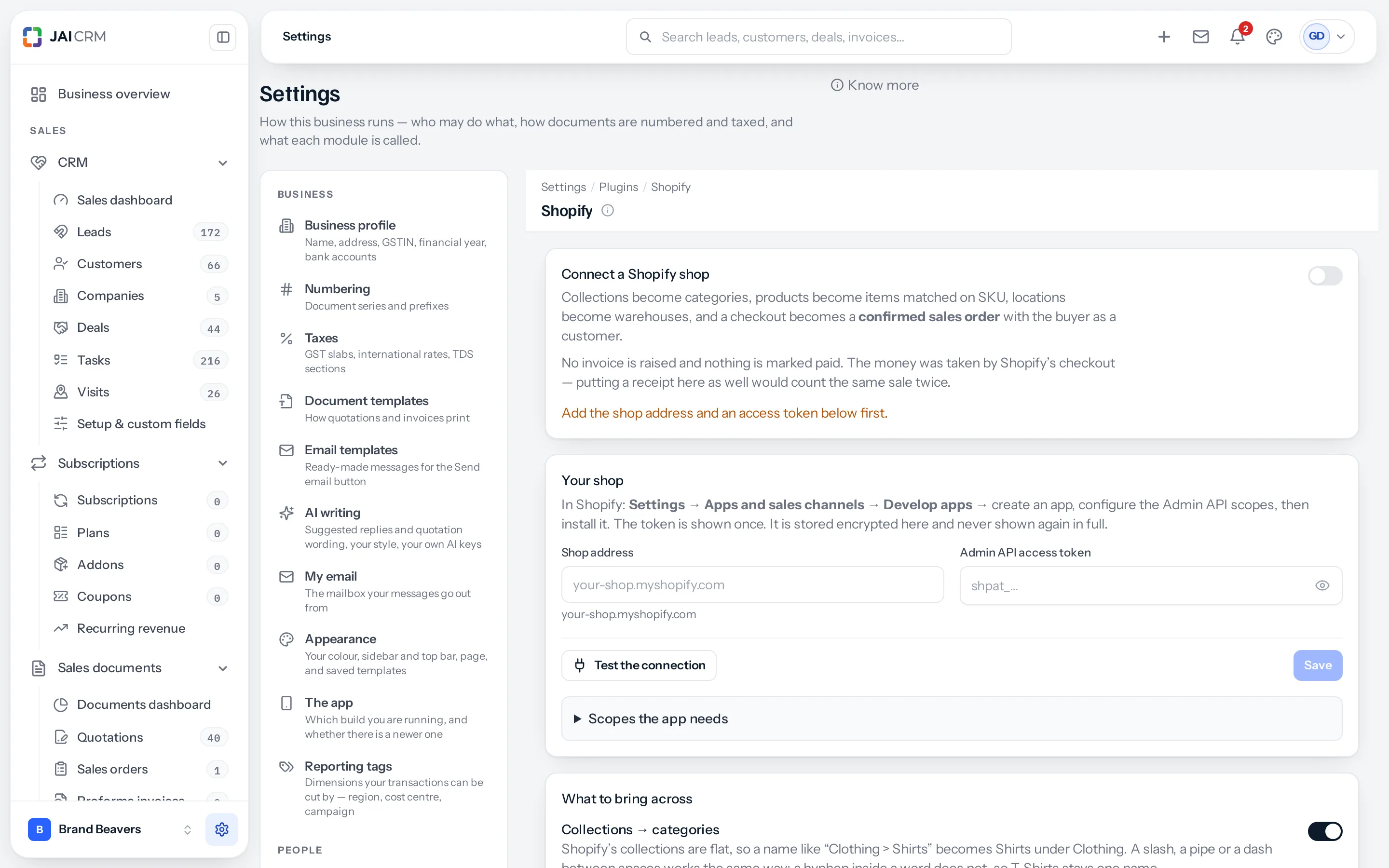
Shopify is an integration, free on every plan that has Inventory. Its screen is reached from Settings → Integrations: press Set up on the Shopify card. On a plan without Inventory the card says Needs Inventory instead, because there would be no items for the products to become.
Connecting the shop
- In Shopify: Settings → Apps and sales channels → Develop apps.
- Create an app, configure the Admin API scopes it lists on this screen, then install it.
- Shopify shows the access token once. Copy it then.
- Back here, enter the shop address,
your-shop.myshopify.com, and paste the token. It starts withshpat_. It is stored encrypted and never shown again in full. - Press Save on that card. Saving tests the connection straight away: it answers with the shop it reached, which is also how the location list below gets filled in. Test the connection runs the same check again at any time.
Two of the scopes are write scopes, and they are used for exactly two things: pushing stock, and marking an order fulfilled. Leave them off and everything else still works — which is a reasonable way to start.
Each card on this screen has its own Save. A card says Not saved yet until you press it, and saving one card sends only that card, so a change waiting on another card is left as it is.
If Shopify refuses the token
Test the connection says Shopify refused the access token when Shopify will not take what was saved. In order of how often it happens:
- The wrong value was pasted. The same Shopify page shows the API key and the API secret key (
shpss_) as well as the access token. Only the Admin API access token,shpat_, works here. This screen refuses the secret key, and anything with a space in it, before saving. - The scopes changed after the app was installed. Shopify applies new scopes only to a fresh install. Uninstall the app in Shopify, install it again, and paste the new token.
- The token is from another app or another shop. After saving, the box shows the last four characters of the saved token. Shopify shows the same four on the app’s API credentials. If they differ, it is not the same token.
Shopify shows a token once. If you no longer have it, uninstall the app and install it again: Shopify then shows a new one, once, and the old one stops working.
What to sync
| Switch | What it does | Worth knowing |
|---|---|---|
| Collections → categories | Shopify collections become your categories | Shopify’s collections are flat, so Clothing > Shirts becomes Shirts under Clothing. A slash, a pipe or a dash between spaces works the same way; a hyphen inside a word does not, so T-Shirts stays one name |
| Products → items | Products become items, matched on SKU | A product with options becomes a parent with one item per variant, each holding its own stock |
| Locations → warehouses | Shopify locations become warehouses | Matched on name where one already exists, so you do not end up with two of the same warehouse |
| Product vendors → vendors | The vendor named on a product becomes a vendor here | They arrive in the pool, unapproved. Shopify does not vet them and neither should this |
| Checkout buyers → customers | People who check out become customers | Matched on email, then phone, so a repeat buyer does not become a second record |
| Orders → confirmed sales orders | Shop orders arrive as sales orders | No invoice and no payment — that decision stays yours |
Matching on SKU is what holds all of this together. Products without a SKU on both sides cannot be matched, and a SKU typed differently in the two places makes two items out of one. It is worth an hour with a spreadsheet before switching products on.
How often, and the webhook
Check for changes every sets the sweep, from five minutes to a day. With a webhook, orders also arrive within seconds and the sweep is the safety net; without one, orders wait for the sweep.
The webhook is optional. To set it up:
- In Shopify, open Settings → Notifications → Webhooks and press Create webhook.
- Choose the event Order creation, format JSON, the address shown on the Orders within seconds card (
https://app.jaicrm.ai/api/integrations/shopify/webhook) and the latest API version. Make a second one for Order update. - That Shopify page says Your webhooks will be signed with a key. Paste that key into Webhook signing secret on the card, and press the card’s Save.
The key is the one on Shopify’s Notifications page, not the app’s API secret key. Webhooks made on that page are signed with that page’s key, and one signed with anything else is refused, because it cannot be told from somebody else posting to the address.
An order arrives as chooses Confirmed or Draft. Draft is the cautious start: nothing is committed until somebody looks.
Product photographs
Either way the pictures show on the item. What differs is who serves them, and what happens when a product is deleted from the shop.
| Choice | What happens | Choose it when |
|---|---|---|
| Point at Shopify | Nothing is copied. Fast, and uses no disk here — but if the product is deleted from Shopify, the picture goes with it | The shop is the source of truth and always will be |
| Keep a copy here | Downloaded onto this server. Survives the product being deleted and prints without a network, at the cost of disk | Pictures go on quotations and printed documents, or the catalogue changes often |
Pushing stock: read this before switching it on
This is the one setting here that can take a live storefront down, so it is off until you turn it on and it says so rather than being switched on quietly with everything else.
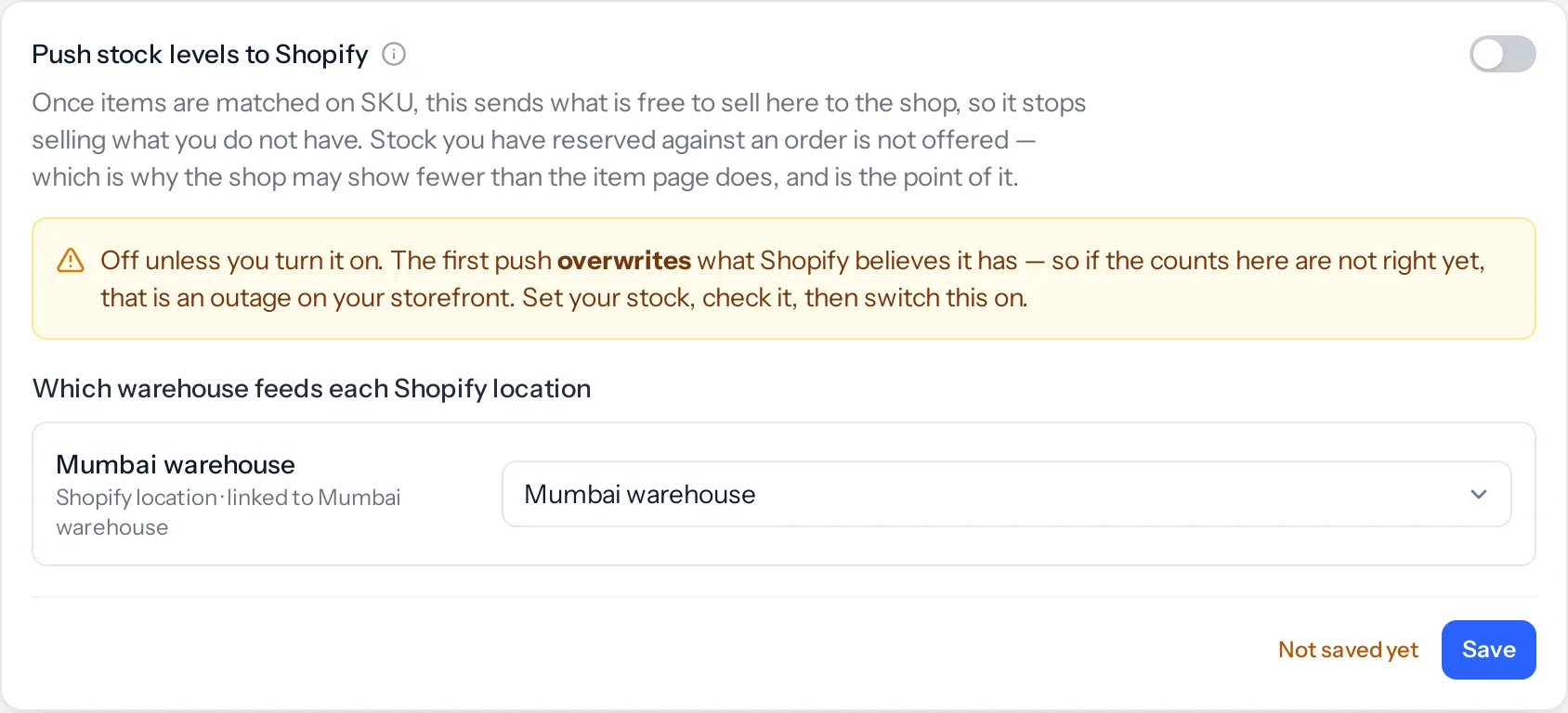
Once items are matched on SKU, this sends what is free to sell here to the shop, so it stops selling what you do not have. Stock reserved against an order is not offered — which is why the shop may show fewer than the item page does, and is the whole point of it.
The first push overwrites what Shopify believes it has. If your counts here are not right yet, that is an outage on your storefront — either it stops selling things you have, or it sells things you do not. Set your stock, check it against a shelf, and only then switch this on.
Each Shopify location has its own row: choose the warehouse whose stock it is told. The rows list the locations the sync has made warehouses of, and any that Test the connection finds. Pair them as the sync did fills each row with the warehouse of the same name. Choose Don’t push to this location to leave one alone, save the card, then switch the push on.
A warehouse feeds one location only. Feeding two would offer the same stock for sale twice, so the screen will not allow it.
On an item linked to Shopify, the line at the top says whether its stock is being sent, and from which warehouse to which location. With the push off it says so: Shopify then keeps its own count, which is why the two can differ.
If you never connect it
The shop and this business are two separate records of the same trade, reconciled by somebody at the end of the month. That works, and it is what most businesses did before. What it costs is the overselling — a storefront that cheerfully takes an order for the last one you sold over the counter this morning.
A worked example
Pixel Perfect Studios connect their shop with read scopes only, switch on products, customers and orders, and leave orders arriving as Draft. For a fortnight they watch orders appear and confirm them by hand, and fix eleven SKUs that did not match. Then they add the write scopes, set the warehouse and location, check a shelf against the item page, and switch on the stock push. The storefront stops overselling the same week.
Something missing or wrong here? Tell us. A question that needed asking usually means a page that needed writing.