
Each person connects their own Google Meet, Microsoft Teams or Zoom once. Nothing is typed into JAI CRM: you sign in on Google’s, Microsoft’s or Zoom’s own page and allow it. From then on, wherever you schedule something, Make one puts a meeting link in for you, made on your account.
Connect your account
- Open Settings › Video meetings, under Just for you. Anybody can: it is your own account, like your email.
- Press Connect Google Meet, Connect Microsoft Teams or Connect Zoom.
- Sign in on their page with the account you meet from, and allow JAI CRM to make meetings.
- You come back connected, with the account shown on the card. Press Try it to make a test link.
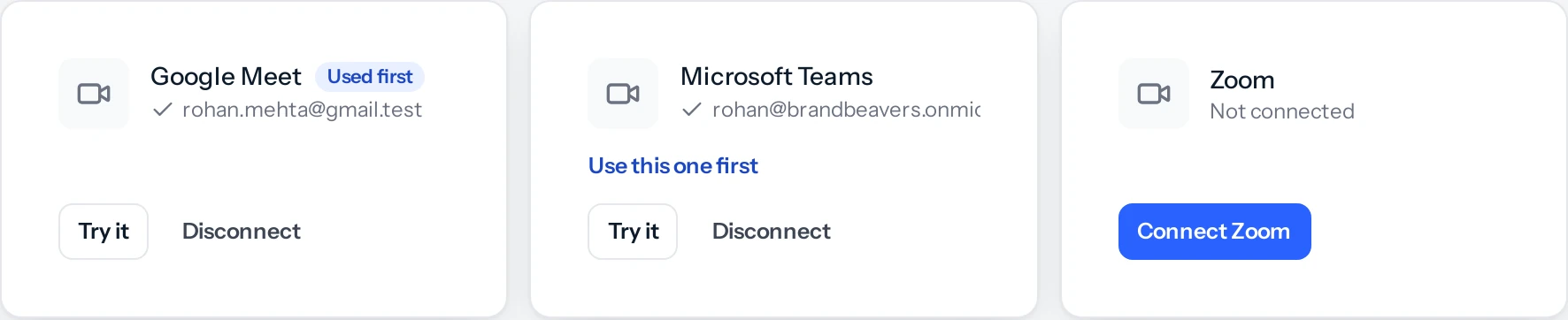
Microsoft makes Teams meetings only for work or school Microsoft 365 accounts with Teams, not for a personal Outlook or Hotmail account.
Make a link
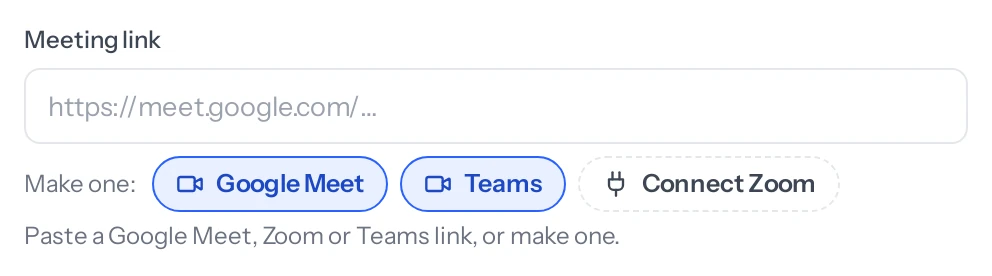
- Charcha: under the meeting link in Schedule a meeting, and when you change a meeting, press Make one and the link fills itself in. In a chat, Attach › A video call link puts a new link into the message for you to send.
- Any record: add a field of the kind Video meeting link in Settings › Fields & rules, to leads, deals, tasks, visits or any module. The field has Make one under it, using the record’s name and time.
- Email: the video button in the toolbar puts a link into the message, as Join on Google Meet and the address.
- Not connected yet? The chip says Connect. A small window opens to sign in, and the link appears the moment you are back; whatever you had typed in the form stays.
- In the Android app, signing in opens in your phone’s browser. Go back to the app when it says so.
Which one is used
The first account you connect is used first, marked Used first. Press Use first on another to change it. Every chip under a meeting link still lets you pick any account you have connected.
What JAI CRM can and cannot do with your account
- It can only make meetings: Meet spaces on Google, online meetings on Teams, meetings on Zoom. It cannot read your calendar, mail, files or recordings.
- Only you can make links on your account. Your colleagues connect their own.
- Disconnect any time from Settings › Video meetings. Links already made keep working. Removing JAI CRM from your Zoom account disconnects it here too.
If it says not switched on yet
Video meetings are set up once for the whole service, by whoever runs JAI CRM. Until then there is nothing to connect, and nothing is needed from you.
Something missing or wrong here? Tell us. A question that needed asking usually means a page that needed writing.