
Press the cog at the foot of the sidebar, or Settings in your avatar menu. Settings opens on one page with every setting you may change, in nine groups, a search box at the top, and the ones you use most just under it.
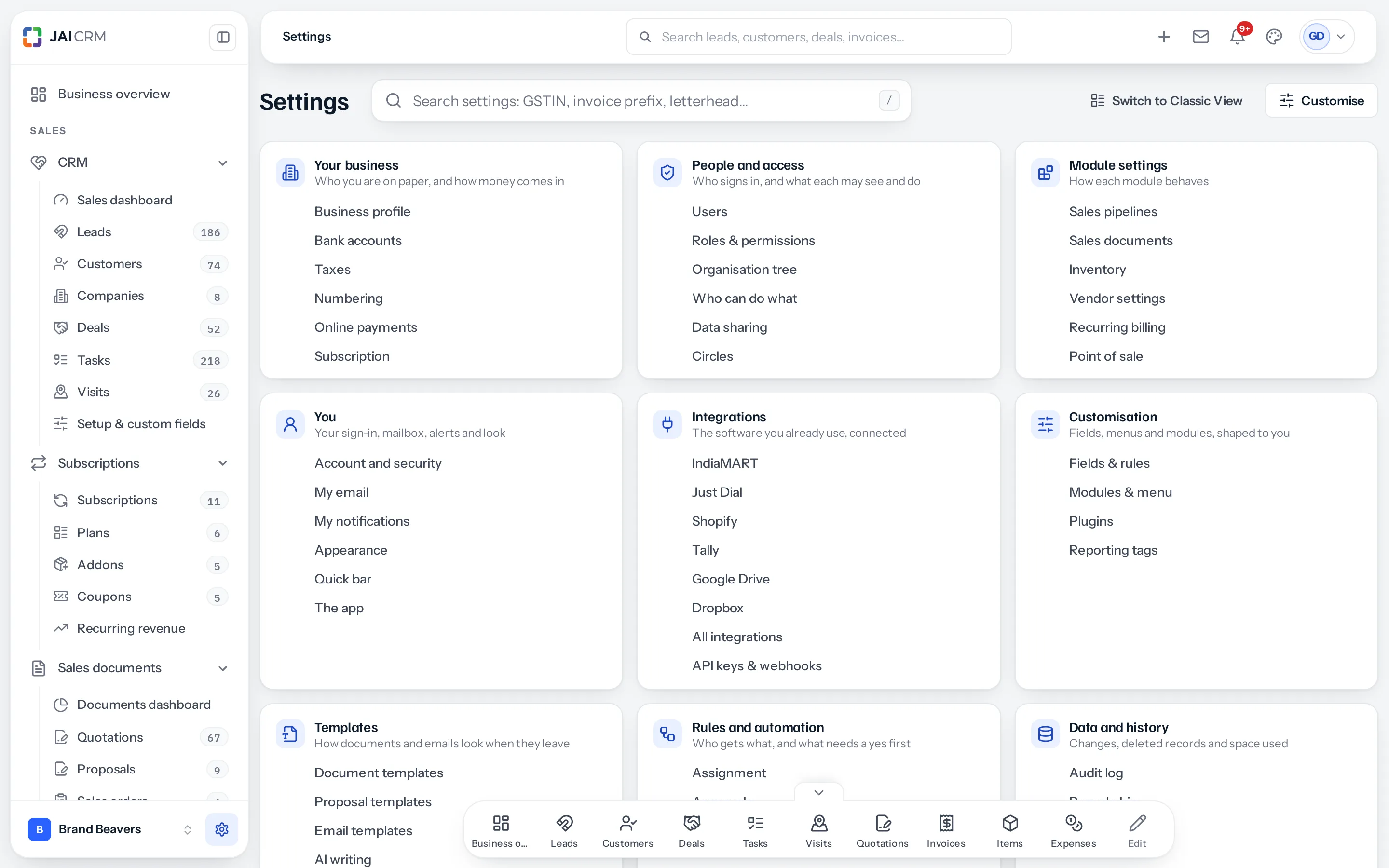
The nine groups
| Group | What is in it |
|---|---|
| Your business | Business profile, bank accounts, taxes, numbering, online payments, and your JAI CRM subscription. |
| People and access | Users, roles and permissions, the organisation tree, who can do what, data sharing, and circles. |
| Module settings | How each module behaves: sales pipelines, sales documents, inventory, vendors, recurring billing and point of sale. |
| You | Your account and password, your mailbox, your notifications, your appearance, the quick bar, and the app. |
| Integrations | IndiaMART, Just Dial, Shopify, Tally, Google Drive and Dropbox, each with its own page, then all integrations, and API keys and webhooks. |
| Customisation | Fields and rules, modules and the menu, plugins, and reporting tags. |
| Templates | How documents, proposals and emails look, and AI writing. |
| Rules and automation | Assignment, approvals and dependency rules. |
| Data and history | The audit log, the recycle bin, and storage. |
Search
Type what you call it, not only what the screen is called. GSTIN finds Business profile, invoice prefix finds Numbering, HSN finds Taxes, password finds Account and security, stages finds Sales pipelines. Each answer names its group. Press Enter to open the first, or the arrow keys to move down the list. Press / anywhere on the page to start typing.
Frequently used
The settings you open most sit under the search box, and at the top of the panel inside every setting. They are counted on the device you use.
Inside a setting
A panel beside the page lists every group, with the setting you are on lit. Settings at its top goes back to the page of groups, its search narrows the list as you type, and each group folds away with its arrow. The round ? opens the guide to the page you are on.
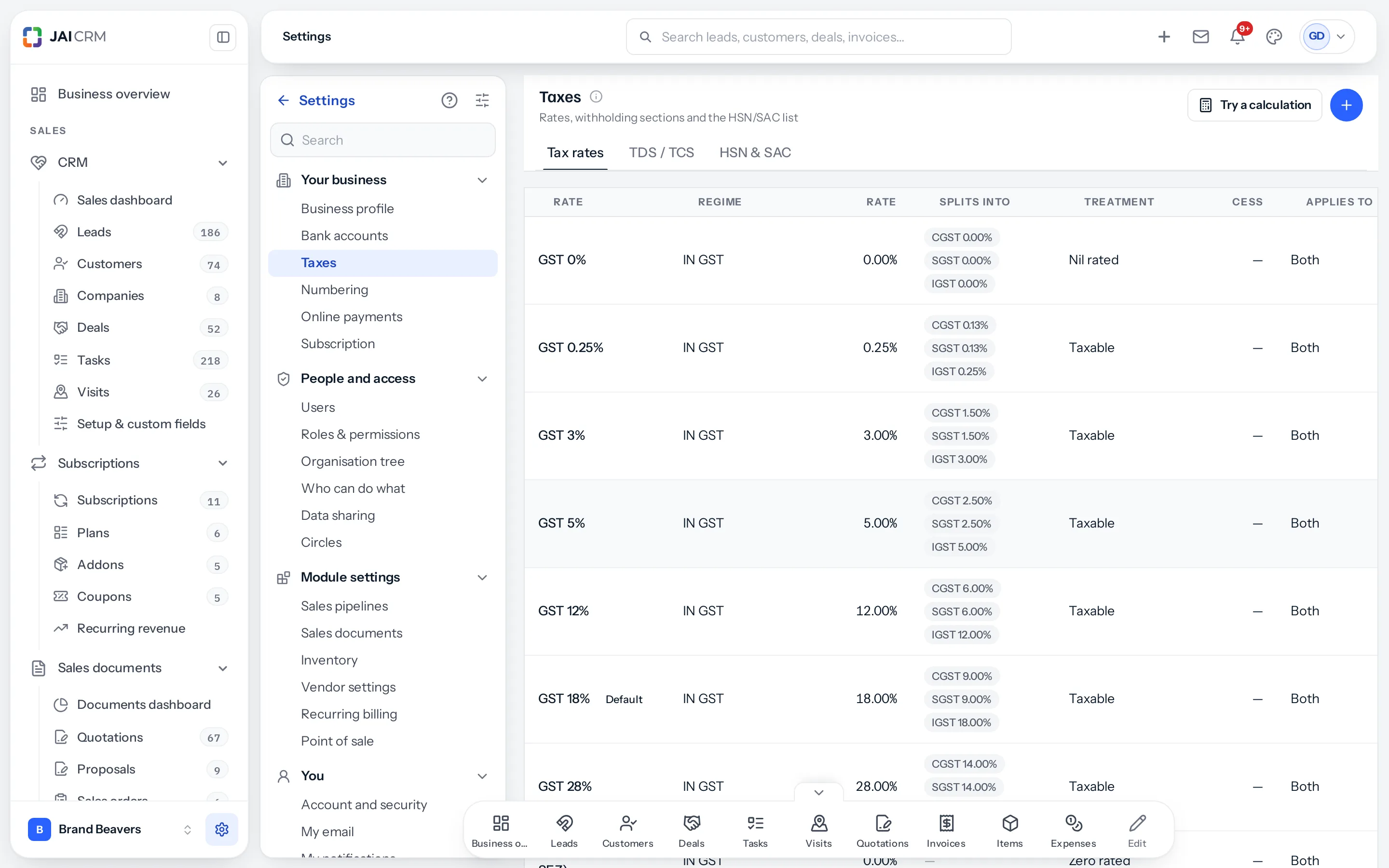
On a phone or a tablet the panel gives way to a Settings button at the top of the page, which goes back to the list.
Arrange it your way
- On the Settings page, press Customise.
- Drag a setting by the handle at its left to move it within its group or into another.
- Drag a group by the handle on its header to put it somewhere else.
- Press ⋯ on a setting to hide it, or on a group to rename or hide it.
- Press Create a group for one of your own, and Add a link under any group for a page of the suite, such as /crm/leads, or an address beginning https://.
- Press Save. Cancel leaves everything as it was, and asks first if you changed anything.
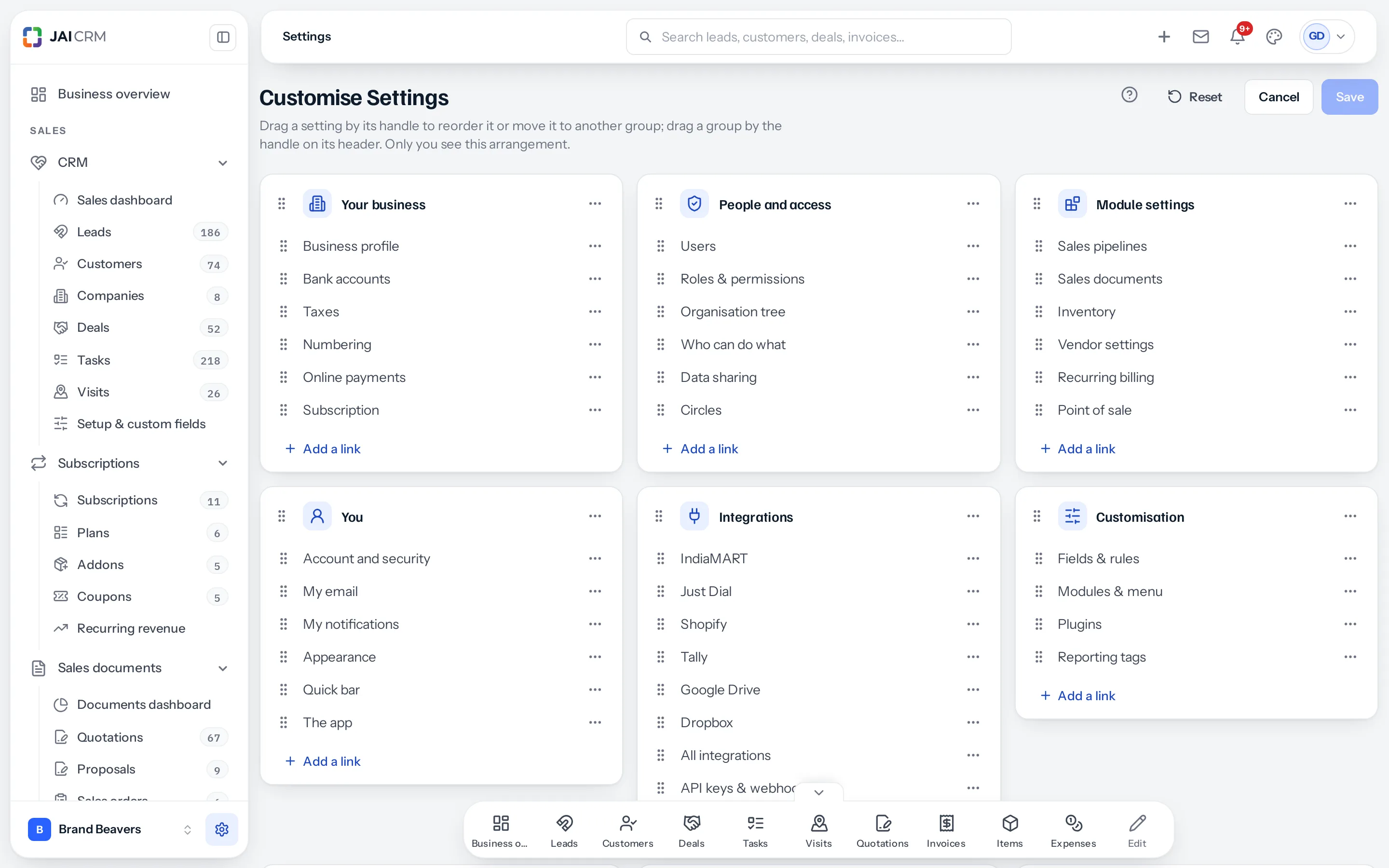
Groups that come with JAI CRM can be hidden but not deleted; a group of your own can be deleted, and what it held goes back to where it came from.
Classic View
Prefer the list down the left of the screen? Press Switch to Classic View beside Customise. Settings then opens on Business profile with every setting listed beside it, as before. Switch to Standard View at the top right brings this page back. Your choice follows you to every device you sign in on.
Who sees what
Each setting shows only to people allowed to open it, so somebody in sales sees a few groups and an owner sees them all. A module’s settings show while that module is on, and an integration’s while it is available to your business. The You group is everybody’s.
Where to go next
Something missing or wrong here? Tell us. A question that needed asking usually means a page that needed writing.