
Each person decides how JAI CRM looks for them, and it follows them to every browser and to the Android app. Nobody else sees your choices. Open the palette icon in the top bar, on a phone as well as a computer, or Settings → Appearance for more room.
The five tabs, in order
| Tab | What it changes |
|---|---|
| Style | How everything is drawn: cards, buttons, inputs, menus, drawers and dialogs. Crystal (frosted glass), Liquid Glass (Apple’s clear glass on controls), Minimalistic (JAI CRM as it has always been), Neumorphism (soft, raised and pressed), Claymorphism (puffy and rounded) or Neo-Brutalism (bold outlines and hard shadows). Choosing a style also sets matching bars and a page. |
| Bars | Choose Both bars, Sidebar or Top bar first, then its shape (Standard, attached, or Rounded, floating beside the page on a computer), its colour (twelve solids, twelve gradients, your primary colour, or a colour or gradient of your own) and whether it is Frosted glass. |
| Page | The background behind your work: plain, a soft glow in your colour, twelve solids, eleven gradients, or your own. |
| Colour | The primary colour of buttons, links and the selected row: solids, gradients, or your own colour or gradient. |
| Saved | Your templates. Press one to put it back on screen. |
Menus that open from a coloured bar take that bar’s colour, so a dark sidebar opens a dark menu with light words. Cards, lists and tables keep figures sharp in every style.
The quick bar along the bottom
A bar along the bottom keeps the screens you use most one tap away, on a phone or a computer. It is on for every business; it is switched for everyone in Settings → Modules & menu, not here. What is on it is yours: press and hold any icon, or tap Edit at its end, to drag tiles into order, tap × to take one off or + to add any screen from the menu. It takes the top bar’s colour and shape, shows only what you may open, and uses the same icons as the sidebar.
Putting the quick bar away
A small tab sits on the top edge of the bar. Press it, or pull it down, and the bar slides off the screen, leaving only the tab with an arrow; press it, or pull it up, to bring the bar back. Put away, every page gets its foot back. This device remembers your choice.
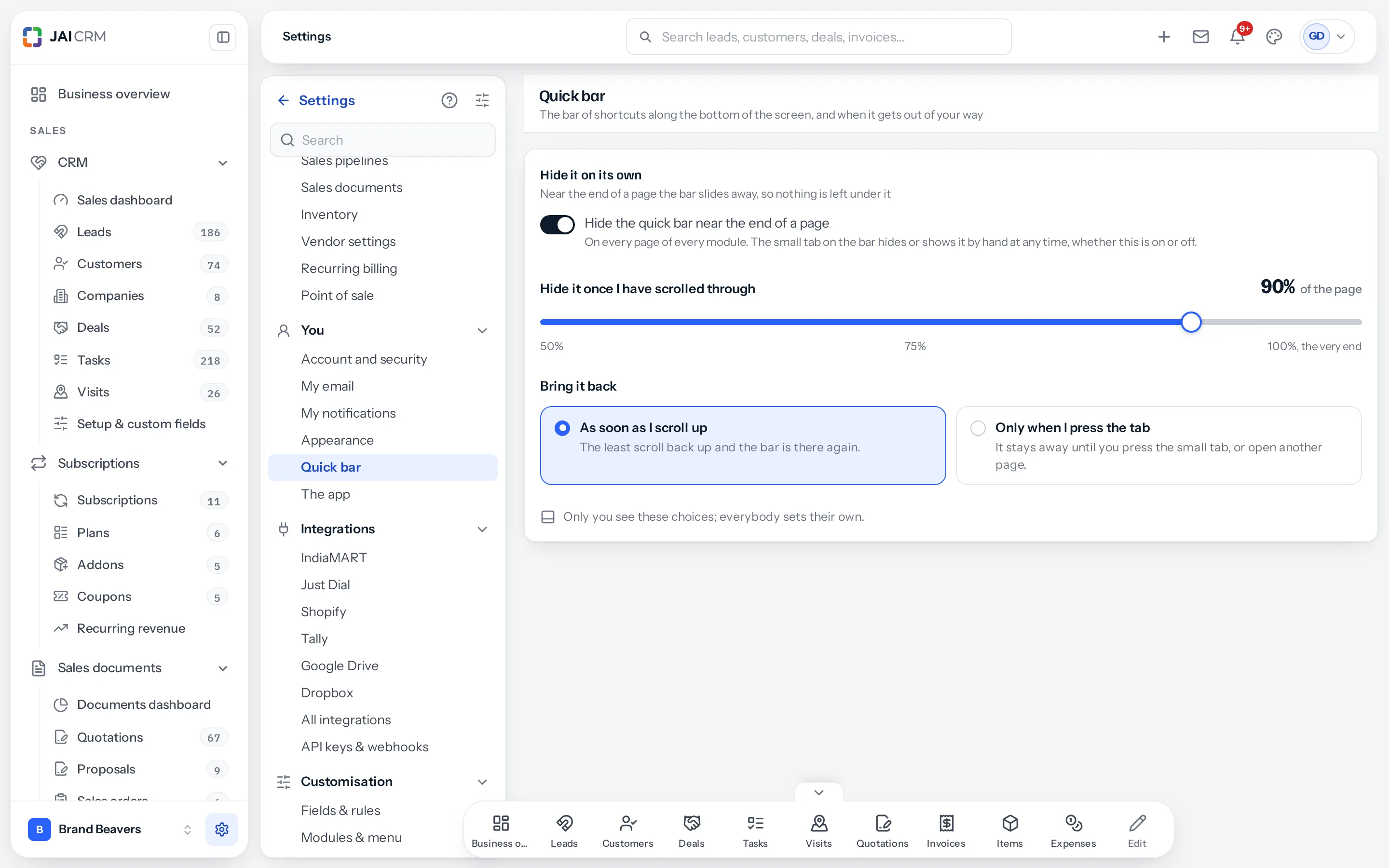
The bar also gets out of your way by itself: scroll down to the last tenth of a page and it fades as it slides away, so nothing at the end is left under it. The least scroll back up brings it back. You decide how it behaves in Settings › You › Quick bar:
| Choice | What it does |
|---|---|
| Hide the quick bar near the end of a page | On or off. Off, it stays until you put it away with the tab. |
| Hide it once I have scrolled through | How far down a page, from 50% to 100% in steps of five. 90% to start with. |
| Bring it back | As soon as I scroll up, or Only when I press the tab, when it stays away until you press the tab or open another page. |
Save your choices as a template
- Set the style, bars, page and colour the way you like them.
- Press + Save at the bottom of the panel, give it a name such as Month end, and press Save.
- Later, open Saved and press the template to use it again. You can keep up to twelve.
To change a template, press its pencil: it opens in Settings → Appearance, where you change anything and press Save changes, or rename it. To remove one, press its bin and confirm. Deleting a template does not change what you see now.
Light, dark or system
Under Mode, choose Light, Dark or System. System follows your device as it changes. Every style works in both, and mode is not part of a template.
The business default
Somebody who manages the organisation settings sets what everyone starts with. The quickest way is Settings → Appearance: arrange it, then press Make this the business default. Light or dark, and a default style and colour, are also in Settings → Business profile → Appearance. People who have chosen their own keep theirs; Use that instead at the bottom of the panel goes back to the business default.
Good to know
- A very light colour of your own is drawn a little darker, so that white text on buttons stays readable; a pale bar is darkened in dark mode so it does not glare.
- Documents you send, such as invoices and quotations, are printed and emailed the same whatever you choose, and anything printed from the browser prints on white.
- On a browser too old to draw glass, glass is drawn solid instead.
Something missing or wrong here? Tell us. A question that needed asking usually means a page that needed writing.