
A vendor form that demands everything on day one does not get filled in. It gets filled in wrongly, because somebody on a phone call needs to save the record and types whatever the field will accept.
So this one asks for four things, and lets the other eight steps wait.
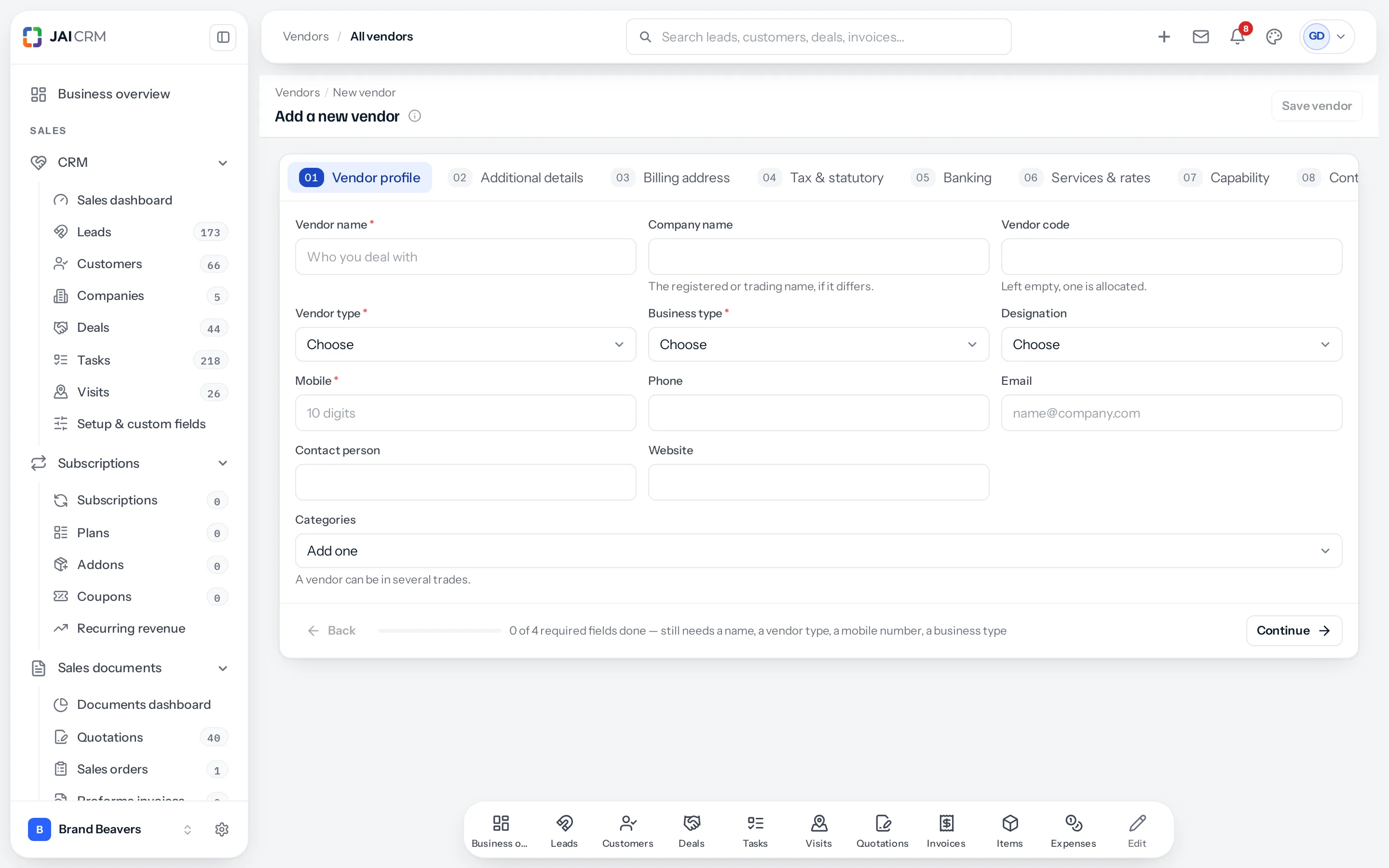
The four you cannot skip
| Field | Why this one |
|---|---|
| Vendor name | Who you deal with. The obvious one. |
| Vendor type | What kind of supplier they are. It drives how they are grouped and reported on. |
| Business type | Proprietorship, partnership, private limited. It matters for TDS and for who signs. |
| Mobile | Ten digits. A vendor you cannot reach is not a vendor. |
Save with those four and the vendor exists, in the pool stage — collected, nothing verified.
The nine steps
| Step | What it holds | When to fill it |
|---|---|---|
| 1. Vendor profile | Name, code, type, contact, categories. | Now. |
| 2. Additional details | Mobile 2 to 4, Phone 2 and 3, Email 2 and 3, More details, and any field your business put there in Fields & rules. | When they give you more than one number or email. |
| 3. Billing address | Registered and billing address. | Before the first order. |
| 4. Tax & statutory | GSTIN, PAN, MSME, GST treatment, TDS. | Before the first bill. |
| 5. Banking | Account, IFSC, and whether anybody has checked it. | Before the first payment. |
| 6. Services & rates | What they supply and what they charge. | When you know. |
| 7. Capability | Rating, how they work, team size, response time. | After the first job. |
| 8. Contacts & notes | The people, and anything the next person needs. | As you learn it. |
| 9. Access & agreements | Portal sign-in, privacy, confidentiality. | If you give them a login. |
Fields your business added to vendors in Fields & rules show on Vendor profile, or on Additional details if that is where they were put.
Leave Vendor code empty and one is allocated for you. Type your own only if you already have a numbering scheme people know by heart.
Categories, not category
A vendor can be in several trades — a printer who also does design, a transporter who also warehouses. Add as many as apply. Filtering on “who can print” then finds them whichever trade you think of them by.
A sensible habit
- Add them with the four fields while you are still on the call.
- Fill in tax and banking when a real order is coming, because that is when the details actually matter and when the vendor will bother to send them.
- Fill in capability after the first job, when you have an opinion worth recording.
The record grows with the relationship. That is the intended shape, not a shortcut.
Where to go next
Something missing or wrong here? Tell us. A question that needed asking usually means a page that needed writing.