
Five people need the Leads list and only two of them should see everybody’s leads. The storeman who writes off damaged stock should not be the one who posts the write-off. Your accountant needs every invoice in the business and none of the payroll. Those are the same question asked three times: who may open a screen, what they may do on it, and whose records they see. A role is where you answer it.
What a role is
A role is a named list of grants. One grant covers one screen — crm.lead, sales.invoice, inventory.adjustment — and says two separate things about it: which actions are allowed, and which records those actions reach. Roles live at Settings › Roles & permissions.
A person can hold more than one role. There is no primary role and no ranking between them: every role somebody holds is read on every request and the results are added together. A person with no role holds nothing, and every screen refuses them.
A person’s record in Settings › Users also carries a Permissions tab: what that one person may do when they have no role. A role replaces it entirely. Roles are the tool; the procedure for a person’s own permissions is further down.
Opening the screen
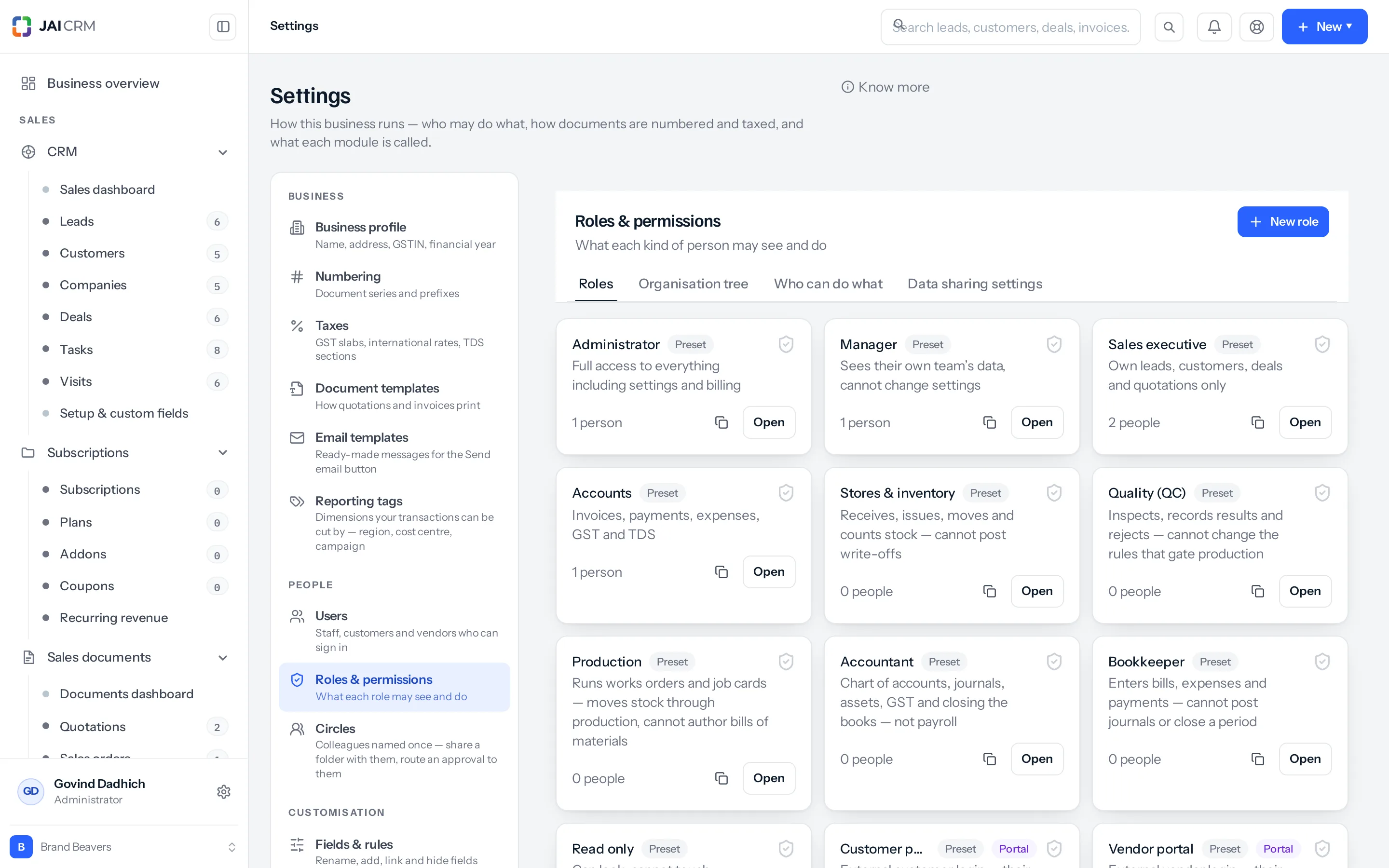
- Go to Settings › Roles & permissions. Opening it needs Roles & permissions: View.
- The Roles tab lists every role as a card with the number of people on it, a Preset badge where the role ships with the product, and a Portal badge on the two outside logins.
- Click Open on a card for the role dialog: name, description, Reports to, Share data with peers, Portal role, the permission grid, and the warehouse restriction.
- New role needs Roles & permissions: Create. Saving an existing one needs Edit. The Data sharing settings tab opens on View; changing an organisation-wide default or writing a sharing rule there needs Manage.
- The other three tabs are Organisation tree, which draws the reporting chart, Who can do what, which lays every role out against every screen, and Data sharing settings, which holds the organisation-wide defaults and the sharing rules.
The "Who can do what" tab
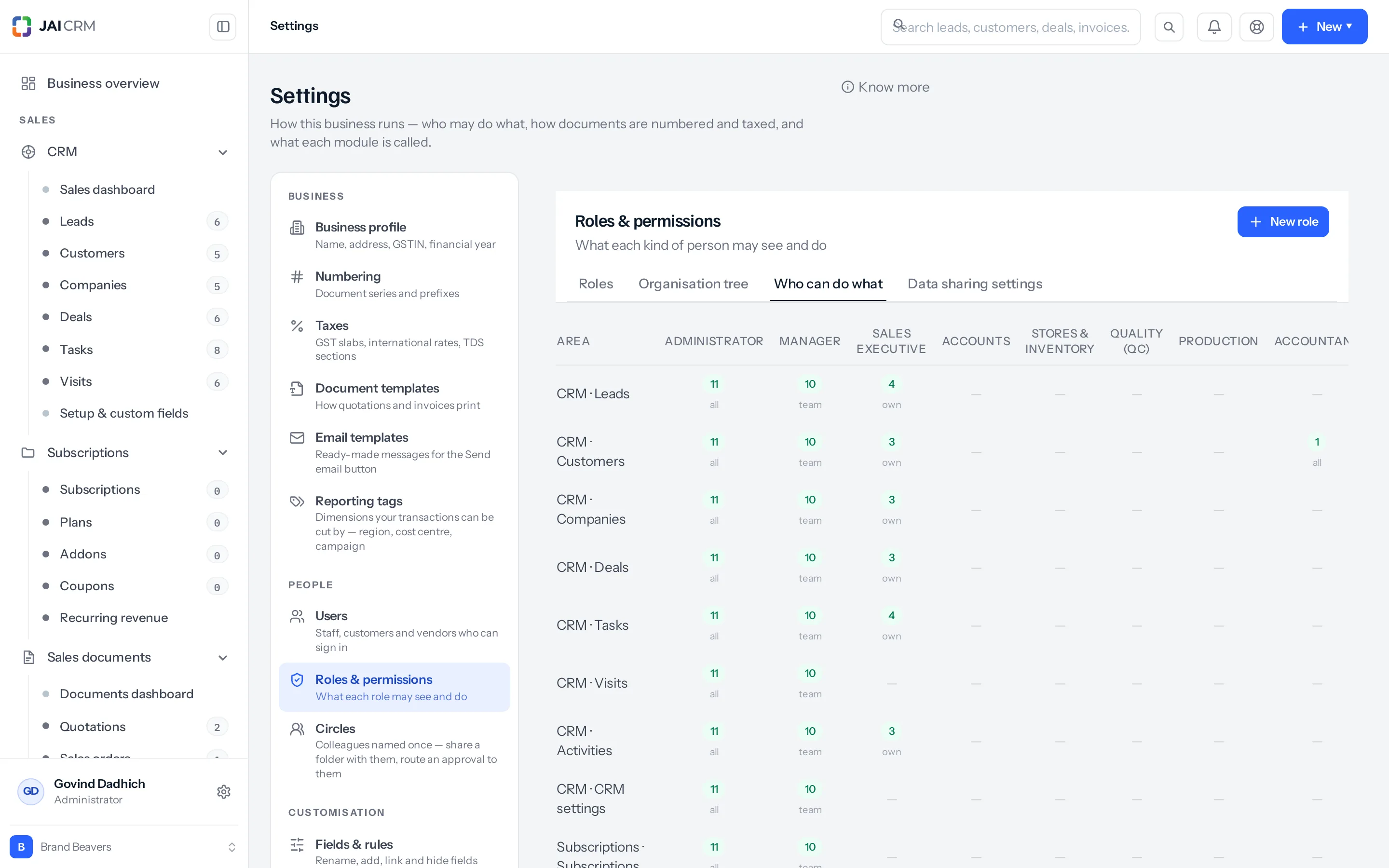
This is the tab that answers the question people actually ask. Every role is a column, every screen in the modules your plan includes is a row, and each cell says how many actions that role holds there and at what scope — a dash where it holds none. It is the one view that answers “who can delete an invoice?” without opening five roles one at a time. Each cell is worked out the way a request is, so a module-wide row and a Manage tick read as access rather than as a dash. The two portal roles are left out: the columns are your staff roles, in the order the Roles tab lists them.
The permission grid
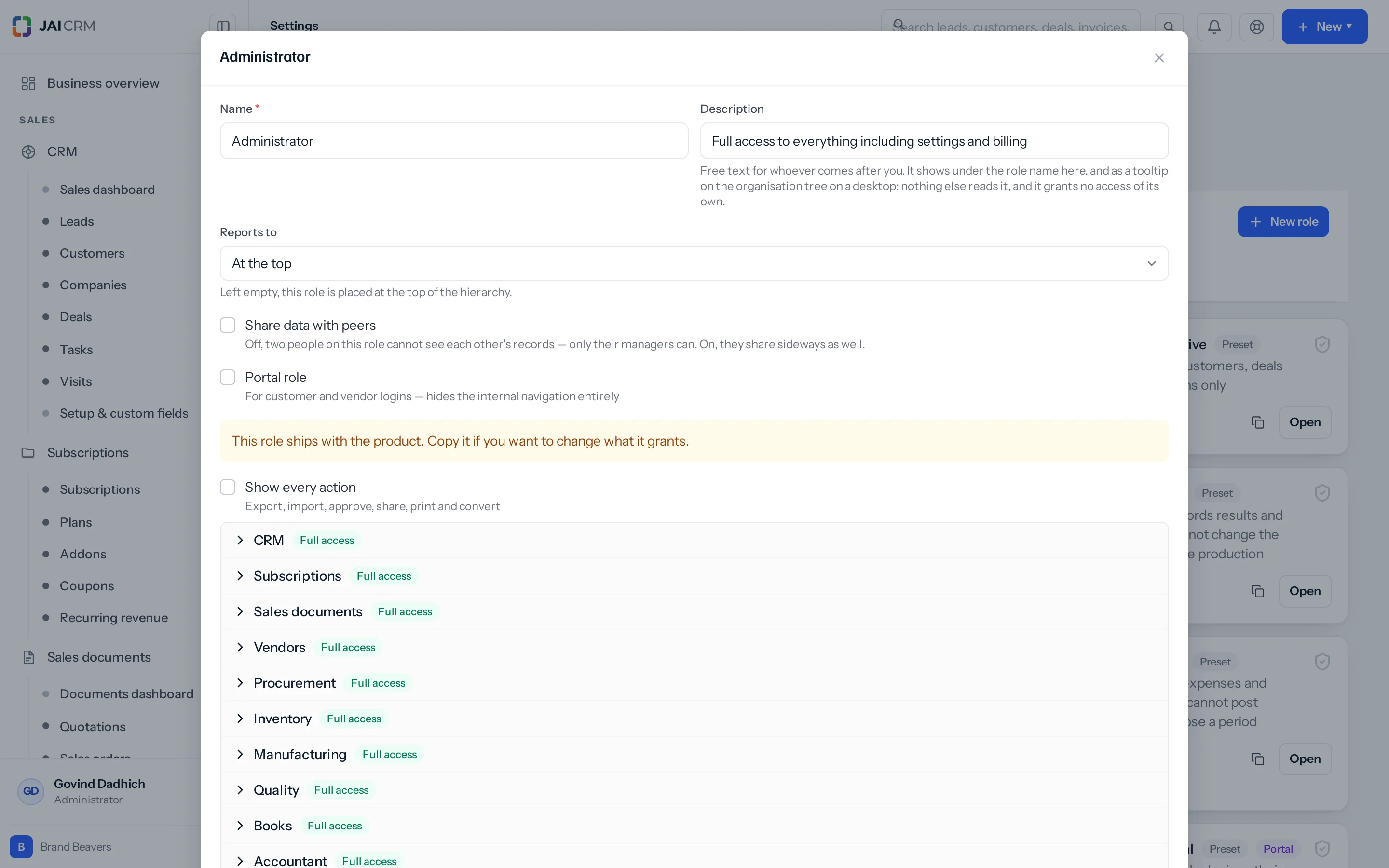
The grid lists every module in the product. Click a module name to expand it and you get one row per screen inside it. Each row is one grant.
- Four tick boxes are shown by default: View, Create, Edit, Delete.
- Show every action at the top reveals the rest — Export, Import, Approve, Share, Print, Convert and Manage — on the rows that offer them.
- All access at the end of a row ticks every action that row offers. All access on the module heading does the same to every row inside it, and writes a module-wide row of its own as well — which is worth knowing about, and is the last note on this page.
- A dropdown appears at the end of a row as soon as one action is ticked. That is the data scope, and it is a separate question — see below.
A row only offers the actions that make sense on it. There is no Approve on Customers, no Convert on Items, no Create on Quality inspections (they are raised by the rule engine, not by hand). The save refuses an action the row does not list, so a permission map sent by an integration is checked the same way the screen is — with one exception, at the foot of the grid. The rows under Modules you added are drawn from the modules this business defined for itself, and the save knows only the modules that ship with the product. Tick one and the save answers “Some of those permissions do not exist”, and refuses the whole role rather than that one row; the same happens on a per-person exception. Until that is mended, a module you added yourself can be opened by the account owner and by nobody else.
What each action means
| Action | What it grants | Worth knowing |
|---|---|---|
| View | Open the list and open a record. | Without it the module is not in the sidebar the server hands out, and going to the address by hand gives “You do not have permission to view leads”. |
| Create | Raise a new record. | Creating is also asked for at the far end of a conversion — see Convert. |
| Edit | Change an existing record, including moving it through its statuses. | Sending a sales document out asks for Edit, not Approve. What holds a sales document back is an approval rule, not this tick box. |
| Delete | Remove a record. | Deletion is a soft delete; the audit log keeps who did it. |
| Export | Download a list, a register or a report as a file. | Granted separately from View on purpose: reading 1,180 invoices on screen and walking out with them in a spreadsheet are different acts. |
| Import | Upload a file of records into a list. | Offered on the lists that accept one — CRM records, sales documents, item categories, custom modules. |
| Produce the printable version of a document. | Read on sales and purchase documents and nowhere else. The grid also offers Print on bills of materials, assemblies, packages, manufacturing orders, the warranty register and subscriptions, where no route asks for it: ticking it there grants nothing and withholding it stops nothing. | |
| Share | Put a document on a customer-facing link, share a file in Documents, or mark a dashboard as shared. | This is what mints the token an outsider can open. The tick on the Reports row is read by nothing — a saved report carries a shared flag with no route behind it. |
| Convert | Turn one record into another: a lead into a customer, a quotation into a sales order, a proforma into an invoice, a sales order into a purchase order. | Two permissions, not one — see the note below. |
| Approve | Decide, rather than do — on the modules where an act is the sign-off. On the sales documents it grants something narrower; see below. | Never lets somebody approve their own request unless the approval rule was written to allow it. |
| Manage | Configure the thing, rather than use it. | It is not a fifth tick box — see below. |
Convert is two permissions. The route asks for Convert on the document you are starting from and Create on the thing being made. The shipped Sales executive role holds Convert on quotations and Create on sales orders and proformas, so a salesperson turns their own quotation into either. It holds no Create on invoices: invoicing is Accounts’ job, and Accounts converts the sales order. The menu on the document is drawn from the Convert tick alone, so on a role you make yourself, tick Create on the target as well, or “Convert to sales order” is offered and the press comes back “You do not have permission to create sales orders”. And note which document each conversion hangs off: the purchase order is raised from the sales order, not from the quotation.
What "manage" actually confers
Manage is the configuration action: creating a GST return record, setting a transaction lock, connecting Shopify or IndiaMART, adding or removing a branch, editing a sharing rule, setting one person’s permission overrides. It appears only on the rows where there is something to configure — the settings screens, the per-module preference rows, GST summary, transaction locking, the integration setup pages. Changing the business profile itself is not on that list: the name, the address, the GSTIN and the rest ask for Business profile: Edit. What asks for Manage on that row is adding or removing a branch, and the handful of organisation-wide settings stored alongside the profile — one of which is in the organisation tree section below.
Each integration has its own set-up permission on a role, such as IndiaMART setup or Tally set-up. Anybody holding at least one of them sees Settings › Integrations, where all six integrations are set up.
The part people get wrong: holding Manage on a row turns on every other action on that row. The permission check is written that way in both the API and the browser — if the grant carries Manage, every question asked about that row is answered yes. Ticking Manage on Settings › Users and leaving View, Create, Edit and Delete clear gives that person all four anyway. It also counts as holding everything for the “you can only give away what you hold” check further down.
So Manage is the widest tick in the grid, not a niche one. Tick it when you mean “this person runs this area”, not when you mean “this person may change a setting”.
What "approve" actually confers
Approve means two different things depending on where you tick it, and only one of them is what the word suggests.
On the modules where an act is the sign-off, Approve is the gate on that act. Posting a stock adjustment asks for it. Dispatching a stock transfer, receiving one and closing one short all ask for it. Confirming and releasing a manufacturing order ask for it, because committing materials and machine time to a job is a sign-off, not a correction. Posting a manual journal, paying a payroll run, approving or blocking a vendor, approving a timesheet, sending from the notification queue, issuing a debit note: all of them. So does approving an expense in Books: Approve sits beside Pay on an expense that is still owed, and the person who recorded it is told. A purchase bill is one record: it is listed under Procurement, Purchase bills, and under Books, Purchase bills only for a business without Procurement, and either way it is the same list under the Purchase bills permission. Somebody without Approve on those rows can raise the document and cannot commit it.
Issuing a purchase order does not ask for Approve, whatever the row suggests. A purchase order goes from Draft to Open when it goes to the vendor, and a purchase bill goes from Draft to Open when it stands as something owed. The only purchase document with an Issued status is the debit note, and the status route asks for Approve on that one word — so every other status change on a purchase order or a purchase bill asks for Edit. Withholding Approve on Purchase orders to stop a buyer committing the business’s money to a supplier withholds nothing. Withhold Edit, or put an approval rule on the module.
On the eight sales document types, Approve gates nothing about sending, and it does not decide who may rule on an approval either. Sending a quotation or an invoice asks for Edit, deliberately: gating it on Approve would read as a tighter control and work as “Sales cannot sell”. What Approve does on those rows is let somebody read the approvals queue — a request comes back to whoever raised it, to whoever the waiting step names, and to anybody holding Approve on that module. Reading the queue is the whole of it.
Only the people the waiting step names may approve or reject, and a step names them one of four ways: a person, a role, a circle, or “whoever they report to”. Anybody else is refused with “This is waiting on somebody else”, Approve or no Approve. Nor is Approve permission to approve your own work: whoever raised the request is refused with “You raised this, so you cannot approve it. That is what an approval is for.” — unless the rule was written with self-approval allowed. The Approvals screen lists only what you can actually decide, so somebody holding Approve on Invoices whom no rule names opens it and finds it empty. If you want a second pair of eyes on invoices over ₹2,00,000, write the rule and name the step; ticking Approve on the row does not do it.
The four data scopes
The dropdown at the end of each row answers a different question from the tick boxes. The tick boxes say what; the scope says whose. There are four values. Three are in the dropdown; the fourth is what a row with nothing ticked resolves to.
| Scope | Shown as | Which records it reaches |
|---|---|---|
| none | (no tick boxes ticked) | None. The route refuses and the list comes back empty. |
| own | Their own records | Theirs, what they created, what they are named on, and whatever anybody below them in the role tree owns — plus their peers’ records where the role has Share data with peers ticked. |
| team | Their team’s records | Everything “own” reaches, plus everything owned by anybody who shares a circle with them. |
| all | Everything in the business | Every record in the module, with no ownership test at all. |
Nothing
There is no “Nothing” option in the dropdown because clearing every tick box is how you say it — the row disappears from the role’s grant map. Give the Warehouse assistant role nothing on Leads and Vikram Joshi’s sidebar has no Leads row; typing the address by hand returns “You do not have permission to view leads”.
Their own records
This is the default on every new grant. Somebody sees a record when any one of these is true: they own it; they created it; their name is in Assigned to; their name is in Mark to; somebody in a role that reports to theirs owns it; a peer on a role that shares sideways owns it; a sharing rule reaches them; or the module’s organisation-wide default is set to anything but Private.
Worked example. Rakesh Meena at Shree Balaji Traders, Jaipur, holds Sales executive. Leads is set to Their own records. He opens Leads and sees his own 42, plus the 3 Priya assigned him, plus 1 she marked him on. Sunita Khandelwal’s 51 leads are not on the list and searching for one by name returns nothing. The lead he was only marked on he can read and cannot change — being copied in is not being given the record.
“Their own” falls back to whoever entered the record wherever there is no owner, and that is a general rule rather than a short list of exceptions. Items, Expenses and Payments are named in the code because their answer is the creator even though an owner column might be expected; everywhere else the server looks for an owner column, then for a creator column, and narrows by whichever it finds first. So journals, stock movements, transfers, goods receipts, packages, assemblies, bills of materials and quality inspections are all narrowed by whoever entered them.
Their team's records
Everything above, plus every record owned by anybody who shares a circle with them (Settings › Circles). Circles only — a group is a project roster and may hold a client contact or a supplier, and being named on the same project is not a reporting line.
Worked example. Priya Nair holds Manager, set to Their team’s records. In the shipped tree, Sales executive, Accounts, Stores & inventory, Quality, Production and Read only all report to Manager, so she sees the leads, quotations, expenses and stock adjustments owned by everyone holding any of those — Rakesh’s 42 and Sunita’s 51 both. She is also in the circle “Jaipur desk” with Anil Sharma, who holds Accountant, a role that reports to Administrator and not to hers. Because they share a circle, his journals appear on her list too. Adding somebody to a circle widens what every other member of that circle sees.
Everything in the business
Every record in the module, whoever raised it, with no ownership test run at all.
Worked example. Meena Agarwal holds Accounts, whose Invoices row is set to Everything in the business. She sees all 1,180 invoices — ₹4.62 crore of them — Jaipur and Udaipur, including the ones Rakesh’s quotations became. That is the right setting for a bookkeeping job: an invoice register narrowed by who typed it is not a register.
“Their own records” narrows nothing on a module whose records say nothing about whose they are. Warehouses, work centres and job cards belong to the business, so there is no column to filter on and the server does not invent one — the list comes back whole, and the dropdown still offers the setting. Bills of materials and quality inspections are not in that group, whatever they look like: both record who created them, so “Their own records” narrows them to the creator. Set Quality inspections to Their own records believing it a no-op and every inspector is cut down to the inspections they happened to enter.
Two of those three can be narrowed the other way instead. Warehouses and work centres both record a place, so they can be ticked under the warehouse restriction further down this page. Job cards can be narrowed neither way: no owner, no creator, no warehouse and no branch, so everybody holding the grant sees all of them.
The role tree is read even at “Their own records”, and so is Share data with peers. Scope decides whether circle mates are added; it does not switch either of those off. Put a role underneath somebody set to Their own records and that person starts seeing what the junior role’s holders own. Tick Share data with peers on a role set to Their own records and everybody on that role starts seeing each other’s records. In the shipped presets nothing reports to Sales executive or Read only and no preset shares with peers, so neither shows until you make it show.
Anything but Private in Data sharing settings › Default organisation permissions defeats the scope entirely. Set Leads to Public (Read Only) and everyone with View on Leads sees every lead, whatever their role says — the ownership test is not run, because there is nothing left for it to add. The two settings below it go further: Public (Read/Write) lets everybody holding Edit change anybody’s record, and Public (Read/Write/Delete) lets everybody holding Delete delete anybody’s, whatever their scope. The default is Private on every module, and it is the first place to look when somebody sees, changes or deletes more than their role explains.
Scope and actions are separate questions
Nothing in the grid pairs an action with a scope. One scope governs every action ticked on that row.
Give Rakesh Delete on Tasks at Their own records and he deletes what that scope reaches: his own tasks, the ones he created, the ones he is assigned, and anything owned by somebody on a role beneath his. Not “his own and nobody else’s” — a task his manager assigns him is a task he can delete, and it was never his. Being marked on one is the exception: Mark to grants reading and stops there. Change only the dropdown to Everything in the business and the same tick box deletes anybody’s task in the company. The reverse holds too: Everything in the business with only View ticked lets somebody read all 1,180 invoices and change none of them. Both halves are checked, separately, on every request — the action at the door, the scope on the record.
How two roles combine: the wider wins
When somebody holds two roles, each row is merged like this: the actions are added together, and the widest scope is kept. The two halves are merged independently. The scope that came from one role attaches to the actions that came from the other.
Worked example. Rakesh holds Sales executive, which grants Leads: View, Create, Edit, Import and Convert at Their own records. You want him to see the rest of the desk’s pipeline, so you add a second role, “Jaipur desk lead”, granting Leads — View, Export at Their team’s records. You have granted reading twice and writing once.
What he actually holds is View, Create, Edit and Export at Their team’s records. He can now edit and reassign every lead the desk owns, including Sunita’s 51. Neither role said that. The role that gave Edit said “their own”; the role that gave “team” said view only. Merging does not keep them paired.
What to do instead. Leave him on one role and write a sharing rule in Data sharing settings › Sharing rules from Sunita’s role to his, set to Read Only. A rule grants reading without granting writing, and the product holds the line: opening one of her leads works, changing it answers “You can see this lead but not change it — it is shared with you for reading.”
Two more merge rules worth knowing. Field-level restrictions work the opposite way round — a field is hidden only if every one of the person’s grants hides it, and read-only only if every grant makes it read-only, so one permissive role shows the field. And a person’s own overrides from Settings › Users are merged on top in the same way.
There is no deny tick in the grid. Everything in it adds. To take access away you remove it from the role that grants it, or take that role off the person. Adding a narrower second role does nothing, because the wider one wins.
One person's own permissions
Since 3 October 2026 the rule is simple, in every business: a role replaces a person’s own permissions. Somebody with one or more roles gets exactly what those roles give, nothing more and nothing less. Somebody with no role gets exactly their own permissions. Ticking or unticking a role never changes or deletes their own permissions: they are kept, and apply again the moment the last role is removed.
- Go to Settings › Users, open the person, and choose the Permissions tab. It is there while you are inviting somebody too.
- Tick what this person may do and save. It is a plain grid of their own, the same as on a role, with nothing from any role mixed in.
- If a role is ticked on the Details tab, an amber note says Not in use: this person has a role. What you set is kept for later and applies only if every role is removed.
Saving a person’s own permissions needs Users: Manage; editing their details needs only Users: Edit, and the permissions are sent only when you changed them. Either way an entry goes in Settings › Audit log of type permission change, with the whole set before and after.
The roles that ship with the product
Twelve preset roles are created with every business, already arranged into a reporting tree. The tree is not decoration: “Their team’s records” reads it, so a manager with nothing beneath them would see only their own work.
| Role | What it is for | Scope it ships with | Reports to |
|---|---|---|---|
| Administrator | Everything, including Settings and billing | Everything in the business | Top of the tree |
| Manager | Runs a desk. Every action except Manage on everything outside Settings, except payroll and the employee register | Their team’s records | Administrator |
| Sales executive | Own leads, customers, companies, deals, visits, quotations, proposals, sales orders and proformas. Converts and imports leads; no Export and no Delete. Reads and shares their invoices; reads items, stock and price lists, and their own commission | Their own records | Manager |
| Accounts | Invoices, bills of supply, retainer invoices, credit notes, payments in and out, purchase bills, debit notes, expenses, bank, GST, TDS, the Tally export. Opens customers, vendors and items, and invoices orders by converting them | Everything in the business | Manager |
| Stores & inventory | Receives, issues, moves and counts stock. Raises write-offs, cannot post them | Everything in the business | Manager |
| Quality (QC) | Inspects, records results and rejects. Reads the rules, cannot change them | Everything in the business | Manager |
| Production | Runs works orders and job cards and signs them off. Reads bills of materials, cannot author them | Everything in the business | Manager |
| Accountant | Chart of accounts, journals, templates, budgets, fixed assets, GST, TDS. Not payroll | Everything in the business | Administrator |
| Bookkeeper | Enters bills, expenses and payments. Reads the ledger, cannot post to it or close a period | Everything in the business | Accountant |
| Read only | Can look, cannot touch. View on everything outside Settings, except payroll and the employee register | Everything in the business | Manager |
| Customer portal | Outside login: their own quotations, orders, invoices, credit notes, projects and files | Their own records | No superior, deliberately |
| Vendor portal | Outside login: their own purchase orders and bills | Their own records | No superior, deliberately |
Each of these earns a sentence, because several are not what their name suggests.
- Manager is “team”, not “everything”. Two managers of two desks see nothing of each other’s work, because neither reports to the other. A senior manager above both sees both. Where two managers should see each other, say so deliberately — tick Share data with peers on a shared role, or write a sharing rule between the two roles.
- Manager keeps View on Users and Circles at Everything in the business, so somebody arranging cover can find a name outside their own desk. That grant reads names, not records.
- Accounts is “Everything in the business” on purpose. A bookkeeping job has no owner to narrow by. It does not carry payroll or the employee list.
- Accountant has no payroll and no employee list either, deliberately: somebody who files GST has no business reading everybody’s CTC and PAN.
- Salaries are the Administrator’s alone. No other preset opens Payroll or the employee register, Manager and Read only included. Give them to somebody by ticking them on that person’s role.
- Sales executive cannot export or delete. It converts and imports leads, and imports customers and companies, but a list of leads leaving the business in a spreadsheet is the leak most owners worry about, so Export is left for the roles above it.
- Stores raises adjustments and cannot post them. The role has View, Create and Export on Adjustments and not Approve — a write-off signed off by the person who wrote it is not a control. Somebody with Approve has to post it.
- Quality reads the rules and cannot edit them. Activating a quality rule — the act that makes it gate production — asks for Edit on Quality rules, so withholding it genuinely stops an inspector switching off their own gate.
- Production moves stock while holding only View on it. Starting a works order consumes components, completing one produces finished goods and cancelling returns them; all three ask for Edit on Manufacturing orders and no inventory permission at all. That is the module’s design. If you do not want this role moving stock, do not give it Manufacturing orders.
- Production holds Approve on manufacturing orders, because confirming and releasing ask for it. A junior operator role can be given the rest of that list without it.
- The two portal roles have no superior on purpose. Putting a customer into the staff tree would make them somebody’s subordinate, and therefore reachable by whoever sits above them. They are also left off the organisation chart altogether and out of every Reports to list, so you will not find them there to move.
Where customers and vendors sign in
The two portal roles are for outside logins. Give one in Settings, Users, Invite user: set Kind to Customer portal or Vendor portal, choose their customer or vendor record, and send the invitation. They set a password from the email and sign in at app.jaicrm.ai/login, the same page as your staff, and go straight to their portal at app.jaicrm.ai/portal. A portal login reaches its portal and the files you share with it, and nothing else.
The portal has a tab for each thing it shows: Overview, Documents, Statement, Files (what you shared with them in Documents) and, for a customer, Projects (their own projects, to read). Files appears only while their role holds Documents: View, and Projects only while it holds Projects: View, so taking either off the Customer portal role takes the tab away. On a phone the tabs sit in a bar along the bottom of the screen.
A preset is yours to change
Open a role with the Preset badge and the dialog says: “This role ships with the product. Change what it grants here and it changes for everybody on it.” Its permission grid and its warehouse restriction change like any other role’s, for anybody with Roles & permissions: Edit, and the change reaches everybody on the role when you save.
Two things stay as they ship. The Portal role tick is locked, because it decides whether the role is an outside login at all. And a preset cannot be deleted: there is no Delete button, and the API refuses with “Manager ships with the product and cannot be deleted. Change what it may do instead, or make a copy.”
A change you make to a preset stays made. Each release tops the presets up with anything new that ships with them, such as a new screen, and it only ever adds what the role does not mention at all. A screen you untick is saved as no access rather than left out, so the next release leaves it off.
Put back as it ships, in the same line, fills the grid and the warehouse restriction with what the role ships with. Nothing changes until you press Save, so you can look and then Cancel. On Administrator the line adds that the business owner keeps full access whatever the role says: the owner’s access never comes from a role, so changing Administrator cannot lock the business out of its own settings. It does change what everybody else on Administrator may do.
Everything else on a preset is yours as well: its name, its description, its Reports to, and Share data with peers. Rename Manager to “Area sales manager” and move it under whatever you like.
Copying a role
Copy a role when some of the people on it need something different from the rest. Change the copy and give it to them; the original stays as it is for everybody else.
- On the Roles tab, click the copy icon on the preset’s card. You need Roles & permissions: Create.
- A new role appears called Manager (copy), with the same permission grid, description, portal flag, Reports to, Share data with peers and warehouse limit, and no Preset badge.
- Open it, rename it, change the grid, and save.
A copy is the whole role: its grid, its place in the organisation tree, its Share data with peers setting and its warehouse limit. It reports to whoever the original reports to, so a copied Manager still reads its desk, and a copied Cashier stays in its shop. A copy of the role at the top goes beneath it, so the tree keeps one top. The roles that report to the original stay with the original. Copies made before 19 Oct 2026 carried the grid alone; if one of them sits at the top of the tree, set its Reports to, Share data with peers and warehouse limit by hand.
Who may change a role
Anybody with Roles & permissions: Edit may change a role, and may add to it only what they hold themselves: a tick they do not have, or a wider reach than their own, is refused with the list of what they lack. That holds on every role, their own included, so the right to edit roles is not a way to give yourself more. Renaming a role, taking something away, or saving a role that already holds more than you is never refused. Somebody confined to their own warehouses or branches cannot lift that limit from a role either. The business owner is never limited, and Administrator as it ships holds every tick, so its holders may add anything.
The organisation tree
Every role has a Reports to. The Organisation tree tab draws the result, with the business at the root, the number of people on each role, and a Peers badge on the roles that share sideways.
- Reach runs down only. Everybody above somebody in the chart reads their records. Nobody reads upwards, and nobody reads sideways.
- Two people on the same role are strangers to each other unless Share data with peers is ticked on that role.
- A role left without a superior sits at the top. A role created from New role without one is placed under the top role automatically, and a copy reports to whoever the original reports to.
- The two portal roles are not on the chart at all. They are filtered out on purpose, so “a role left without a superior sits at the top” is true of every role but those two, which are not there to sit anywhere.
- A role cannot report to itself, or to anything already beneath it. The save refuses with “That role already reports to this one, so this would make a loop”.
- A role cannot be deleted while anybody holds it or while another role reports to it. The delete refuses and names what is in the way, so the chart cannot be broken from underneath.
Above the chart sits one setting that decides what reaching down actually permits: What a superior may do to a subordinate’s records, either Edit and delete them (the default, and what the product has always done) or Edit them, but not delete. Reading is not on the menu — everyone above somebody reads their records either way. Changing it needs Business profile: Manage. The dropdown is offered to anybody with Edit and the save then refuses them with “You do not have permission to manage business profile”, so give whoever sets this Manage on that row — remembering that Manage there turns on every other action on it.
Restricting a role to particular warehouses
Ownership cannot express “the Sanganer store and not the other four” — a stock balance belongs to a place, not to a person. So there is a second narrowing, set in two halves that must both hold.
- On the role, under Restrict to the person’s own warehouses, tick the modules to narrow. Only modules whose records carry a warehouse or a branch are offered: the server works that list out from the schema and sends it with the roles, so the screen cannot offer you a module the lists could never honour. Saving one anyway is refused when you edit an existing role. Creating a role does not run that check, so an integration posting a new role can write a module that narrows nothing.
- On each person, in Settings › Users, tick which warehouses and branches they hold. A branch brings its warehouses with it, so you do not tick both.
Worked example. Vikram Joshi holds Stores & inventory, whose scope is Everything in the business. You tick Stock movements, Transfers, Goods receipts and Packages on the role, and give Vikram the Jaipur and Sanganer warehouses on his record. He now sees stock, transfers, receipts and packages in those two sites and nothing from Udaipur — even though his scope still says Everything in the business. The two narrowings are AND-ed: a record has to pass both.
- It applies on top of the data scope, not instead of it.
- Somebody with no warehouses ticked is not restricted to none — they are simply not restricted.
- A transfer is matched on either end, so the in-charge at the sending site and the one at the receiving site both see it.
- A record with no place recorded on it stays visible, so a draft nobody has filed yet does not strand whoever is writing it.
You can only give away what you hold
The check runs when a role is put on a person, not when the role is written. If the role includes anything the person doing the assigning does not hold — an action, or a wider scope on an action they do hold — the save is refused and names what exceeded: “You cannot give somebody the Administrator role, because it includes things you do not have yourself: settings.user: manage, settings.role: manage …”
- The Roles list on somebody’s user record only offers the roles you could hold yourself. A role already on that person stays visible whoever is looking, so saving an unrelated change does not silently strip it.
- The same rule covers places: somebody confined to two warehouses may staff those two; somebody nobody has confined may grant any of them. Branches work identically.
- Holding Manage on a row counts as holding every action on it for this check, as everywhere else.
- The account owner and an administrator hold everything, so nothing changes for them.
- The last Administrator cannot be demoted, by themselves or by anybody else: “This is the last administrator. Give somebody else the Administrator role first.”
What changes the moment you save
- Everybody holding the role is affected on their next request. Saving a role clears the server’s permission cache, so nobody has to sign out and in.
- An entry is written to Settings › Audit log of type permission change, reading “Changed the role Manager”, carrying the whole grant map before and after.
- The sidebar is built from permissions, so modules with no grant stop being in the menu the server hands out.
- Approval rules that route to “whoever they report to” follow the tree immediately, because they resolve the role’s superior on each request rather than storing a name.
- Sharing rules that name a role start reading the new membership at once — a new joiner in that role is covered without editing the rule.
What it will not do
- It changes nothing retrospectively. Somebody who loses Delete keeps the records they already deleted deleted, and the audit log keeps their name on them.
- It does not move records. Narrowing somebody from Everything in the business to Their own records does not change who owns anything; the records stay where they are and stop appearing on that person’s list.
- It does not reach the account owner. The owner holds every action at Everything in the business by definition and cannot be restricted by a role.
- It does not switch a module on. Modules your plan does not include are stripped after everything else is worked out, so ticking one grants nothing until the module is on the plan.
- It does not override the organisation default. Data sharing only ever widens. Narrowing a role cannot take back what Public (Read Only) gave everybody.
- It does not control fields. The grid has no per-field control; which fields appear on a form is set in Fields & rules.
- The person’s own screen does not redraw. The browser loads the permission map once per page load, so somebody signed in keeps the sidebar and the buttons they had until they reload. The server enforces the new rules immediately either way — the buttons are there and refuse.
The one that catches people out
Ticking a submodule makes its module appear in the menu, and nothing more. Grant somebody Deals and the CRM group shows up in the sidebar with Deals under it — it does not also grant Leads, Customers, Companies, Tasks and Visits. But a grant written on the module itself behaves differently: a module-wide row is merged into every screen inside that module. That is why the grid works submodule by submodule, and why All access on a module heading needs watching — it ticks every row inside and writes a module-wide View row as well. Untick rows afterwards and that row stays, so every screen in the module keeps View; only clearing the whole module heading removes it. One more thing follows from the same rule: the server can tell a module row it inferred from a submodule apart from one written on purpose, and the browser’s copy of the check cannot, so a screen can read a shade more generously than the request it then sends. The server is the one that decides. If you are handing out access through the API rather than the screen, write the submodule keys.
Something missing or wrong here? Tell us. A question that needed asking usually means a page that needed writing.