
A business with more than one desk runs into the same question within a month of going live. A salesperson should see their own leads and nobody else’s. Their manager should see the whole desk. The person on the next desk should see none of it — until the week they take over that territory, and then they should. The Data sharing screen is where those three facts are written down.
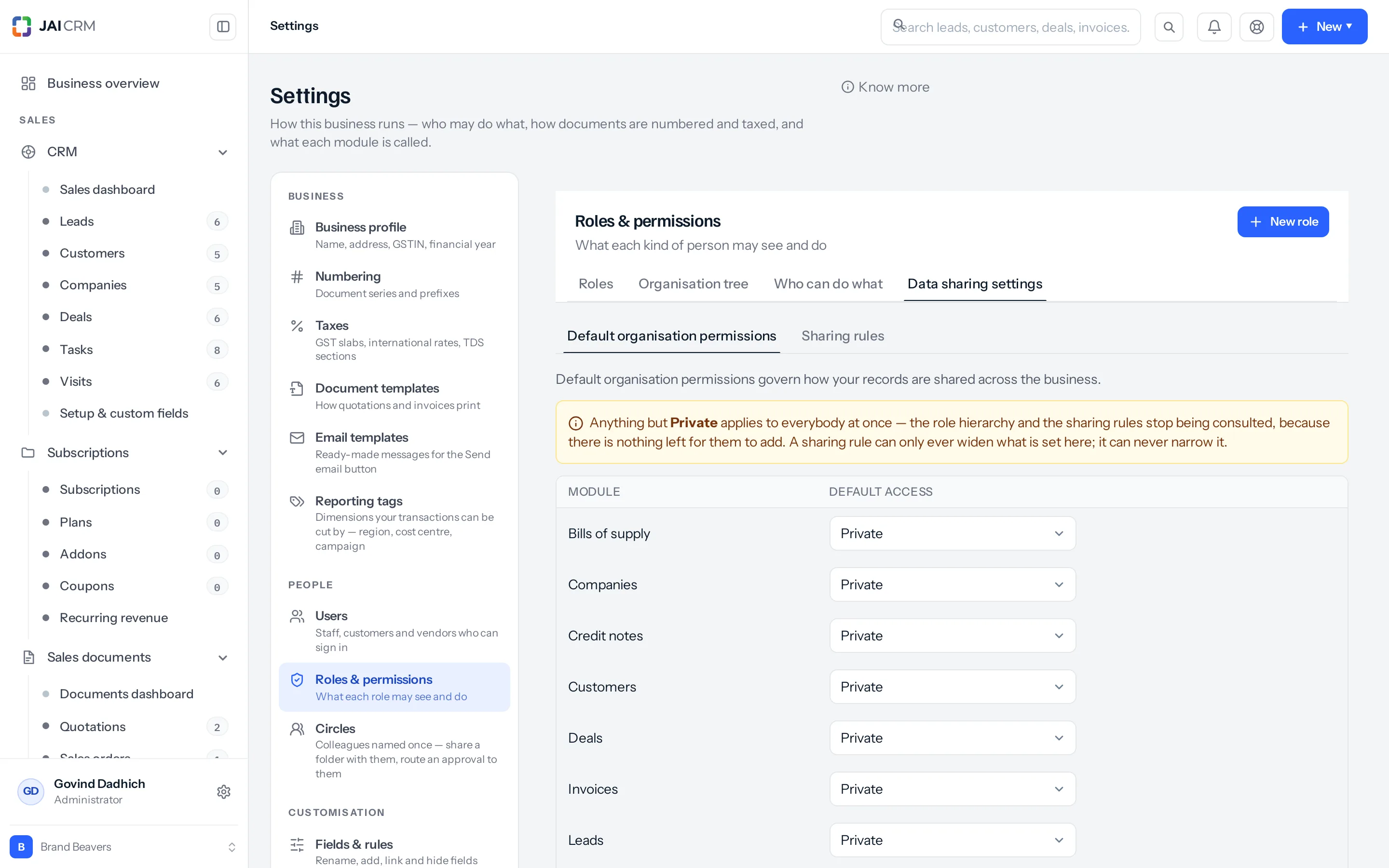
It has two halves. The first says what everybody in the business gets on each module before anything else is considered. The second is a list of exceptions to that. The exceptions only ever add, which is what makes the first half worth reading on its own.
Where the screen is, and who can open it
- Open Settings › Roles & permissions.
- Choose the Data sharing settings tab, alongside Roles, Organisation tree and Who can do what.
- Inside it there are two tabs: Default organisation permissions and Sharing rules.
Reading the screen needs view on Roles & permissions. Changing anything on either tab needs manage on the same key. The shipped Administrator role and the account owner hold both. The shipped Manager role is given no Settings permissions at all except the right to read the staff list and the circles, so a manager cannot open this screen.
Writing a rule that names a Team needs one more permission that nothing on this screen mentions: view on Settings › Circles, which is a separate key from Roles & permissions. Without it the Team dropdown offers Choose a team and no teams, with no error anywhere on the screen, and the save is then refused with Choose the team to share with. If the dropdown looks empty, that is what to check first.
Without manage the Create button and the copy button disappear, the Status switches are still drawn but greyed out and will not move, and the Default access rows read as plain text. On the Sharing rules tab a rule’s name is still a link: it opens the editor with every field live and Save and Delete on it, because the dialog carries no permission check of its own. The refusal only arrives when one of those buttons is pressed.
The order the product reads it in
Three things decide whether somebody may see one record, and they are consulted in this order.
- The organisation’s default for that module. Anything but Private settles the question of visibility for everybody at once.
- Where the person sits in the role tree. They see what everybody in the roles beneath them owns. Two people on the same role see nothing of each other’s unless that role has Share data with peers ticked.
- The sharing rules. These are the exceptions, and they only ever grant more.
Because nothing in step three can take anything away, the default in step one is a floor: read it and you know the least a person gets on that module. It is not a ceiling. Somebody may still end up with far more than it says, through ownership, the hierarchy, or a rule.
Organisation-wide defaults, per module
The Default organisation permissions tab is one row per module and one dropdown per row. Every module ships at Private, and nothing is written to the database until you change it — an untouched business has no rows here at all. There is no Save button on this tab: the dropdown applies itself the instant you change it, for the whole business, with nothing but a Saved message to show for it. Public (Read/Write/Delete) on Invoices is live before you have let go of the mouse. The only way back is to change it again.
| Default access | What everybody gets on every record in that module |
|---|---|
| Private | Nothing beyond what ownership, the role tree, circles and rules already give them. This is the shipped setting. |
| Public (Read Only) | At least read, on every record in the module, for everyone whose role can open the module at all. |
| Public (Read/Write) | At least read and change. |
| Public (Read/Write/Delete) | At least read, change and delete. |
The modules on offer are the ones whose records carry an owner and have a list page of their own: Bills of supply, Companies, Credit notes, Customers, Deals, Invoices, Leads, Proforma invoices, Projects, Quotations, Retainer invoices, Sales orders, Subscriptions, Tasks, Vendors and Visits. Quotations and Invoices are separate rows even though they live in the same table, so you can open one up without opening the other.
Once a module is set to anything but Private, its lists stop being narrowed by ownership at all — everybody who can open the module sees every row, and the hierarchy and the rules are not consulted for the list, because there is nothing left for them to add. Public (Read Only) and Public (Read/Write) therefore show exactly the same rows. The difference between them only appears when somebody opens a record and tries to change it.
Seven of those sixteen stop at the lists. Quotations, Sales orders, Proforma invoices, Invoices, Bills of supply, Retainer invoices and Credit notes all live in one shared table, and when somebody opens one the product asks its question under that table’s own name — a name this screen never offers and no rule can name. So a default or a rule on those seven widens the lists, the kanban boards, the pivots and the CSV exports, and leaves the record pages exactly as they were: a row somebody can now see in the list answers not found when they open it. The only things that let a person open somebody else’s invoice are owning it, having created it, sitting above its owner in the role tree, or being named on the record. The other nine — Leads, Customers, Companies, Deals, Tasks, Visits, Vendors, Projects and Subscriptions — behave as the table above says.
Public (Read Only) does not make a module read-only. It raises the floor to read for everybody and takes nothing away: the owner still deletes their own record, a manager still edits their team’s, an assignee still edits the one they are named on, and a sharing rule can still add write on top. No sharing rule ever removes access from anybody — but the Default access dropdown moves both ways. Lower it from Read/Write to Read Only, or put it back to Private, and everybody loses what that setting was granting them, on their next screen.
Somebody whose role is already set to Everything in the business on that module is unaffected by the default either way. They are at the top already, and the product skips the question for them.
Ownership here means owner or creator. Whoever first created a record keeps the full right to it — read, change and delete, as far as their own role’s actions reach — and keeps it in their own lists, for good, even after the record has been handed to somebody else. Reassigning a departing salesperson’s leads narrows nothing; changing their role does.
Sharing rules — the exceptions
A rule answers four questions: which module, whose records, who receives them, and what the receiver may do. It grants, and it never takes away. There is no such thing as a rule that hides a record.
Writing one
- On the Default organisation permissions tab, check what the module is set to. If it is already public, a rule adds nothing to the list and you are about to write one for no reason.
- Switch to the Sharing rules tab and choose Create sharing rule.
- Module — which module’s records the rule governs. Fixed once saved; to cover a second module, write a second rule.
- Rule name — at least two characters. It grants nothing. It is what the search box on this tab matches and what the audit trail quotes.
- What is shared — Records owned by a role or team shares by who owns the record, and is what you want here. Records matching a condition shares by what is in the record instead, and reaches the lists only; there is a section on it below.
- Whose records — Role, Role and Subordinates, Team or All Users, then the role or team itself.
- Shared with — the same four choices, for the people receiving the access.
- Permission — Read Only, Read/Write or Read/Write/Delete.
- Superiors allowed — leave clear unless you want the managers above the receiving role to inherit the rule.
- Save. The rule is active from the moment it is saved unless you switch it off.
Whose records
| Choice | What it shares |
|---|---|
| Role | Everything owned by the holders of that one role. |
| Role and Subordinates | That role’s holders, plus everyone in roles beneath it. The tree is walked on every request, so a role added underneath it next month is covered without editing the rule. |
| Team | Everyone in the named circle. The dropdown is labelled Team; the list it offers is Settings › Circles, which is staff only. |
| All Users | Every record in the module, whoever owns it. |
Shared with
| Choice | Who receives it |
|---|---|
| Role | Holders of that exact role, and nobody else. |
| Role and Subordinates | That role’s holders, plus everyone in roles reporting below it. |
| Team | Members of the named circle. |
| All Users | Every login in the business. |
Portal roles are left out of both role dropdowns, so a rule cannot be aimed at a customer or vendor login by name. Circles are staff only for the same reason.
Sharing by condition instead of by owner
The other choice under What is shared replaces “whose records” with a condition on the module’s own fields — every lead whose city is Nashik, every deal over ₹5,00,000. Pick the module first, then choose Records matching a condition, and a condition builder appears with that module’s fields in it. Saving without a condition is refused: Add a condition — a rule with none would share the whole module. The conditions are read on every request, so a record that starts matching is shared from that moment without anybody editing the rule.
A condition rule reaches the lists and not the records. The matching rows appear in the list, on the kanban board, in the pivot and in the CSV export, and then refuse to open — the record page asks who owns the record, and a condition does not answer that question. The person gets This lead belongs to someone else. Ask its owner to add you as an assignee. Share by owner whenever the people receiving the rule need to open what they can see.
What the permission confers
| Permission on the rule | The receiver may | Which their own role must also hold |
|---|---|---|
| Read Only | Open the record and read it | view |
| Read/Write | …and change it | edit |
| Read/Write/Delete | …and delete it | delete |
The rule sets a ceiling on what may be done to those records, not a grant of the verb. A rule set to Read/Write/Delete gives a salesperson nothing extra if their role does not hold delete on that module, and it cannot hand out a module at all: somebody with no view on Leads sees nothing there, whatever any rule says. Two gates have to open — the role decides which verbs, the sharing decides which records.
Read Only caps the record, not the person. Somebody whose role holds export can put every record a read-only rule shows them into that module’s CSV export. Somebody whose role holds edit can post comments on a record they cannot change, because the comment feed asks only whether they may see it. Read Only means “cannot change the record” — not “cannot take a copy away, and cannot write on it”.
The widest of everything that applies wins. Lowering a rule from Read/Write to Read Only later removes what that rule was adding and nothing else: anyone who could already change the record as its owner, as its creator, as its assignee, or through the hierarchy still can.
Superiors allowed
Off by default. A rule is a sideways gift, not a promotion — the people above the receiving role do not inherit what it grants. Tick this and they do, all the way up.
| Rule is shared with | Switch off | Switch on |
|---|---|---|
| A Role | Holders of that role | …and everyone in roles above it |
| Role and Subordinates | That role and everyone below it | …and everyone in roles above it |
| A Team (circle) | Its members | No change — the tick box can still be ticked and saved, but the product only consults it when the rule names a role. |
| All Users | Everybody already | No change. |
The rules list shows this as Included or Excluded in the Superiors column.
Worked example
Mahalaxmi Polymers Pvt Ltd, Pune, 41 staff. Two sales desks were set up as two roles, both reporting to Sales manager:
- Pune desk — Rohit Kulkarni and Asmita Jain
- Nagpur desk — Sneha Deshpande
- Sales manager — Vikram Rao, above both
Leads is set to Private. So today Sneha sees none of Rohit’s leads and he sees none of hers: sibling roles are strangers to each other. Vikram sees both desks, because both sit beneath him. Rohit and Asmita are on the same role and see nothing of each other’s either, because Share data with peers is not ticked on the Pune desk role.
Nagpur is now taking over the Nashik territory that Pune built. Sneha needs to read Pune’s leads before she calls anybody. She must not be able to change them while the handover is still in progress.
- Settings › Roles & permissions › Data sharing settings › Default organisation permissions. The Leads row reads Private. Leave it.
- Sharing rules tab › Create sharing rule.
- Module: Leads.
- Rule name: Pune leads readable by Nagpur.
- What is shared: Records owned by a role or team.
- Whose records: Role → Pune desk.
- Shared with: Role → Nagpur desk.
- Permission: Read Only.
- Superiors allowed: leave clear.
- Save.
Sneha reloads CRM › Leads and Rohit’s Nashik leads are now in her list — among them Sahyadri Cold Storage, Nashik, 4,000 HDPE crates, value ₹18,60,000, owner Rohit Kulkarni. At 18% GST that order is worth ₹3,34,800 in tax and ₹21,94,800 in total, and she can read every figure on it. When she changes the follow-up date and saves, the product refuses: You can see this lead but not change it — it is shared with you for reading. Rohit is unaffected: he still owns the lead and can still do anything to it his role allows.
When the handover completes, open the rule, set Permission to Read/Write, and save. Sneha can now edit those leads, if her own role holds edit on Leads. Nothing is copied or moved; Rohit is still the owner and the leads still appear on his list.
…and what Superiors allowed does here
On that first rule, ticking Superiors allowed changes nothing at all. The only role above the Nagpur desk is Sales manager, and Vikram is above the Pune desk as well — he already sees those leads through the hierarchy. This is the usual reason the switch looks broken.
Where it bites is a rule that reaches across the chart. Mahalaxmi later shares the same Pune leads, read only, with the Service desk (Aarti Pawar), which reports to Service head (Priya Menon) in a different branch of the tree. With the switch clear, Aarti sees the Pune leads and Priya does not: she is above Aarti, but she is not above the Pune desk, and the rule was given to Aarti’s role rather than to hers. Tick Superiors allowed on that rule and Priya sees them too, along with anyone above her.
What changes, and how soon
- Every list, kanban board, search and CSV export for that module, for everyone the change reaches.
- Every record page in the module, and the buttons on it: the product works out per record whether you may read, change or delete it, so a read-only share leaves the Save and Delete buttons refusing. The seven sales-document modules are the exception — their record pages go on answering to ownership, the role tree and the people named on the record alone, whatever is set here.
- Reports and dashboard tiles, which run through the same visibility filter. Totals move — a figure somebody quoted yesterday may be a different figure today. The sales documents are the exception again: the built-in sales and finance reports, the Business overview and the Sales dashboard read that shared table under its own name rather than under Quotations or Invoices, so a default or a rule on those modules leaves their figures exactly where they were.
- An entry in the audit log. Changing a default writes Default access for lead set to public read; a rule writes Created the sharing rule …, Changed the sharing rule … or Removed the sharing rule …, quoting the rule’s name.
Nobody has to sign out. Defaults and rules are read fresh on every request and are not cached anywhere. (Role permissions are cached for up to fifteen seconds per person, and cleared the moment a role is saved — so a role change lands almost as fast.)
Managing rules afterwards
- The Status switch turns a rule off without deleting it. The records go back to whatever the default and the hierarchy give, immediately, and turning it back on restores the access just as fast.
- The copy button duplicates a rule as <name> (copy), switched off. Two rules granting the same thing the instant one is duplicated is rarely what anybody meant, so you turn the copy on yourself.
- Delete is inside the rule’s own dialog, not on the list. Open the rule, press Delete, and it asks to confirm — <name> will be removed. Nothing in the product will bring it back. — and then removes it. A sharing rule is not in the recycle bin, so note its settings first if you might want it again. People keep whatever the default and the hierarchy still give them.
- A rule that names a Team shows as — (Team) in the Shared from and Shared to columns, on every such rule. The list looks for the circle’s name under a different name from the one the server sends it, so the circle is never printed there. The rule itself is working; only the column is blank. Open the rule to see which circle it names.
- The rules list groups rules by the module they govern, with a count on each group, and can be filtered by module, by name, and by Active or Switched off.
What it will not do
- No rule can narrow anybody. There is no deny rule and no exclusion list. To give somebody less, change their role’s data scope on Roles & permissions, or restrict them to particular warehouses and branches on their user record. (The Default access dropdown is the one control here that does move both ways.)
- It cannot give somebody a module. A rule that names a person’s role does nothing if their role has no view on that module.
- It cannot give somebody a verb. Read/Write/Delete on a rule is a ceiling on the record, not a grant of edit or delete.
- It cannot open a sales document for anybody. On Quotations, Sales orders, Proforma invoices, Invoices, Bills of supply, Retainer invoices and Credit notes, a default or a rule reaches the lists, boards, pivots and exports and stops there.
- A condition rule does not reach record pages either. It widens the lists and what is built from them, on every module. Share by owner when people need to open what they can see.
- A rule’s module cannot be changed once saved. The dropdown is locked on an existing rule. Write a second rule.
- Superiors allowed does nothing on a rule shared with a Team or with All Users. The tick box is still live and still saves; the product only consults it when the rule names a role.
- A rule whose source role nobody holds grants nothing, silently. There is no warning on the screen.
- Most modules are not on this screen at all. Purchase orders, purchase bills, delivery challans, expenses, items, payments, employees and files never appear, because the list is built from the modules whose records are flagged as having an owner and having a list page. Purchase documents are still narrowed by owner like sales documents — you simply cannot set a default or write a rule for them here.
- Modules a business invented for itself do not appear, and neither do renamed labels: this screen shows the shipped names, so a module renamed in Settings › Modules & menu still reads by its original name here.
- A module your plan has switched off still appears in the list. Setting a default on it changes nothing until the module is switched back on.
- Nothing here is a snapshot. Membership of the named role or circle is read on every request, so somebody who joins that role tomorrow is covered at once, and somebody who leaves loses the access at once, without anyone editing the rule.
The one that catches people out
All Users is not a role, and it does not stop at staff. On the Whose records side it shares every record in the module with whoever receives it — public access under another name, and it never appears on the Defaults tab, so somebody reading that tab to find the floor sees Private and concludes wrongly. On the Shared with side it reaches every login in the business, customer and vendor portal logins included: the role pickers hide portal roles, but All Users is not a role and does not hide them. The shipped Customer portal role already holds view on Quotations, Sales orders, Invoices, Credit notes and Projects, so a rule with All Users on both sides of one of those modules puts the whole of that list — every number, every customer name, every total — in front of every customer who can sign in, and on Projects the records themselves as well. Name a role or a circle instead.
Switches that look like this one but live elsewhere
- Share data with peers — on the role itself (Settings › Roles & permissions › open a role). Off, two people on the same role are strangers to each other and only their managers see both. On, they share sideways. The Organisation tree marks such roles with a Peers badge.
- What a superior may do to a subordinate’s records — a dropdown at the top of the Organisation tree tab. Everyone above somebody reads their records either way; this decides whether they may also delete them or only edit. It ships set to edit and delete.
- Circles widen “their team’s records” — somebody whose role scope is Their team’s records also sees records owned by anyone in a circle they share, on top of the reporting line. Project groups do not do this; only circles.
- Assignees and watchers — a person added to a record as an assignee gets the full right to it. A person added through Mark to is a watcher and gets reading only, whatever else is on the record.
- Warehouse and branch restriction — set on the role (which modules) and on the person (which places). It narrows on top of everything on this page, a public default included: a record outside somebody’s warehouses stays out of their lists and out of their reach even when the module is Public (Read/Write/Delete).
Something missing or wrong here? Tell us. A question that needed asking usually means a page that needed writing.