
Two sales managers, one running the western desk from Pune and one running the south from Coimbatore. Each should see every lead, quotation and invoice their own people own. Neither should see the other’s. The head of sales above both should see all of it, and the owner should see everything in the business. That shape is the org chart, and in JAI CRM it is built from one field on each role: Reports to.
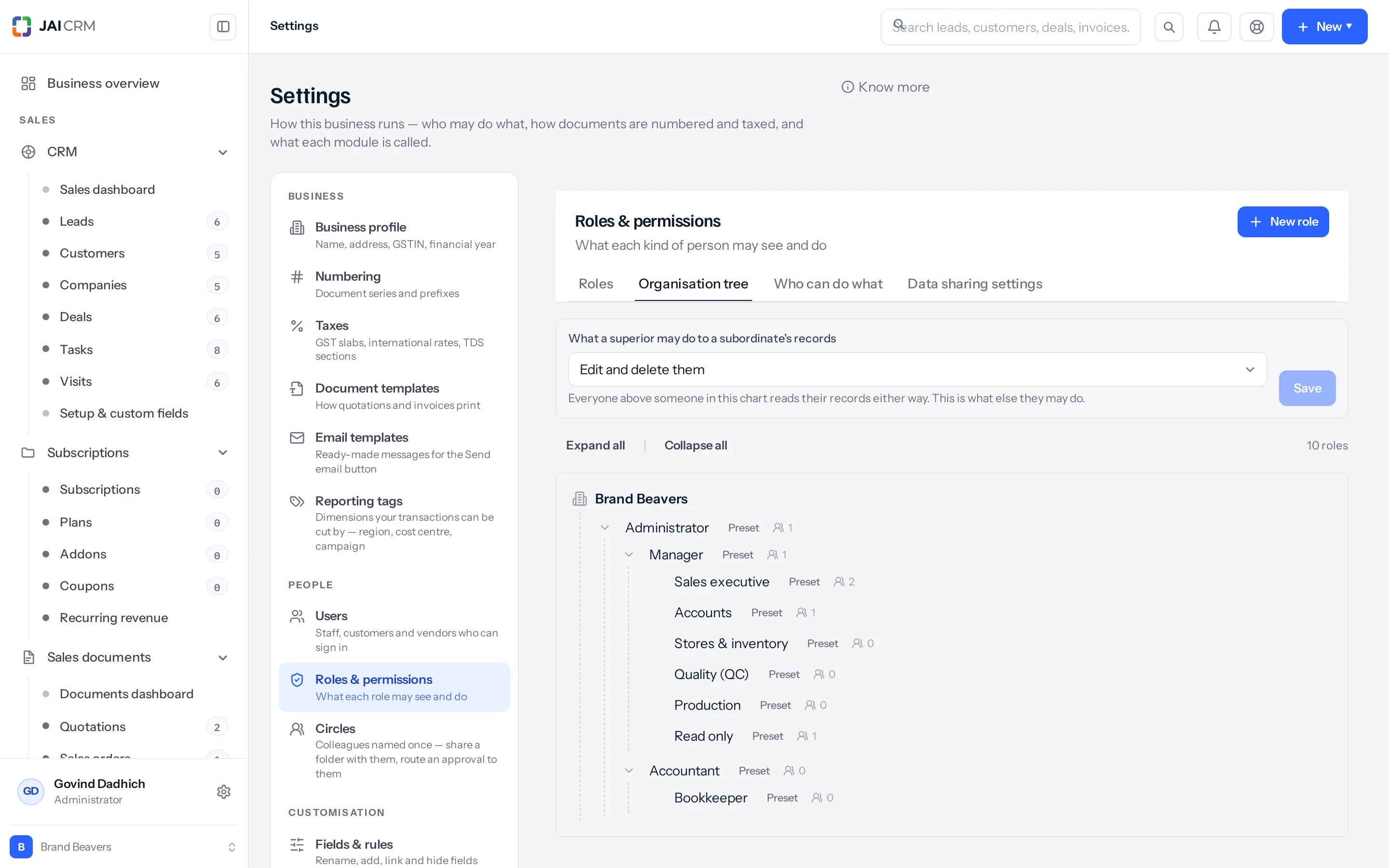
The chart is a chart of roles, not of people. Somebody sits on it because of the role they hold. Change what a role reports to and everybody on that role moves with it. A person with no role at all sits nowhere on it and, the account owner aside, holds nothing: their permissions are empty, so every module answers with nothing — not even the records they own or are named on will open, until somebody writes them a per-person exception on Settings > Users.
What reporting to somebody actually grants
Whoever holds a role sees the records owned by everybody holding any role beneath it — not just the level immediately below, but all the way down the branch. The tree is walked afresh on every request, so a new joiner in a junior role is covered the moment they are given that role, and nobody has to be listed anywhere.
Four separate things read that line:
- Sight of records. Lists, kanban boards, pivots, exports, quick search and bulk actions all narrow the same way, in every module whose records record an owner.
- What may be done to them. Reaching down grants edit and delete on a subordinate’s record by default. One setting changes that to edit only — see below.
- Approvals. An approval step set to Whoever they report to resolves to the holders of the role one level up from the person asking. One level only, not the whole branch above them.
- Sharing rules. A rule shared to a
Role and Subordinateswalks down this same tree, and the Superiors allowed tick on a rule walks up it.
What it never does is reach sideways. Two roles that sit beside each other under the same superior are strangers: neither is beneath the other, so neither sees the other’s records or the records of anybody below the other. Somebody senior to both is above both, and sees everything under them. That is the whole mechanism — the three-level shape a business actually has falls out of the tree rather than out of a rule anyone has to write.
Reaching a record is not the same as being allowed to act on it. A manager whose role does not hold the Delete action on Quotations cannot delete a subordinate’s quotation however the chart is arranged. The action comes from the permission grid on the role; the chart only decides whose records that action may be pointed at.
Where the controls are
- Reports to and Share data with peers — Settings > Roles & permissions > Roles, then open a role.
- The chart itself — the Organisation tree tab on the same page. Your business name sits at the top, each role hangs beneath its superior, and a number beside each role says how many times it has been handed out. Accounts that have since been removed are still counted, so it can read higher than the staff holding the role today. Click a role name to open it.
- What a superior may do to a subordinate’s records — the box at the top of the Organisation tree tab.
- The wider defaults that can override all of this — the Data sharing settings tab, also on the same page.
The tree a new business starts with
A preset tree is seeded when the business is created. It is not decoration: a role set to see its team’s records with nothing beneath it would see only what its holder entered themselves, so the shipped tree is what makes the presets mean anything on day one.
| Role | Reports to |
|---|---|
| Administrator | — (the top of the chart) |
| Manager | Administrator |
| Sales executive | Manager |
| Accounts | Manager |
| Stores & inventory | Manager |
| Quality (QC) | Manager |
| Production | Manager |
| Accountant | Administrator |
| Bookkeeper | Accountant |
| Read only | Manager |
| Customer portal | Outside the staff chart |
| Vendor portal | Outside the staff chart |
Rearrange it freely. Reports to and Share data with peers can be changed on any role, presets included. Move Accounts under Accountant, put Stores under a new works manager, whatever matches the business. What you cannot do is remove a preset role: it can be moved, re-pointed and changed, never deleted.
The two portal roles deliberately have no superior and never appear on the chart. A customer login placed under a manager would be somebody’s subordinate, and whoever sat above would read their records. What keeps a role off the chart is the Portal role tick, not the two shipped names: any role carrying that tick is left out of the Organisation tree and out of every Reports to list, including one you wrote yourself. If a role you made has gone missing from the chart, that tick is why.
Building a three-level shape
Build downwards. A superior has to exist before anything can be pointed at it.
- Go to Settings > Roles & permissions and stay on the Roles tab. Every role in the business is listed here, and nothing on this screen stops you writing one that grants more than you hold yourself. That limit bites later, on Settings > Users: a role that exceeds what you hold is left out of the roles you may tick, and the save refuses it by name.
- Click New role. Name it for the desk, not for the rank — Sales head, then Sales manager – West and Sales manager – South. The Description is free text for whoever comes after you and grants nothing.
- Set Reports to for the first one to Administrator.
- In the permission grid below, expand the modules this role needs and tick View, Create, Edit and Delete on each row. The data scope dropdown appears at the right of a row once at least one action is ticked. Set it to Their team’s records.
- Click Save.
- New role again for Sales manager – West, with Reports to set to Sales head. Same grid, same scope. Save, then repeat for Sales manager – South.
- New role for Sales executive – West, with Reports to set to Sales manager – West, and the scope on each row set to Their own records. Save, then repeat for the south.
- Go to Settings > Users, open each person and tick exactly one role under Roles. Somebody holding two roles reaches down from both of them at once.
- Go back to Settings > Roles & permissions > Organisation tree and read the shape. Every role should sit under its superior, with a count beside it. Expand all and Collapse all are at the top.
- On that same tab, set What a superior may do to a subordinate’s records and click Save.
A role cannot be made to report to anything already beneath it. The save is refused with “That role already reports to this one, so this would make a loop”, and you are told to pick a role outside this branch. It cannot report to itself either — that one is refused separately, with “A role cannot report to itself” — though the Reports to list never offers the role you are editing, so you are unlikely to meet it.
Worked example: Sahyadri Polymers Pvt Ltd, Pune
Thirty-four staff, two sales desks. The chart is built as above.
| Role | Reports to | Who holds it |
|---|---|---|
| Administrator | — (the top) | Anil Deshpande, the owner |
| Sales head | Administrator | Meera Kulkarni |
| Sales manager – West | Sales head | Rakesh Jadhav |
| Sales manager – South | Sales head | Priya Nair |
| Sales executive – West | Sales manager – West | Sunil Pawar |
| Sales executive – South | Sales manager – South | Divya Rao |
Sunil owns a lead for Deccan Pumps, Kolhapur, and raises quotation QUO-00184 against it: ₹4,50,000 plus 18% GST, ₹5,31,000 in total. Divya raises a lead for Vaigai Textiles, Madurai worth about ₹2,80,000 and invoices them ₹1,18,000 against the first delivery.
| Person | Sees | Does not see |
|---|---|---|
| Sunil Pawar | His own Deccan Pumps lead and QUO-00184 | Anything of Divya’s, Priya’s, Rakesh’s or Meera’s |
| Divya Rao | Her own Vaigai lead and ₹1,18,000 invoice | Anything of Sunil’s or of the western desk |
| Rakesh Jadhav | His own records and Sunil’s lead and ₹5,31,000 quotation | Divya’s lead and invoice; Priya’s own records |
| Priya Nair | Her own records and Divya’s lead and invoice | Sunil’s lead and quotation; Rakesh’s own records |
| Meera Kulkarni | Everything owned by Rakesh, Priya, Sunil and Divya | Records outside the sales branch — Accounts, Stores, Production |
| Anil Deshpande | Every record in the business | — |
With the setting left as it ships, Rakesh can open Sunil’s Deccan Pumps lead, change it and delete it. Switch the setting to Edit them, but not delete and he can still open and change it, while deleting it stays with Sunil, with Meera if her role is set to everything in the business, and with Anil. The quotation is a different matter: sales and purchase documents do not read that setting at all, so Rakesh keeps delete on QUO-00184 either way. There is more on that below.
Data scope and the chart
Every row of the permission grid carries a data scope beside its tick boxes. It is worth being plain about what each one does to the chart, because the names suggest a sharper difference than there is.
| Data scope on the role | Reads the chart? | What the holder sees |
|---|---|---|
| Their own records | Yes | Their own records, records they are named on, records owned by everybody in roles beneath them, and — if the role shares with peers — records owned by anybody else on the same role |
| Their team’s records | Yes | All of the above, plus records owned by anybody they share a Circle with |
| Everything in the business | No — the chart is not consulted | Every record in the module, whoever owns it |
So Their own records does not cut a role off from the people below it. If a role has roles reporting to it, its holders reach down whichever of the two narrower scopes is set; the only thing Their team’s records adds on top is Circle membership, and a Circle is a named list of colleagues from Settings > Circles, not a project group. A Circle mate is reached on exactly the same terms as a subordinate, so What a superior may do to a subordinate’s records answers for them too. To genuinely confine somebody to their own records, make sure nothing reports to their role and that Share data with peers is off on it — that switch widens at both of the narrower scopes, so a role with nothing beneath it still shares sideways while it is on.
Sharing rules add to both narrower scopes and are not consulted at Everything in the business, because there is nothing left for them to add. Warehouse and branch segmentation is a separate narrowing that bites at every scope, including Everything in the business — but only once both of its halves are set. The role says which modules are segmented, and the person says which warehouses or branches they hold. Somebody who holds none has not been restricted to none, they have simply not been restricted, so ticking the modules on the role and stopping there leaves everybody seeing the whole module.
Share data with peers
The switch on the role dialog, off by default. It means one thing only: whether two people holding the same role can see each other’s records. It does not touch the chart above or below that role, and it has no effect between two different roles, however they are arranged.
| Arrangement | Peers switch | Result |
|---|---|---|
| Two people both on the role Sales executive – West | Off | Neither sees the other’s records. Only the roles above them do. |
| Two people both on the role Sales executive – West | On for that role | Each sees the other’s records, with whatever their own role permits and whatever What a superior may do to a subordinate’s records allows — on Edit them, but not delete, peers cannot delete each other’s records either |
| Rakesh on Sales manager – West, Priya on Sales manager – South, both under Sales head | On for either or both | Nothing changes. They are different roles, so they are not peers. Use a sharing rule. |
Roles with the switch on carry a violet Peers badge on the Organisation tree, so the chart shows where sideways sharing is happening without opening each role.
Where two different roles should see each other, say so deliberately on Data sharing settings > Sharing rules: a rule sharing the records owned by one role with the other. A rule only ever widens; it can never take access away.
What a superior may do to a subordinate's record
At the top of the Organisation tree tab: What a superior may do to a subordinate’s records, with the hint “Everyone above someone in this chart reads their records either way. This is what else they may do.” Two options.
| On a subordinate's record | Edit and delete them (default) | Edit them, but not delete |
|---|---|---|
| Open and read it | Yes | Yes |
| Change it | Yes | Yes |
| Delete it | Yes | No — refused, saying the record is shared with you for reading and not to delete |
| Deleting stays with | — | The owner, whoever created it, anybody named on it as an assignee (being marked with Mark to does not count), anybody whose scope on that module is Everything in the business, and the account owner |
It defaults to Edit and delete them because that is what the product has always done. Nothing changes for anybody until an administrator chooses otherwise, which is the point: a setting that changes behaviour the day it ships is a bug wearing a dropdown. Choose Edit them, but not delete where the audit trail matters more than tidiness.
Four things to know about it.
- It is one answer for the whole business — one setting, not one per module, per branch or per level of the chart.
- It is capped by the permission grid. A role without the Delete action never had the right in the first place.
- It is read after the people who keep delete whatever it says: the record’s owner, whoever created it, anybody named on it as an assignee, anybody whose scope on that module is Everything in the business, and the account owner. Those are all answered first.
- Saving it needs manage on Organisation settings, not edit. The dropdown and its Save button are enabled for anybody holding edit, so a role with edit and not manage can pick an option, press Save and be refused.
And it only reaches the modules that ask for it. Most do: leads, deals, customers, companies, tasks and visits, projects, vendors, bills of materials, manufacturing orders, quality inspections, subscriptions and warranties, and the stock screens — adjustments, transfers, goods receipts, work centres and assemblies — all go through the shared record check, which reads the setting. Sales and purchase documents do not. Their delete route checks that you may see the document and stops there, so a superior holding the Delete action can still delete a subordinate’s draft quotation, invoice, purchase order or bill whichever way the setting is set. Expenses and journals do not read it either.
What changes the moment you save
- Every list, record page, kanban, pivot, export, quick search and bulk action in modules whose records have an owner narrows or widens at once. Cached permissions are cleared on save, so nobody has to sign out and in again.
- Approval steps set to Whoever they report to route to the holders of the new parent role — including approvals already waiting, because who may decide one is worked out afresh each time it is opened.
- Sharing rules using
Role and Subordinates, and rules with Superiors allowed ticked, follow the new shape on their next use. - The Organisation tree shows the new shape, with the counts and the Preset and Peers badges, next time you open that tab.
- An entry is written to the audit trail against the role, naming who saved it and when. It is filed as a permission change and carries only the role’s permissions, so the trail does not record which superior the role moved from or to.
What it will not do
- It does not change who owns anything. A reporting line grants sight and rights; it never reassigns a record.
- Nothing is snapshotted. The tree is read live on every request, so a line added today shows the superior their new subordinate’s records from last January as well, and a line removed takes yesterday’s visibility away with it. There is no record of what somebody could see last week.
- It does not grant a module. Somebody reaching down still needs View on Leads to see a lead. Reaching down never adds an action their role does not hold.
- It does not narrow modules whose records carry nothing to say whose they are — stock balances, warehouses, work centres and job cards. Manufacturing orders do carry an owner, and bills of materials and quality inspections fall back to whoever created them, so the chart reaches all three. Stock balances, warehouses and work centres are restricted with segmented access by warehouse or branch instead; a job card carries neither an owner nor a place, so nothing narrows it.
- It has nothing to do with the Reports to field on a Finance > Employees record. That one is the payroll and HR record; it does not decide who sees whose records.
- The Designation and Department fields on a person are labels. Neither builds a chart nor grants anything.
- Any role with Portal role ticked — the shipped Customer portal and Vendor portal, a copy of either, or one you wrote yourself — stays outside the chart entirely and is never offered as a superior.
The things that catch people out
Two managers on the same role are one box on the chart. Put Rakesh and Priya both on the shipped Manager role instead of on two roles, and they both reach everything owned by everybody in every role beneath Manager — the whole of sales, stores, accounts and production. The separation comes from the roles being separate, not from the people being different. If two people should see different things, they need different roles.
The Copy button does not copy the reporting line. Duplicating a role brings its permissions, its description and its Portal role tick across, and nothing else: the copy is named after the original with “(copy)” on the end, arrives with no superior, sits at the top of the chart, has Share data with peers off and any warehouse segmentation cleared. It looks right on the Roles tab and is wrong on the Organisation tree. After copying a role, open it and set Reports to before giving it to anybody. A copy of a portal role is a portal role too, so it will not appear on the chart at all until you untick Portal role on the copy.
“At the top” behaves differently on a new role and on an existing one. Choose it while creating a role and the role is saved directly beneath whatever is already at the top — normally Administrator — because two roots is not a hierarchy. Choose it on a role that already exists and it really does become a root: it leaves the branch it was in, and nobody above it sees its holders’ records any more. Check the Organisation tree after either change.
A row you can see but cannot open. Lists match on the creator as well as the owner, while the record page reads the owner and falls back to the creator only when there is none. So a lead one of your people created but which now belongs to somebody outside your branch still appears in your list, and opening it is refused with a message saying it belongs to somebody else and to ask its owner to add you as an assignee. Nothing is broken — the two checks answer slightly different questions.
Anything but Private on Data sharing settings overrides the chart for who can see. The first tab there, Default organisation permissions, sets a default per module for the whole organisation, and the moment a module is set to Public in any form every record in it is visible to everybody — so no reporting line, peer switch or sharing rule can add anything to that. They are still read afterwards, to decide what somebody may then do to a record: at Public (Read Only) and Public (Read/Write) the chart can still raise a viewer to changing or deleting one. If somebody can see records the chart says they should not, read that tab before rearranging anything.
Three things stop a role being deleted. A preset role cannot be deleted at all — the dialog shows no Delete button on one, and the route refuses with “… ships with the product and cannot be deleted. Change what it may do instead, or make a copy.” A role with another role reporting to it cannot go until those are moved onto a different superior. And a role still held by anybody whose account has not been removed cannot go either: suspending somebody does not release their role, only removing them does. The confirm dialog lists what is in the way before you can commit. Whether those last two block a delete is itself configurable, on Settings > Dependency rules.
Something missing or wrong here? Tell us. A question that needed asking usually means a page that needed writing.