
A customer rings to say the rate on an invoice is not what was agreed. Somebody moved a deal to Won that was not won. A tax rate changed and nobody in the office will say when. The audit log is where you go with those questions. It sits at Settings › Audit, it cannot be edited from anywhere in the product, and it holds one row for every change the server was told to record.
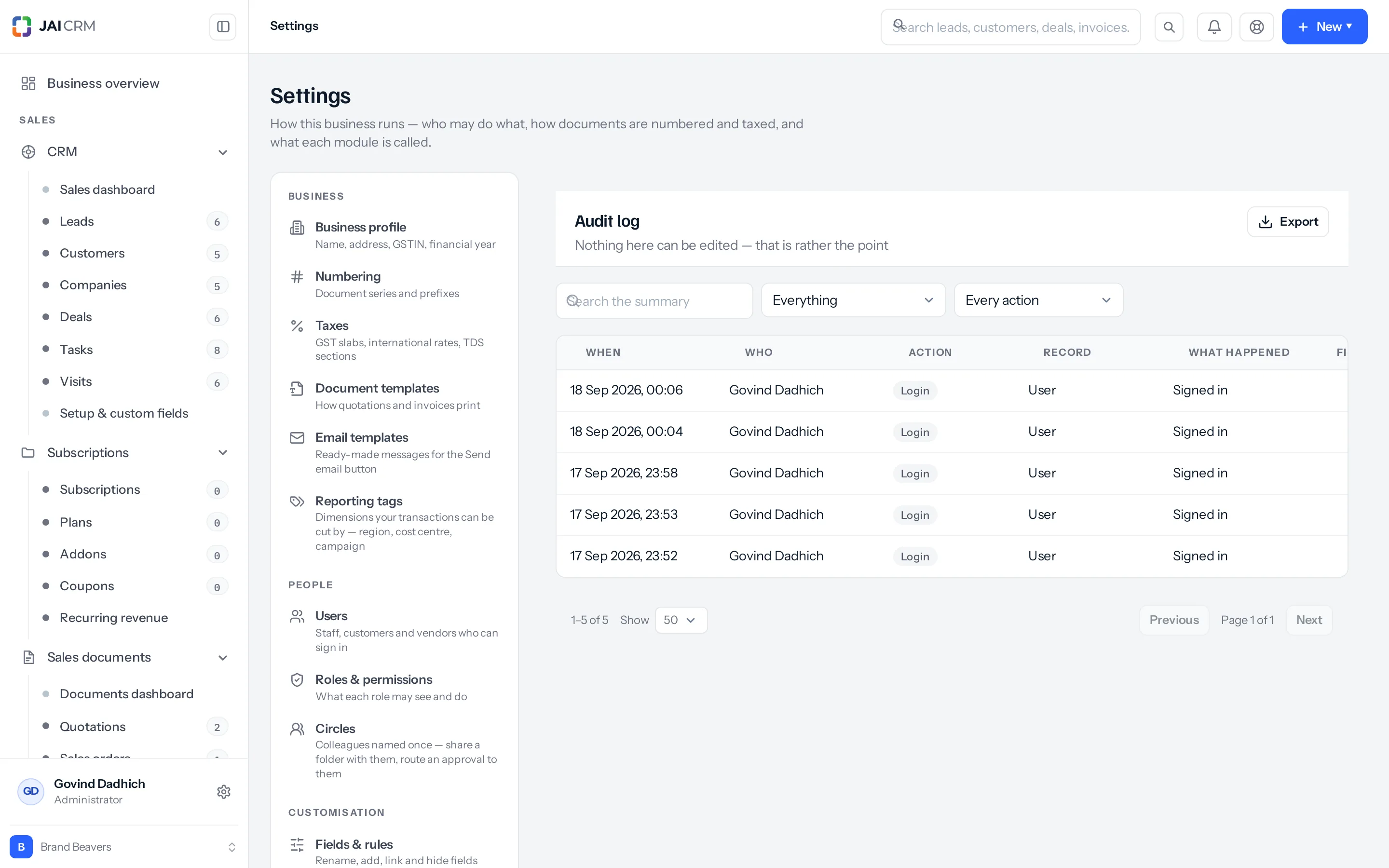
It is not a complete record of everything that happens. Three hundred and thirty places in JAI CRM write an audit row, and a good many things that feel like events write nothing at all. This page says exactly which is which, because knowing what the log does not hold is worth more at four o’clock on a Friday than assuming it holds everything.
Who can open it
The Audit log row only appears in the Settings menu for somebody whose role grants it. Everyone else does not see the row, and the server refuses the request even if they reach the address directly.
| To do this | What the role needs |
|---|---|
| Open Settings › Audit | Settings › Audit log › View |
| Press Export | Settings › Audit log › Export |
| See a single record’s own History tab | Only that module’s View — no audit permission at all |
| Everything, always | Being the owner of the business |
A role given the whole Settings module with Manage gets both View and Export on the audit log without the Audit row being ticked separately. That is worth knowing before you hand somebody Settings so they can fix a numbering series.
On the Roles screen the Audit log row shows a View tick and nothing else until you switch the permission grid to its advanced actions. Export is not one of the four the grid offers by default, so somebody working down the table above will not find it in the ordinary view.
That same row carries a data-scope box — Own / Their team / Everything — like every other permission. Nothing reads it. The audit route returns every row in the business to anybody who may open the screen, whatever the box says. Somebody granted View on the audit log can read the summary of a change to a deal, an invoice or a salary record they are not allowed to open.
What a row shows
The table is newest first and cannot be sorted; the column headings are not clickable. Each page holds 50 rows.
| Column | What it holds |
|---|---|
| When | The moment the change was saved, shown in your own computer’s time |
| Who | The name the person had at the moment of the change |
| Action | What happened, in words: Updated, Created, Deleted, Signed in, Status changed, Converted, Imported, Exported, Permissions changed and many more |
| Module | The part of the product the record belongs to: CRM, Sales, Projects, Settings and so on |
| Record | The kind of record that changed, such as Invoice, Vendor, Tax rate or Role. Not which one; open the row for its id |
| What happened | A one-line summary written by the part of the product that made the change |
| Fields | How many field-level changes were captured, or a dash when none were |
| From | The IP address the request arrived from |
The Who column is a snapshot, not a link. The name is copied into the row when it is written, so a person who has since left the business, or who has since changed their name, still reads as they were on the day. Several of the names in that column are not members of staff at all:
- The system — background work. The nightly job that marks a dormant vendor inactive, and the job that makes one active again when it starts trading, both sign their rows The system.
- Schedule — a recurring invoice run, or a customer subscription raising its next invoice.
- API key: Tally bridge — an integration acting through an API key. The visible name is the key’s; underneath, the row is stored against whoever created that key, falling back to the owner of the business if that person has since left. Anything reading the stored actor rather than the name will therefore show a named member of staff for work no person did.
- Razorpay (online) — an invoice settled through an online payment gateway, signed with the gateway’s name.
- Sunil Deshmukh (share link) — a quotation or other document accepted or declined through a public share link, signed with the name the customer typed in.
- System, on its own, is none of these. It is what the screen prints for a row that carries no name at all.
Narrowing it down
Above the table, every filter is optional and they combine. Each list offers only what your own log holds, with how many entries each has.
| Filter | What it keeps |
|---|---|
| Search what happened or who | Rows whose summary or person’s name contains the words; a record’s id matches exactly |
| Module | One part of the product: CRM, Sales, Inventory, Settings, Email and so on |
| Type of record | Leads, invoices, roles, users. Narrowed to the module when one is chosen |
| What happened | Created, Updated, Deleted, Signed in, Imported, Exported, Permissions changed and the rest |
| User | Everything one person did, including people who have since left |
| Done by | A person; an API key (an integration acting through a key); or automation and the system, such as a schedule |
| IP address | Rows from an address, or part of one. The box suggests the addresses your log holds most |
| From and to | Whole days, in your workspace’s time zone (Settings, Organisation) |
Export downloads exactly the rows the filters keep, with columns for who, done by, module, record, what happened, the summary and the IP address. Clear filters puts everything back.
Opening one row
Click any row and a panel opens. Its title is the summary line; under it sits the name and the time, and below that a Field / Before / After table of what changed. The before value is struck through; the after value is not. If no field-level detail was captured the panel says so, which is common — 283 of the 330 write sites record a summary and nothing more.
Field names in that table are the database column names, not the labels on your forms. You will see amountDue, placeOfSupply, gstin, ownerId. Four record types are the exception — project tasks, inventory items, expense bills and employee records label their changes in plain English (Status, Due date, Assignee), because those routes hand the module’s own field labels to the comparison. A change of owner shows two long identifiers rather than two people’s names, because the column holds the identifier.
Creates and deletes almost never carry field detail. Of 70 places that record a Create, two list the fields; of 56 that record a Delete, none do. For those rows the Fields column is a dash and the panel says no field-level detail was recorded. The row still tells you who, when and what — it does not tell you what the record contained.
Worked example
Deshpande Engineering Works, Pune, raises invoice INV-2026-0418 to Kirloskar Pneumatic Co. for 40 bearing housings at ₹6,200 each: ₹2,48,000 taxable, CGST 9% and SGST 9% of ₹22,320 each, ₹2,92,640 in total. Two weeks later the customer’s accounts team queries the amount. Anita Kulkarni, who runs operations, opens the audit log.
- Go to Settings › Audit.
- Type
INV-2026-0418into Search what happened or who. The list narrows to the rows whose summary mentions that number. - Three rows come back: Created invoice INV-2026-0418, Updated invoice INV-2026-0418, and Invoice INV-2026-0418: draft → sent.
- Click the Update row. The panel is titled Updated invoice INV-2026-0418, and under it reads Rohit Jadhav · 14 Mar 2026, 16:42. The From column showed the office IP.
The panel lists what moved. Amounts appear as bare numbers, without a currency symbol or thousands separators, because that is how the column stores them:
| Field | Before | After |
|---|---|---|
| grossTotal | 248000 | 232000 |
| subtotal | 248000 | 232000 |
| taxableTotal | 248000 | 232000 |
| taxTotal | 44640 | 41760 |
| total | 292640 | 273760 |
| baseTotal | 292640 | 273760 |
| amountDue | 292640 | 273760 |
| componentTotals | [{"code":"CGST","label":"CGST","rate":9,"amount":22320},{"code":"SGST","label":"SGST","rate":9,"amount":22320}] | [{"code":"CGST","label":"CGST","rate":9,"amount":20880},{"code":"SGST","label":"SGST","rate":9,"amount":20880}] |
Anita now knows who, when, and that ₹16,000 came off the taxable value. She goes back to Rohit with the figures rather than a suspicion.
The tax is one row, not one row per tax. CGST and SGST are held together as a single list, so the panel prints the whole list on each side rather than a line for each. taxBreakdown, the rate-wise summary that prints on the invoice, moves in the same way and reads the same way. There is no componentTotals.CGST row and never will be.
What is not in that table is the rate itself. The line went from ₹6,200 to ₹5,800 and no row says so. Only the document header is compared before and after, so a change to a quantity, a rate, a discount or an HSN code on a line shows up as movement in the totals and nothing else. The same is true of a quotation, a sales order, a purchase order and a credit note. If you need the line as it was, the invoice’s own PDF or a copy sent to the customer is the record, not the audit log.
What gets recorded
- Records created, changed, deleted, restored and permanently deleted, across CRM, sales, purchase, inventory, projects, finance, quality, manufacturing, documents and any module you built yourself.
- Status moves — a quotation sent, a sales or purchase document moved on, a vendor made active or inactive. Those five carry a proper before-and-after on the status field. A manufacturing order confirmed, released, started, completed or cancelled, a quality inspection settled, a package delivered or unpacked, and a bill of materials retired each record a summary line and nothing more.
- Approval decisions. An approval, a rejection and sending something for approval are all filed under the action Approve; the summary says which one it was.
- Bulk deletes and bulk reassignments on a CRM or custom-module list, one row per record touched. A bulk action in Documents is the other way round: moving or re-tagging a selection of files, and emptying the trash, each write a single row for the whole batch.
- Settings changes: taxes, numbering series, document and email templates, custom fields and field rules, reporting tags, module renaming and sidebar order, dependency rules, sharing rules, default module access, approval rules, plugins switched on and off, API keys created and revoked.
- People: a user added, changed or removed; a role created, changed or deleted; and a permission change on either, under the action Permission change.
- Successful sign-ins, and a switch from one workspace into another.
- A password changed by the person themselves from inside the app.
- A document, file or folder shared by link with a customer or vendor.
- Exports from the CRM lists — leads, customers, companies, deals, tasks, visits, contacts — and from custom modules.
- Sending the notification queue by hand, under the action Send, and emailing a lead, customer, company, deal, task or visit from the record itself, under Email — with the recipient’s address and the subject line in the summary.
- Emailing a quotation, invoice or other document from its send window, under Email on the document, naming who it went to and whether the PDF was attached.
What leaves no row at all
This is the half people get wrong. None of the following writes anything to the audit log.
- Reading. Opening a record, scrolling a list, running a report, viewing a dashboard. Nobody can be shown to have looked at something.
- Printing and PDFs. Printing an invoice, downloading its PDF, or downloading forty of them in one go.
- An invoice reaching Paid. Paid, Partly paid, Overdue, Reversed and Written off cannot be set by hand at all — the product refuses — and the balance that causes them is recalculated without writing a status row. The payment itself has its own row; the status move it triggers does not.
- Failed sign-ins. Only successful ones are recorded. A hundred wrong passwords against a director’s account leave the log empty.
- Signing out. There is no session-ended row, so you cannot tell how long somebody was in.
- A password set through a “forgot password” email. Changing your password from inside the app writes a row; resetting it from the emailed link does not.
- Most list exports. Invoices, quotations, sales orders, purchase documents, payments, items, vendors, projects and employees all export to CSV with no row written. Only the CRM lists and custom modules record an export.
- The audit log’s own export. Downloading the whole audit log writes nothing to the audit log.
- File downloads from Documents. These are recorded, but on the file’s own activity trail in the document store, not here.
- Most notifications and emails. A notification going out has its own record at Notifications › Send log rather than here. The two exceptions are in the list above.
- Document numbers being consumed. A number taken from a series and then abandoned leaves a gap and no explanation.
When platform support staff sign in as one of your users, their work is attributed to the user they signed in as. The row says “Priya Nair”, not the support engineer behind her. The fact that the session was opened is recorded, but on our platform’s own log, not yours. If a change looks like it came from somebody who says they were not at their desk, ask us to check the impersonation record for that day.
How far back it goes
To the first change ever made in your business. There is no retention setting, no scheduled clean-up, and no route anywhere in JAI CRM that updates or deletes an audit row. The log grows for the life of the business and is only ever added to. The rows go when the business itself is deleted, and then all of them go together.
Row-level security in the database confines the log to your business, so no other business on the platform can read it and yours cannot read theirs.
Exporting
The Export button hands you a CSV with six columns: When, Who, Action, Record, Summary and IP. Four things about it are worth knowing before you send it to an auditor.
- It ignores the filters on screen. Whatever you have typed into the search box or picked from the dropdowns, the file contains the whole log. The filters are sent to the server and the server does not read them.
- It stops at 10,000 rows. You get the most recent 10,000 and nothing says the file was cut short. On a busy business that is a few months, not a few years.
- It drops the field detail. The Before and After values are not in the file. Only the summary line survives.
- It names the individual record. The Record column in the file is the kind of record followed by that record’s identifier — so the file says which invoice, where the same column on screen deliberately does not.
The When column in the CSV is written in UTC and ends with a Z; the screen shows the same instant in your own computer’s time. On a machine set to Indian time every timestamp in the file reads five hours and thirty minutes earlier than the same row on screen. A 16:42 change appears in the file as 11:12. Nothing in the file says so.
Finding who changed one record
There are two routes, and the quicker one needs no audit permission at all.
- Open the record itself and look for its History tab — sales and purchase documents, vendors, inventory items, stock transfers and adjustments, quality inspections, bills of materials, packages, manufacturing orders and project tasks all have one. CRM records and projects fold the same entries into their own tabs. This needs only View on that module, so a sales manager can answer the question without being handed Settings.
- If the record has no History tab, go to Settings › Audit and put the document number, the customer’s name or the tax rate’s name into Search what happened or who. It matches the What happened column and the person’s name, anywhere in the text, ignoring capitals, and a record’s id exactly.
Those History tabs are not all the same, and three of them are much thinner than they look. On a sales or purchase document, a quality inspection, an inventory item, a stock transfer and a stock adjustment, the tab shows at most eight field changes per entry with nothing to say more were cut — and an invoice edit routinely produces more than eight. On a bill of materials, a package and a manufacturing order it shows the summary line, the name and the time, and no field detail whatever. CRM records, projects, vendors and custom modules list every change. When the field you want is missing, open the same entry from Settings › Audit, where the whole list is shown.
The History tab on a project task is worse than any of them: it shows the summary line alone, with the person’s name blank and the time an em dash on every row, and it never shows the field changes even though the server sends them. Until that is fixed, use Settings › Audit for project tasks.
Controls that do nothing
- The Record dropdown. It is meant to list the kinds of record in your log so you can pick one. The server never sends that list, so the dropdown only ever offers “Everything”. You cannot filter by record type from this screen.
- The Action dropdown. It falls back to five fixed choices — Create, Update, Delete, Login, Export — because the server never sends the real list either. Sixty-one action names are actually in use, including Status, Convert, Approve, Import, Restore, Purge, Assign, Reverse and Refund. None of them can be selected.
- The “Show 10 / 30 / 50 / 100” box beside the page count. Changing it does nothing; the page stays at 50 rows.
- The coloured Action badge. Every badge renders the same grey. The colour scheme it draws on is a list of record statuses, not actions, and the near misses are all the wrong part of speech — it knows approved but not approve, sent but not send. A Delete looks exactly like a Create. Read the word, not the shade.
- The Export button for a role without Export. It is shown to everybody who can open the screen. Somebody with View but not Export sees the button, presses it, and is refused.
What it will not do
- It does not fill in retrospectively. Field-level detail is captured at the moment of the change or not at all — turning something on later does not improve the rows already written.
- It does not restore anything. It tells you a record was deleted and by whom; putting it back is a separate job. Leads, customers, companies, contacts, deals, tasks, visits and records in your own modules are restored from Settings › Recycle bin within 60 days of the delete; for other record types no screen brings one back.
- It cannot be filtered by person or by date from this screen. There is no From/To box and no Who box. Scanning the pages is the only option.
- The before-and-after snapshots the product keeps are not shown anywhere in it. A third of the write sites — 119 of the 330 — store the whole record as it was and as it became, and none of that reaches a screen. A permission change on a user or role is the sharpest case: it stores the entire permission map both ways, and the panel for that row still says no field-level detail was recorded.
- A change whose audit row fails to write does not survive either. The audit row goes in on the same database transaction as the change itself, so a failed insert poisons that transaction: the error is logged on the server and the change is rolled back with it — sometimes after the screen has already said it saved.
Every signed-in member of staff sees the last nine audit summaries on the Home screen, in the Recent activity panel, and the six most recent CRM ones on the CRM dashboard, whatever their role and whatever records they are allowed to open. Neither panel is filtered by the audit permission or by record visibility. If a summary line would give something away — a salary change, a deal value, a customer’s name — assume the whole office can read it there.
Something missing or wrong here? Tell us. A question that needed asking usually means a page that needed writing.