
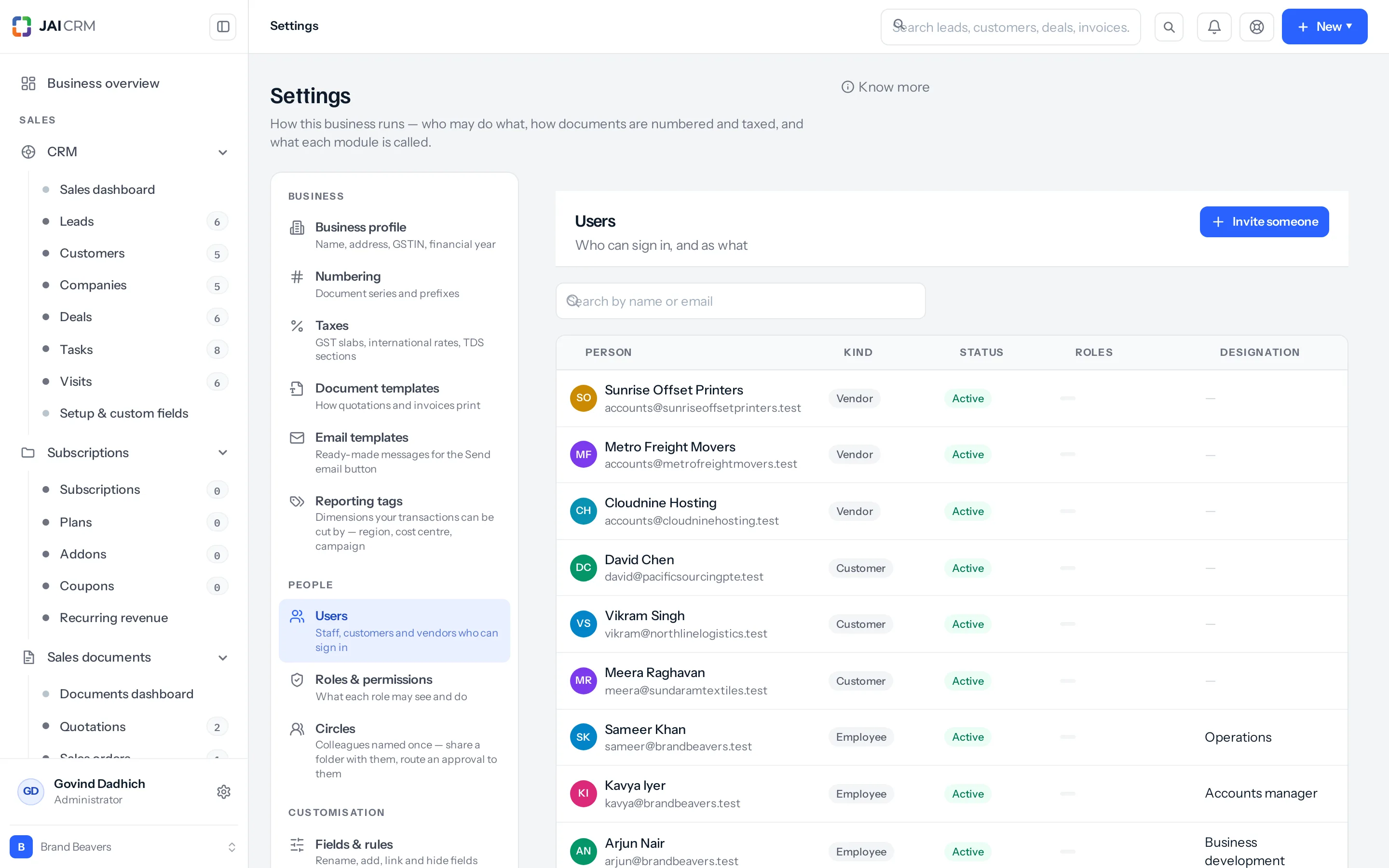
Every person can have permissions of their own, on the Permissions tab of their record in Settings › Users. Whether they apply depends on one thing: whether the person has a role.
The rule
- The person has one or more roles: they get exactly what those roles give. Their own permissions are ignored, however many there are.
- The person has no role: they get exactly their own permissions.
- A role never changes their own permissions. Tick Sales executive for somebody whose own permissions were Manufacturing, and they see only what Sales executive gives; untick it, and Manufacturing is back.
- Somebody with no role and no permissions of their own sees nothing. The Details tab says so in amber before you save.
Giving one person something different
- Copy the role. On Settings › Roles & permissions, press the copy icon on the role, change what the copy grants, and give that person the copy instead. This is the way to give one person more, or less, than the people who share their role. To change what everybody on a role may do, change the role itself; the roles marked Preset change the same way.
- Or give them no role and set exactly what they may do on their own Permissions tab. Right for one-off accounts: an auditor for a quarter, a consultant on one module.
- Make a role whenever the answer is “anybody who does this job”. A role shows on the Roles screen, the organisation tree and the Who can do what tab; a person’s own permissions show only on their record.
Nobody can give somebody else permissions they do not hold themselves, whether as a role or as their own. You need Users: manage to save a person’s own permissions.
How access is worked out
- Roles, if they hold any. Every role is merged: actions are added together, and the widest data scope wins. Their own permissions are not read.
- Otherwise, their own permissions. Exactly what is ticked on their Permissions tab.
- A grant on any submodule marks its module reachable, so the section appears in their sidebar. It grants nothing else inside that module.
- Anything in a module that is switched off is dropped. A module turned off under Settings › Plugins, or one the plan never covered, takes every permission inside it with it.
The result is cached on the server for a few seconds and cleared the moment you save, so the change is honoured on that person’s very next request. Their browser is a different matter. The app reads their permissions once, when they open it, and nothing refreshes that copy afterwards — not even the token refresh, which is handed a fresh set and throws it away. Until they reload the page, the new section will not appear in their sidebar and the buttons the override unlocks will still be missing, although a link straight to the page works, because the server has already changed its mind. Tell them to reload. They do not have to sign out and back in.
What the three data scopes actually mean
| On the screen | What the person sees |
|---|---|
| Their own records | Records they own or created, plus any record they are named on through Assigned to or Mark to — and, because both of these are read at every scope and not only at the one below, everything owned by anybody beneath them on the organisation tree, and everything owned by everybody on a role of theirs that has Share data with peers switched on. |
| Their team’s records | All of the above, plus everybody they share a circle with. A circle is read at this scope and nowhere else, so it is the only thing this setting adds over Their own records. |
| Everything in the business | Every record in that module, subject only to a warehouse or branch restriction. |
“Their team’s records” reads the organisation tree, not a department field — and because the tree is read at every scope anyway, moving a row up to it adds exactly one thing: circles. Two consequences catch people out. First, Share data with peers on a role changes what its members see whatever their scope says: switch it on for Sales executive, whose every row is Their own records, and all twelve executives can see and edit each other’s leads from that moment, with no scope touched anywhere. Second, a circle does nothing at Their own records — if you put two people in a circle so that one can read the other’s work, you have to move the rows they need up to Their team’s records as well, or nothing changes. A sharing rule, by contrast, reaches somebody at either of the two.
Give one person more
- Go to Settings › Users and click the person’s row. The dialog opens on Details.
- Switch to the Permissions tab. It is there while you are inviting somebody as well: the ticks from the roles you chose on the Details tab show at once, and anything you add is saved with the invitation.
- Find the module in the list and click its name to expand it. The rows underneath are the submodules: Invoices, Quotations, Expenses, Items, and so on.
- Tick the actions you want on that row. Four are shown by default — View, Create, Edit, Delete. Tick Show every action at the top and the rest appear: export, import, approve, share, print, convert, and on the rows that offer one, Manage. The checkbox’s own description does not name Manage. It is the most dangerous tick on the grid — see the warning under “You can only give away what you hold” below.
- Set the dropdown on the right of the row to the reach you want: Their own records, Their team’s records or Everything in the business. The dropdown only appears once at least one action is ticked.
- Read the grey From roles line under the row name. It lists the actions this person already resolves to — the actions and nothing else. It does not show the data scope they already have, and nothing else on the grid shows it either, so if you are widening a scope rather than adding an action, you are working without that check.
- Click Save.
Do not use the All access button at the top of a module unless you mean it. It ticks every action on every submodule in that module, and it also writes a View grant on the module row itself — and a grant on a module row is read into every submodule under it. If you then untick the submodules one by one, that module row stays behind, quietly granting View on all of them. Use Clear, which removes the module row too.
A worked example
Marudhar Hardware & Tools Pvt Ltd, Jaipur — 34 staff, one branch in Jaipur and a warehouse at Bhiwadi. Priya Sharma is on the Sales executive role, along with eleven colleagues. That role grants her quotations, leads, customers and deals at Their own records, and view and print on invoices — again, only her own.
Rohit Agarwal, who runs the Jaipur desk, is away for six weeks from 1 October. While he is away Priya has to answer customers about any invoice on the desk and send the outstanding list to the auditor. She must not gain Settings, and she must not be able to approve anything.
Suresh Jain, the owner, opens Settings › Users › Priya Sharma › Permissions, expands Sales documents, and on the Invoices row ticks View, then Show every action and ticks Print and Export. He sets the dropdown to Everything in the business and saves. Then he tells Priya to reload the app.
On 3 October Priya opens INV-2026-0912 to Jaipur Ply & Panels — taxable value ₹4,72,000, CGST 9% ₹42,480, SGST 9% ₹42,480, total ₹5,56,960 — a record Manoj Yadav owns and that she could not open the day before. She can export the register. She still cannot see Manoj’s quotations or his leads, because the override was written on invoices and nothing else, and the eleven other sales executives see exactly what they saw on 2 October.
What this affects the moment you save
- Their sidebar, once they reload. Granting any submodule makes its module reachable, so a section can appear for them that was not there before. The server allows it at once; the app in front of them is still showing what it was told when they opened it.
- Every list and every record page in that module, on the web and in the mobile app, from their next request. There is nothing to re-publish.
- Exports and reports. Widening a data scope widens what their exports contain, which is usually the real reason somebody asked.
- The audit log. The change is written to Settings › Audit log against that person, as a permission change, with the whole map as it was before and as it is now.
It affects nothing retrospectively. No record changes hands, no document is re-numbered, nothing that has already been printed or filed is altered. An override changes what somebody may see and do from now on.
Giving somebody less
This is the weaker half of the feature and it is worth being plain about. The grid on a person’s record adds. Because the widest grant wins, setting a narrower scope in the dropdown than the person’s role already gives them changes nothing at all — the role still wins.
To take something away, use one of these instead.
- Change which roles they hold. On the Details tab, untick the role that is too wide and tick a narrower one. This is the reliable route.
- Change the role itself, when everybody on it should have less. A preset changes like any role: untick what should not be there and save. That reaches everybody on it, keeps its place in the organisation tree, and stays through later releases; Put back as it ships undoes it. If the problem is where a role sits in the tree, or whether its members can see each other’s work, fix that on the role too.
- Copy a role and trim the copy, when only some of the people on it should have less. On Settings › Roles & permissions, use the copy button on a role card, open the copy, untick what should not be there, and move the person onto it. The copy keeps the original’s Reports to, Share data with peers and warehouse limit, so the people above still see its members’ records.
- Restrict them to places. On the Details tab, Restrict access to branches and Restrict access to name the branches and warehouses that person holds. This narrows them even at Everything in the business — but only in the modules their role is set to segment, under Restrict to the person’s own warehouses on the role. Neither half does anything on its own, and a person with no branch or warehouse ticked is not restricted at all. Both controls can also be absent: the branch list is only drawn when the business has more than one active branch, and the warehouse list only when there is at least one warehouse. In a single-branch business you will find the warehouse list alone, or nothing.
- Turn down what a superior may do. On Settings › Roles & permissions › Organisation tree, What a superior may do to a subordinate’s records can be set to Edit them, but not delete. That applies to everybody above everybody, not to one person. And although the control sits on the Roles screen, changing it needs Business profile: edit — not the roles permission. With Roles: manage alone the dropdown is read-only and the screen gives no reason.
- Suspend them, which stops everything at once. See below.
You can only give away what you hold
So that a warehouse manager can take somebody on without fetching an administrator, JAI CRM lets people grant — and refuses to let anybody grant more than they have themselves.
- Roles. When you open a person’s record, the roles list only offers roles whose permissions are inside your own. A role already on that person stays visible whoever is looking, so that saving an unrelated change does not quietly strip it. If some roles are held back you are told so under the field.
- Warehouses and branches. Somebody restricted to two warehouses may only hand out those two. Somebody nobody has restricted — an administrator, or anyone with no warehouses ticked — may hand out any of them.
- Actions that do not exist. A row only offers the actions that module actually has. Items have no approve, GST returns have no create, quality inspections have no create because the rule engine raises them. The save refuses anything else with “Some of those permissions do not exist”.
That guard is applied to roles, warehouses and branches. It is not applied to the per-person override grid: somebody with Users: manage can write an override that gives a colleague more than they hold themselves. In a workspace running the shipped roles only administrators and the owner have that permission, so it does not arise — but if you build a custom role and grant it Users: manage, you have handed that role the ability to grant anything. The same warning covers the Manage tick on the grid, because on the server a grant that includes Manage answers yes to every action on that row. One Manage tick on the Users row is Users: manage.
Suspending somebody
Suspending is for somebody who has gone — resigned, on long leave, under investigation, or a shared login you want stopped tonight. It closes the door and leaves everything else exactly where it is.
- Go to Settings › Users and click the person’s row.
- On the Details tab, tick Suspended.
- Click Save. Their status badge on the list turns to Suspended.
From that moment they cannot sign in, and any browser or phone already signed in stops working on its next request with “Your account has been suspended”. Their session is not merely expired — the status is re-read on every single request, so there is no window to wait out.
The account owner cannot be suspended. The attempt is refused with “The account owner cannot be suspended. Transfer ownership first.” To restore somebody, untick the box and save.
What happens to their records
- Nothing moves. Every lead, quotation, invoice, expense and task they own still belongs to them. Nothing is reassigned, closed or hidden.
- Their manager still sees it all. Reach down the organisation tree is worked out from roles, and a suspended person keeps their roles, so a suspended salesperson’s pipeline stays visible and workable to whoever is above them.
- They disappear from the pickers. Suspended people are dropped from Owner, Assigned to and Mark to lists, from document share targets, from project people lists and from the person columns on a board. You cannot hand them new work.
- Records already naming them keep naming them. A task assigned to a suspended person stays assigned to them and will not be picked up by anybody by itself. Reassign before you suspend, or you will be hunting for it later.
- An approval routed to them by name still waits on them. Where an approval rule names a person rather than a role or a circle, the step resolves to that one account whatever its status, and only that account may decide it — an administrator cannot clear it on their behalf. A request already pending on somebody you suspend stays pending, and nothing in the product will move it on. So before you suspend: re-point any rule that names them under Settings › Approvals, and clear anything already waiting. Note that the approver picker on that screen lists suspended people, so nothing stops you naming one again by mistake.
- Their roles and overrides are kept. Untick Suspended and they come back to exactly the access they had.
Suspend or remove
Remove is the red button at the bottom left of the person’s dialog. It is a different act, and the difference matters most in two places: your seat count, and whether you can undo it.
| Suspended | Removed | |
|---|---|---|
| Can sign in | No | No |
| Sessions | Stop at the next request | Revoked outright |
| Their records | Untouched, still theirs | Untouched, still theirs |
| Shown in Owner and Assign to lists | No | No |
| Counts against your plan’s user limit | Yes | No |
| Roles and overrides | Kept | Kept on the removed row |
| Shown on the Users list | Yes, badged Suspended | No |
| Reversible from the product | Yes — untick the box | No |
| Their email can be used again here | They still hold it | No — the address stays taken |
| Refused when | They are the account owner | They are the account owner, they are you, or records are assigned or marked to them |
Before a removal goes through, JAI CRM counts what is still assigned or marked to that person — the rows the Assigned to and Mark to fields write — and shows them to you. Clear those and the removal proceeds. What it does not count is what they own. A salesperson who owns two hundred leads and is assigned none can be removed in one click, and every one of those leads goes on pointing at somebody who is no longer on the Users list, no longer in the Owner picker, and whose name cannot be chosen to hand them over. At Their own records nobody inherits them. Hand over what somebody owns before you remove them.
Removal is a one-way door, and it takes the email address with it. The address stays attached to the removed row, so inviting the same person again later is refused with “That email is already in use” — naming an address you can no longer find anywhere on the Users list. Ignore the confirmation dialog when it offers to let you restore the person from the audit trail within thirty days: that sentence is the shared wording every delete shows, and there is no way to restore a user. If there is any chance they will come back, suspend instead. The only cost of suspending is a seat.
What an override will not do
- It will not narrow anything. The grid adds. A scope set lower than the role’s is ignored.
- It will not touch the account owner. The owner holds every permission by definition, and overrides on the owner’s record are never consulted.
- It will not reach a module that is switched off. A module the business has turned off under Settings › Plugins, or that its plan never covered, drops every permission inside it and this one with them. The override stays stored and starts working the moment the module is switched back on.
- It will not set warehouses or branches. Those are on the Details tab and are a separate narrowing.
- It will not change record ownership, assignments or anything already recorded.
- It will not outlive the ticks. The screen sends the whole grid and the save replaces what was stored, so untick every action on a row and that exception is gone the moment you click Save. Nothing is left behind to find later.
The ones that catch people out
These are the six that produce support calls. Each is real behaviour, not a caveat.
- A module row is read into every submodule under it. Administrator, Manager and Read only all grant on the module itself, so an exception has to clear that floor to mean anything. On Administrator the module row is already every action at Everything in the business, and an override adds nothing whatever. On Manager it is every action except Manage at Their team’s records, so only Manage or a wider scope adds anything. On Read only it is View at Their own records, which an override can add to freely. The grey From roles line will not warn you either way: it reads the row itself and never the module row above it.
- A public module ignores the scope entirely. If a module’s default is anything but Private under Settings › Roles & permissions › Data sharing settings, everybody sees everything in it and the data scope stops being consulted. Check that tab before you conclude a scope is broken.
- Several rows cannot be scoped by owner at all. Warehouses, Categories, Price lists, Work centres, Job cards, Shop floor, Operations, Bank accounts, Employees and Groups carry nothing that says whose they are — a stock location belongs to the business, not to a person. The dropdown still offers Their own records on those rows and it changes nothing. Nor can most of them be restricted by place instead: of the ten, only Warehouses record a branch and only Work centres record a warehouse, and the role save refuses the rest with “Those modules do not record a warehouse, so they cannot be restricted by one”. On the others the only way to hold something back is to withhold the row.
- “From roles” is not only from roles, and it never shows the scope. The grey line under each row lists the actions the person fully resolves to, overrides included — so after you save an exception it appears there too, and the line cannot be used to check what the role alone would give. It also lists actions and nothing but actions. The data scope somebody already has is not displayed anywhere on the grid, which is awkward, because widening a scope is the commonest reason to write an override at all.
- Suspending does not free a seat. A suspended person still counts against your plan’s user limit. At the limit you will see “Your plan includes N users and they are all in use. Upgrade, or disable someone first” — and there is no Disable control anywhere in the product to go and find. Suspended is the only staff-status tick there is, and it keeps the seat. To get past the limit you have to remove somebody, or upgrade.
- Suspending your last spare administrator pins the role to them. The Administrator role cannot be taken off the last active administrator. Suspend one of two and the other is refused with “This is the last administrator. Give somebody else the Administrator role first.” They can still put Administrator on a third person and drop it afterwards — but that person has to be active: somebody invited who has not yet set a password does not count, and the refusal stands until they join. Appoint the replacement, wait for them to accept, then suspend.
Something missing or wrong here? Tell us. A question that needed asking usually means a page that needed writing.