
You want the two people who do the books to reach the finance folder. You want the four people on the hospital job to be on the hospital job. You want your Udaipur manager to stop seeing the Jaipur manager’s deals. All three sound like one job — make a list of people and point something at it — and they are three different things here.
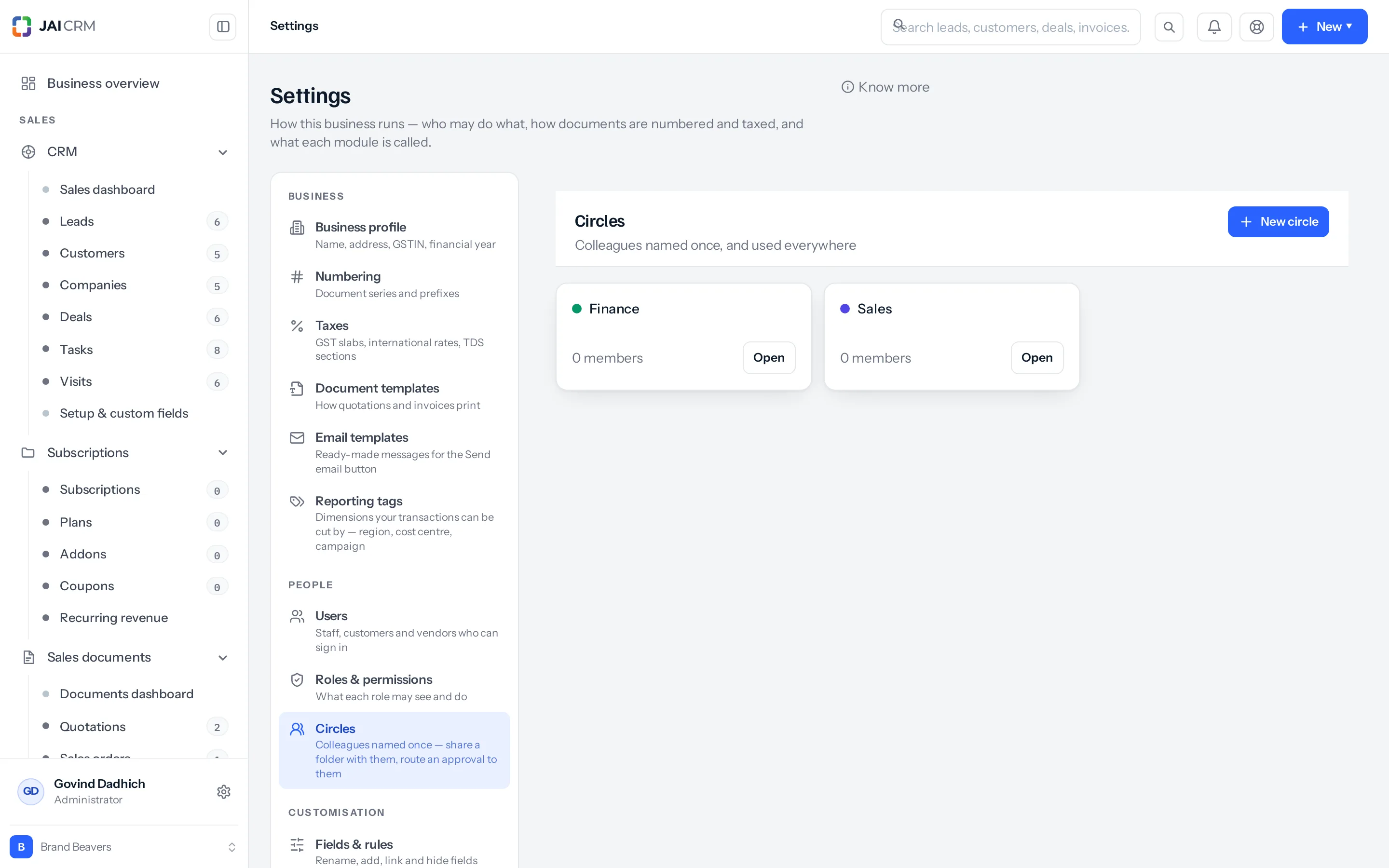
A team is the reporting line on the org chart. A group goes on a project and may hold staff, client contacts and suppliers. A circle is staff only, and is what a document share or a data sharing rule names. This page used to be called Teams. The address has not changed, so anything linking here still works.
The three words side by side
| Circle | Group | Team | |
|---|---|---|---|
| Where it is | Settings → Circles | Projects → Groups | Nowhere. It is the shape of Settings → Roles and permissions → Organisation tree |
| Who may be in it | People who work here, and nobody else | Staff, client contacts and suppliers | Nobody is in a team. Roles sit under roles, and people hold roles |
| What reads it | Document shares, data sharing rules, approval steps, saved views and dashboards, the nickname a shielded outsider is shown, and the their team’s records data scope | Projects, the Who can see it rule on a section or menu item you added yourself, and the nickname a shielded outsider is shown | Every narrowing data scope, their own records included, and sharing rules aimed at a role and the people under it |
| Permission to manage it | settings.circle | projects.group | settings.role |
| It is a row you create | Yes | Yes | No |
A circle and a group are the same shape underneath — a name, a colour, a description, members — and the same screen draws both. What differs is what may go in one and what may point at it. Two of the readers in that first column are reachable only over the API: no screen in the product sets a circle on a saved view or on a dashboard, where the sharing box offers everybody here or nobody.
Why a circle is staff only
A circle is what you name when you share a document folder, or write a sharing rule that widens who sees whose records. Nothing in that sentence should be able to reach a customer. A project is the one place in the product where your own people, the client’s people and a supplier’s people all legitimately appear on the same list — so that list is a group, and it is the only one a project will accept.
The rule is enforced on the server, not just hidden on the screen. Add a customer or a supplier to a circle and you are told: A circle is staff only — put a client or a supplier in a group instead. The kind is read from the address you are on, never from what the browser sends, so no screen will put a client contact or a supplier record into a circle.
On the Circles screen the Members box offers Staff and nothing else. On the Groups screen it offers Staff, Customer and Vendor — Customer only if CRM is switched on for your business, and Vendor only if Procurement is.
One gap worth knowing about. A client’s or a supplier’s portal sign-in is a user row like any other. The endpoints behind the Users screen accept a list of memberships alongside the login they create or edit, and they do not check that those lists are circles or that the login belongs to a member of staff. Nothing in the product sends one — the Users screen has no picker for it — but an integration writing straight to the API could put a portal login in a circle, and a document share on that circle would then reach them. The same field replaces every membership the person had, so it can also take somebody out of every circle they were in.
A team is not something you create
There is no Teams screen and no team row. A team is what the org chart says: each role names the role it reports to, and everybody holding the senior role sees the records owned by everybody holding the roles beneath it. You read and rearrange it at Settings → Roles and permissions → Organisation tree.
Two people on the same role are strangers to each other by default. A manager in Jaipur and a manager in Udaipur are not above one another, so neither sees the other’s work. Three things change that without widening what either of them sees generally: tick Share data with peers on the role, write a data sharing rule between the two roles, or put both people in the same circle. The circle only counts where that permission’s data scope is already their team’s records — on their own records a shared circle changes nothing, while the other two work at either scope. Three blunter things change it too: raising the role’s data scope to Everything in the business, giving one of them that scope as a per-person exception on their user record, or setting the module’s default organisation permission to anything but Private. Each of those shows them every record in the business, not only each other’s.
The old addresses /settings/team and /settings/teams now open Circles, because every list that existed under the name Teams became a circle. /projects/teams opens Groups.
Both halves of "their team's records"
When you set a permission’s data scope to their team’s records, two things are consulted and the results are added together:
- The role tree. Everybody holding a role beneath theirs, all the way down, plus their peers on the same role if that role shares sideways.
- Their circles. Everybody who is in a circle with them.
Groups are deliberately left out of the second half. Being named on the same project as a colleague is not a reporting line, and it is not what anybody means by “their team’s records”.
The role tree half is read whatever the scope says. Only the circle half waits for their team’s records. Somebody on their own records still sees everything owned by the roles beneath theirs — and can still edit or delete it, on whatever the Organisation tree setting below allows. Their own records means their own plus everybody under them, and it always has. If you want somebody to see nothing but their own, they need to have nobody beneath them on the org chart.
A circle is not read-only. Reaching somebody’s record this way carries whatever Settings → Roles and permissions → Organisation tree says a superior may do to a subordinate’s records. That ships set to Edit and delete them. Change it to Edit them, but not delete before you put two managers in a circle, or each of them can delete the other’s leads. It is one switch for the whole business and not one per circle: on Edit them, but not delete no superior anywhere can delete a subordinate’s record. Owning the record still lets you delete it, and so does a data scope of Everything in the business.
Make a circle
- Go to Settings → Circles and choose New circle.
- Fill in Name. Colour, Nickname and Description are optional.
- Choose Save. The dialog closes and the new circle appears in the list.
- Choose Open on its card. The Members panel only appears once the circle exists, which is why this is two steps and not one.
- Under Members, leave the kind box on Staff, pick a name and choose Add. Each person is added as you go — there is no second Save.
- Remove somebody with the × beside their name.
You need settings.circle to open the screen and create on it to add one. Of the shipped roles, only Administrator can create a circle; Manager can see the list but not change it.
Make a group
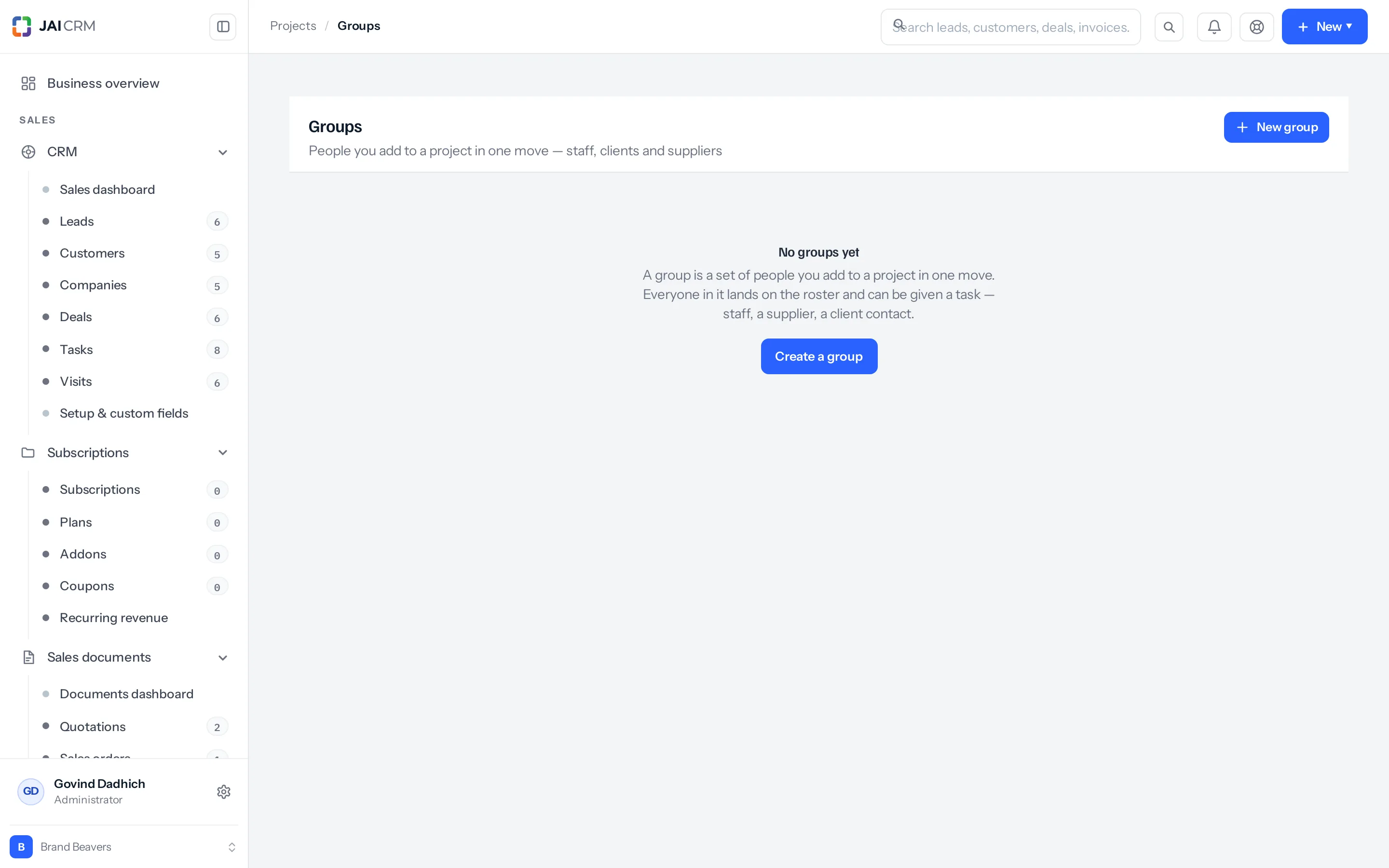
- Go to Projects → Groups and choose New group.
- Fill in Name and choose Save. The dialog closes and the group appears in the list.
- Choose Open on its card to reach the Members panel.
- Under Members, choose Staff, Customer or Vendor in the kind box, pick a name and choose Add.
- Repeat for everybody who belongs on it, from any of the three.
The Nickname field is what a shielded outside login sees in place of a real name on a confidential project. It is read from every list a person belongs to, circle as well as group, so do not name a circle anything you would be unhappy for a client to read.
Put a group on a project
- Open the project from Projects and go to the People tab.
- Choose Add a group.
- Tick the groups that are working on it and choose Save.
What that actually does is write the list of group ids onto the project row. Nothing is copied — no membership is duplicated onto the project, and nobody is assigned anything. The People tab then lists the group with a live count of its members, and the count follows the group: take somebody out of it this afternoon and the count drops this afternoon.
Only a group is offered here, and a circle sent by any other route is refused with One of those is not a project group.
A worked example
Bhandari Engineering Works in Jaipur does HVAC and ducting fit-outs. Forty-one people, two branches — Jaipur and Udaipur — and one big job running at Metro Hospital, Malviya Nagar.
The team, which needed no setting up
Vikram Sethi holds the Sales executive role. That role reports to Manager, which Neha Agarwal holds. So Neha already sees every lead, deal and quotation Vikram owns, and nobody wrote a rule to make it so. That is the team: the org chart, and nothing else.
The circle that fixed the two branches
Neha in Jaipur and Imran Qureshi in Udaipur both hold Manager. Neither could see the other’s pipeline, because two people on one role are strangers by default — including Imran’s quotation to Metro Hospital for ₹18,60,000 plus 18% GST of ₹3,34,800, ₹21,94,800 in all.
Rakesh, the owner, made a circle called Branch heads in Settings → Circles and put both of them in it. Manager’s data scope on CRM and Sales documents is their team’s records, so from their next request each of them sees the other’s leads, deals and quotations. Before doing it he changed What a superior may do to a subordinate’s records to Edit them, but not delete, so Neha can correct a line on Imran’s quotation and cannot throw it away. That switch is business-wide: from the same moment, no manager anywhere at Bhandari can delete anything owned by anybody beneath them.
The circle that carries the books
A second circle, Accounts desk, holds Priya Nair and Sunil Meena. In Documents, Rakesh opened the Books 2026-27 folder, chose Share, moved to the Groups tab — which lists circles — picked Accounts desk and gave it Can edit. Every file under that folder is now theirs, and it stays theirs when a third person joins the circle in April.
One thing takes it back. A share that reaches the same person nearer the file wins outright and is not widened by the one above it, so a Can view share on one file inside, or on a folder further down, leaves them able to read that file and not to change it. A share naming somebody else does nothing to them: they are answered from the folder as before.
The group on the hospital job
The group Metro Hospital fit-out holds four: Vikram Sethi and Anjali Rathore from the office, Dr Neelam Saxena, the hospital’s projects officer, and Shree Ducting Works, the supplier. Anjali added it to the project from Projects → Metro Hospital fit-out → People → Add a group.
What each one did, and did not do
- The project’s People tab now shows the group and says it has four members. The four names are not listed there. That is the whole of what adding it changed on the project.
- Priya can open the first instalment invoice of ₹6,20,000 plus ₹1,11,600 GST, ₹7,31,600, in the Books folder — because of the Accounts desk circle, not because of any project.
- Vikram is in the group and is not in the Accounts desk circle, so the Books folder is invisible to him. A group is not what a share names.
- Dr Saxena and Shree Ducting Works are in the group and are not in the project’s own Client contacts and Vendors lists, so neither appears on the project’s People tab under those headings, and neither can be handed a task. The People tab prints 4 members · all of them can be assigned tasks under the group, which is not true as it stands — read it as all the staff in it, because the task’s Assigned to box greys out everybody else.
- Neha and Imran see each other’s pipelines. Nobody else’s visibility changed at all.
What changes the moment you save
- Adding or removing a member clears that person’s cached permissions straight away, so it is true on their next request. Creating or deleting a circle or group clears the cache for everybody.
- A document share, a sharing rule or an approval that names a list re-reads the members on every request. A new joiner is covered the moment they are added; nobody has to reissue anything.
- Record visibility widens immediately for anybody whose data scope on that module is their team’s records, and by exactly as much as the hierarchy setting allows.
- The project’s member count follows the group, because the project holds ids and not copies.
What it will not do
- A group does not widen who sees whose records. Only a circle feeds the their team’s records scope. Sharing a project with somebody is not sharing your pipeline with them.
- Being in a group on a project does not let you open the project. Project visibility is decided the same way every other module’s is — what you own, what you are assigned, your role’s scope — and a group membership is none of those.
- It does not change who can be given a task. The Assigned to box on a task already lists every active member of staff, whether or not a group put them there. The project’s own vendors and client contacts appear in that list greyed out: a task is assigned to a member of staff.
- A circle grants no permission. Sharing the finance folder with a circle gives nobody the Documents module. They still need
documents.fileview from a role, and a sharing rule cannot hand anybody a module their own role denies them. - The data scope beside Circles and Groups on the Roles screen narrows nothing. Neither row records an owner, so anybody who may view the list sees every circle or group in the business, whatever the scope says.
- Nothing is undone retrospectively. Removing somebody from a circle closes the door from that moment. It does not recall what they have already opened, exported or downloaded.
- Changing an approval rule does not move an approval already waiting. A request keeps its own copy of the levels from the moment it was raised. Changing who is in the list it names does reach it, because members are read live.
Deleting a circle does not switch off what points at it. It disappears from Settings → Circles and stops widening record visibility. The document shares, sharing rules, saved views and dashboards that name it carry its id and the membership rows are kept, so they go on granting exactly as before. Remove the share or the rule first, then the circle.
Which screen offers which list
The split is newer than some of the screens. Two of them still use an older word for the right list, and one uses the right word over the wrong list. What is underneath is what counts.
| Screen | The word it uses | What it actually lists |
|---|---|---|
| Documents → a folder or file → Share | Groups | Circles |
| Settings → Roles and permissions → Data sharing settings → a rule | Team | Circles |
| Projects → a project → People | Groups | Groups |
| Settings → Modules and menu → a section or menu item → Who can see it | Groups | Groups |
| Settings → Approvals → an approval level | Anybody in a circle | Project groups — see the note below |
The approvals picker is wired to the wrong list. An approval level can be routed to a list of people and it works: choose Anybody in a circle, save, and everybody on that list who is a member of staff is asked. The members are read live, so somebody added tomorrow is asked tomorrow. What is wrong is the picker under Which circle — it is filled from your project groups rather than your circles. So a client contact or a supplier sitting in the same group is skipped, and the picker is empty altogether for anybody whose role does not also hold view on Groups. Two things follow from it. Check what you are picking, because the name you see is a group’s. And never let that list empty out: a level with nobody in it cannot be decided by anyone, and the document waits without saying so. Anybody holding a role and Whoever they report to avoid the picker entirely.
One name between them. A circle and a group share a single namespace, so you cannot have a circle called Finance and a group called Finance. The second one is refused with Something of yours is already called Finance, and the list you are looking at will not contain the thing that is in the way. Prefix them if this bites: “Finance desk” for the circle, “Finance — Metro job” for the group.
Who can open the two screens
Circles need settings.circle; groups need projects.group. Here is what the shipped roles hold, before you change anything.
| Role | Circles | Groups |
|---|---|---|
| Administrator | See, create, change and delete | See, create, change and delete |
| Manager | See them only | See, create, change and delete |
| Read only | No access | See them only |
| Sales executive, Accounts, Accountant, Bookkeeper | No access | No access |
| Stores and inventory, Quality (QC), Production | No access | No access |
| Customer portal, Vendor portal | No access | No access |
Both rows are on the permission grid at Settings → Roles and permissions, Circles under Settings and Groups under Projects, with the usual view, create, edit, delete, export and import. Give the group row to whoever runs projects; keep the circle row narrow, because a circle is one of the things that decides who sees what.
You cannot add somebody to a circle from their user record. The Users screen has no circle picker — roles, branches and warehouses are set there, and membership is not. Open the circle and add them from it. The endpoint behind that screen does accept memberships even though nothing on the screen sends any, which is the gap described further up.
Something missing or wrong here? Tell us. A question that needed asking usually means a page that needed writing.