
A salesperson quotes a twelve per cent discount to win a job that only carries nine. An invoice goes out with the wrong GSTIN on it. Neither is dishonest and both cost money, and both are caught by one person reading the document before it leaves the building. An approval rule is how you say who that person is, on which documents, so nobody has to remember.
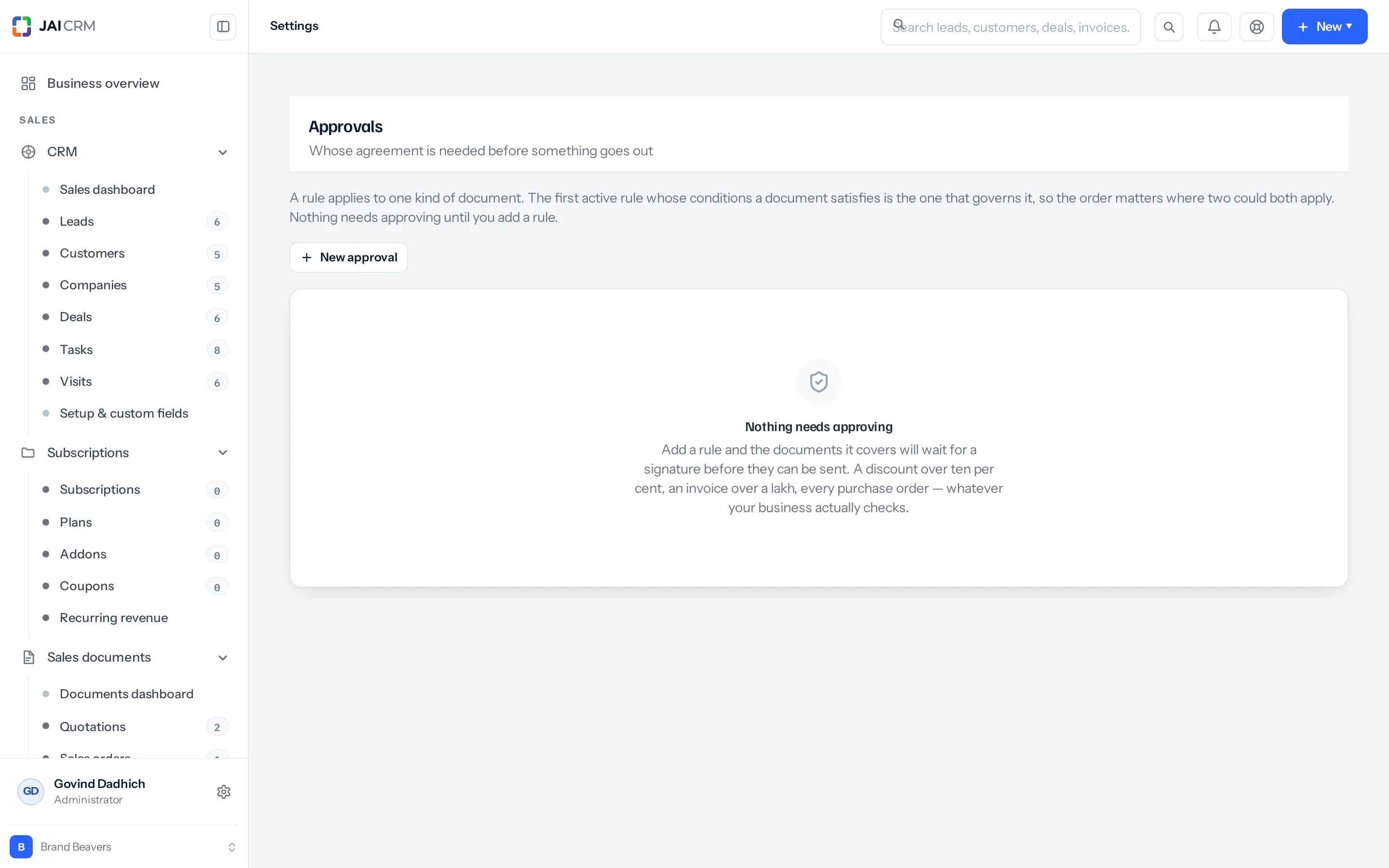
Until you add a rule, nothing in JAI CRM needs approving. The screen starts empty on purpose.
Where it lives and who may open it
Settings → Customisation → Approvals. The permission that governs it is Settings → Modules & menu on the Roles screen: View to read the rules, Edit to add or change one, and Edit and Manage together to remove one — the bin is only drawn for Edit, and the route behind it asks for Manage.
The shipped Manager preset carries only two settings permissions — Users (view) and Circles (view) — and Modules & menu is not one of them, so in a business running the presets unchanged this screen belongs to the Administrator.
The screen also reads the staff list, the role list and the group list to fill its dropdowns, so a custom role needs Users (view), Roles & permissions (view) and Projects → Groups (view) as well, or those dropdowns open empty with no error.
What a rule is made of
- A name. It is shown on the document that is waiting and in the approver’s queue, so write it as a policy: “Invoices over one lakh”.
- One module — a rule governs one kind of document and no other.
- One or more levels, each naming who has to agree, asked in order.
- An On tick. Off, and the rule sits on the screen governing nothing.
- A Let people approve their own tick, off by default.
- An Only over figure, read against the document’s total with tax (on a proposal, its value). Left empty, every document of that kind needs approving.
- An Only when it includes list of products or services, for a costing check: a document listing any one of them needs approving. With a figure as well, it must be over that too.
- An Order number, for when two rules could both cover a document. See When two rules could both apply below.
Which documents can carry a rule
The check runs at the moment a document leaves the building, not when it is saved. Writing a quotation nobody has agreed to is allowed; sending it is what the rule stops.
| Document | The rule is checked when you move it to | Enforced |
|---|---|---|
| Quotations | Sent, or Accepted | Yes |
| Proposals | Sent, or Accepted | Yes |
| Sales orders | Confirmed | Yes |
| Proforma invoices | Sent, and again at Accepted | Yes |
| Invoices | Sent | Yes |
| Credit notes | Issued | Yes |
| Purchase orders | — | No |
| Purchase bills | — | No |
Purchase orders and purchase bills are offered in the dropdown and nothing reads a rule made on them. The procurement status route never asks the approval engine, and no purchase document is even given an approval band to show, so a purchase order with a rule against it issues exactly as it would without one. What does gate a purchase order is a permission rather than a rule: issuing one asks for Approve on Procurement → Purchase orders, which a buyer without that tick cannot do at all.
Bills of supply, retainer invoices, delivery challans and debit notes are not offered on this screen, so none of them can be given a rule from here — though a bill of supply or a retainer invoice given one through the API is checked at Sent exactly as an invoice is. A delivery challan is not: it goes out as Dispatched, which is not one of the four statuses the check watches. A debit note is a purchase document, and purchase checks nothing.
Add a rule
- Open Settings → Customisation → Approvals and press New approval.
- In Call it, type the policy as you would say it out loud. This name appears on the waiting document.
- In On which documents, choose the one kind of document this governs.
- Fill in Only over to cover only documents above a total, or leave it empty to cover every one. For a costing check, add the products or services under Only when it includes.
- Under Who has to agree, set level 1: choose A named person, Anybody holding a role, Anybody in a circle or Whoever they report to, then pick the person, role or circle it needs.
- Press Another level for a second signature, and set it the same way. Levels are asked in order — level 2 is not asked until level 1 agrees.
- Leave On ticked and Let people approve their own unticked.
- Press Save. The rule governs the next document sent, and every document of that kind from then on.
Worked example
Ratnagiri Engineering Works, Pune, wants a manager’s eyes on big quotations. An Administrator adds a rule called Quotations over one lakh, on Quotations, with Only over set to 1,00,000 and one level set to Whoever they report to.
Anjali Deshpande, a sales executive, raises quotation QTN-2026-0114 for Sahyadri Motors of Nashik: 40 pump housings at ₹3,200 each, ₹1,28,000 taxable, GST at 18% of ₹23,040, total ₹1,51,040. A band appears at the top of the quotation: This needs approving under “Quotations over one lakh” before it can go out. She presses Send for approval.
Anjali holds the Sales executive role, which on the Roles screen reports to Manager. Vikram Kulkarni holds Manager, so the request lands with him. He finds it under Sales documents → Waiting on you, opens the quotation, presses Approve and adds a note. The band turns green. Anjali can now move the quotation to Sent.
The next morning Anjali raises QTN-2026-0115 for eight gaskets: ₹8,000 taxable, ₹1,440 GST, total ₹9,440. No band appears. It is under the figure, so the rule does not cover it, and she sends it straight away.
Who can be an approver
| You choose | Who is actually asked | How the level is settled |
|---|---|---|
| A named person | That one person and nobody else | Only they can answer it |
| Anybody holding a role | Everyone holding that role, read live at the moment of the decision | The first to answer settles it; the others are not asked |
| Anybody in a circle | Every member of the named list who is a staff login; customers and suppliers in the list are ignored | The first to answer settles it |
| Whoever they report to | Everyone holding a role that any of the raiser’s own roles reports to | The first to answer settles it |
Reporting runs between roles, not between people. It reads the Reports to box on the raiser’s role in Settings → Roles & permissions, and asks whoever holds the role above. There is no “manager” field on a person’s record that this reads. That is what makes it survive somebody leaving: a named approver does not.
It follows every role the raiser holds, not one. Somebody carrying two roles routes to both of their parents’ holders at once, and whichever of them answers first settles the level.
A circle of four does not mean four signatures. The first person to answer settles that level. The database carries a minApprovals count that defaults to 1, no screen sets it, and nothing reads it when a decision is recorded — so there is no way to require two of four.
A level nobody can answer
Nothing stops you saving a rule whose level nobody fits. When that happens the request is created, the document is blocked, and no one is ever asked. It happens when:
- the level names a circle with nobody in it, or a circle whose only members are customers or suppliers;
- the level names a role nobody holds;
- the level is Whoever they report to and the raiser holds no role at all;
- the level is Whoever they report to and the raiser’s role has nothing in its Reports to box;
- the level is Whoever they report to and the parent role exists but nobody holds it;
- the level names a person who has since been removed — the level still waits on them.
The request itself cannot be cancelled or reassigned, but most of these fix themselves. Role members, circle members and the reporting line are read afresh every time the request is looked at, so putting somebody into the named role or circle, or filling in the Reports to box on the raiser’s role, makes it answerable straight away. Only a level naming a person who has gone cannot be rescued that way — there the rule has to be turned off or removed in Settings → Approvals, which unblocks the document and leaves the request pending. While a level fits nobody the request sits in no one’s Waiting on you queue, because that queue lists only what the person reading it may decide. So a stuck document does not look like a stuck document: it looks like an approver being slow.
Can somebody approve their own request?
No, unless you tick Let people approve their own on the rule. Without it, the person who raised the document is refused even when they are one of the named approvers, with the message You raised this, so you cannot approve it. This is the one thing an approval exists to prevent, and the tick is off on every new rule.
This tick is read at the moment of the decision, not frozen when the request was raised. Tick it and documents already waiting become approvable by the people who raised them, immediately.
What the document does while it waits
- Its status does not change. A draft invoice stays a draft. The move to Sent is refused and the reason is shown.
- A band at the top of the document says what is waiting and at which level, with Approve and Reject on it for the person it is waiting on.
- It stays fully editable. Editing does not restart, cancel or re-ask the approval.
- It can still be printed and downloaded as a PDF.
- Pressing Send for approval twice does not raise a second request.
A rejection ends the whole chain — the levels after it are never asked. The document can be edited and sent for approval again, which starts a fresh chain from level 1.
Nobody is emailed or notified when a document is sent for approval, or when it is decided. The approval routes raise no notification event at all, and Settings → My notifications only sets how you hear about whole modules, so there is nothing there to switch on. The approver has to look at Sales documents → Waiting on you, and the person who raised it has to look at the document. The one exception is Ask someone to approve it on a proposal, which tells the colleague asked in the app.
Asking a named colleague, on a proposal
On a proposal that no rule covers, the writer can still ask one colleague to approve it, from the proposal’s menu. It holds the proposal exactly as a rule would, the colleague is told in the app, and only they can decide. See Approve, send and follow a proposal.
When two rules could both apply
Rules are tried in their Order, lowest first, and rules with the same number in the order they were added. The first one switched on whose conditions the document meets is the one that governs, and the rest are not asked. Give a narrow rule, such as a costing check, a lower number than a broad one, or the broad one will always answer first.
What changes the moment you save
- Every document of that kind now shows the approval band — ones raised before the rule existed, and ones already Sent, Paid or Cancelled as well, because nothing filters the band by status.
- The next attempt to move one to Sent, Confirmed, Issued or Accepted is refused until a request has been raised and approved.
- The change is written to the audit log against the rule.
On a document that has already gone out, the band still reads This needs approving … before it can go out and still offers Send for approval. Pressing it on a paid invoice raises a request that holds nothing up, because nothing further about that invoice is gated. On a quotation already at Sent it is not harmless: the move on to Accepted is gated, so the quotation now waits.
What it will not do
- It does not reach back. Documents already Sent, Confirmed, Issued or Accepted stay exactly as they are and are never withdrawn.
- It does not lock the document. Anyone who could edit it before can still edit it while it waits.
- It does not re-ask after an edit. A quotation approved at ₹50,000 and then edited to ₹5,00,000 is still approved and still sendable.
- It does not carry over to a copy. A revision, or a quotation converted into an invoice, is a new document with a new number and needs its own approval.
- It does not stop a payment, a credit note being applied, or stock moving.
Changing a rule while documents are in flight
The levels are copied onto each request when it is raised, so that editing the policy does not rewrite the history of what was asked of whom.
- Editing the levels changes the next document only. Anything already waiting keeps the chain it was raised with.
- Removing a person from a role or a circle does change a waiting request, because role and circle members are read live. That is the argument for naming a role rather than a person.
- Changing a named person on a level does not move anything already waiting on the old name. It stays stuck there until the rule is turned off.
- Ticking or unticking self-approval applies immediately, including to requests already waiting.
- Turning a rule off, or removing it, lifts the block at once provided no other rule is switched on for that module — if one is, it takes over and the document stays blocked by the request already pending against it. When the block does lift, the request itself stays pending and stays in the approver’s queue, where it can still be approved or rejected to no effect.
Because a request already pending is matched by document rather than by rule, pressing Send for approval again after swapping the rule hands back the old request under the old chain rather than raising one under the new rule. To start again cleanly, the pending request has to be rejected first.
Four ways a document goes out without being approved
The check runs on the status change made from the document. Send, Save and send and the send window all go through it, and check before the email leaves; Share a link sends nothing and changes nothing. These four do not pass through it.
- Recurring invoices with auto-send. The scheduled run raises the invoice and marks it Sent itself.
- Subscription invoices raised by the billing run, unless the arrangement is set to raise drafts.
- A credit note issued as it is raised. Raising a credit note against an invoice with the issue option ticked sets it straight to Issued.
- A customer accepting a quotation on the portal. That moves the quotation to Accepted from outside.
Things that catch people out
- The Approve tick on Roles does not make somebody an approver. Ticking Approve on Sales documents → Invoices grants nothing you can see in the product. The only thing that makes a person an approver is being named on a level of the rule, directly or through their role, circle or reporting line.
- Sending for approval needs Edit on the document. The band draws its Send for approval button for anyone who can open the document, but the route behind it asks for Edit on that document type first. Somebody with view and print on invoices presses it and is refused.
- “Which circle” does not list your circles. The dropdown is filled from Groups — the project rosters under Projects — not from Settings → Circles. Circles you created for sharing and approvals do not appear in it, and the list is empty unless you hold the Projects → Groups permission and the Projects module is switched on.
- The queue only ever shows what you can decide. Waiting on you works out, per request, whether you are the one being waited for, and drops everything else. A document waiting on somebody else is invisible to you, and one waiting on nobody is invisible to everybody — including whoever raised it. There is no screen anywhere that lists every request in the business.
- Send for approval can be refused outright. If no rule covers the document, the answer is Nothing here needs approving — no rule covers it. That is what you hit when a rule was switched off after the page was loaded and the band is still drawn from the stale answer.
- A rejection reason may be invisible. The reject box promises that whoever raised it will see the note. On a one-level rule it is not shown on the document at all; on a rule with two or more levels it appears only as a tooltip when you hover over the level. The reason is always written to the audit log against the document, so it shows on the document’s own History panel and in Settings → Audit log, which is where to look for it.
- Order decides, not position. Which rule governs is set by each rule’s Order number, then by the order they were added, whatever their place in the list.
- The bin may refuse you. The delete button appears for anyone with Edit on Modules & menu, but removing a rule needs Manage. With Edit alone the press fails — and a role holding Manage without Edit never sees the button at all.
- Level names are always “Level 1”, “Level 2”. The underlying field for naming a level is not offered on the screen.
Something missing or wrong here? Tell us. A question that needed asking usually means a page that needed writing.