
A lead is an enquiry from somebody who has not bought from you yet. This page shows how to add one.
The quick way
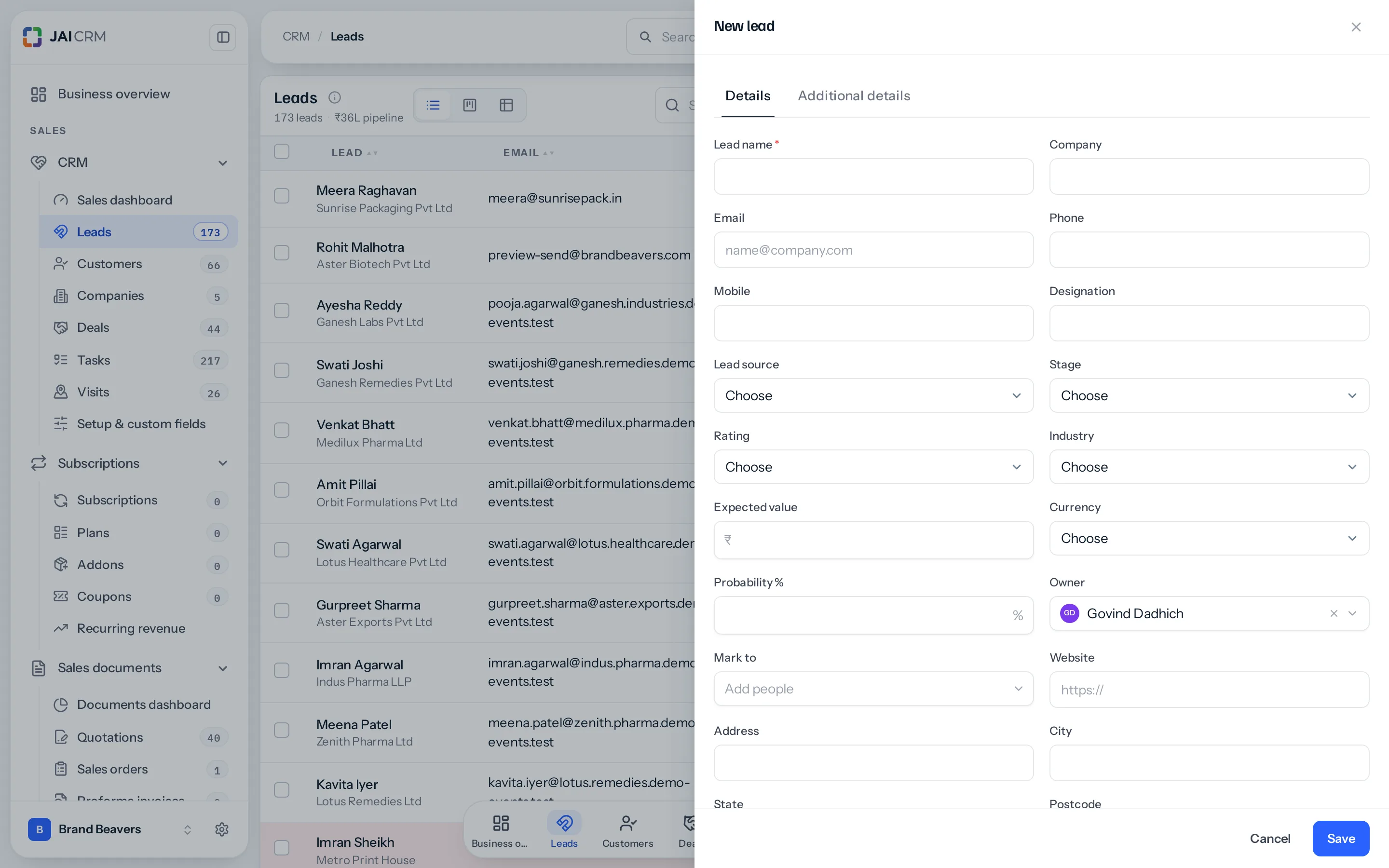
You are on the phone. You have ten seconds. Do this:
- In the sidebar, click CRM → Leads.
- Click the New button at the top right.
- Type the name.
- Click Save.
That is a valid lead. Name is the only field the system insists on. Everything else can be filled in afterwards, and usually is.
The two fields worth ten more seconds
If you can manage two more fields, make them these.
- Source — where this enquiry came from. IndiaMART, a Google ad, a walk-in, a referral. This is the field that later tells you which of your spending actually produced money. Nothing can reconstruct it afterwards, so if it is not captured now it is gone.
- Owner — the person responsible for chasing it. It defaults to you. One named person, so there is never a lead that everybody assumes somebody else is handling.
What the other fields are for
| Field | What it means | When to bother |
|---|---|---|
| Company name | The business they work for. | Almost always. It is also used to catch duplicates. |
| Email, phone, mobile | How to reach them. | At least one. These are also used to catch duplicates. |
| Additional details | A tab beside Details: Mobile 2 to 4, Phone 2 and 3, Email 2 and 3, and More details for anything else worth keeping. | When a card or a call gives you more than one number or email. |
| Designation | Their job title. | When you are selling to a big firm and it matters who is deciding. |
| Stage | How far along the conversation is. | Leave it at the first stage; move it as things progress. |
| Rating | Hot, Warm or Cold. Your gut feeling. | When you have more leads than you can ring in a day. |
| Value | Roughly what the business might be worth. | When you want a pipeline figure that means something. |
| Next follow-up | The date you have promised to come back to them, and the hour if you named one. | Always. This is what turns the row red when it slips. |
| Industry | What trade they are in. | When you sell differently to different trades. |
| Address, city, state | Where they are. | When you visit customers, or when tax depends on the state. |
| Tags | Free labels you invent. | For anything that does not deserve a field yet. |
| Notes | Anything else. | Whenever there is something to say. |
Set the next follow-up date. It costs one click and it is the single field that makes the CRM chase you instead of the other way round. A lead with a date shows a coloured mark on the list when that date arrives. A lead without one shows nothing, and quietly goes cold.
The Additional details tab
The form opens on Details. Beside it, Additional details holds the optional extras, so the form you fill in every day stays short: a second, third and fourth mobile, a second and third phone and email, and More details for anything else worth keeping, such as what they deal in, their expertise or the software they use.
- A number on the tab says how many of its fields are filled in.
- If Save is refused because of a box on the tab, the form opens the tab and marks the box, with a dot on the tab while you are elsewhere.
- On the lead’s page, Additional details is the tab straight after Overview. It lists every field on it, set or not, and its Edit button opens the form on the same tab.
- A scanned card fills these fields itself: up to four mobiles, three phones and three emails, and whatever else it says goes into More details.
- Your business decides what is on the tab. See Add your own fields.
Adding a lot of leads at once
Typing two hundred leads one at a time is not the answer. Use Import CSV instead — it takes a spreadsheet and checks every row before it saves anything.
Leads that arrive on their own
Leads do not have to be typed at all. If you connect IndiaMART, or put the web form on your website, enquiries arrive in this list by themselves with the source already filled in. See Integrations.
Working a lead from its own page
Open a lead and what you do with it every day is on its page, without opening Edit.
- Move its stage. The stages run across the top in order, with Won and Lost at the end. Press one to move the lead there. Won converts the lead into a customer: a lead is won by converting it, never marked won on its own. On the leads board, dropping a card in Won opens Convert to customer too, and Lost asks why.
- Say why it was lost. Pressing Lost asks for a reason from your business’s Lost reasons list, which you can change in Settings, Fields & rules, Lists, and a lost remark in your own words. While the lead is lost, both show beside it, with the date. The Why leads are lost report counts lost leads by reason, month by month or by salesperson.
- Set the next follow-up and the rating. The card beside the lead shows the date, in red with Overdue once it has passed and in amber on the day. Press Today, Tomorrow, 3 days or 1 week, the calendar beside the date for any other day, or the eraser to clear it. Hot, Warm or Cold is set on the same card, and only the one chosen is in colour.
- Add an hour, if you promised one. The Time box under the days is optional. With an hour the card reads Due today at 16:00, and turns red, Overdue since 16:00, once the hour has passed rather than at the end of the day. A new day keeps the hour you chose; No time takes it off. The same Time box sits beside the date in the Edit form, and the lead’s owner and the people assigned are reminded at the hour, in the app and by email.
- Comment and mark people. The latest comment shows beside the lead with a box to add one; it is the same comment as on the Comments tab. Mark to shows who is kept in the loop, with Add and a cross to take someone off.
- Read the details by section. Contact, Sales, Address and Notes, then any fields your business added. The extra numbers and emails and More details are on the Additional details tab. The pencil opens the form to change them; the bin deletes the lead, unless something such as a quotation depends on it.
The follow-up card, the comment, the summary and the open tasks stay beside the lead whichever tab you are on. On a phone the follow-up card sits just under the tabs. A converted lead shows its stages but can no longer be moved.
Quoting a lead before it is a customer
Open the lead’s Quotations tab and press New quotation. The quotation is addressed to the lead, and tax follows the state on the lead, so a lead in another state is quoted IGST.
- When you mark the quotation accepted, you are asked whether to convert the lead now, on the quotation itself: press Create the invoice or Create the sales order, whichever your business raises, and the lead becomes a customer and the new document opens. Later leaves the lead as it is. If the customer accepts through the share link, the lead says so with a Convert now button.
- Pressing Convert to sales order, Raise a proforma invoice or Convert to invoice on a lead’s quotation asks once: Convert now and create the sales order. The lead becomes a customer, the quotation goes with it, and the new document opens ready to check, addressed from the customer.
Neither asks about a deal: the focus is the order or invoice. The business the quotation won is recorded for you as a deal already won, named after the quotation’s subject, at its value before GST, so your pipeline and win figures count it. If the quotation already belongs to a deal, that deal is marked won instead of a second being made. Recording it needs Create on deals; without it the lead is still converted. Converting a lead from its own page still offers to open a deal.
Where to go next
Something missing or wrong here? Tell us. A question that needed asking usually means a page that needed writing.