
Every business asks for something the shipped fields do not cover. A tyre dealer wants the vehicle. A printer wants the paper size. A coaching centre wants which class.
You add those yourself. No developer, no ticket.
Adding one
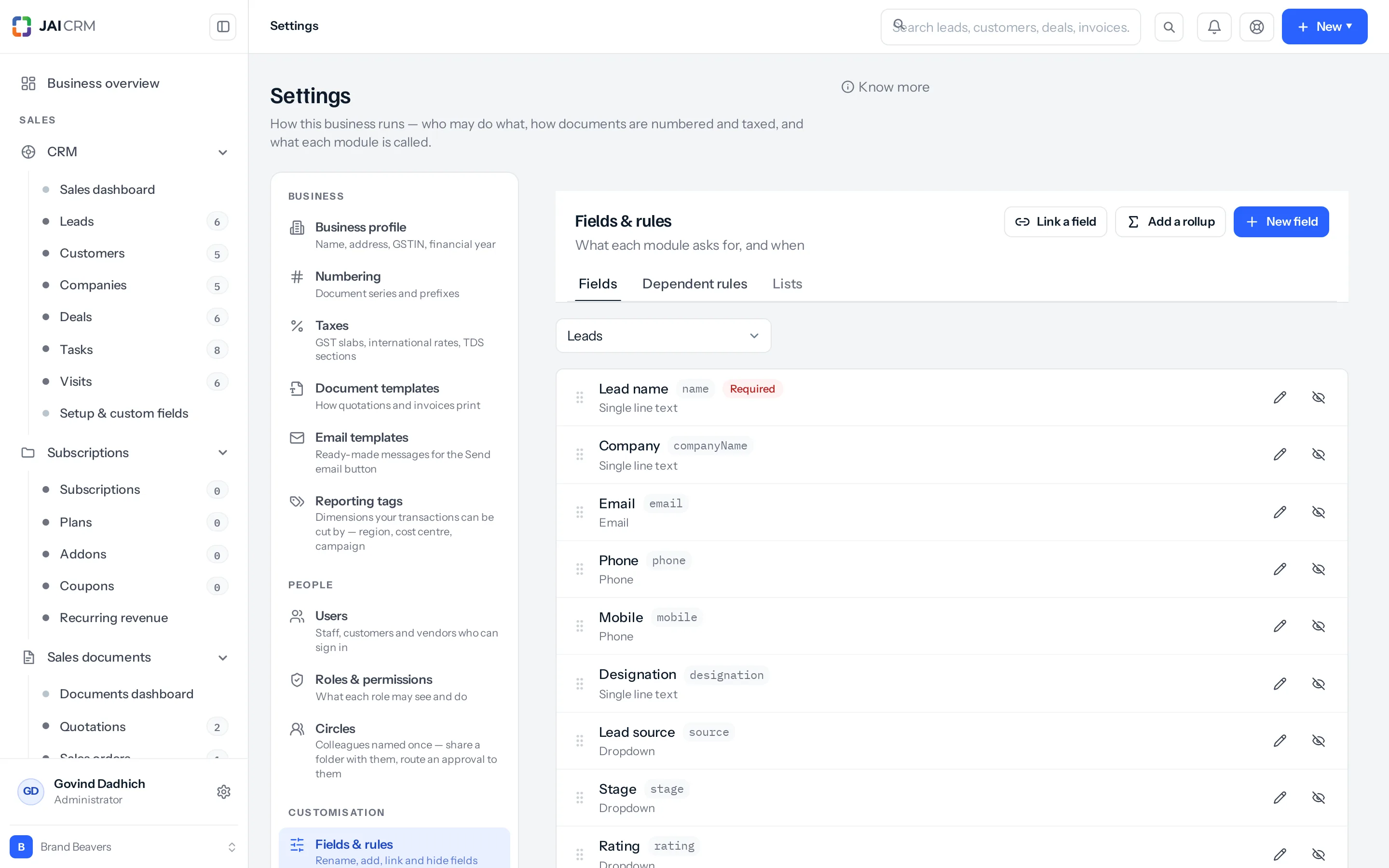
- Go to CRM → Setup & custom fields, or Settings → Fields.
- Choose the record it belongs on — Lead, Customer, Deal and so on.
- Click Add field.
- Give it a label. This is what people will see.
- Choose the type.
- Decide whether it is required, and whether it shows in the list.
- On leads, customers and vendors, choose Where it shows: on the main form, or on the Additional details tab.
- Save.
It appears on the record immediately, for everybody.
On the main form, or on the Additional details tab
Leads, customers and vendors have an Additional details tab on their form and their page, for the fields that are useful but not needed every time. It ships holding Mobile 2 to 4, Phone 2 and 3, Email 2 and 3 and More details.
- To move a field, open it and set Where it shows, or press the folder button beside it in the list. Fields on the tab carry an Additional details tab label.
- A field moved onto the tab leaves the main form and the record’s Overview, and shows on the tab instead. Moved back, it returns to where it was.
- A compulsory field can sit on the tab. If it is left empty, Save opens the tab and marks it.
- On vendors the form is laid out in fixed steps, so only the extra numbers and emails, More details and the fields you add yourself can move. The tab is a step of the vendor form, after Vendor profile.
The thirty-four types
Pick the type carefully. It decides how the field behaves everywhere afterwards — whether it can be totalled, grouped on a board, or filtered by date.
| Group | Types |
|---|---|
| Text | Single line text, Paragraph text, Rich text |
| Numbers | Number, Decimal, Currency, Percentage |
| Dates | Date, Date & time, Time |
| Choosing | Checkbox, Dropdown, Multi-select, Rating, Colour, Tags |
| People | User, Multiple users, Group |
| Links | Link to another record, Link to many records, Field from a linked record |
| Contact | Email, Phone, Website, Address |
| Files | File upload, Image, Signature |
| Worked out | Formula, Rollup, Auto number |
| Other | Structured data, Location |
The three that do more than store a value
| Type | What it does |
|---|---|
| Formula | Works a value out from other fields. Margin from cost and price, for instance. Nobody types it. |
| Rollup | Totals something from linked records — the value of every deal on a customer. |
| Auto number | Gives each new record its own sequential number. |
Choose the type, not the nearest text box
It is tempting to make everything a text box. Resist it, for one reason: a text box cannot be counted, grouped or filtered by range.
- A Dropdown can be a board column, and can be counted in a pivot. The same thing as free text cannot, because Mumbai, mumbai and Bombay are three different answers.
- A Date can be filtered with overdue and next 30 days. A date typed into a text box cannot.
- A Currency field can be summed. Text cannot.
A whole list of your own
If what you need is not a field but an entire list — site surveys, sample requests, complaints, AMC renewals — you can build one. It arrives with its own list, board, filters, saved views, import, export, permissions and history, exactly like the lists that ship with the product.
Where to go next
Something missing or wrong here? Tell us. A question that needed asking usually means a page that needed writing.