
Everything said to a customer should end up on their record. Not because anybody enjoys admin, but because the day you are on leave, somebody else has to be able to pick up the conversation without ringing you.
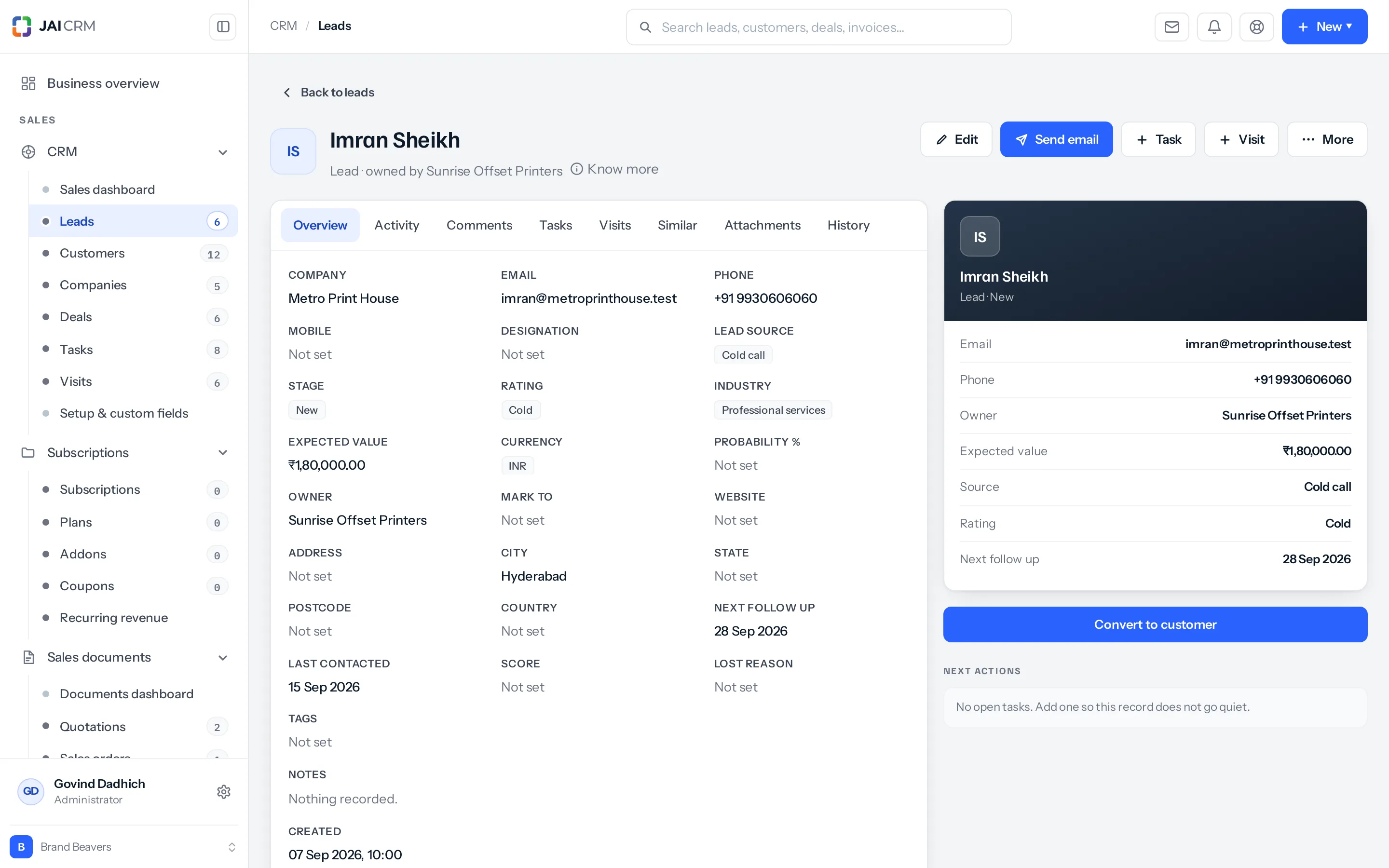
Open any lead, customer, company or deal and you will find three buttons: Note, Log call and Send email.
Logging a call that already happened
- Open the record.
- Click Log call.
- Choose the direction — did you ring them, or did they ring you.
- Enter roughly how many minutes it took. An estimate is fine.
- Write the outcome in a few words: interested, call back, no answer, wants a revised rate.
- Add any detail in the notes box.
- Save.
The call now sits on the record’s timeline with the date, the time and your name against it.
Promising a call for a future date
This is the more useful half. A call can be put in the diary instead of written up.
- Click Log call.
- Set it as planned rather than done, and give it a date.
- Save.
That call now appears as a telephone mark on the record’s row in the list, and the mark changes colour as the date approaches and passes. See The colours and icons on a list.
A promise beats a memory. A planned call is the difference between “I will ring them Thursday” and the system reminding you on Thursday. It costs the same five seconds either way.
Marking a planned call as done
Open the record, find the planned call on the timeline, and complete it. You will be asked for the outcome. The mark disappears from the list once nothing is outstanding.
If the call never happened and is not going to, cancel it instead. A cancelled call stays on the record as a record that it was planned and dropped — it is not deleted, because the fact that you meant to ring is itself worth knowing.
Notes
A note is anything that is not a call, an email or a meeting. Click Note, type, save. Notes live on their own tab so a long conversation history does not bury the one note you were looking for.
The timeline
Everything ends up on one timeline, newest first: calls, notes, emails, meetings, stage changes, documents raised and payments received. The tabs above it let you narrow to one kind.
| Tab | Shows |
|---|---|
| All | Everything, in the order it happened. |
| Calls | Calls and meetings only. |
| Notes | Notes only. |
| Emails | Email sent from the system, with whether it was opened. |
Where to go next
Something missing or wrong here? Tell us. A question that needed asking usually means a page that needed writing.