
You almost certainly have leads somewhere already — a spreadsheet, an old system, a list from an exhibition. Import them rather than typing them.
Doing it
- Go to CRM → Leads.
- Click Import CSV.
- Either upload a CSV file, or copy your rows out of the spreadsheet and paste them straight in.
- Match your columns to fields. Your heading might say Mobile No. and the field is called Mobile; tell it which is which. It guesses the obvious ones.
- Choose what to do about rows that already exist.
- Review what it says it is going to do.
- Import.
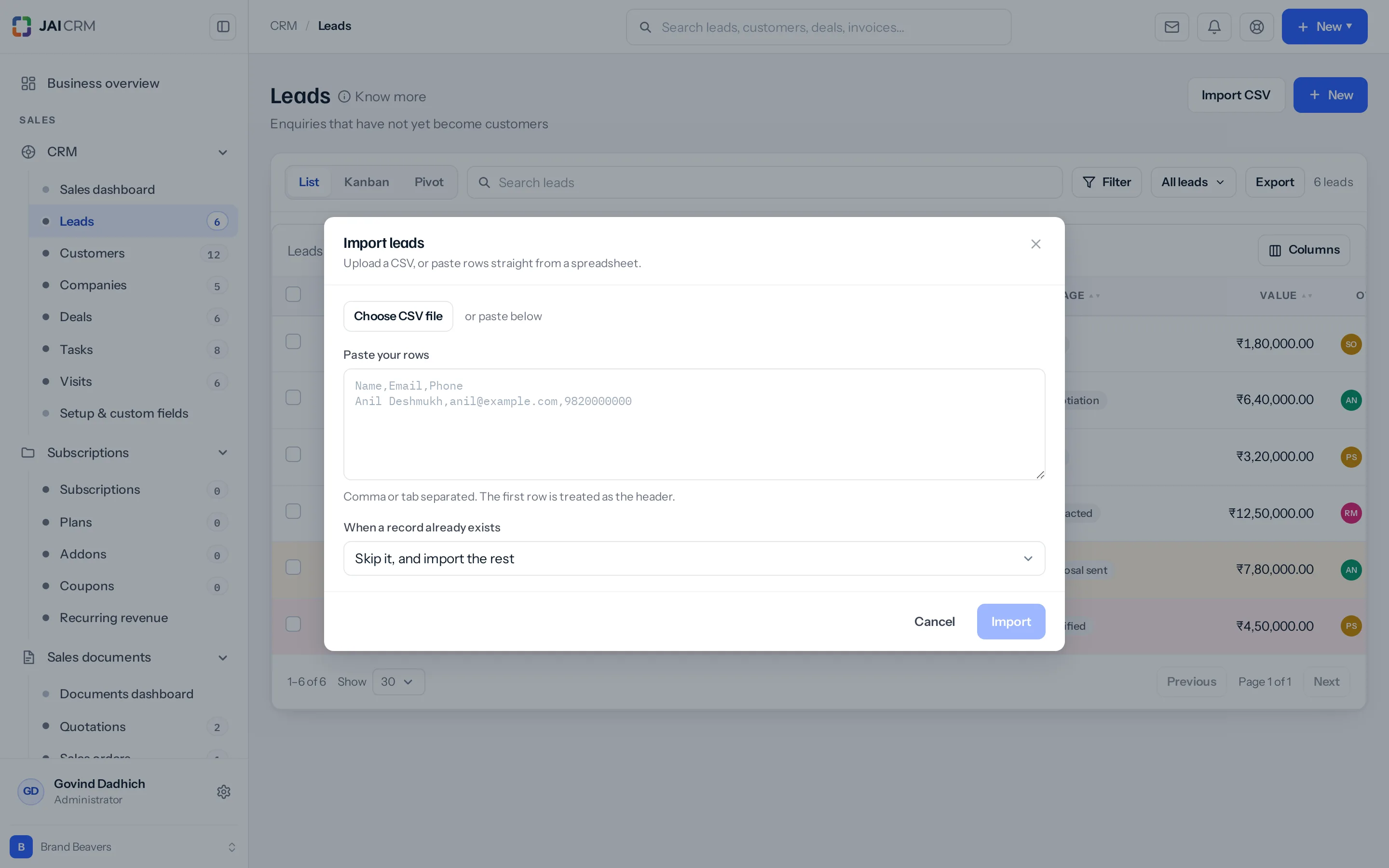
Rows that already exist
| Choice | What happens |
|---|---|
| Skip | Leave what you have. The incoming row is ignored. |
| Update | Overwrite the existing record with the incoming values. |
| Stop | Halt the import so somebody can look. Nothing is written. |
Skip is the usual choice for a fresh list. Update is right when the spreadsheet is more current than the system.
Empty cells
An empty cell takes the field’s usual starting value on a new lead: an empty Currency is INR, an empty Stage is New, and an empty Tags is no tags. With Update, an empty cell in a field that always holds a value, such as Currency or Stage, leaves the lead’s own value as it is; an empty cell in any other field, such as Email, empties that field on the lead.
People in Mark to
A Mark to column takes the people to keep in the loop, by name or by the email they sign in with, several separated with ; or |, as in Asha Rao; ravi@yourfirm.in. Each is marked on the imported lead, the same as choosing them in the form. A name nobody in your business has, or one two people share, is listed on its row with the name quoted, and the other rows still import; the sign-in email tells two people of the same name apart. With Update, a filled Mark to puts its people in place of those marked on the lead, and an empty one leaves them as they are.
Dates with an hour
A follow-up or a task due date can carry an hour, in a column of its own: Follow-up time on leads, Due time on tasks. Write it as 14:30, 2:30 pm or 4.15 pm. A date column that already holds the hour, such as 08/10/2026 11:30, is split into the day and the hour for you. Export writes the hour beside its date under the same heading, so an exported file imports straight back.
Nothing is written until everything is checked
Every row is validated first. If row 340 has a date the system cannot read, you are told about row 340 before rows 1 to 339 are created — so you are never left with a half-finished import and no idea where it stopped.
Rows that fail are listed with the reason. Fix them in the spreadsheet and import just those.
Getting a good result
- Put a heading row at the top. It makes matching far easier.
- Fill in source if you possibly can. It cannot be reconstructed later.
- One phone number per cell. Two numbers in one cell import as one unusable string.
- Dates in a consistent format. Mixed formats in one column are the commonest cause of failed rows.
- Try ten rows first. Check they look right, then do the rest.
Where to go next
Something missing or wrong here? Tell us. A question that needed asking usually means a page that needed writing.