
Some emails go to many people with only the name changing: the new price list, the Diwali closing dates, a reminder before a trade fair. Tick the people on their list, write the email once, and each of them gets an email of their own, addressed to them alone, with their own name, company and account manager in it. It is filed on each record exactly as if you had sent it from there.
Sending one
- Open CRM → Leads, CRM → Customers or Vendors.
- Tick the people. You can search, tick, search again and tick more: the ticks stay until you clear them. One send reaches up to 500.
- Press the envelope, Send email, in the bar that shows how many are selected.
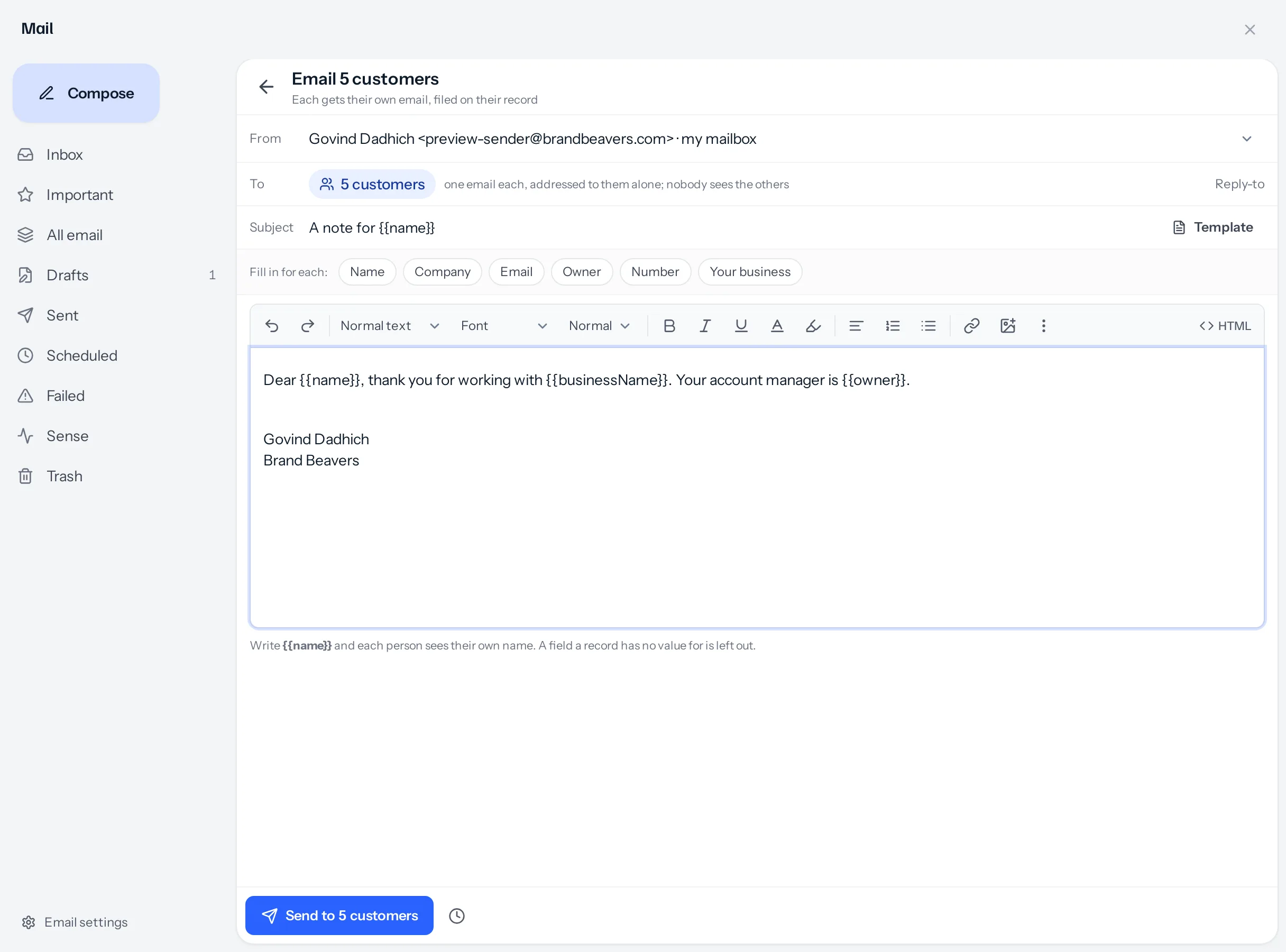
- Choose the mailbox it goes from, write the subject and the message, or press Template to start from one of yours.
- Press Send to 24 customers to send now, or the clock to choose a time first.
Putting each person’s details in
The buttons under the subject put a field where your cursor is, in the subject or the message. Each is filled in for each person when their email is written. You can also type them.
| Button | What you type | What each person sees |
|---|---|---|
| Name | {{name}} | The name on their record: Anil Deshmukh. |
| Company | {{company}} | The company on a lead, or the company a customer is filed under. |
{{email}} | Their own address. | |
| Owner | {{owner}} | Whoever owns the record: their account manager. |
| Number | {{number}} | The record’s number or code, where it has one. |
| Your business | {{businessName}} | Your business’s name, the same for everybody. |
A field a record has no value for is left out, so write sentences that still read without it. A field spelt wrongly, {{nmae}}, is sent as typed rather than left blank, so you can see the mistake in Scheduled before it goes.
Sending later
The clock beside Send opens Send at: pick any date and time, or press Tomorrow, 9 am or Monday, 9 am. The button then reads Schedule for 24 customers. The emails wait in Scheduled, each with its own time, and each record’s Activity tab says when it is going out. Closing the window or the laptop does not stop them: they are sent from the server.
What happens when you press it
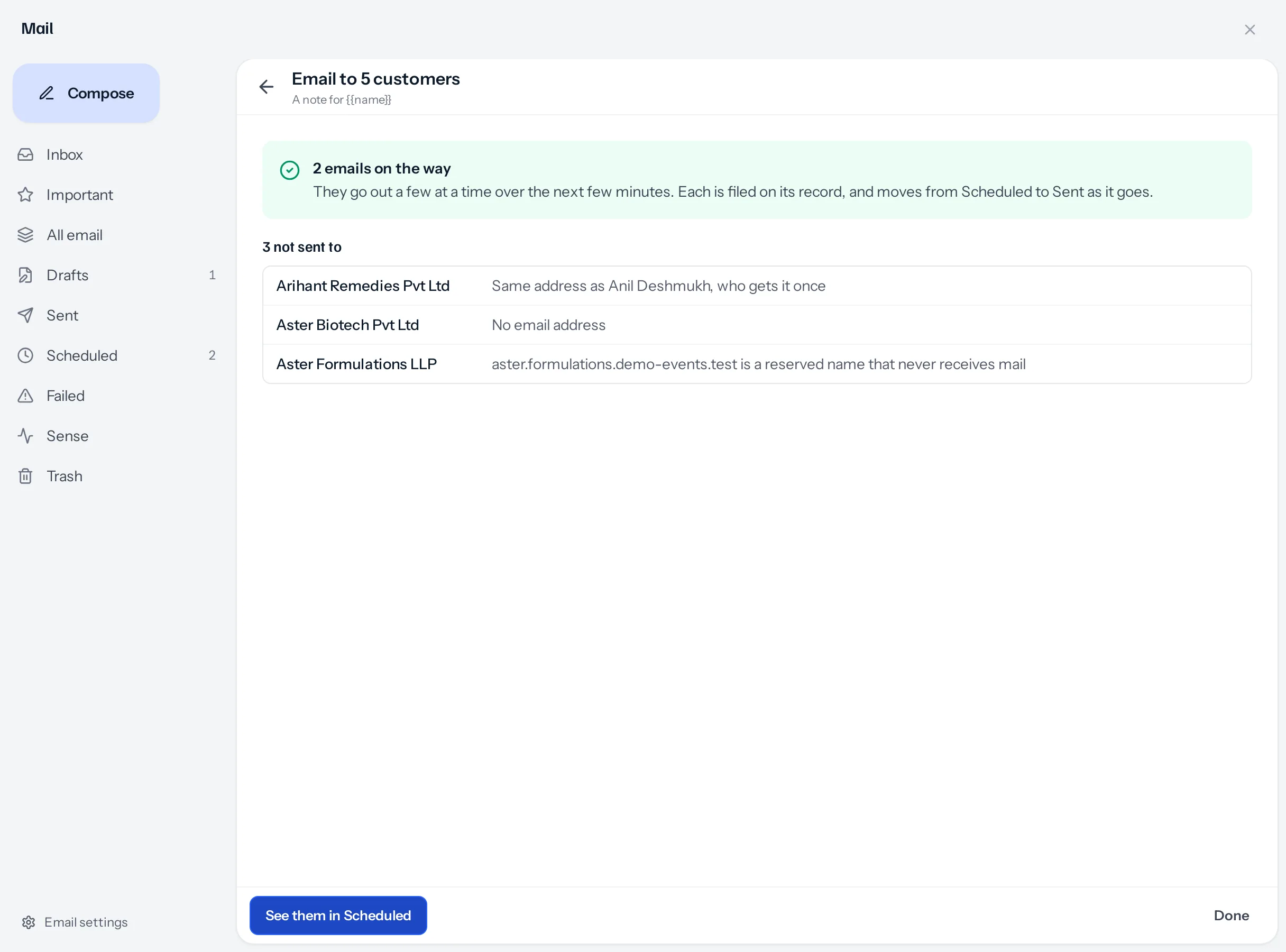
The window tells you how many are on their way and names everybody left out, with why:
| Reason | What to do |
|---|---|
| No email address | Add one on the record and send to them again. |
| Same address as another person ticked | Nothing. That address gets the email once. |
| An address that cannot receive mail | The domain does not exist, takes no mail or is a test name. Correct the address. |
| Converted to a customer | A lead that became a customer is emailed as the customer. |
| You can see it but not change it | Sending is for people who may change the record. Ask its owner. |
Emails sent now go out a few at a time over the next minutes, so a long list never stops the screen. Each moves from Scheduled to Sent as it goes. If a mail server refuses one, it is in Failed with what the server said, and its record says so too.
Calling it off
Straight after scheduling, Call them all off stops every email in that send that has not gone. Later, open Scheduled and delete the ones you want to stop, one or all of them, where your business allows deleting email. A called-off email is not sent, and its record says Called off.
Unsubscribe
Every email sent this way ends with a short line naming your business and an Unsubscribe link, and carries the header that makes Gmail and other mail programs show their own Unsubscribe button. The link opens a page that asks first, so a mail scanner opening links cannot unsubscribe anybody by accident.
Somebody who unsubscribes is skipped by your later bulk emails, listed among those not sent to as Unsubscribed from your bulk emails on the date, and their record says so. An email sent from their own record still reaches them.
Who can use it
Send email shows on a list for people who may change records in it. Each person ticked is checked again on the server: somebody whose role reaches only their own customers can only send to their own customers, however the list was ticked.
Where to go next
Something missing or wrong here? Tell us. A question that needed asking usually means a page that needed writing.