
The envelope in the top bar opens the mail panel: every email this business has sent or received through a connected mailbox, laid out the way Gmail lays it out. The folders sit down the left on a soft grey, with Compose above them, and whatever you are working on sits on the white card beside them.
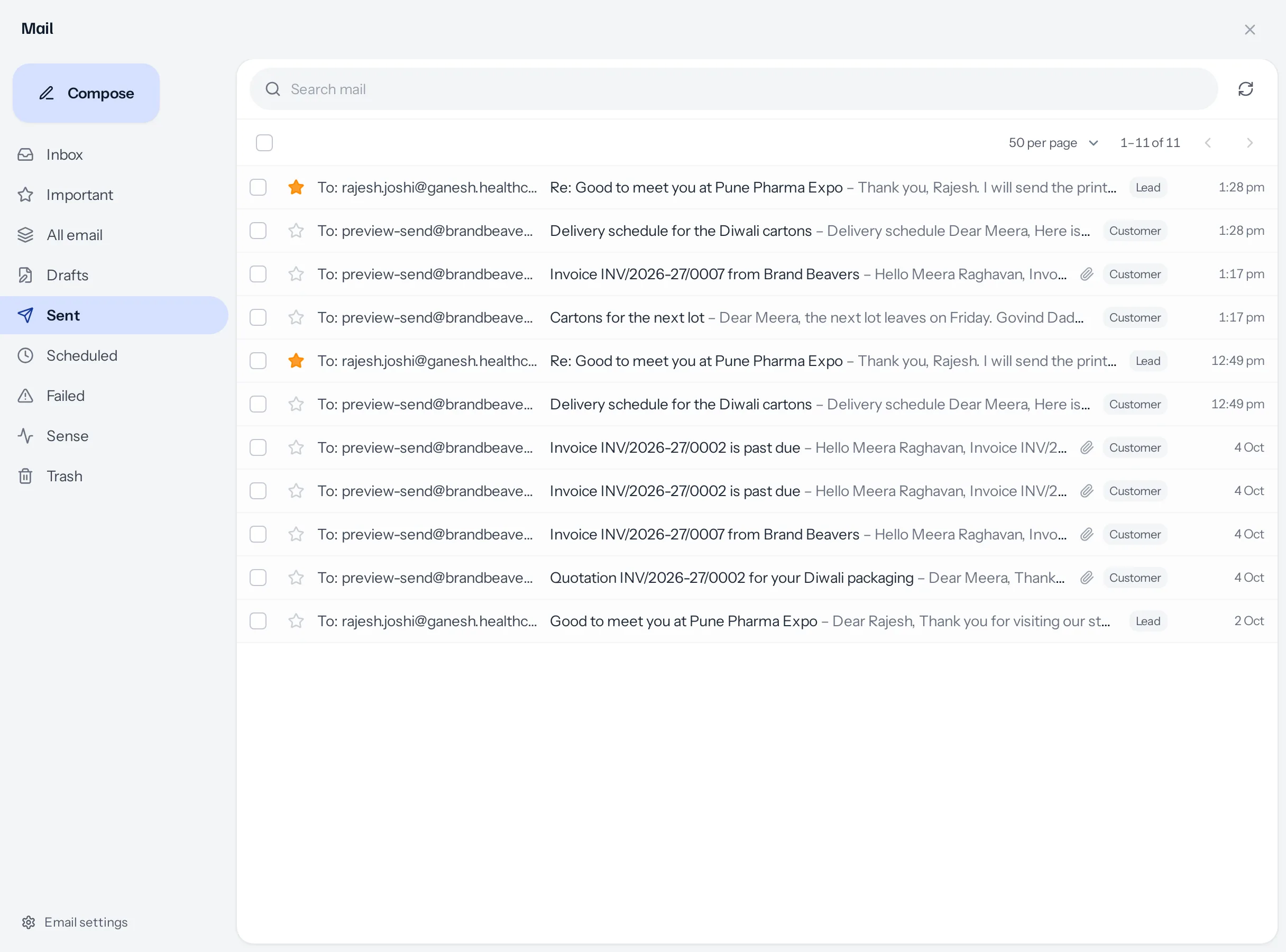
The folders
| Folder | What is in it | The number beside it |
|---|---|---|
| Inbox | Email from people you have a lead, customer, vendor, contact, company or employee record for. Each one is also filed on that record. | Unread |
| Important | Emails you starred. Only you see your stars: a colleague starring the same email changes nothing for you. | Unread among them |
| All email | Everything, sent and received, including mail from people who are not in your database. Mail from a stranger is never filed on a record. | Unread mail from strangers, which lives only here |
| Drafts | What you started writing and did not send, from here and from every send window. See Drafts. | How many, in grey |
| Sent | Everything that went: from here, from a record, from a quotation or an invoice, and every reply. | None |
| Scheduled | Emails waiting for the time you chose, the next one first. | How many, in grey |
| Failed | What the mail server refused, with what it said. | Not yet looked at |
| Sense | Every open and every press of a link, newest first. | Not yet looked at |
| Trash | What you deleted. Only you see it. Shown while your business allows deleting, or while it still holds something. | None |
The number on the envelope in the top bar adds up unread Inbox, unread mail from strangers, refused emails not yet looked at, and new activity in Sense. Opening a folder clears its part of it.
Reading the list
Each row shows who it is from, or To: and who it went to for mail you sent; then the subject, followed by the first words of the email; then the time for today, or the date before that. A number beside the name says how many emails are in that conversation. Unread rows are bold. A paperclip means a file is attached, the open envelope and the pointer count opens and clicks, and the grey label says which kind of record the email is filed on.
- Search looks through subjects, addresses and the words of the email. The sliders at its end open the advanced search, below.
- Page size is 30, 50, 100 or 200 emails a page. Your choice is kept on that device.
- The arrows step through older and newer emails, with the count beside them, for example 1–50 of 230.
- The star on a row marks it important, for you.
Advanced search
The sliders at the right end of the search bar open the advanced search, as in Gmail. Fill in any of the fields and press Search; every field you fill narrows the list further.
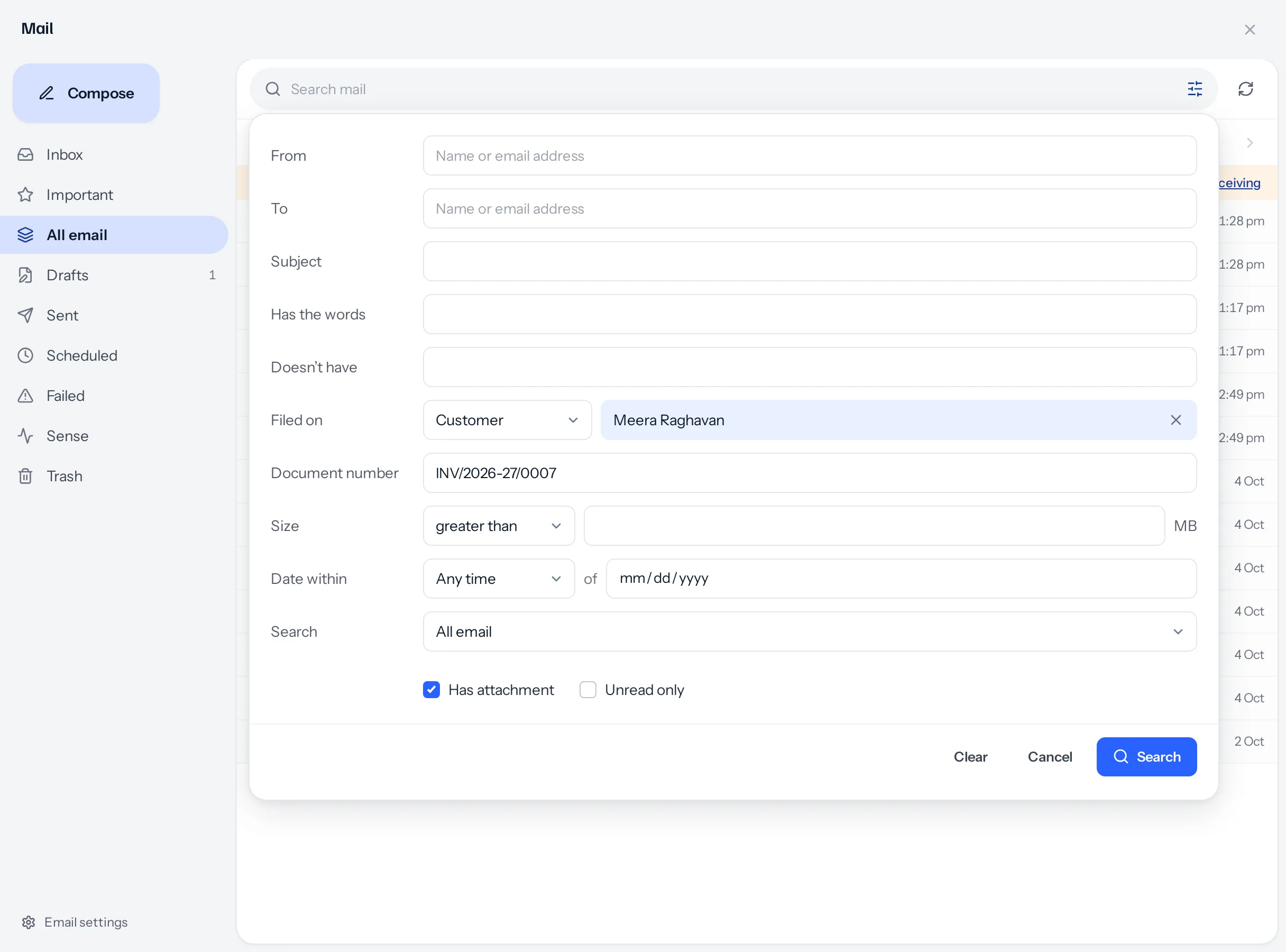
| Field | What it finds |
|---|---|
| From | Email from a name or an address, or part of one. |
| To | Email to an address. Type a name instead, and it also finds email sent to the address of any lead, customer, vendor, contact or company of that name you are allowed to see. |
| Subject, Has the words, Doesn’t have | Words in the subject, or anywhere in the email. Several words must all be there; Doesn’t have leaves out any email with one of them. |
| Filed on | Email filed on a kind of record, such as any lead, or on one record you choose by name. Type part of the name and click or tap it in the list, or press Enter for the highlighted one; it stays as a chip. A name typed but not chosen is not searched for. Only records you may see are offered. |
| Document number | A quotation’s, invoice’s or other document’s number, in the subject, the text, or the name of the PDF that went with it. |
| Size | Email whose files add up to more, or less, than the number of MB you give. |
| Date within | From 1 day to 1 year either side of a date, or of today if you leave the date empty. |
| Search | Which folder to search: All email, Inbox, Important, Sent, Scheduled, Failed or Trash. It starts on All email, so email you sent to someone is found as well as email they sent you. |
| Has attachment, Unread only | Only email with a file, or only email not yet read. |
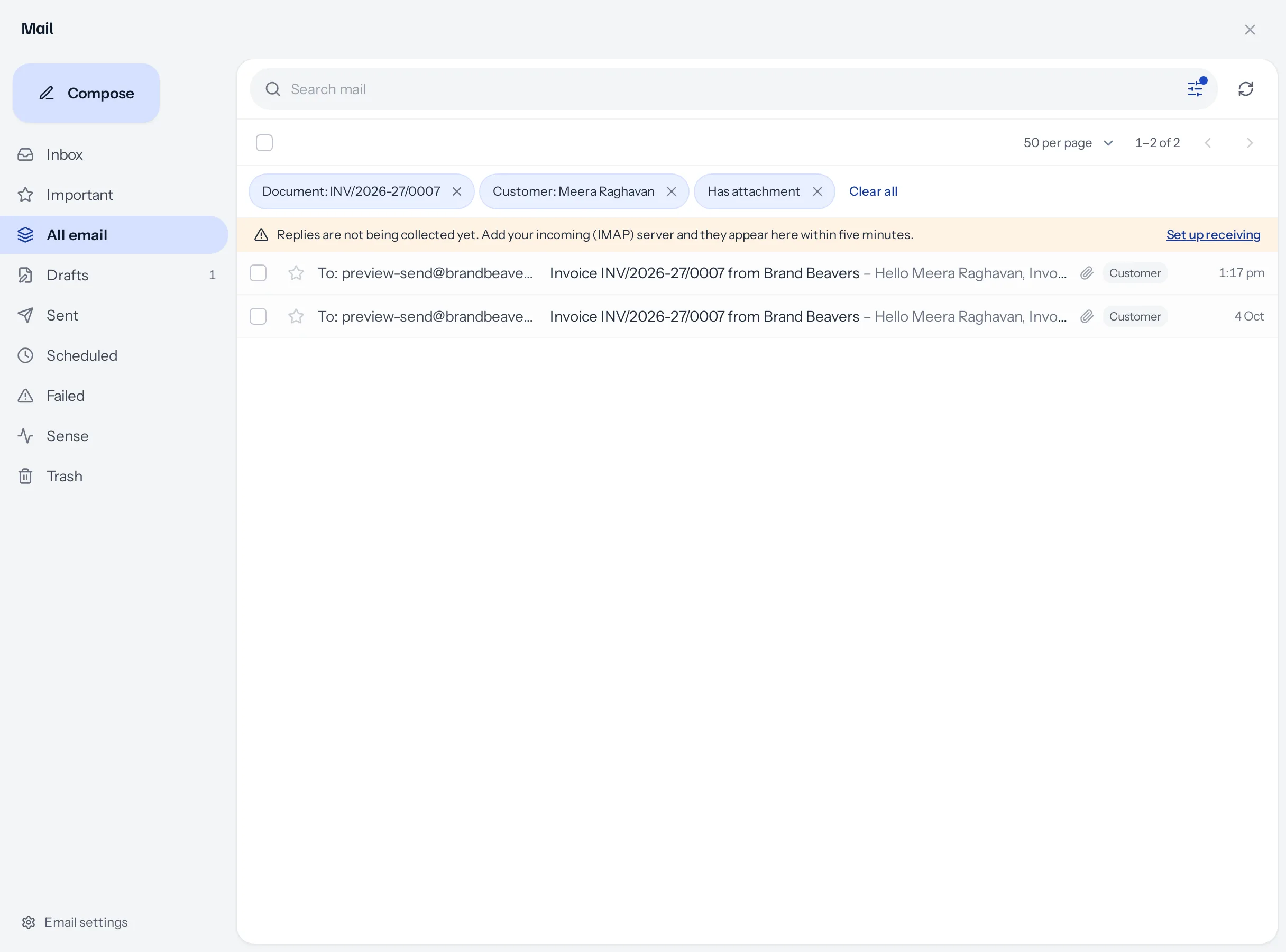
What is applied shows as chips under the search bar, each with a cross to take that one off, and Clear all beside them. A dot on the sliders says a search is on. Choosing another folder on the left starts afresh.
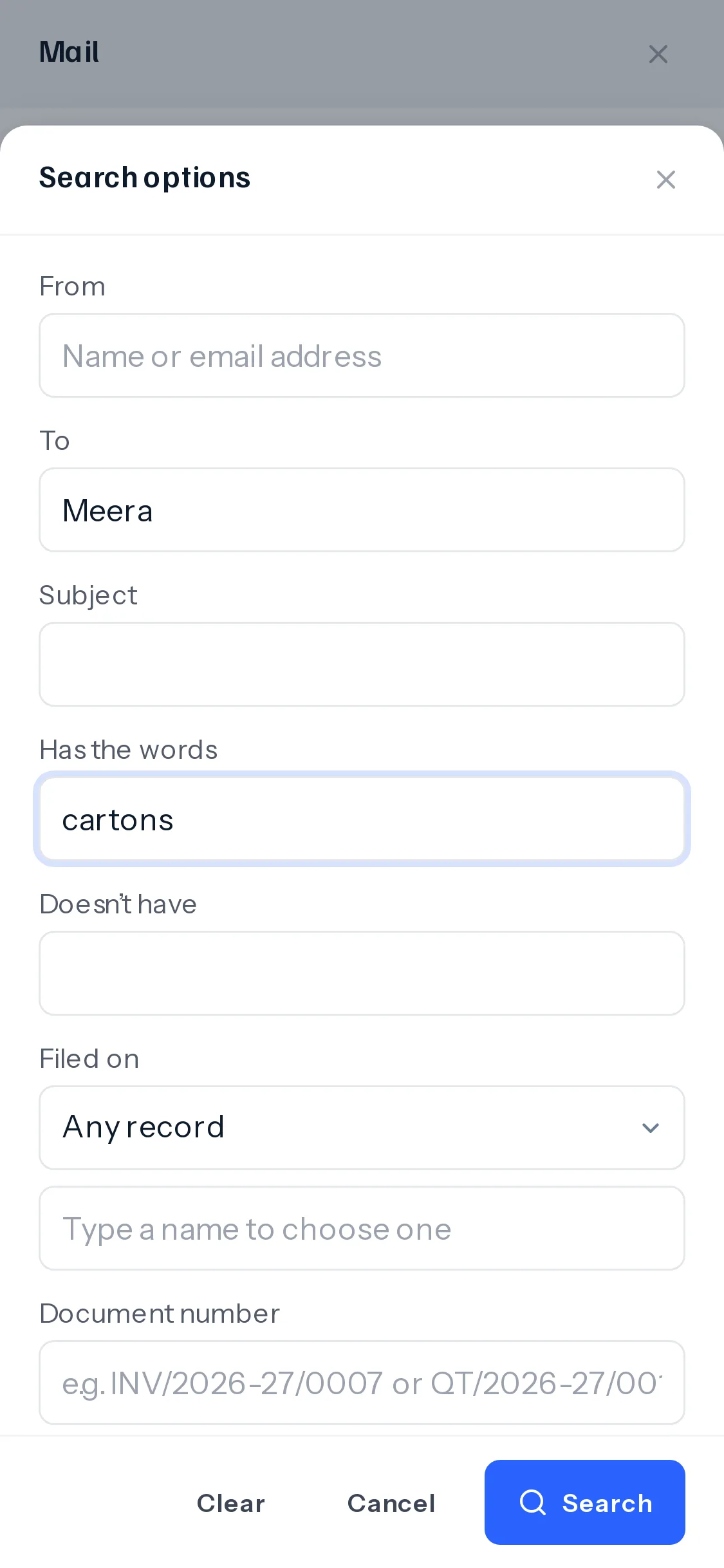
On a phone the same fields rise as a sheet, one under another, with Search pinned to the bottom of the screen.
Ticking several at once
Tick the box on each row, or the box at the top to tick every row on the page. A strip takes the place of the page controls, with what can be done to what is ticked.
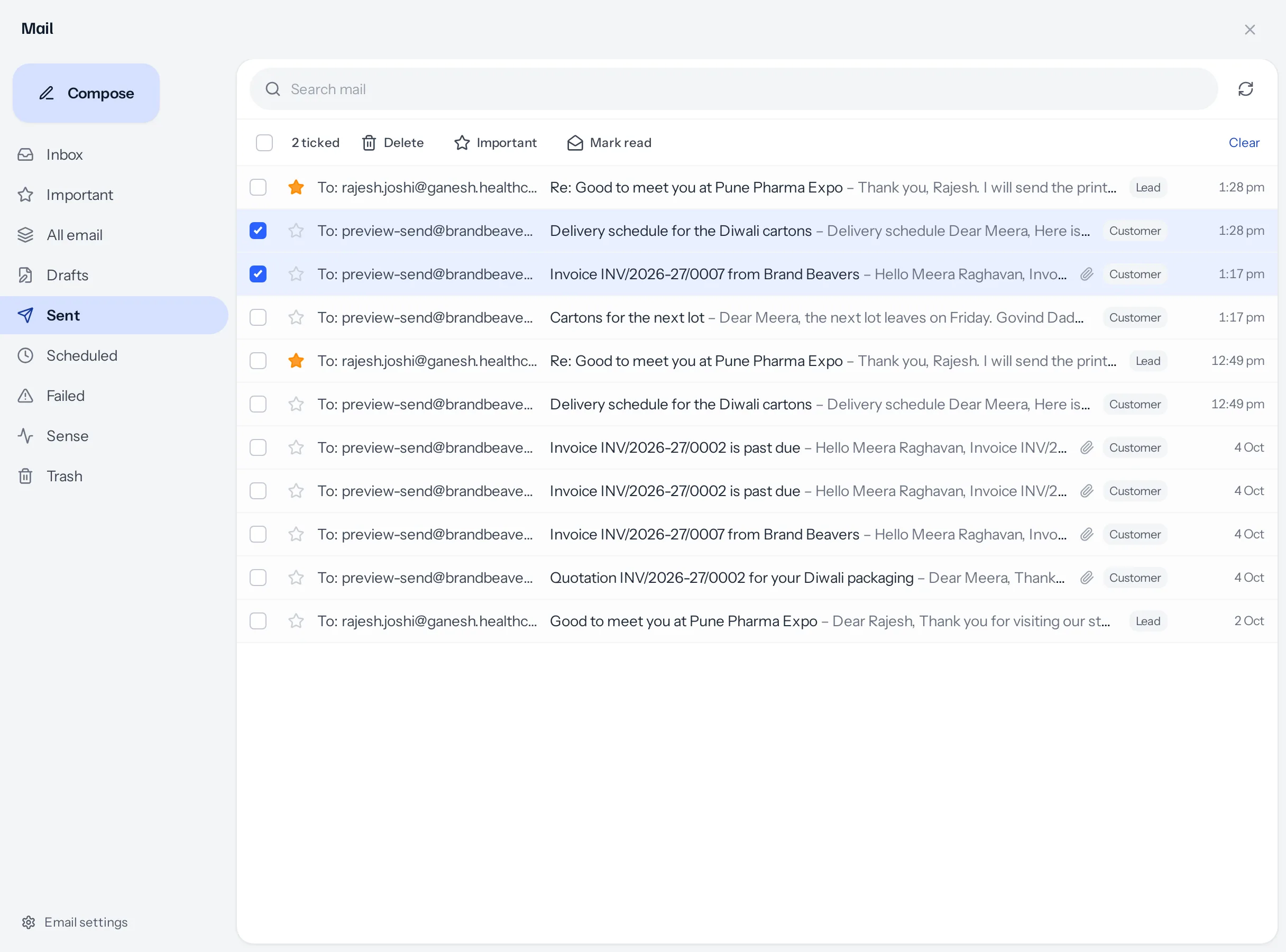
| Button | What it does |
|---|---|
| Delete | Moves them to your Trash. Shown only while your business allows deleting. See Delete, Trash and the recycle bin. |
| Important or Not important | Stars or unstars them, for you alone. |
| Mark read or Mark unread | Read is shared where mail is shared: in a shared workspace, marking an email read clears it for everybody who can see it. |
| Clear | Unticks everything. |
Only emails you may read can be ticked, so nothing here reaches mail that is not yours to see.
On a phone
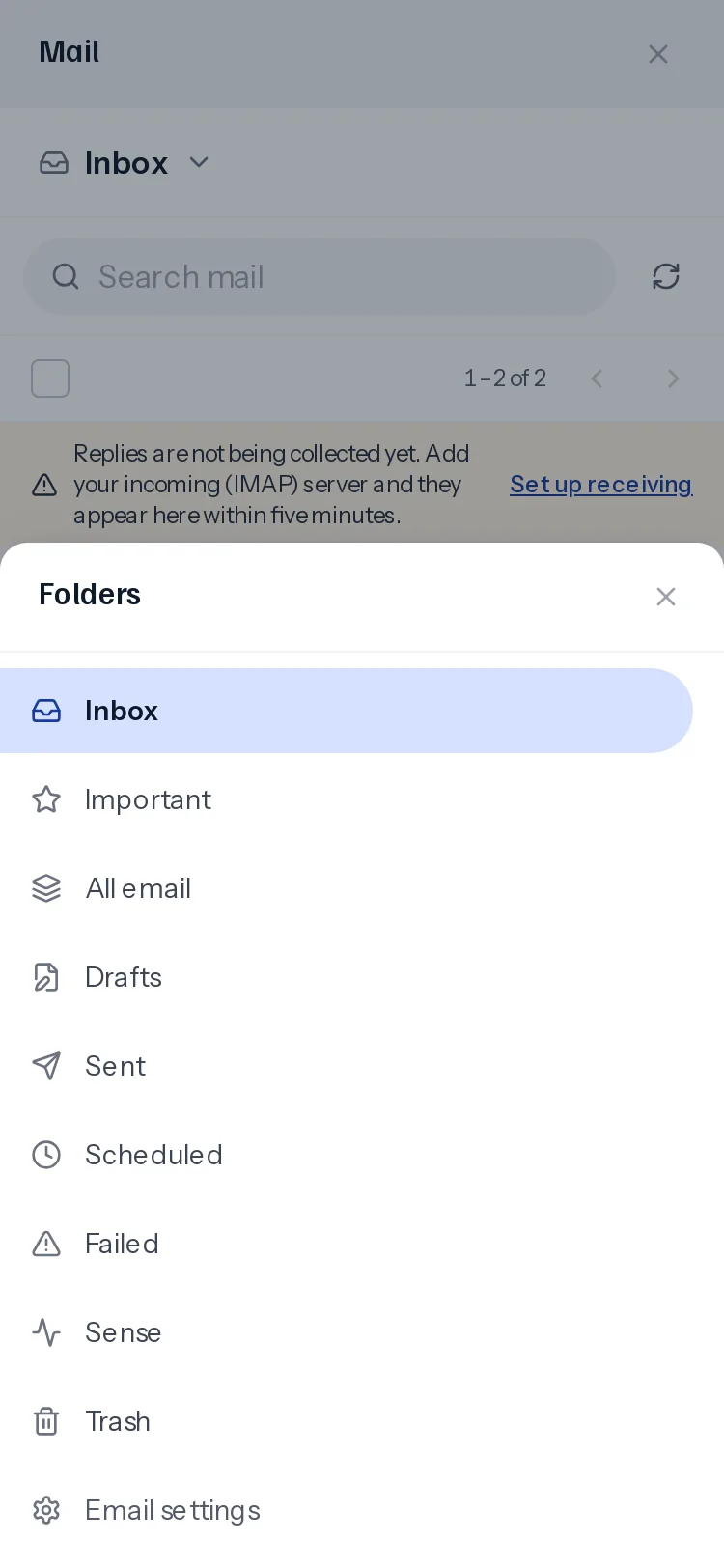
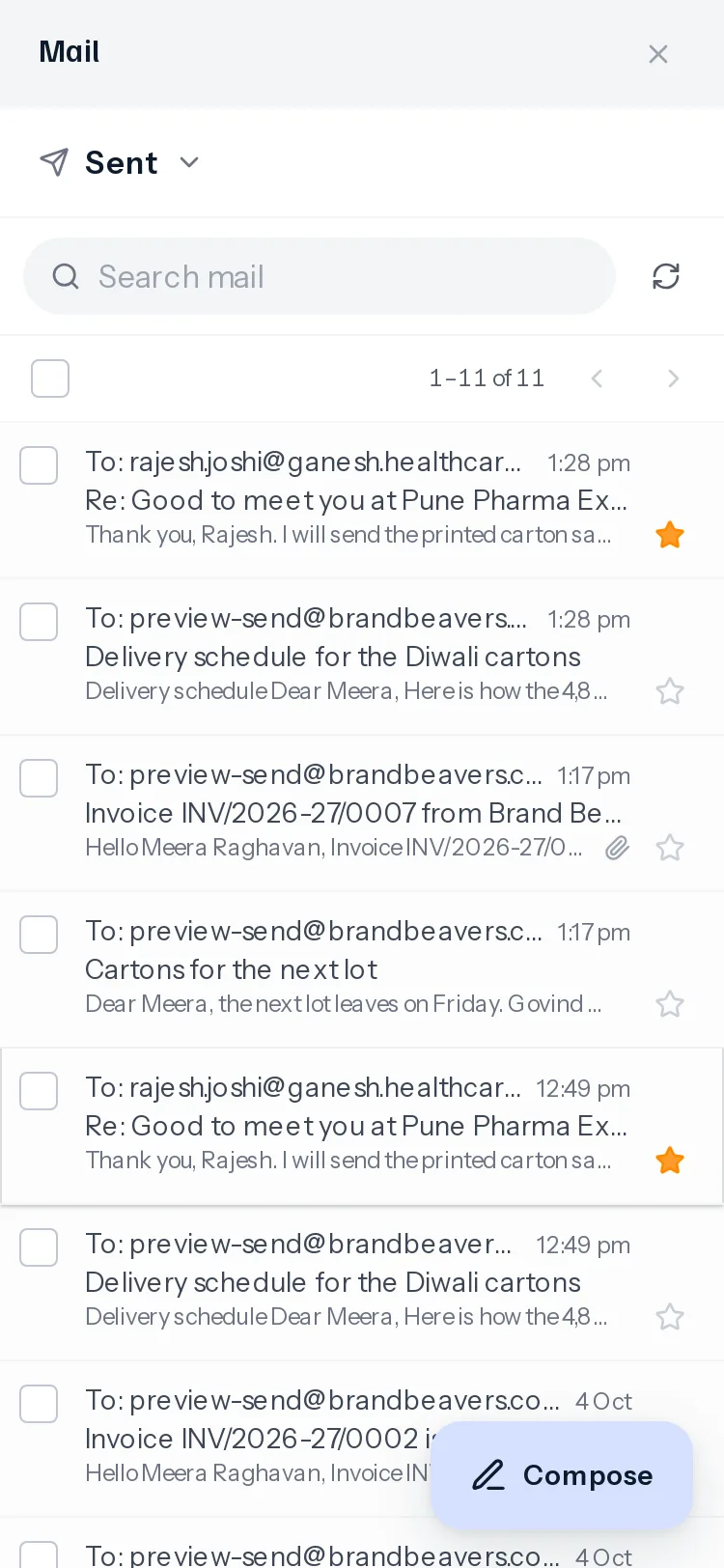
There is no room for the folder column, so the folder’s name sits at the top of the list. Tap it and the folders rise from the bottom of the screen as a sheet. Compose becomes a round button at the bottom right, where a thumb reaches it. Each row reads in three lines: who, the subject, then the first words, with the star under the date.
Opens and clicks
A click is solid. The link came through us on its way, so it happened, and the email says which link and when.
An open is a floor, not a fact, and the screen says so rather than handing you a precise-looking number. It is counted by a small image at the foot of the email, so a reader whose mail program blocks images has read it without being counted. In the other direction, Apple’s Mail Privacy Protection fetches that image the moment an email arrives, whether or not anybody looks. So anything landing within fifteen seconds of sending, and anything from a company mail scanner, is recorded and deliberately not counted as a person.
Nobody’s address is stored against an open. We keep a one-way hash, salted per installation: enough to tell two readers apart within one email, which is how two opens from two places reads as a forwarded email, and useless for anything else.
Who can use it
Everybody who signs in has a mail panel. What it shows follows Who reads whose mail: by default, each person’s own mail and nobody else’s.
Something missing or wrong here? Tell us. A question that needed asking usually means a page that needed writing.