
There is one place to write email. Send email at the top of a lead, customer or vendor or on its Activity tab, and Send on a quotation, invoice or any other document all open the mail panel at a new email, with the record behind it. Everything on Write an email works here too: the editor, dragging chips, From, Reply-to and your signature.
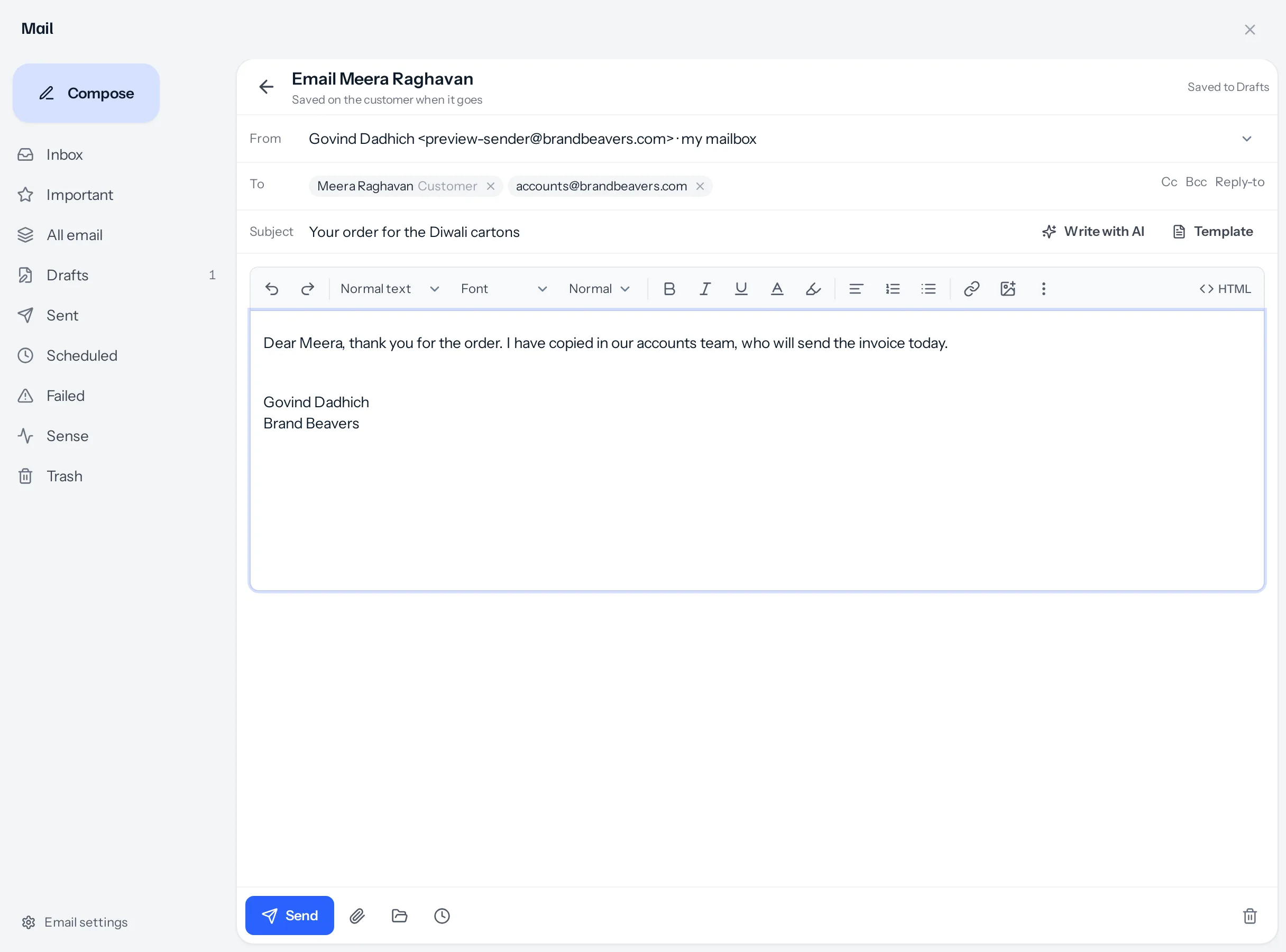
What is already filled in
| Part | From a record | From a document |
|---|---|---|
| To | The record’s own address, as a chip. | The customer’s, the lead’s or the vendor’s address, or the contact named on the document. |
| Subject and message | Empty, with your signature under the space to write. | Your email template for that kind of document, with its number, amount and dates filled in, then your signature. |
| Template | That module’s templates, with {{name}}, {{company}}, {{email}} and {{owner}} filled in from the record. | The same, with {{number}}, {{amount}}, {{dueDate}} and {{businessName}} from the document. |
| Files | The paperclip uploads from your device. The folder icon ticks files already on the record. | The PDF is ticked. The paperclip keeps a new file on the document; the folder icon ticks files already on it. |
Adding more people
Anybody can go alongside the record’s address: a second buyer, the customer’s accountant, a colleague. Type or pick them in To, Cc or Bcc, and drag them between the lines. The record’s own address has to stay in To. Take it out and a note asks you to keep it, and Send stays off until it is back. The server checks the same thing, so no screen can send a record’s email somewhere else entirely.
A quotation or an invoice
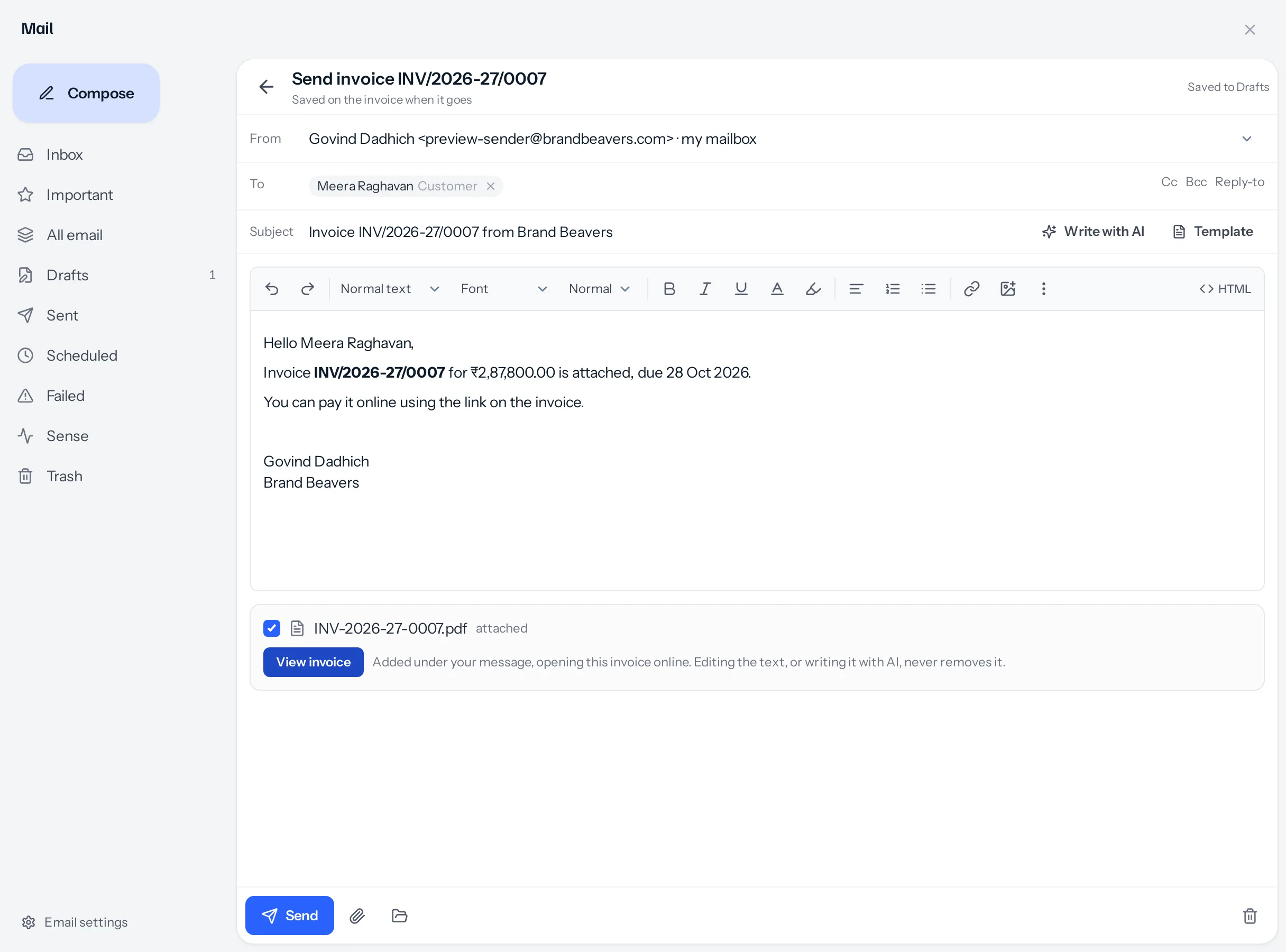
- The PDF is ticked as attached. Untick it to send without.
- The button goes under your message and opens the document online, where a quotation can be accepted and an invoice paid.
- What sending does to the document, for example Sending marks it sent, is said beside the buttons before you press.
- Write with AI writes the email from the customer, their earlier documents and recent conversations. See Send a document.
- Send later is not offered for a document: it is sent when you press Send, and its status moves then.
Closing, and coming back
The arrow at the top left closes the panel and returns you to the record, keeping what you wrote in Drafts. Press Send email on the same record again and your draft opens as you left it, with Start again beside the date if you would rather begin afresh. A quotation’s or invoice’s email counts as a draft from the moment it opens; a record’s once you write something, so opening and closing it leaves nothing behind.
Where it is recorded, and who can send
- The email is filed on the record, on its Activity and Emails tabs, and kept in Sent.
- Sending from a lead, customer or vendor needs Edit on it. Sending a document needs Share on that kind of document, and moving a draft on needs the rights that move it.
- Send email is switched off on a record with no address, or with only addresses that cannot take mail.
A worked example
Meera confirms her order. Govind opens her customer page and presses Send email. Her address is already in To. He adds accounts@brandbeavers.com beside it, writes that the accounts team will send the invoice today, and sends. Later he opens invoice INV/2026-27/0007 for ₹2,87,800.00 and presses Send: the email is written from the invoice template with the amount and due date, the PDF is attached, and the View invoice button sits under it. He is called away and closes it; it waits in Drafts as Invoice INV/2026-27/0007 until he reopens and sends it.
Something missing or wrong here? Tell us. A question that needed asking usually means a page that needed writing.