
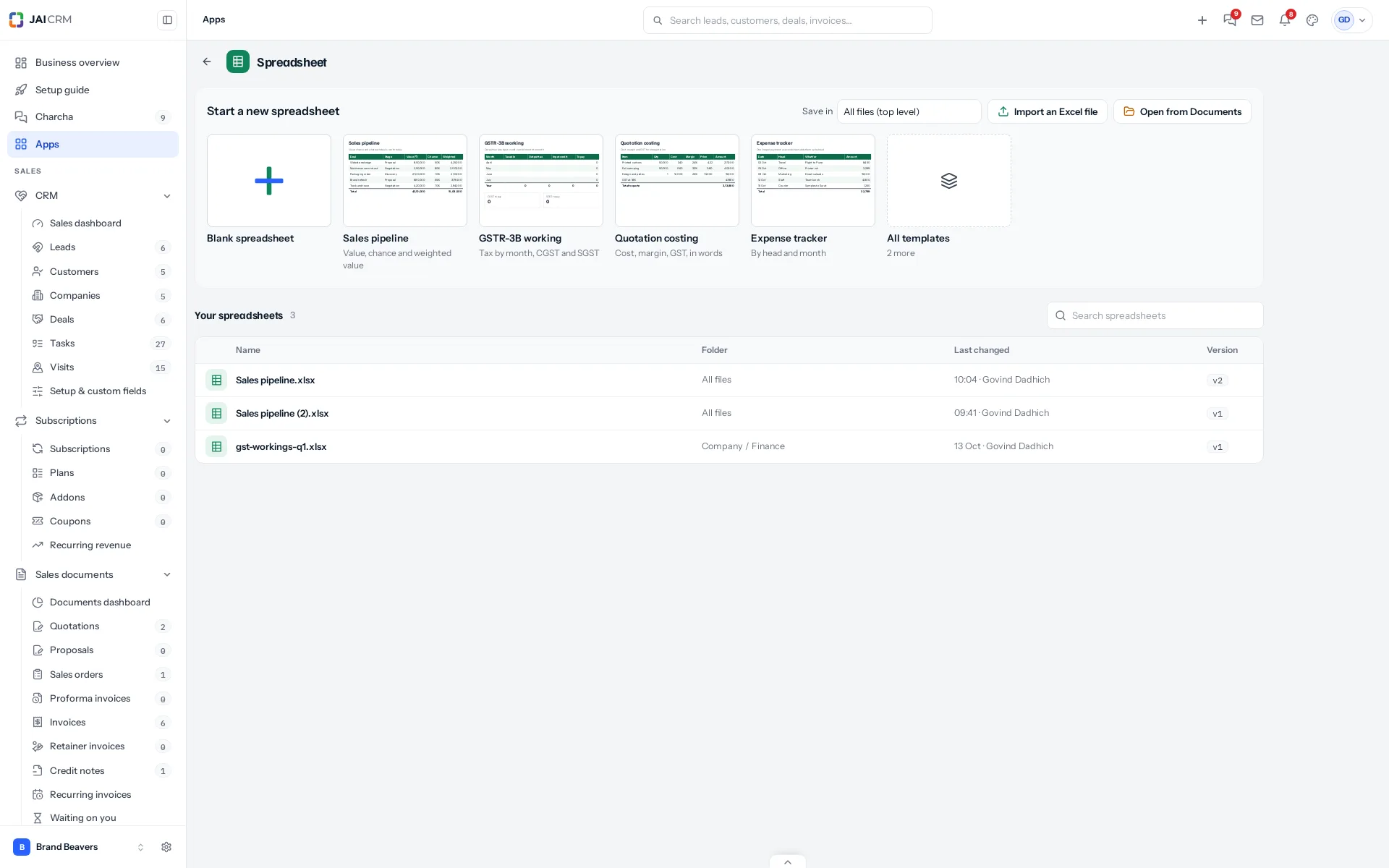
- Open Apps and choose Document, Spreadsheet or Presentation.
- Under Save in, choose the Documents folder for the new file. Apps remembers your choice for next time.
- Click Blank or a template. JAI CRM makes the file, saves it in that folder and opens it.
Where a new file can go
- Into any folder you can edit in Documents. The list under Save in shows only those.
- At the top level of Documents, only if you are an administrator, the same as uploading.
- A file with the same name already in that folder is not replaced: the new one is called, for example, Sales pipeline (2).xlsx.
Things to fill in
Document templates put your business name, address, phone and GSTIN at the top, taken from Settings, Business profile. Everything else that changes from customer to customer is in [square brackets], highlighted yellow, so nothing goes out with a gap somebody missed. Agreements carry a line asking that your lawyer reads the template once; delete it when they have.
Import a file you already have
Import a Word file, Import an Excel file and Import a PowerPoint file upload into the folder chosen in Save in. The file then shows in that app and in Documents.
Something missing or wrong here? Tell us. A question that needed asking usually means a page that needed writing.