
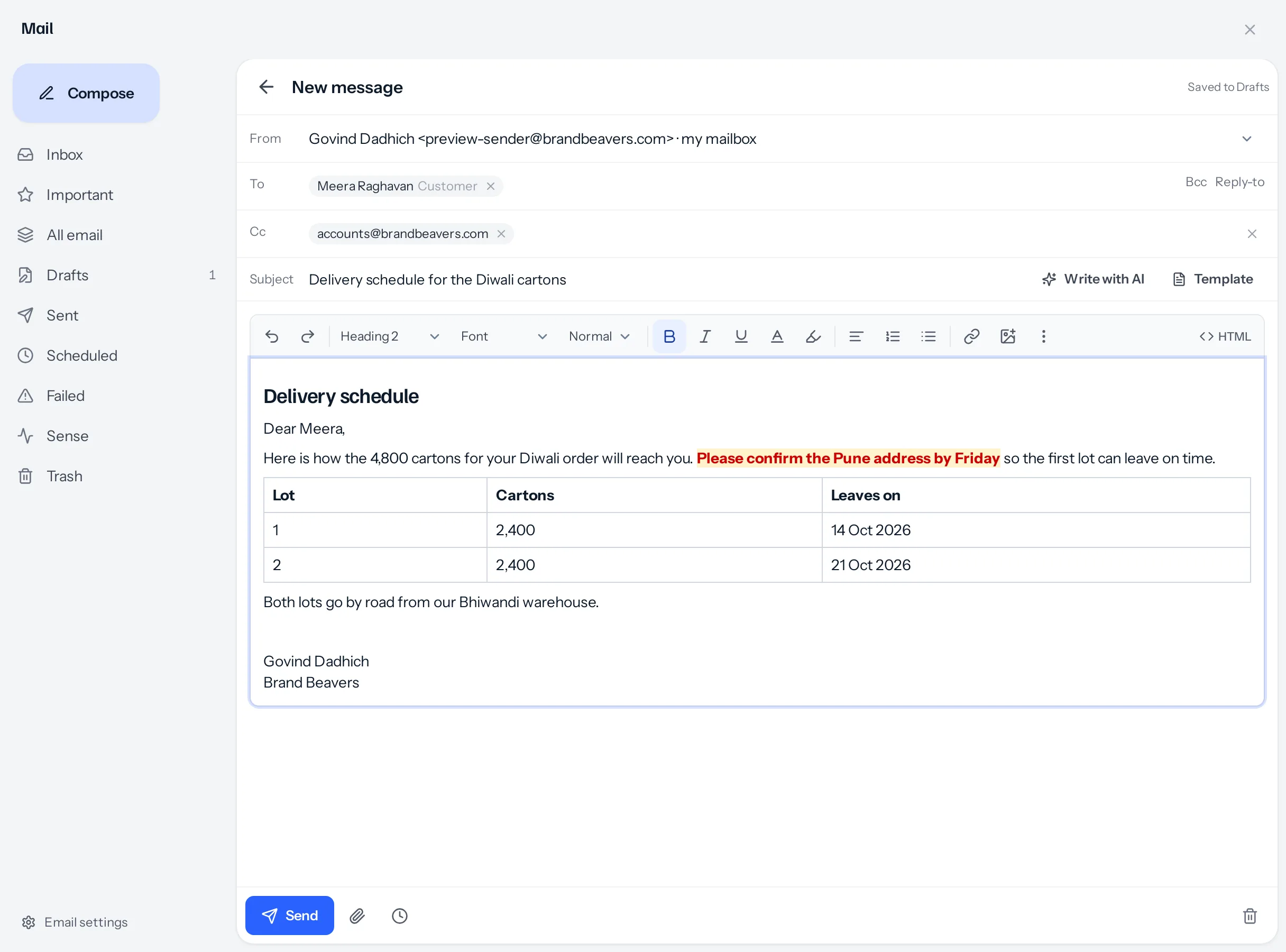
Press Compose at the top of the folders. A new email opens on the white card, already signed, with the cursor in To.
Who it goes to
- Start typing a name and the list offers anybody in the business with an address: a lead, customer, company, vendor, contact or employee, and only those you are allowed to see. A person you pick shows as a chip with what kind of record they are, for example Customer.
- Type any other address and press Enter, a comma or Tab. Paste several at once and they become separate chips.
- Cc and Bcc open from the links at the end of the To line. Reply-to opens the same way, for an email whose replies should go to somebody else.
- Drag a chip from one line to another: from To to Cc, from Cc to Bcc, and back.
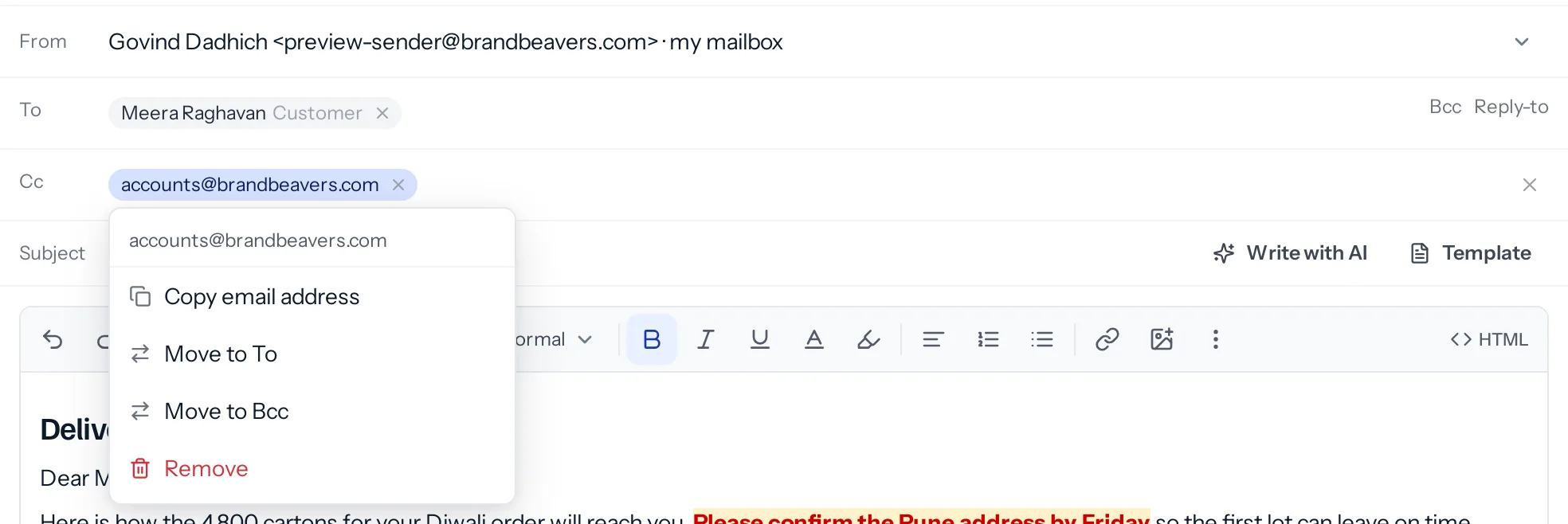
- Press a chip for its menu: Copy email address, Move to another line, and Remove. On a phone, where there is no dragging, this is how you move somebody.
An email to somebody you picked lands on their record, exactly as if you had sent it from their page. A typed address is looked up as well; where it belongs to nobody, the email is simply sent and kept in Sent.
Which mailbox it comes from
From shows the mailbox the email goes out through. When you have connected your own and an administrator has connected one for the whole business, From becomes a choice between my mailbox and organisation mailbox. With only one, it is that one. With neither, From says No mailbox is connected and Send stays off. See Connect your mailbox.
The editor
The tools you use every day sit on one row. More formatting, the three dots, opens a second row with the rest, as Gmail does.

| Tool | What it does |
|---|---|
| Paragraph style | Normal text, Heading 1, 2 or 3, Quote or Code. |
| Font and Size | Ten faces every mail program has, from Sans serif to Verdana, and Small, Normal, Large or Huge. |
| Text colour and Highlight | A grid of colours, with Back to black and No highlight to undo them. |
| Align, lists and indents | Left, centre, right or justified; numbered and bulleted lists; indent less and more. |
| Link | A web address or an email address. kamaltraders.in becomes https://kamaltraders.in, and an email address becomes a link that writes to it. |
| Picture | Upload a PNG, JPG, GIF or WebP of up to 5 MB, or paste a picture’s web address. It shows inside the email. |
| Table | Up to 20 rows by 10 columns, with borders, that stays a table in every mail program. |
| Insert signature | Puts your signature in again, where the cursor is. |
| Spelling check | Underlines misspelt words, or stops doing so. |
| HTML | The email as markup, for anybody moving a styled button or a template’s tokens. |
Pasting text copied from somewhere else brings the words without their fonts and colours, so an email copied from another program does not carry its look into yours.
Your signature
The signature saved under Settings › My email starts every new email, reply and forward, under the space to write. Change it or delete it in the email like any other words. Choosing the organisation mailbox in From swaps in that mailbox’s signature, as long as you have not changed it.
Templates and Write with AI
Template, beside the subject, puts one of your email templates in place of the subject and the message. It is offered to anybody who may view Email templates. Write with AI writes the whole email from a sentence; see Write a new email with AI.
Files, and sending later
- The paperclip attaches files from your device. Each shows as a chip with its size, and the cross takes it off.
- The clock opens Send at. Choose a date and time and Send becomes Schedule; the email waits in Scheduled and goes from your own mailbox at that time. Deleting it before then stops it.
Why Send is greyed out
The line under the buttons says what is missing: somebody to send to, a subject line, the message itself, or a connected mailbox. It is said before you press, not after.
A worked example
Govind at Brand Beavers writes to Meera Raghavan at Sundaram Textiles about her Diwali order of 4,800 cartons. He types Meera in To and picks her; she shows as Meera Raghavan, Customer. He adds accounts@brandbeavers.com and drags it into Cc, so his accounts team sees the plan. He sets Delivery schedule as Heading 2, colours Please confirm the Pune address by Friday red on yellow, and inserts a three-row table: lot 1, 2,400 cartons, 14 Oct 2026; lot 2, 2,400 cartons, 21 Oct 2026. His signature is already there. He sends it, and it lands in Sent and on Meera’s record.
Something missing or wrong here? Tell us. A question that needed asking usually means a page that needed writing.