
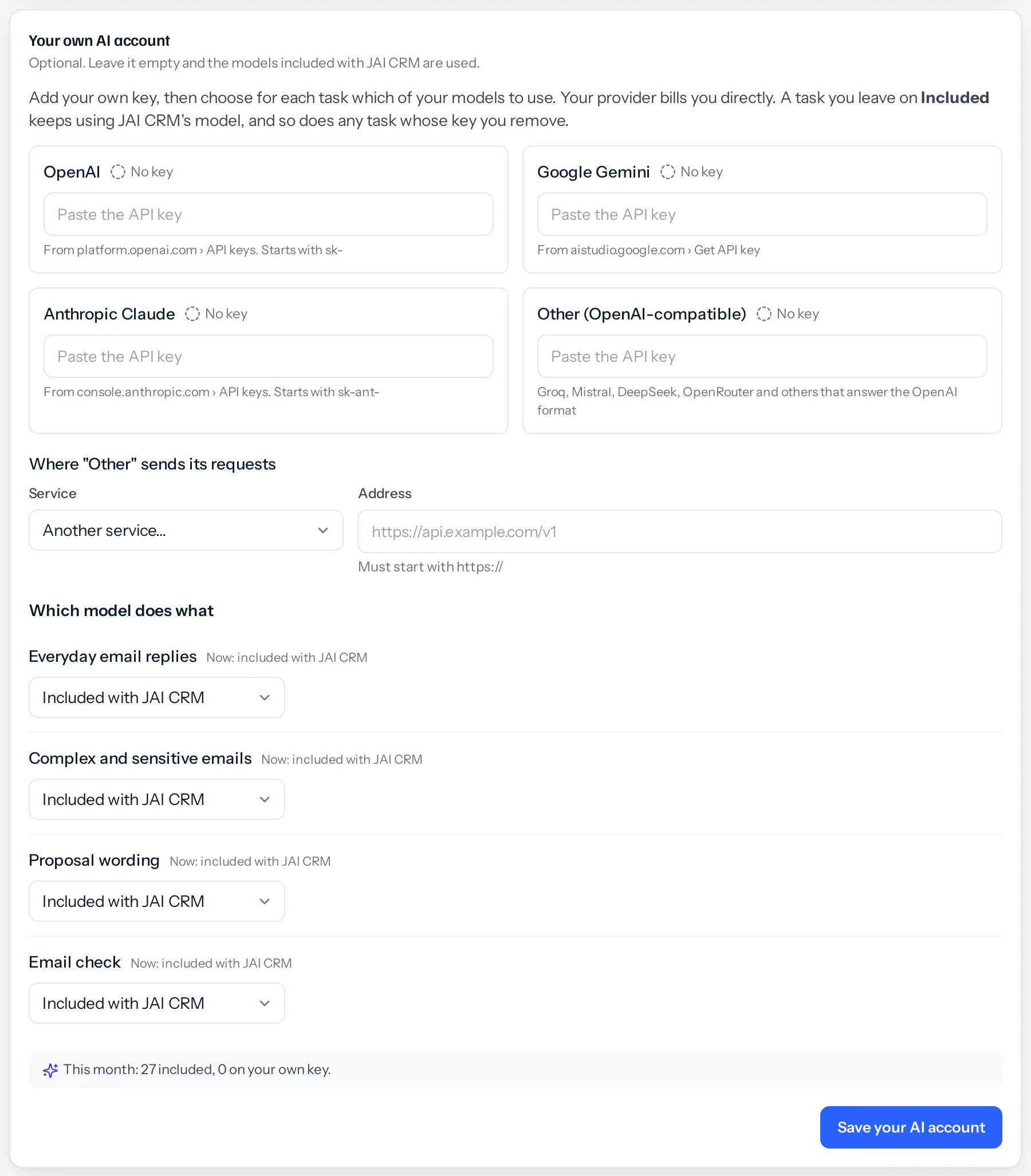
Suggestions work without any setup: they use the models included with JAI CRM. A business that wants its own account, for its own contract with a provider, its own choice of model or its own bill, can add a key in Settings, AI writing, under Your own AI account.
Steps
- Paste the key from your provider into its box: OpenAI, Google Gemini, Anthropic Claude, or Other for a service that answers the OpenAI format.
- For Other, choose the service (Groq, Mistral, DeepSeek, OpenRouter, xAI Grok or Together) or type its address. It must start with https:// and be the service’s public address.
- Press Save your AI account.
- Under Which model does what, choose for each task whose model to use. A sensible model is chosen for you; to change it, open the model list: the models with a price come first, showing what they cost, then everything else your key can use. Another model lets you type a name that is not listed yet.
- Press Test beside a task. It asks your model one short question and shows the answer and how long it took, so a wrong model name or an empty balance shows up here rather than in front of a customer’s email.
- Save again.
The four tasks
| Task | What it writes |
|---|---|
| Everyday email replies | Replies to ordinary email |
| Complex and sensitive emails | Replies to complaints, disputes, cancellations and the rest (see Complaints and other sensitive emails) |
| Proposal wording | The subject and note on a quotation |
| Email check | Reads each email first, to decide what it is and whether it is sensitive |
You can move one task to your own model and leave the others on Included with JAI CRM. Each task shows what is in use right now on its Now: line.
A task you chose your own model for always runs on your key, even while your business has AI credits. Your credits pay only for the tasks left on Included with JAI CRM.
If a key stops working
Remove a key and every task that used it goes back to the included model, so your people keep their suggestions. While the key is saved, the tasks on it stay on it, and when your provider refuses it the person asking is told what is wrong and with which provider:
- Out of credit, or at the spending limit set on the account: add credit or raise the limit with your provider, or set the task back to Included with JAI CRM here.
- The key is not accepted, or cannot use the model chosen: an administrator pastes a new key or chooses another model here.
- The provider is limiting how fast the key can ask: try again in a minute. If it keeps happening, check the plan and billing with your provider.
Your keys
- Stored encrypted, and never shown again: the screen says only that a key is saved, its last four characters and when.
- An empty box means keep the saved key. Remove is the only way to delete one.
- Saving is recorded in the audit log, without the key.
- Your provider bills you for what your key is used for. The card shows how many suggestions this month were included and how many used your key, with an estimate in rupees; your provider’s bill is the real figure.
Whether a business may use its own keys is decided by the platform. If Your own AI account is not on the screen, it is not offered on your workspace.
Something missing or wrong here? Tell us. A question that needed asking usually means a page that needed writing.