
Pressing Send on a quotation, invoice, proforma, bill of supply, sales order, credit note, or on a purchase order or debit note, opens the mail panel at a new email for the document, the same compose screen as every other email. Nothing goes until you press Send there, and the document is marked sent only once the email has gone.
Save and send in the editor does the same thing: it saves the document and opens the email on it. Close it without sending and it waits in Drafts, labelled with the document, to be reopened where you left it.
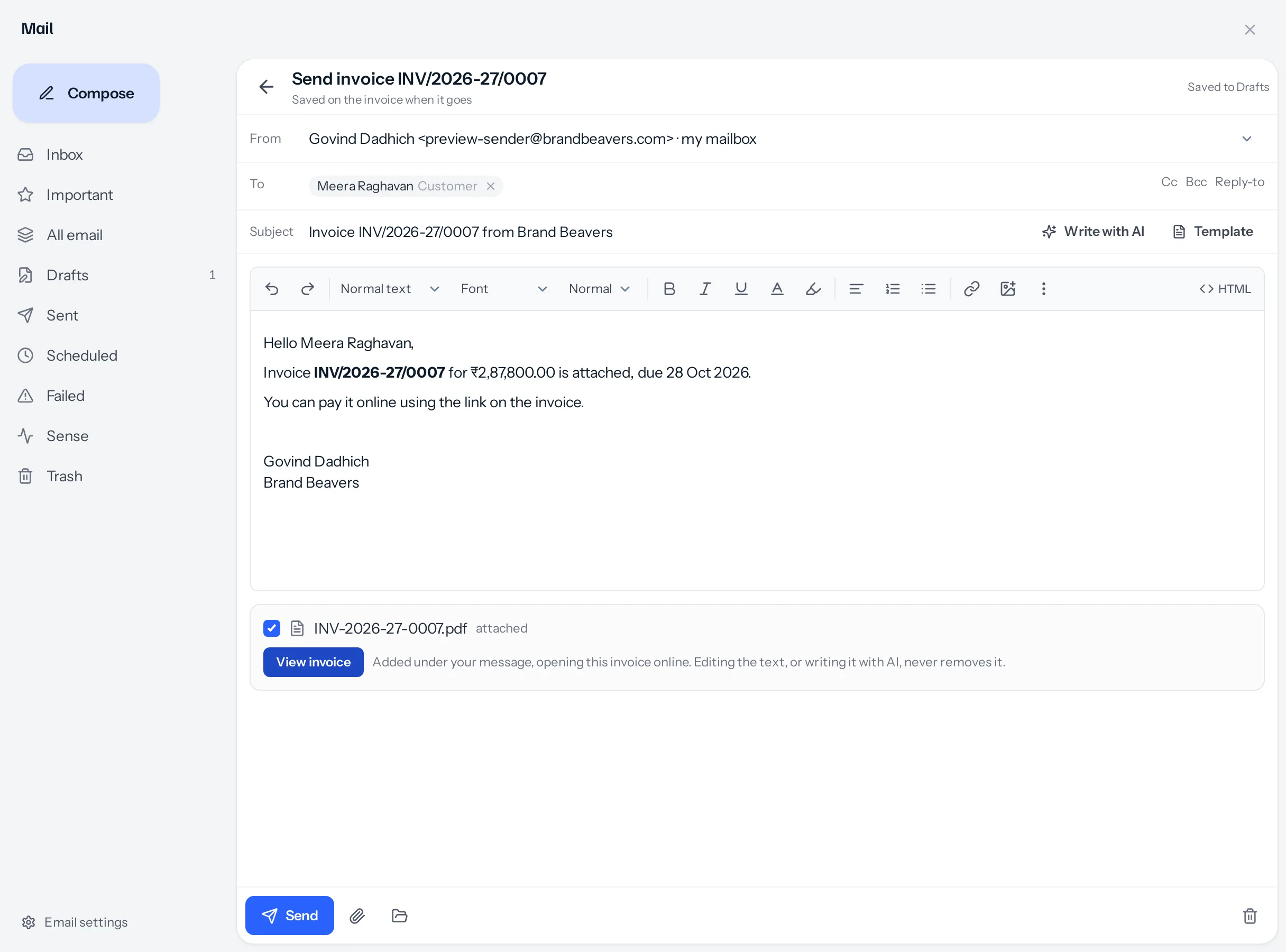
What is already filled in
| Part | Where it comes from |
|---|---|
| From | Your own mailbox, connected under Settings → My email, so the reply comes to you. Without one, the window says so and Send stays off. |
| To | The customer’s address, or the lead’s on a quotation for a lead, or the vendor’s on a purchase document, as a chip. Anybody else can be added beside it, in To, Cc or Bcc, and dragged between the lines; one of the document’s own addresses has to stay in To. |
| Subject and message | Your email template for that kind of document, from Settings → Email templates, with the number, amount, due date and validity filled in. A first send skips reminders and thank-you templates; an overdue invoice starts from a reminder. With no template, a plain message is written for you. |
| The PDF | The document printed in your own template, attached as a file. Untick it to send without. |
| The button | View quotation, View invoice and so on, opening the document online, where a quotation can be accepted and an invoice paid. |
More attachments
The paperclip adds a file from this device; it is kept on the document and goes with this email. The folder icon beside it lists files already attached to the document, to tick.
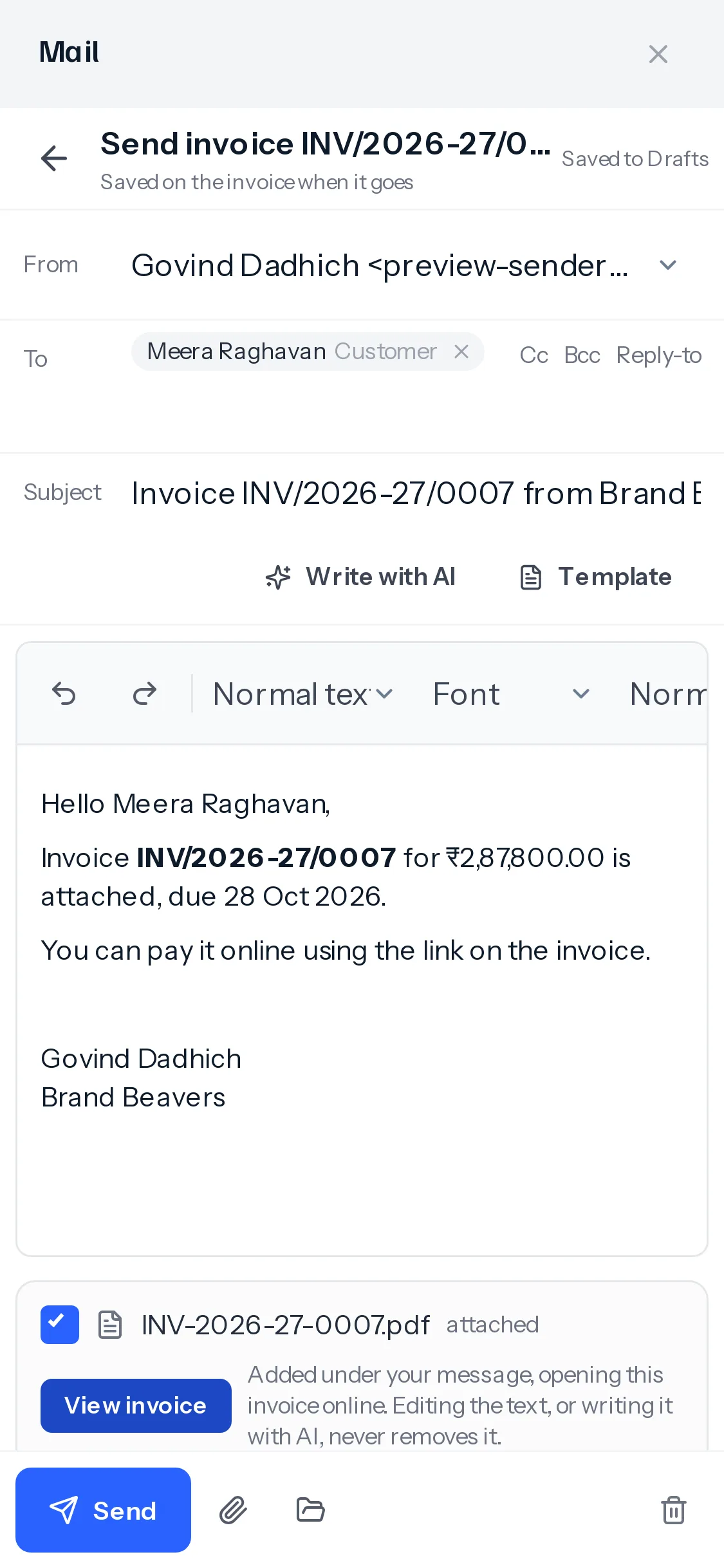
Write it with AI
Write with AI drafts the email from the customer’s profile, their earlier quotations, orders, invoices and credit notes, and the last ten conversations with them: calls, meetings, notes and email.
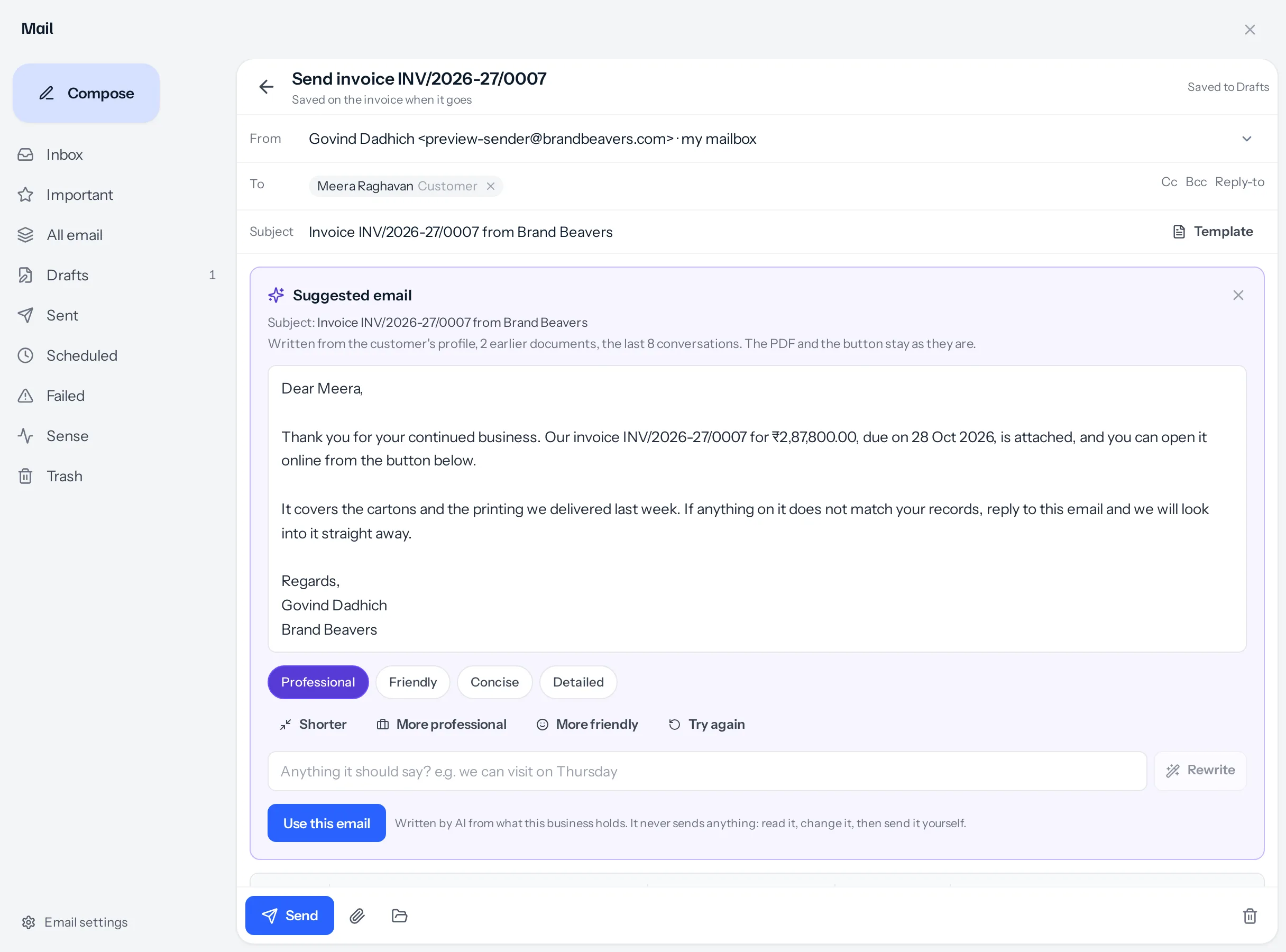
- It reads only what you may see. A customer looked after by somebody else, a kind of document you cannot open, or a mailbox not shared with you is left out, exactly as it is on your own screens.
- It cannot drop the PDF or the button. They are not part of the words it writes. Any web address it writes is removed, so the only link in the email is the button.
- It sends nothing. Read it, change it, then press Send.
What sending does to the document
| Document | A draft becomes |
|---|---|
| Quotation, proforma, invoice, bill of supply, retainer | Sent |
| Sales order | Confirmed |
| Credit note, debit note | Issued |
| Purchase order, purchase bill | Open |
Before the email leaves, the document is checked exactly as Mark as sent checks it: its approval, its tax and any required reporting tags. If one of those stops it, nothing is sent. If the mail server refuses the email, the document stays a draft and the email stays open with everything you wrote.
A document that is already sent is simply emailed again; its status does not change.
A draft invoice, bill of supply or credit note asks before the send window opens: once sent it is final and cannot be edited or revised. Choose No, keep it as a draft to go on changing it.
Where it is recorded
- On the customer, lead or vendor: the email in their mail and on their timeline, naming the document.
- On the document: an audit line saying who emailed it, to whom, and whether the PDF went with it.
Who can send
Sending needs Share on that kind of document. Sending a draft also moves it on, so it needs Edit on a sales document and Approve to issue a debit note. When you lack that, the footer says so and Send stays off.
Where to go next
Something missing or wrong here? Tell us. A question that needed asking usually means a page that needed writing.