
Making groups and channels is a right on your role (see Settings and roles). Whoever makes one is its first admin.
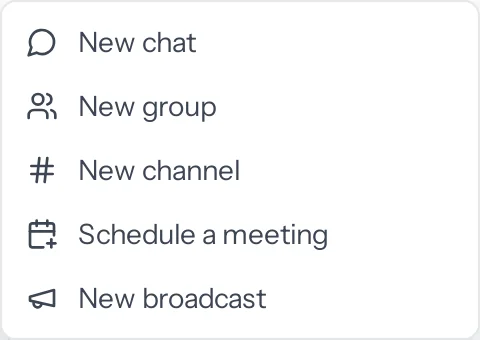
Group or channel?
| Group | Channel | |
|---|---|---|
| For | A set of people | A topic |
| Who can join | Only people added | Open: anyone in the business, from Browse and join channels. Private: only people added |
| Announcement-only | No | Can be: only admins post, everyone can read, react and reply in a thread |
| Pinning messages | Anyone | Admins |
Turn a one-to-one chat into a group
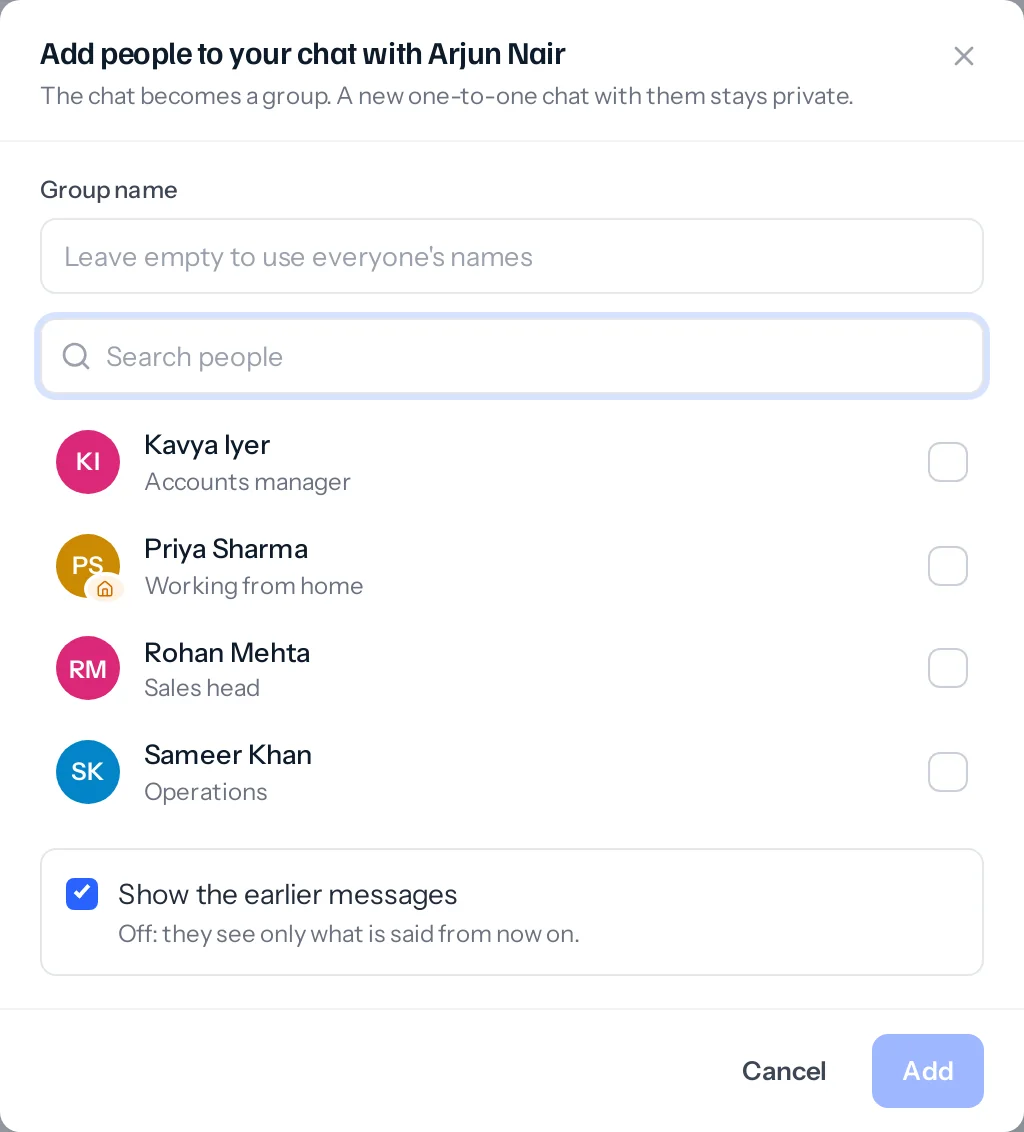
- In the direct chat, open More at the top right and choose Add people (makes a group).
- Give the group a name, or leave it to use everyone’s names.
- Tick the people to add.
- Leave Show the earlier messages ticked if they should see what was said before, or untick it so they see only what is said from now on, and press Add.
Running a group or channel
Open More and choose Channel settings or Group settings. Its admins can change the name and what it is for, whether a channel is open and announcement-only, who may delete messages for everyone and within how long, and who may use @everyone. The member list beside it makes people admins or members, and removes them.
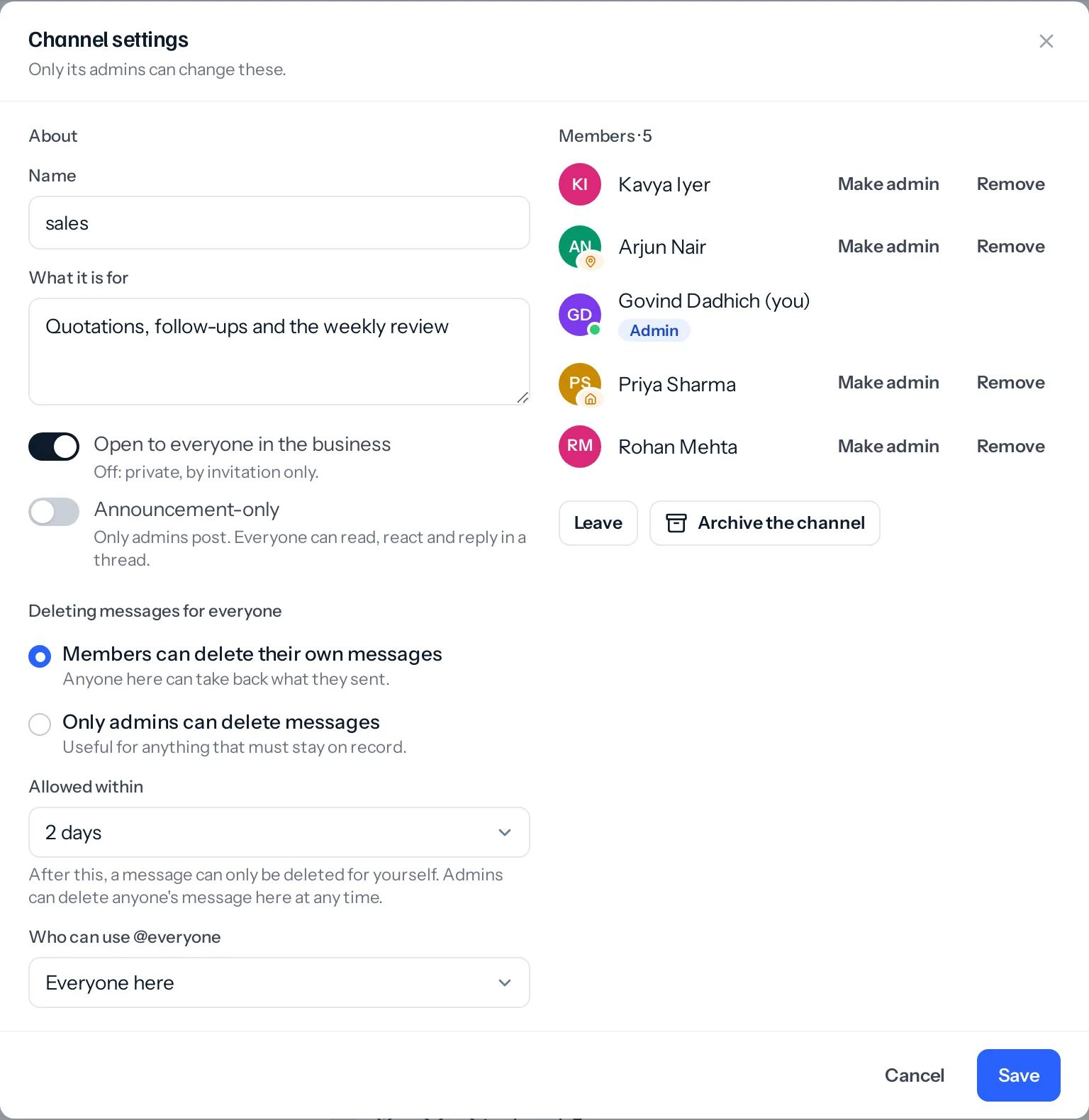
- Leave takes you out. If you were the last admin, the longest-standing member becomes admin, so nobody is left unable to run it.
- Archive the channel keeps it for reading and closes it for posting.
- Somebody whose role can run every group and channel can change any group or channel this way. That right does not let them read messages in conversations they are not in.
Deleting, pinning, forwarding and who has read it →
A conversation on every lead, deal, task and invoice →
Something missing or wrong here? Tell us. A question that needed asking usually means a page that needed writing.