
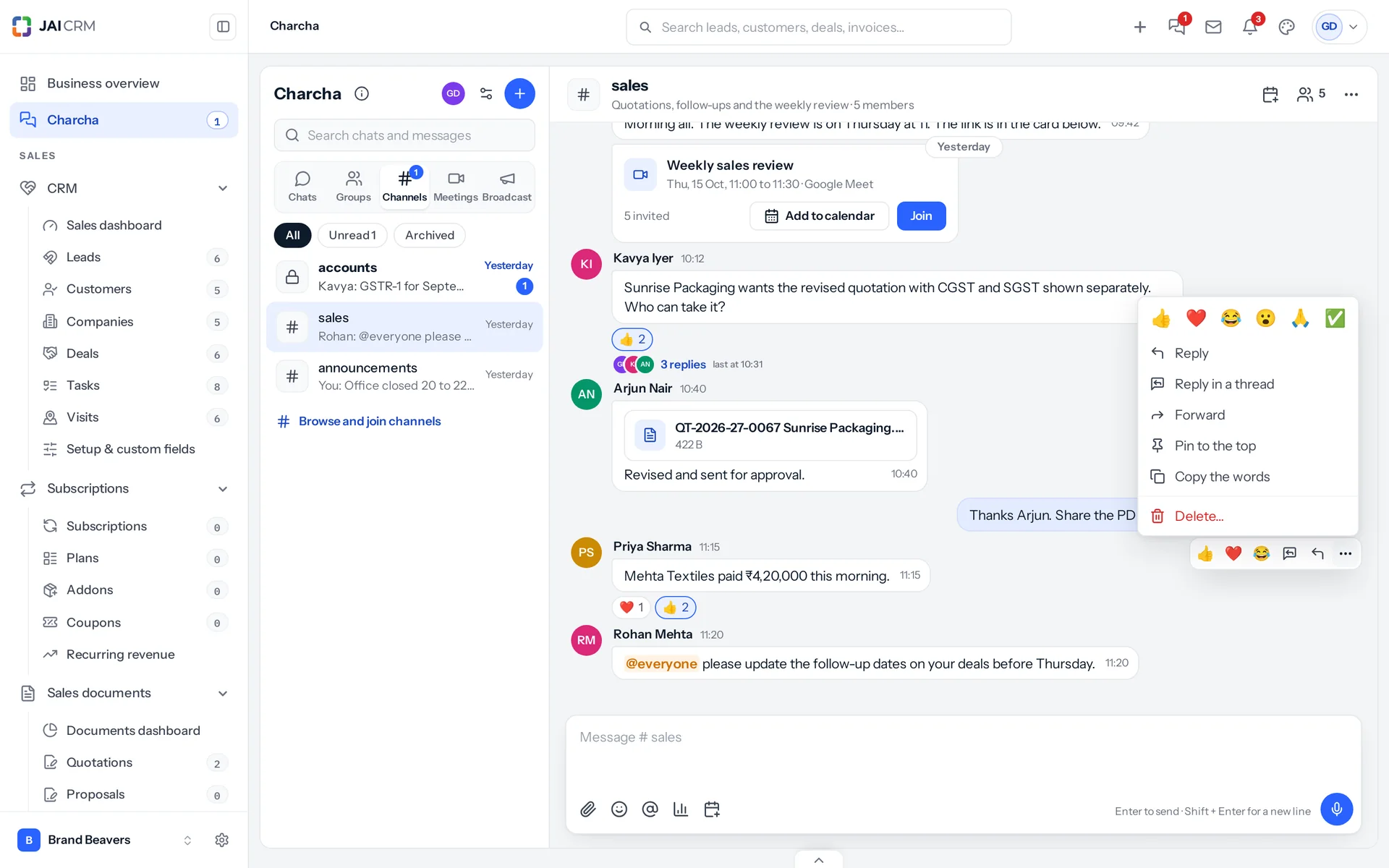
Hover over a message on a computer, or press and hold it on a phone, and its actions appear beside it: three quick reactions, Reply in a thread, Reply, and More for everything else.
React with as many as you like
- Press a quick reaction to add it. You can put several different reactions on one message; press one again to take it off.
- For any other emoji press +: beside the three quick reactions on a computer, at the end of the six in More, at the end of the row on a phone’s press-and-hold menu, or beside the reactions already under a message. All of them open in the same place, with the ones you have put on lit up.
- Hold the pointer over a reaction under a message to see who added it.
Reply, or reply in a thread
- Reply quotes the message above yours. Clicking the quote takes you back to the original.
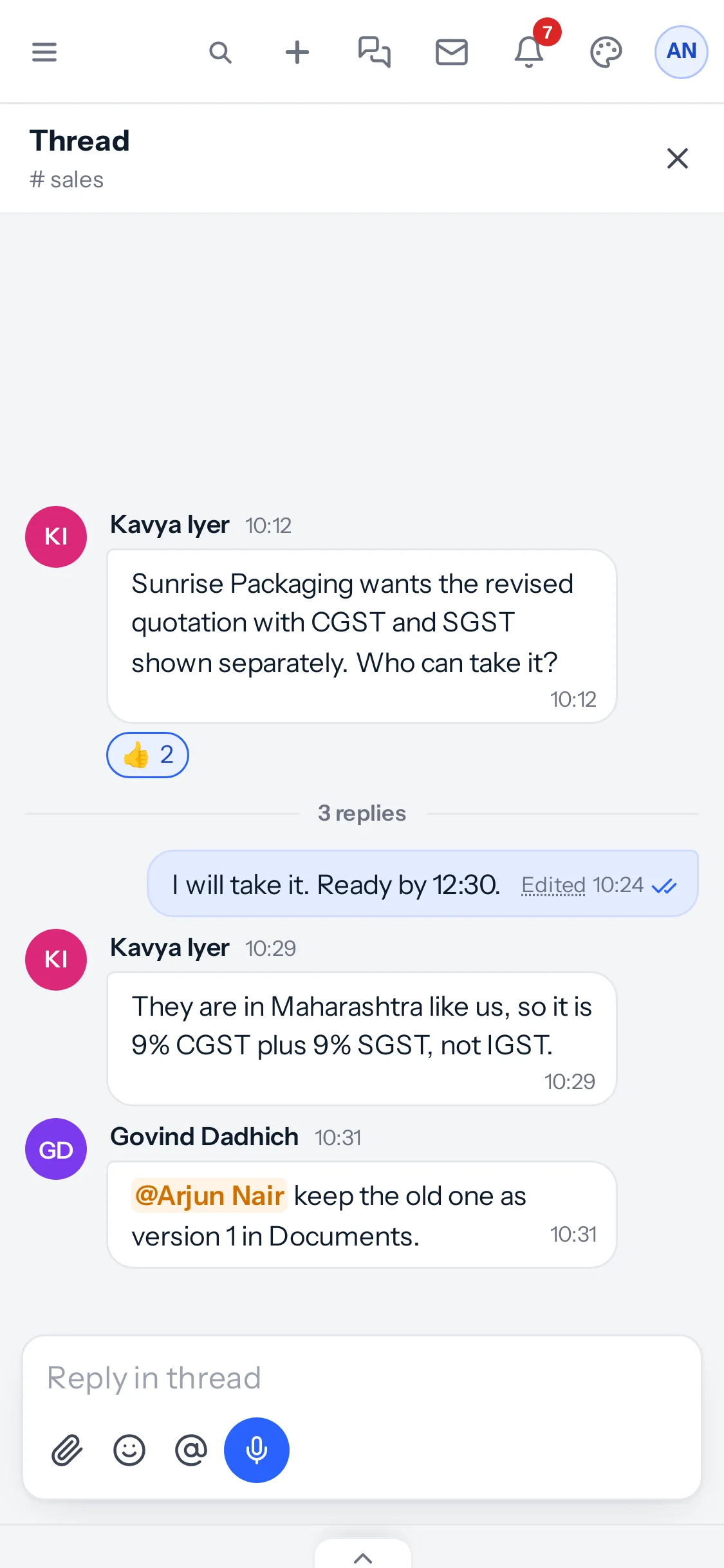
- Reply in a thread (groups and channels) opens a side conversation under that one message, so the main conversation is not buried. The message shows how many replies it has and who replied.
Reply in a thread
- Hover over the message and press the speech-bubble button, or choose Reply in a thread from its menu.
- The thread opens beside the conversation (full screen on a phone), with the message at the top.
- Write your reply in the box at the bottom of the thread and send it.
- Close the thread with the cross. The message now shows the number of replies; click it to open the thread again.
Mentions and @everyone
Type @ and the first letters of a name, then choose the person. They are told in the bell, even if they have muted the conversation (unless their status pauses their notifications). In a group or channel, @everyone or @all reaches everybody in it who has not muted it. A channel’s admins can keep @everyone to themselves (see Groups and channels).
Files
Press the paperclip and choose Upload from this device (up to 20 files at a time), From Documents, From Google Drive or From Dropbox. You can also paste a picture or drop files onto the conversation. A copy of each file goes into the chat, so it opens for everyone in it even if the original is moved or unshared. Pictures show in the message; click one to see it larger.
Google Drive and Dropbox appear once your own account is connected in Settings, Integrations. Documents offers only the files you could download yourself.
Editing
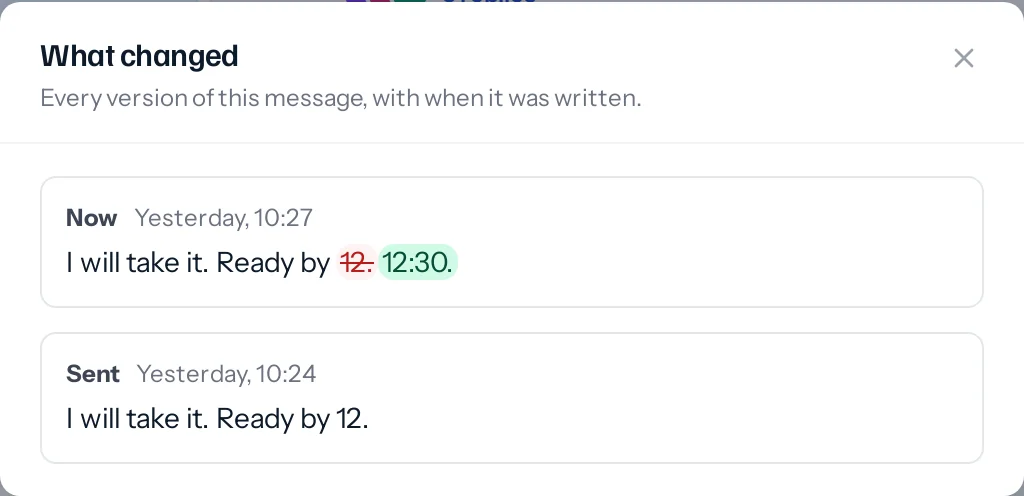
Choose Edit on your own message, change it and send. There is no time limit. The message then shows Edited; anyone in the conversation can click that to see every version, when each was written, and the words that changed.
Enter, and a new line
Enter sends and Shift + Enter adds a line, unless you choose the other way round in Charcha settings (the sliders icon at the top of the list), where Ctrl + Enter sends. On a phone, Enter always adds a line and the Send button sends.
Something missing or wrong here? Tell us. A question that needed asking usually means a page that needed writing.