
Charcha is the team chat inside JAI CRM. Your people talk in direct chats (two people), groups (private, for the people chosen) and channels (for a topic, open to the business or private). Messages, typing and read ticks arrive the moment they happen; there is never anything to refresh. Charcha is in every plan and every role can use it.
Where to find it
- The sidebar: Charcha sits just under Business overview, with the number of chats waiting for you.
- The top bar: the Charcha icon opens a chat box from the right over whatever page you are on. The arrows at its top open the full page.
- The quick bar: Charcha is first on a quick bar nobody has arranged yet.
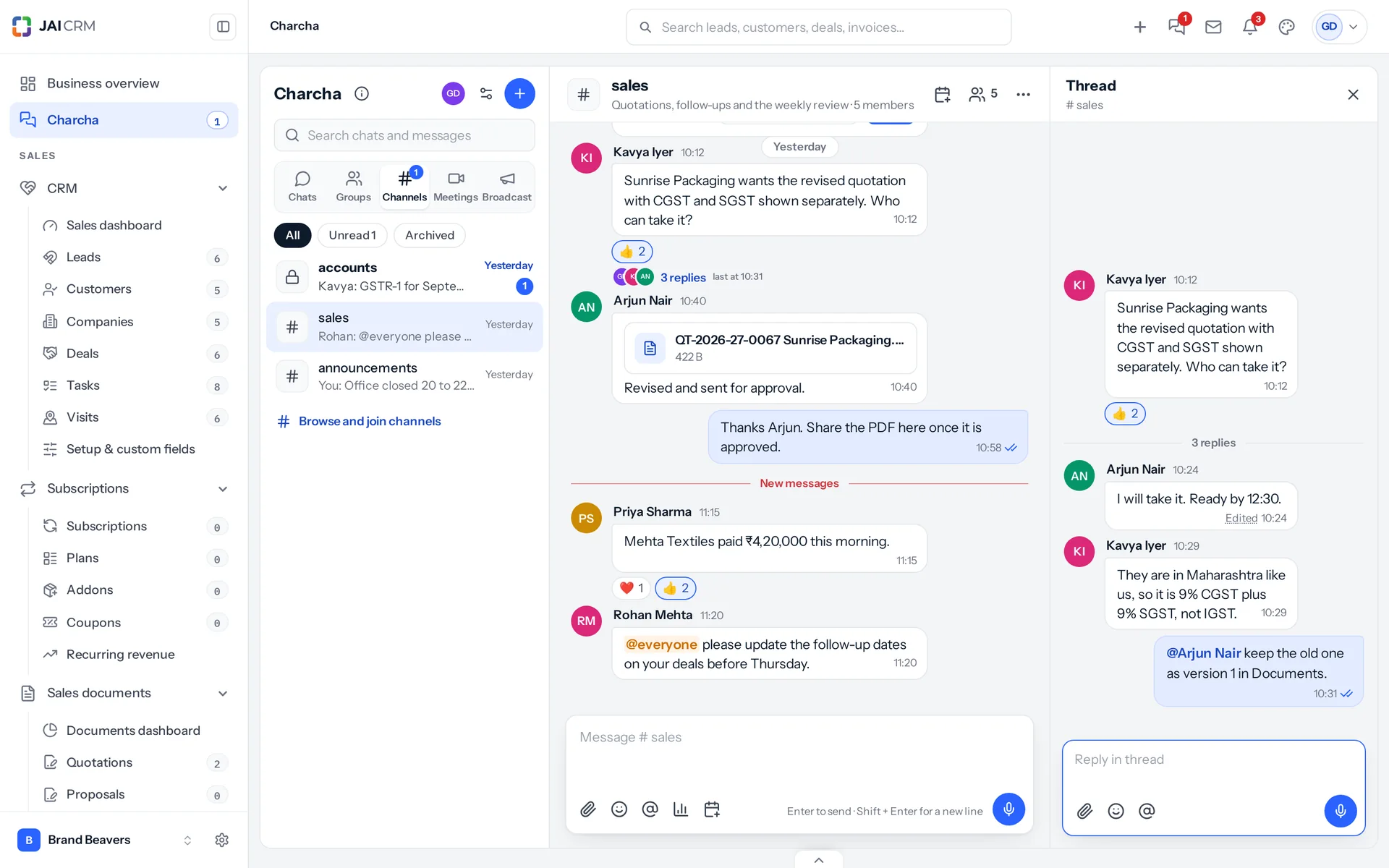
Start a chat
- Open Charcha and press the blue + at the top of the list.
- Choose New chat, New group or New channel. Groups and channels appear only if your role allows you to make them.
- For a chat, pick the colleague. For a group or channel, give it a name, say what it is for, and tick the people.
- Write in the box at the bottom and press Enter to send. Shift + Enter starts a new line.
The five sections
| Section | What is in it |
|---|---|
| Chats | Your one-to-one chats, including broadcasts that reached you. |
| Groups | Private conversations for a chosen set of people. |
| Channels | Conversations about a topic. Browse and join channels lists the open ones you are not in yet. |
| Meetings | Meetings you organise or are invited to, with their links. |
| Broadcast | Messages from above you in the reporting line, and the ones you sent with how many have read each. |
Each section shows how many of its chats have something unread. All, Unread and Archived under the sections narrow the list, and the search box finds a chat by name and a message by its words.
Who can read what
- A conversation’s messages can be read only by the people in it. Nothing else gives access: not being the owner, not being an administrator.
- A direct chat is between its two people. The owner cannot read it.
- A file sent in a chat opens only for the people in that chat.
- Customers and suppliers who sign in to the portal never see Charcha.
On a phone
Charcha shows one screen at a time: your chats, then the conversation, then a thread, each with a back arrow. Press and hold a message or a chat for what you can do with it.
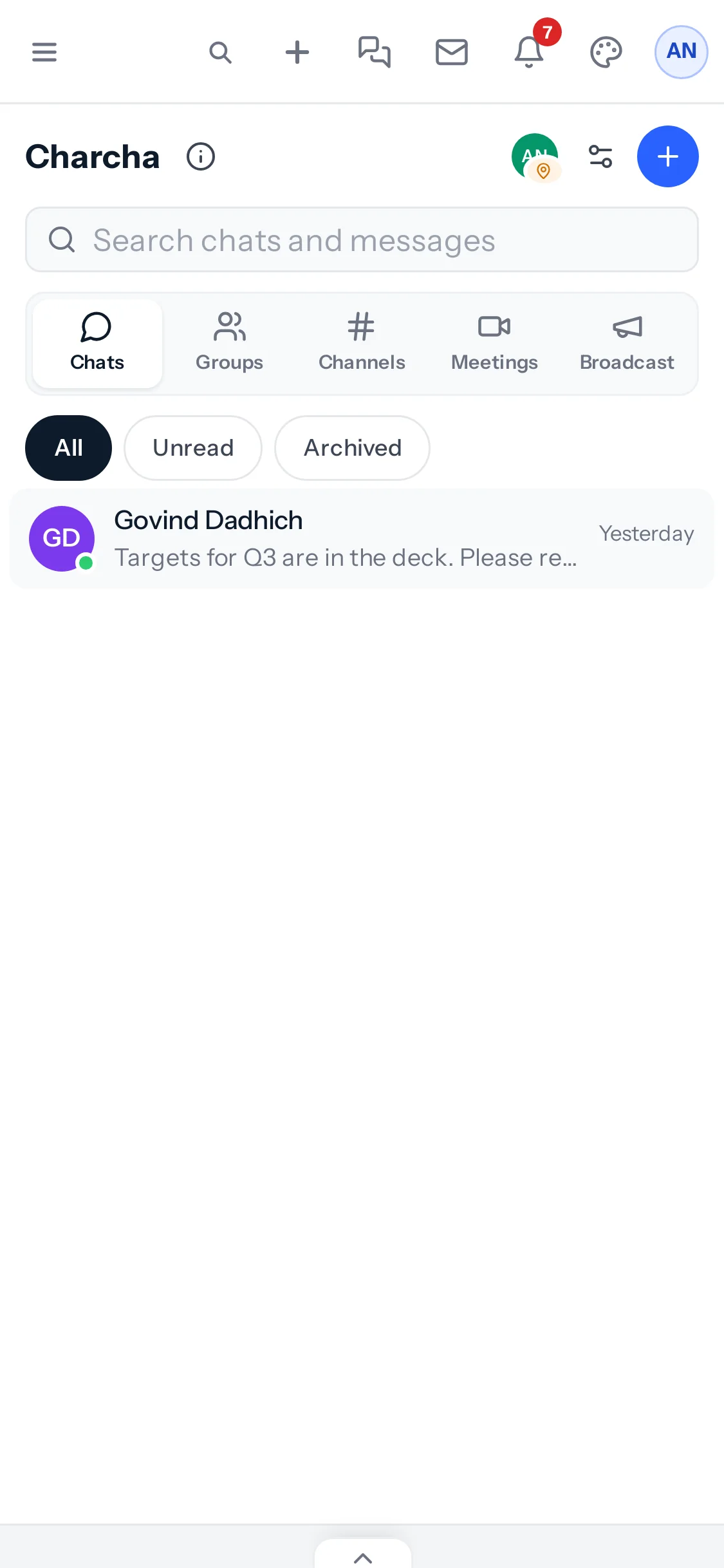
Charcha is for your own team. It does not send WhatsApp messages and has no video calls of its own: meetings use a Google Meet, Zoom or Teams link, which Make one can create on your own account. Polls, voice notes and notifications have pages of their own below.
Something missing or wrong here? Tell us. A question that needed asking usually means a page that needed writing.