
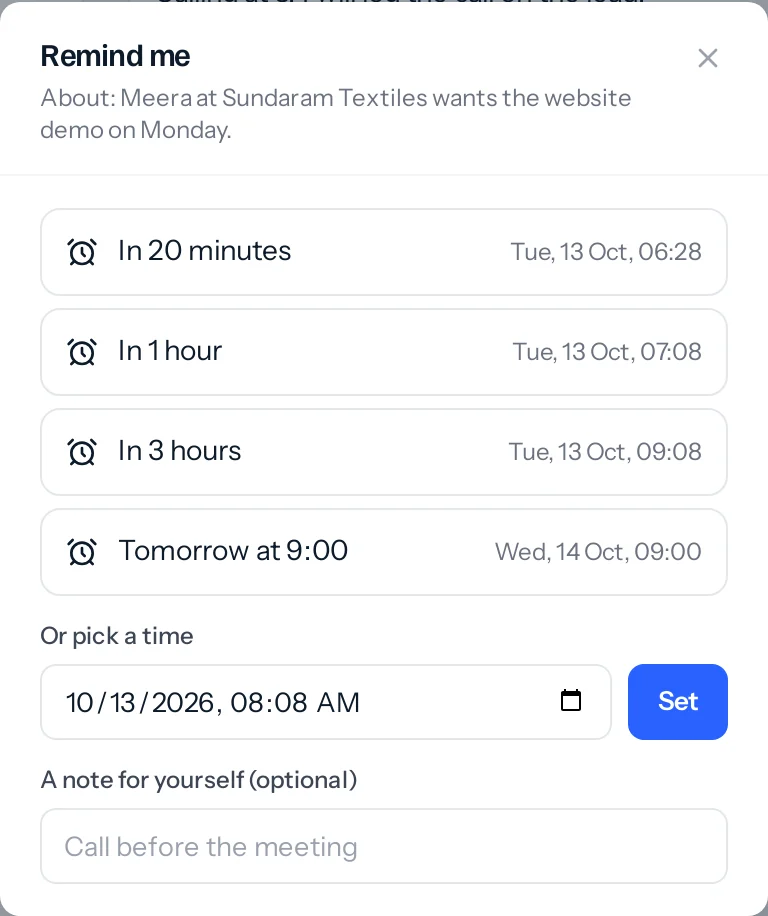
- On the message, press More (or press and hold it on a phone) and choose Remind me.
- Choose In 20 minutes, In 1 hour, In 3 hours, Tomorrow at 9:00 or Next Monday at 9:00, or pick a day and time and press Set.
- Add a note for yourself first if the message alone will not remind you why.
Once it is set, a line under the message says when, such as Reminding you Mon, 19 Oct, 09:00, with Change and Cancel, and a small alarm clock sits beside the message’s time, the way a pin does. It turns red when the reminder is due; press it to change the time. Only you see either. Choosing Remind me on the same message again changes the time rather than adding a second reminder.
When it is time
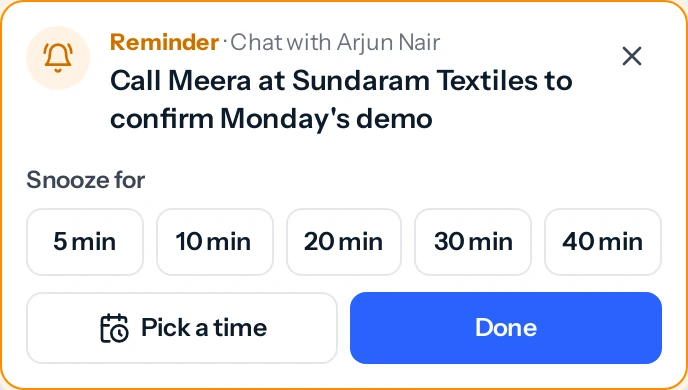
- JAI CRM open: a ring and a note in the corner, on whatever page you are on. It keeps ringing until you answer it, unless you chose a short chime in Charcha settings. It says what the reminder is about and which chat it is in. Snooze for 5, 10, 20, 30 or 40 minutes with one press; Pick a time opens a day and time right in the note, with Set; or press Done. Click the words to go to the message.
- JAI CRM closed: the browser’s notification, if you turned on Push to this browser (see Notifications).
- The bell gets a line too, so nothing is lost if you were away.
- Ring in the browser off, or a status that pauses notifications: the note and the bell, without the sound.
Your Reminders list
Press the alarm clock at the top of the Charcha list. Its red number is how many are due now.
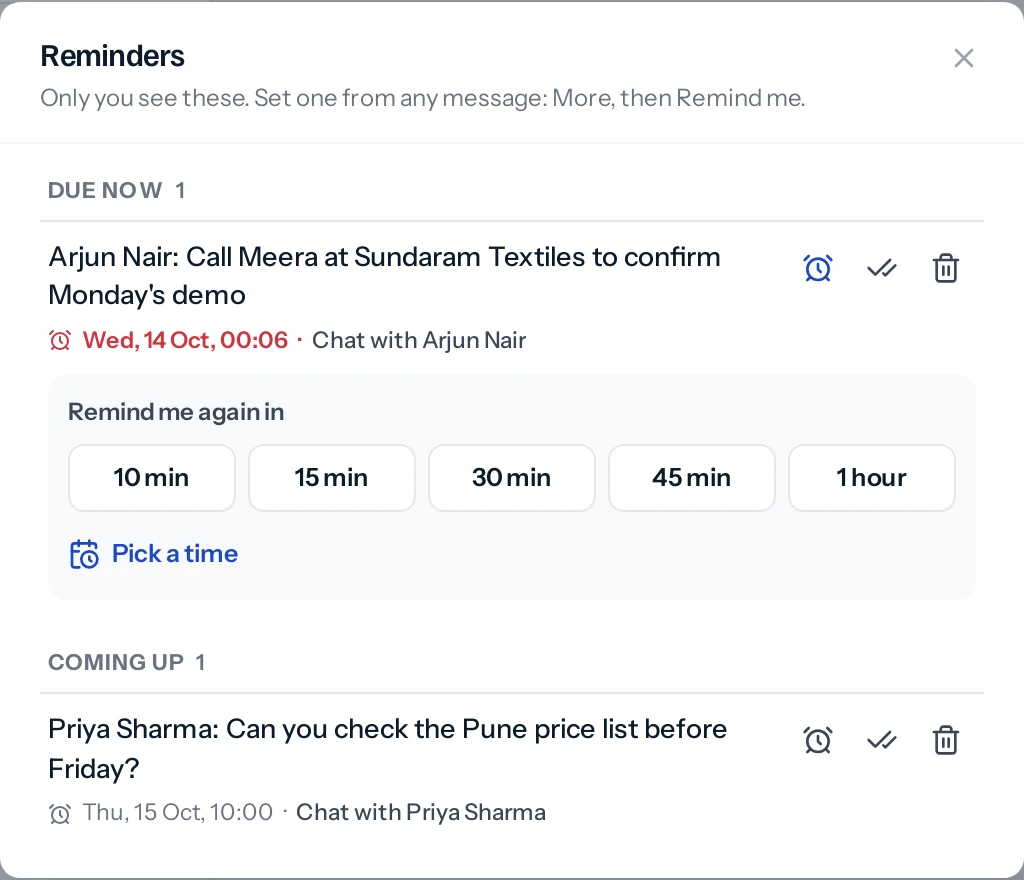
- Each reminder says what it is about and which chat it is in: Chat with Arjun Nair, or In #sales.
- Press the alarm clock on a reminder to move it: 10, 15, 30 or 45 minutes, 1 hour, or Pick a time for a day and time, set right there in the list.
- Mark one done or remove it. Something marked done by mistake can be put back.
- Click a reminder to go straight to its message.
- Only you see your reminders. Nobody is told you set one.
- A reminder does not keep its own copy of the message. If the message is deleted for everyone, the reminder says so.
Something missing or wrong here? Tell us. A question that needed asking usually means a page that needed writing.