
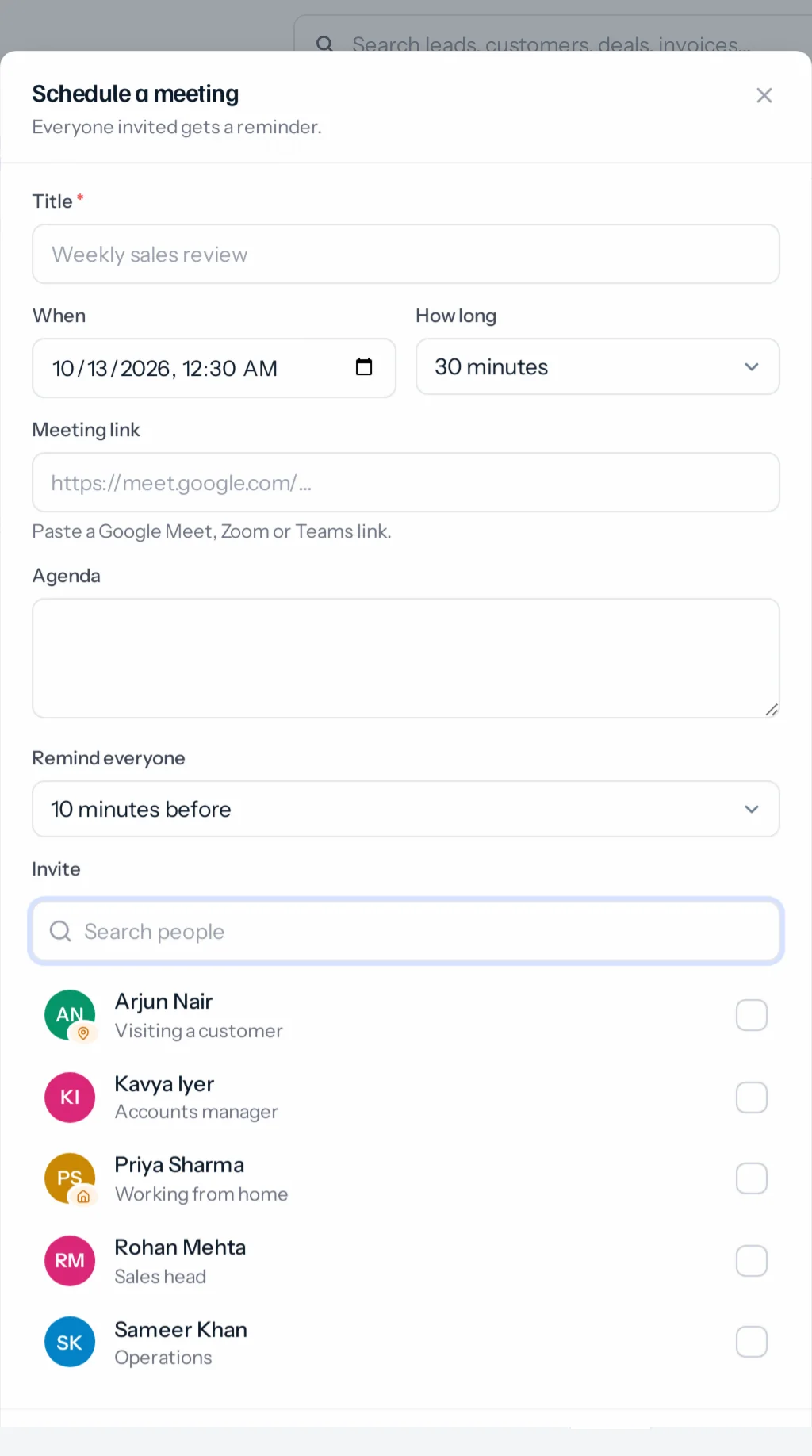
- In a chat, press the calendar button in the message box or at the top of the conversation. Or press + and choose Schedule a meeting.
- Give it a title, a date and time, and how long it lasts.
- Paste the meeting link from Google Meet, Zoom or Teams, or press Make one under it to make a new link on your own account (see Video meetings). A link must start with https://.
- Choose when to remind everyone, and who is invited. From a chat, its people are ticked already.
- Press Schedule. A card appears in the chat with the time, the link and a Join button.
Before it starts
At the reminder time everyone invited gets a notification in the bell. If JAI CRM is open in a tab, it also rings and shows a note in the corner with Join. Add to calendar on the card or in the meeting downloads it for Google Calendar, Outlook or a phone, with its own reminder.
Changing or cancelling
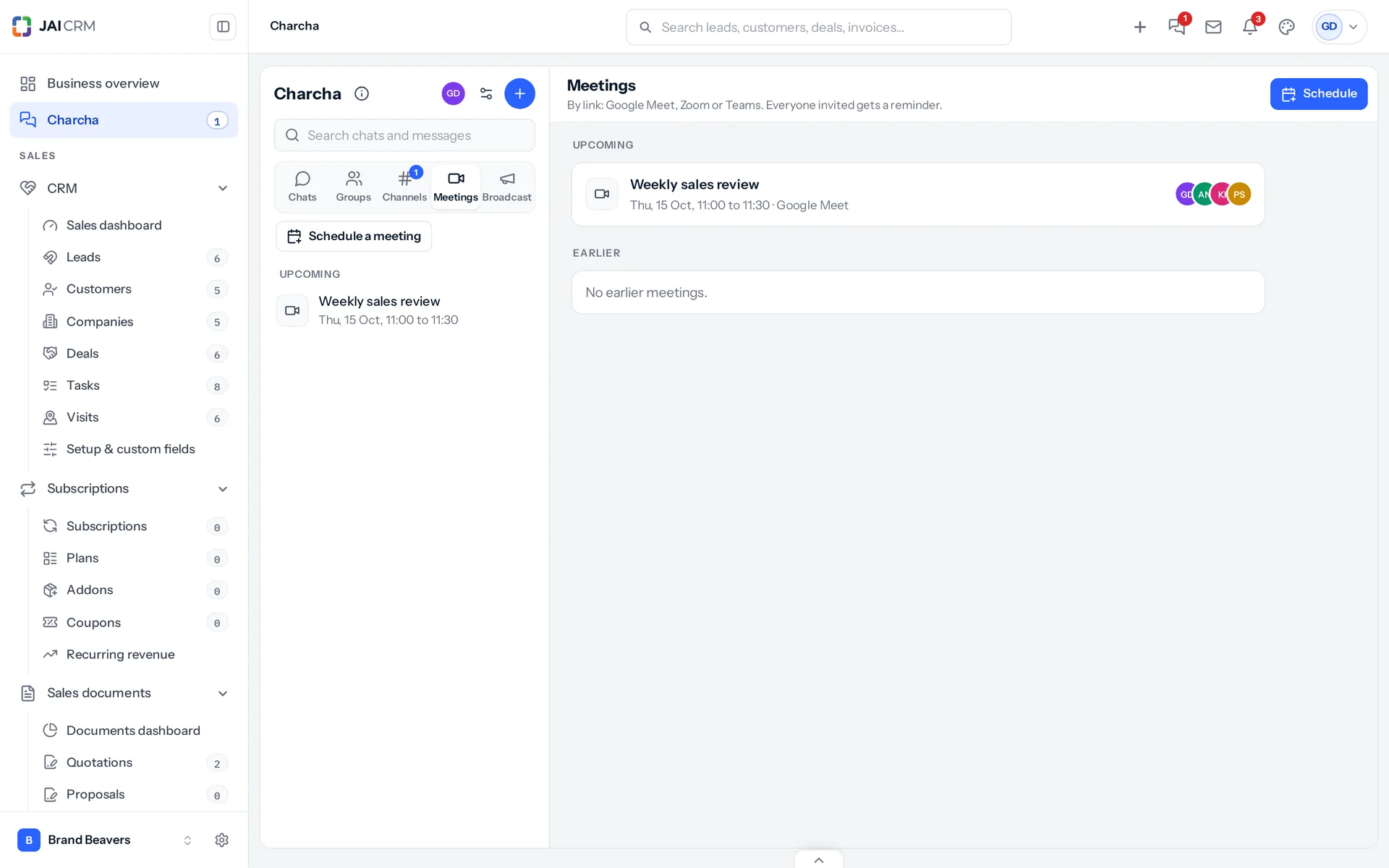
Open the meeting from the Meetings section. Whoever scheduled it can change the time, the length or the link, or cancel it; everyone invited is told.
Inviting people who are not in the chat you schedule from needs the right to schedule meetings for others on your role. So does inviting anybody to a meeting scheduled outside a chat.
Something missing or wrong here? Tell us. A question that needed asking usually means a page that needed writing.