
Start a poll
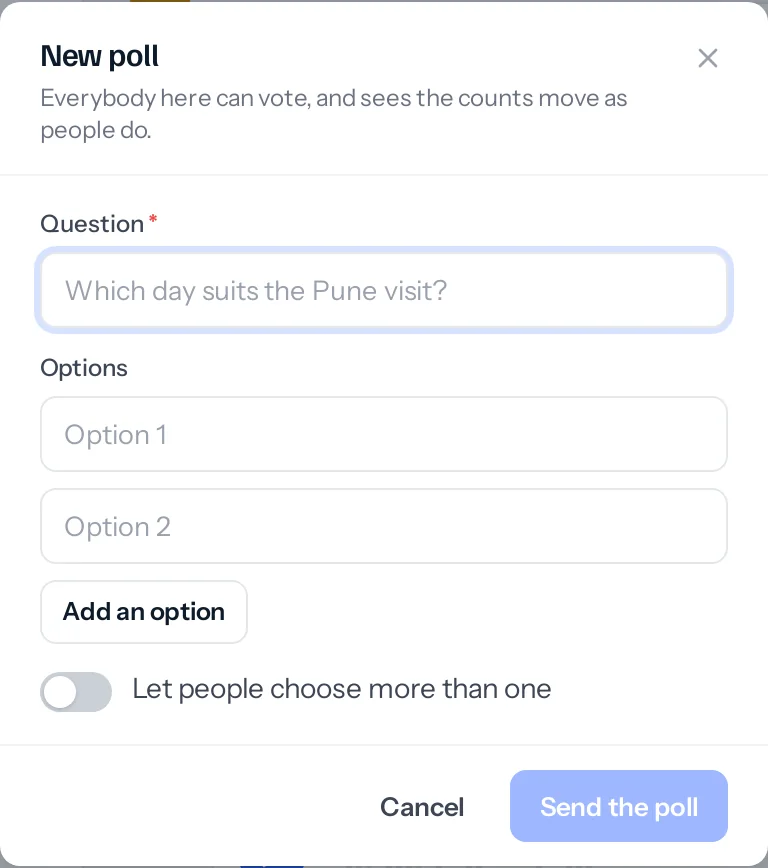
- Press the chart button in the message box.
- Write the question and at least two options, up to ten.
- Turn on Let people choose more than one if one answer is not enough.
- Press Send the poll. It arrives as a card everybody here can vote on.
Tap an option to vote; tap it again to take the vote back, or another to change it. The counts move for everyone as people vote, and holding the pointer over an option lists who chose it.
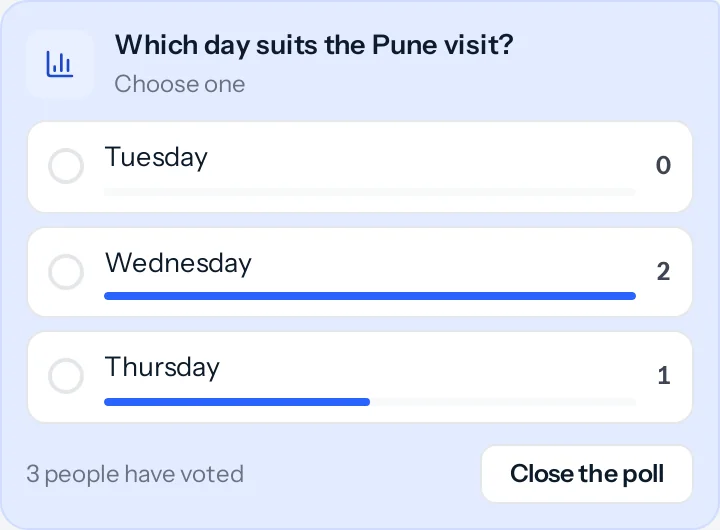
- Whoever started the poll, or an admin of the group or channel, can close it. A closed poll keeps its result and takes no more votes.
- In an announcement-only channel, only its admins can start a poll.
Record a voice note
- With nothing typed in the message box, press the microphone where the Send button usually is.
- Allow JAI CRM to use the microphone the first time the browser or the phone asks.
- Speak. The box shows the time as you go, up to five minutes.
- Press Send to send it, or the bin to throw it away.
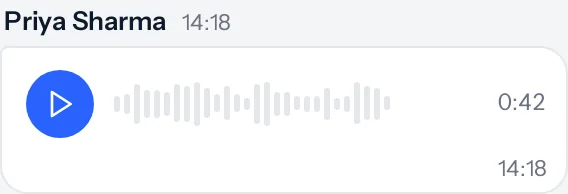
A voice note is a file like any other: it opens only for the people in the chat, and it counts towards your business’s storage.
Something missing or wrong here? Tell us. A question that needed asking usually means a page that needed writing.