
A lot of work starts as a message. Charcha lets you act on it where it was said, without copying it into another screen: make it a task, show the record it is about, approve what is waiting on you, or keep the words on the lead or deal.
Make a task from a message
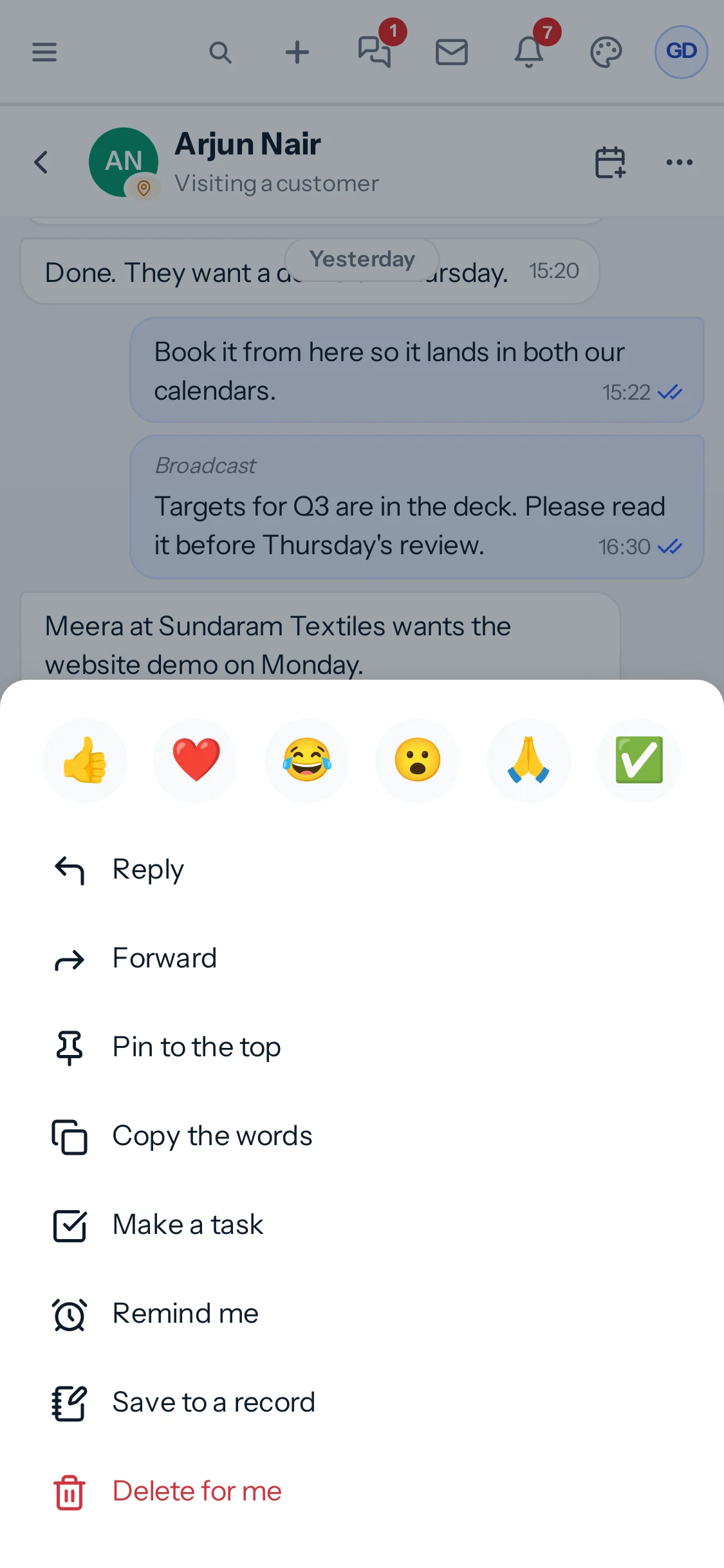
- On the message, press More (the three dots), or press and hold it on a phone, and choose Make a task.
- Check What needs doing: it starts as the message’s words. Choose Who does it, the day it is due and, if it has one, the time.
- Set the priority, and a reminder if it has a due date.
- About links it to a lead, customer or deal. If the message carries one, it is linked already.
- Press Make the task.
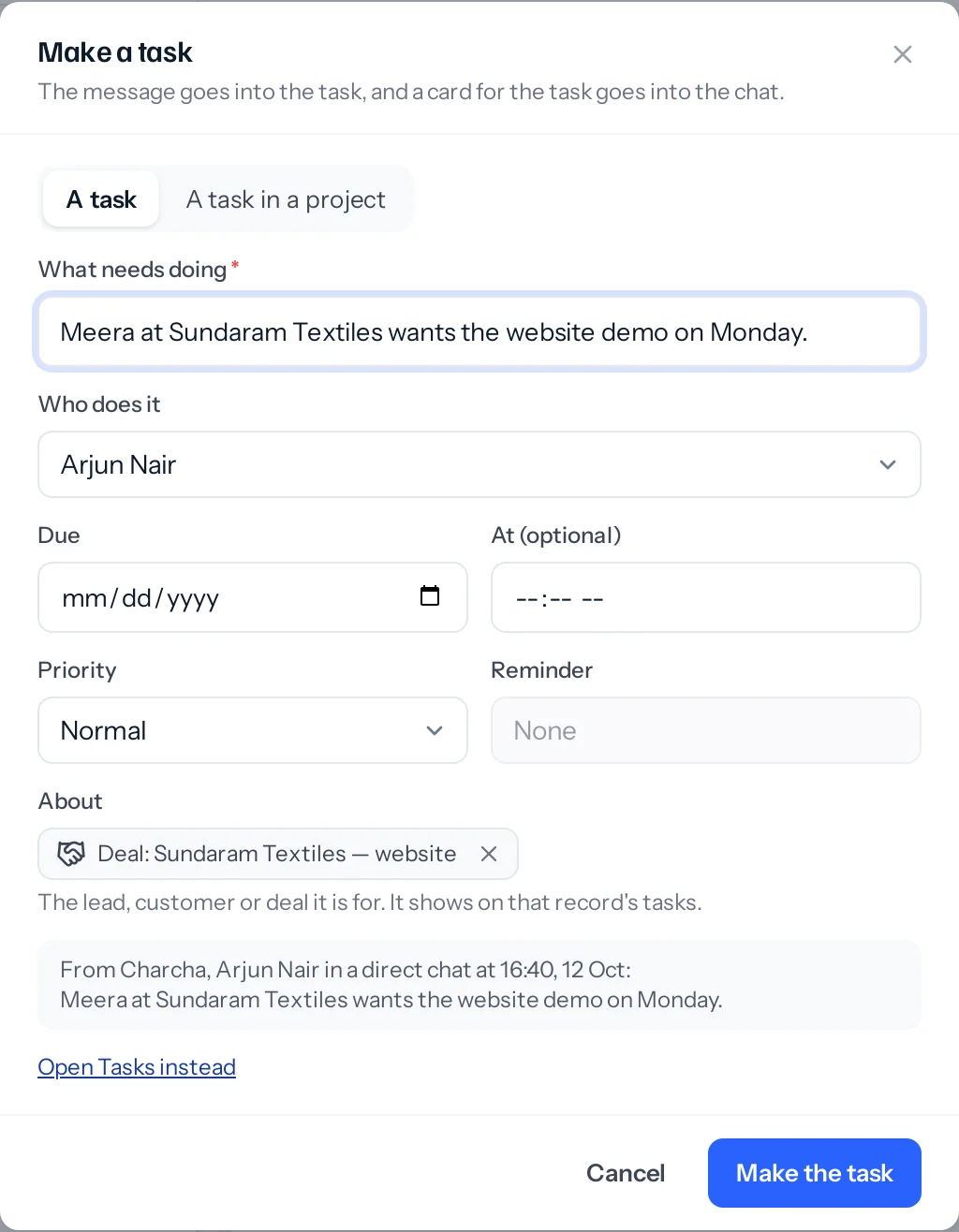
The task is an ordinary task: it is in Tasks and on the record it is linked to. Its card goes into the chat under the message it came from, so everyone there sees it was picked up.
- A task in a project: choose it at the top, then the project. The task goes into that project’s tasks; you can put it under a milestone or make it a sub-task of another task, and give it an estimate in hours.
- You need the right to make tasks (or project tasks) on your role. Without it, Make a task says so.
- In an announcement-only channel where you cannot post, the task is still made; only the card is left out.
Link a record with #
- In the message box, type # and the first letters of a name or a number.
- Choose the record from the list. Its name leaves the box and it waits above it as a card.
- Write the rest of the message if you like, and send.
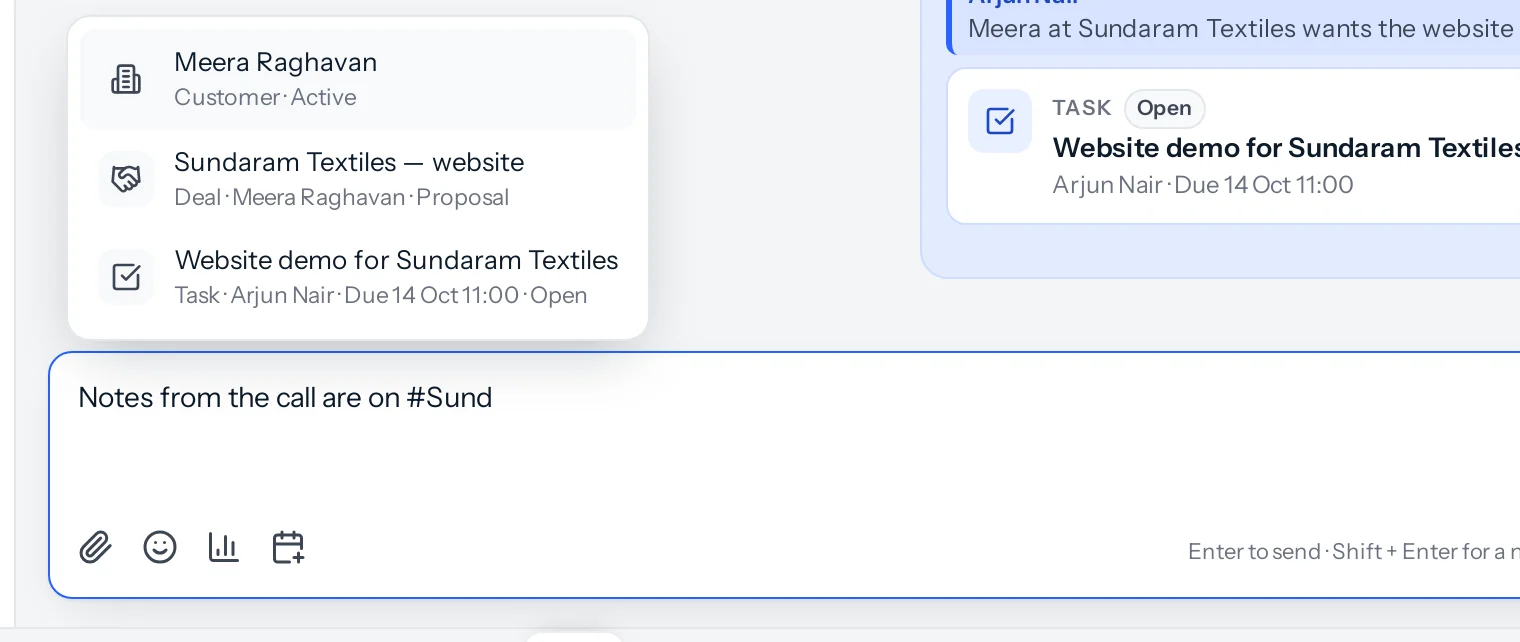
To look for one by kind, press the paperclip and choose Share a record. Up to five records go in one message.
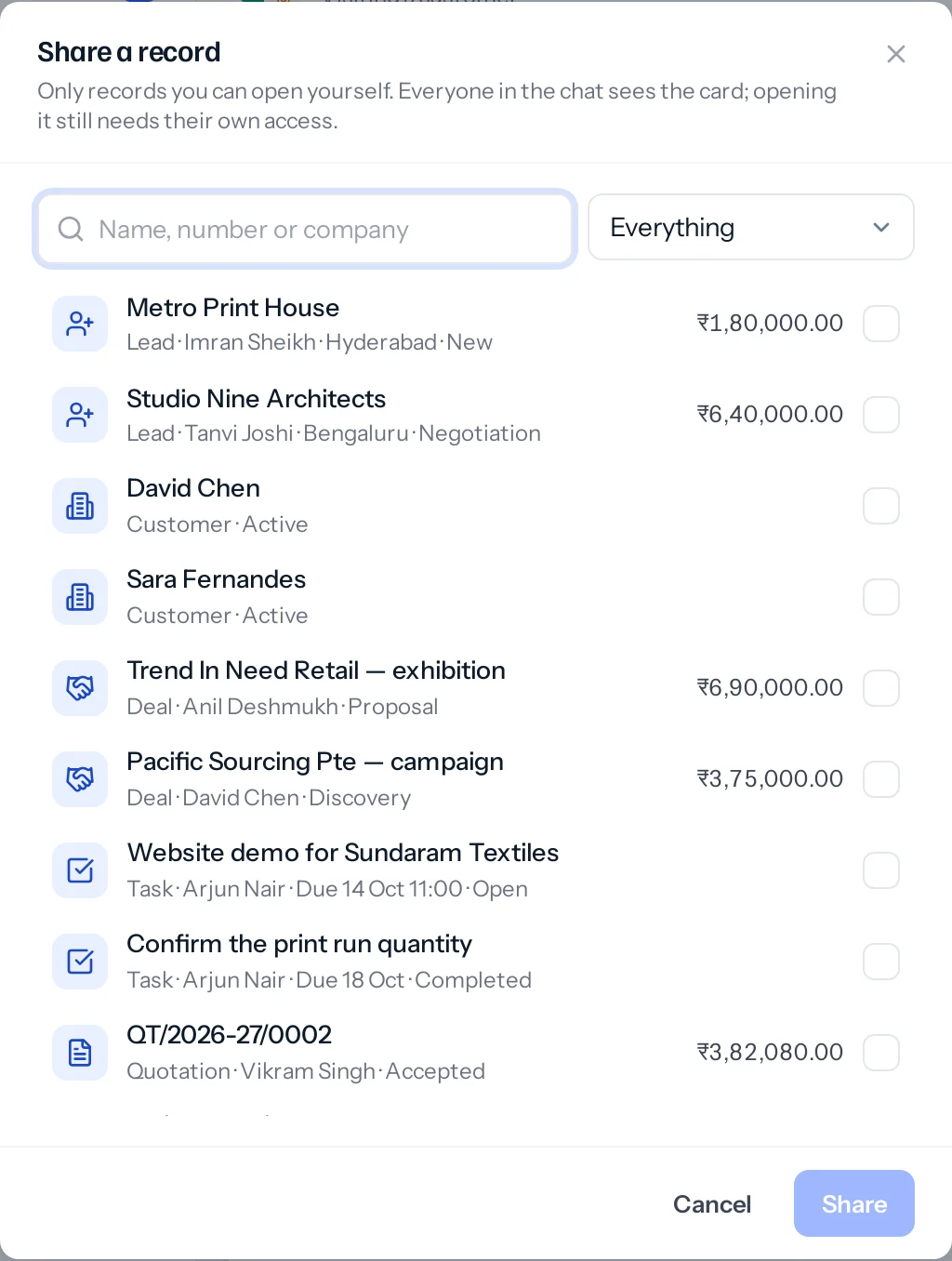
| What can be shared | The card shows |
|---|---|
| Leads, customers and deals | The name, who it is with, where it stands and, for leads and deals, the value |
| Tasks and project tasks | What needs doing, who does it, when it is due and whether it is done |
| Quotations, proposals, sales orders, proforma invoices and invoices | The number, the customer, the status, the total and any approval |
| Projects | The name, its code and its status |
Who sees what on a card
You can only share a record you can open yourself. Each person in the chat then sees the card as their own access allows: their role, its data scope, and the records shared with them. Somebody who cannot open it sees A lead you cannot open, with no name, no status and no amount. A chat list, a quote and a notification only ever say what kind of record was shared, such as Shared a lead.
When a module is switched off
Charcha offers what your business has switched on in Settings, Plugins. Something that needs a module which is off is still shown, marked with what it needs, such as A task in a project, needs Projects. Choosing it says: It will require the following module to be enabled: Projects. An administrator is offered Plugins; anybody else is asked to contact their admin to switch it on or upgrade the plan. Something your own role does not allow is not shown at all.
- Only what you can open. You can share a record only if you could open it yourself. Everyone in the chat sees the card; opening the record still needs their own access to it.
- Always current. A card is read again each time the message is shown, so a quotation approved since, or a task done since, says so.
- Removed since. A record deleted after it was shared shows struck through, with the name it had.
- Forwarding. A forwarded message carries only the records the person forwarding it can open.
Approve from the card
When a quotation, order or invoice that is waiting on your approval is shared in a chat, its card says Waiting on your approval and has Approve and Reject on it. Everybody else sees only that it is waiting.
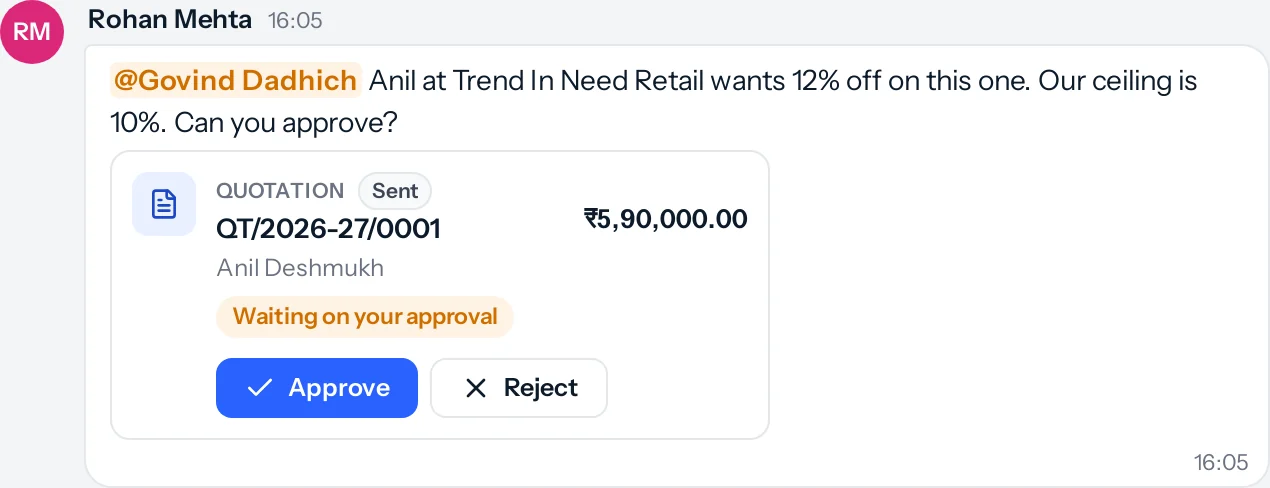
- Reject asks for a reason, which is optional. Whoever asked sees it.
- It is the same approval as on the record and in Waiting on you: an approval with more than one level moves to the next.
- Everyone looking at the message sees the card change to Approved or Rejected without refreshing.
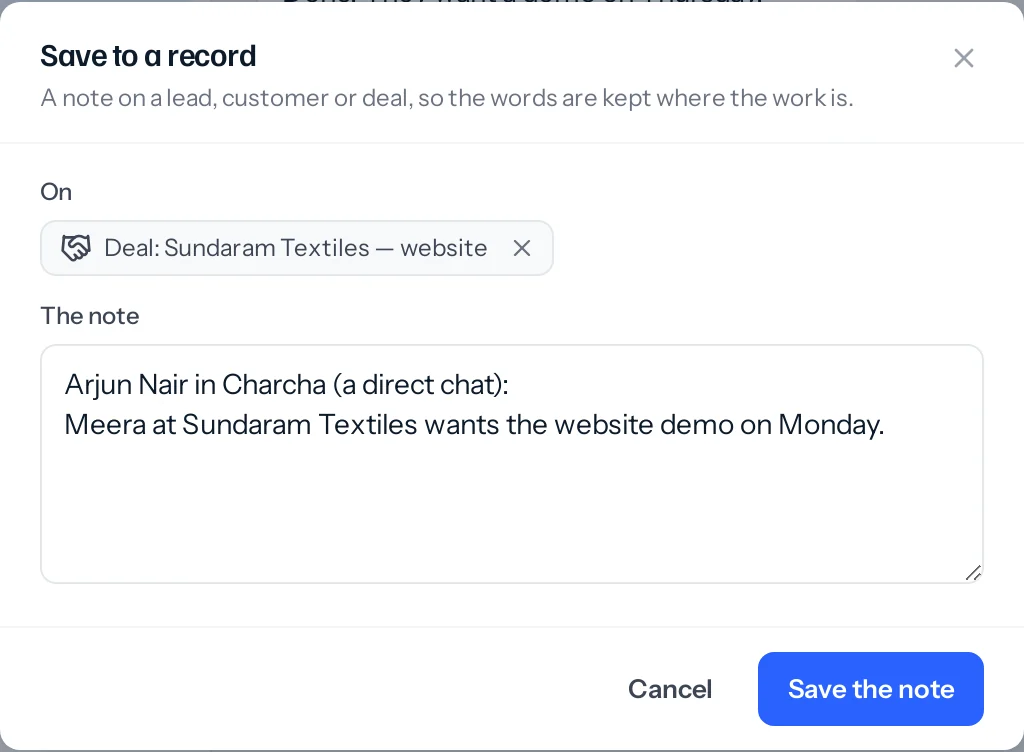
Save a message to a record
- On the message, press More and choose Save to a record.
- Choose the lead, customer or deal. If the message carries one, it is chosen already.
- Edit the note if you like: it starts with who said it and where.
- Press Save the note. It is on the record’s timeline with your other notes.
Something missing or wrong here? Tell us. A question that needed asking usually means a page that needed writing.