
Five things in Charcha use AI or your voice. Every answer comes back only to the person who asked, marked as written by AI, to read before using it. Nothing is sent, posted or made by itself.
What did I miss?
When a group or channel has five or more new messages, a bar at the top offers What did I miss?. Press it, and AI sorts the messages you missed into four lists: For you (anything that names you, asks you something or needs you), Decided, Still open and Shared. Press a line to go to the message it came from.
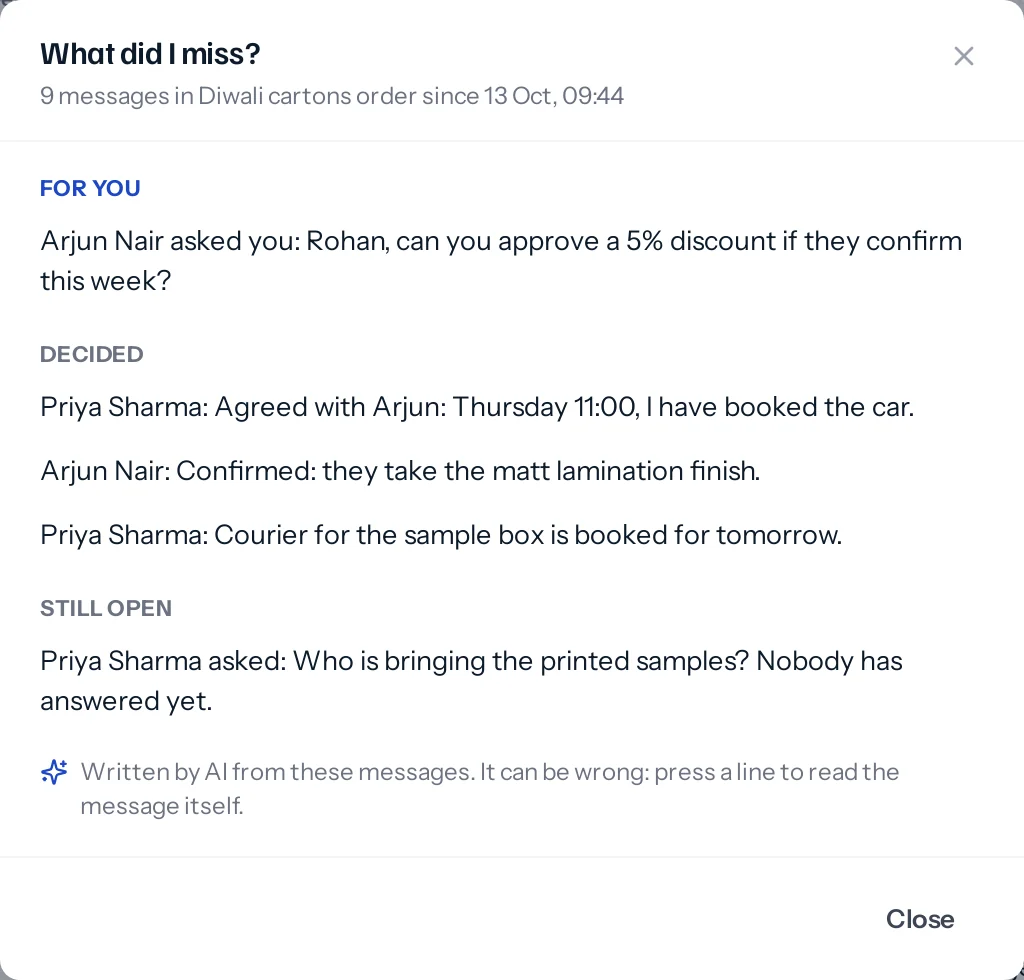
You can also choose What did I miss? from the … menu of any chat. With nothing new since you last read it, it sums up the last day.
It reads only what you can read yourself: somebody added to a chat without its earlier messages is never summarised them. Asking again for the same messages gives the same summary at no extra cost.
Draft tasks from a message
- On a message, choose … and then Make a task. On a phone, press and hold the message.
- Press Draft with AI.
- One task fills the form. If the message asks for several things, choose each to check it, or press Make all.
- Check what, who and when, then press Make the task.
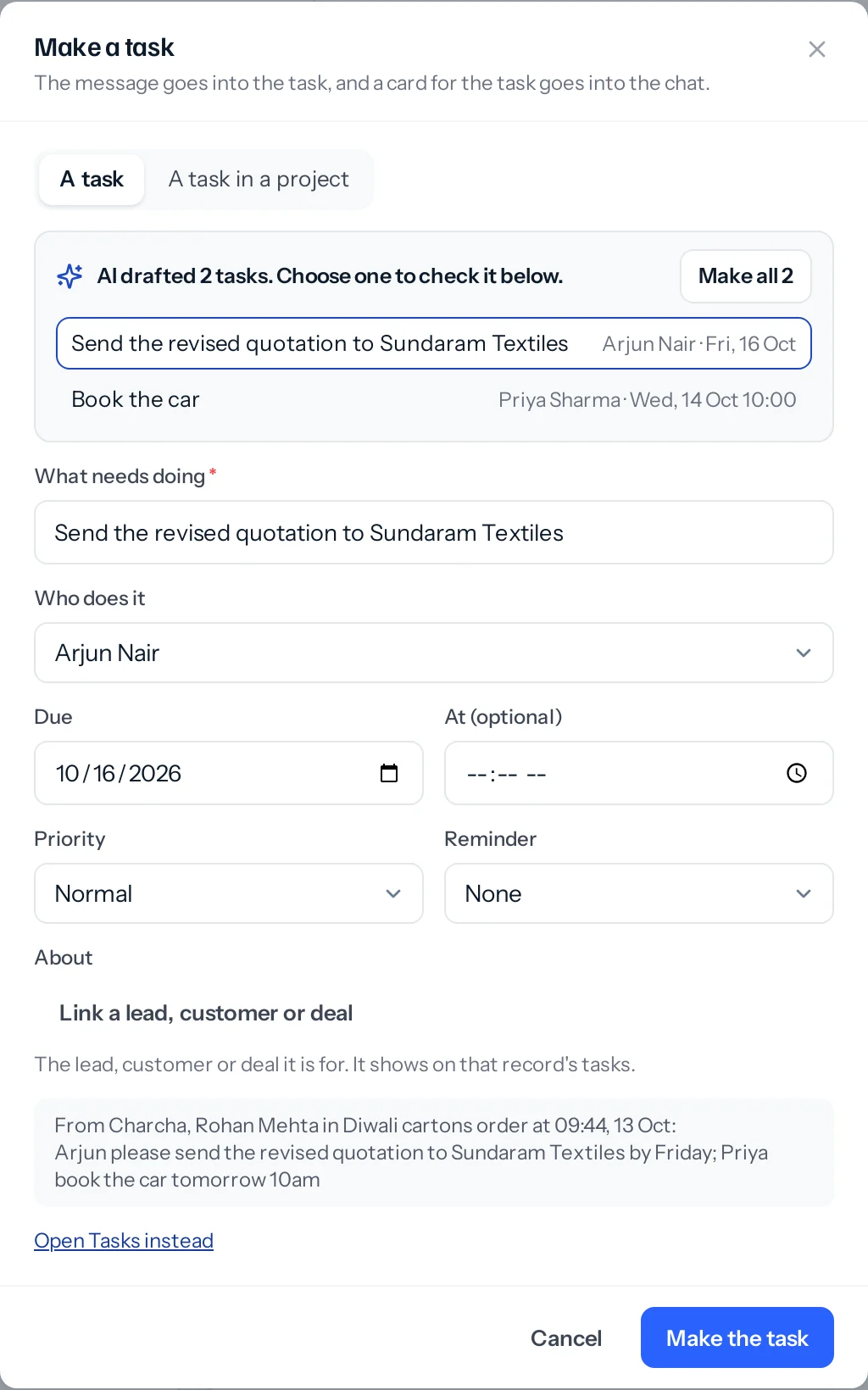
It picks the person from the people in the chat, works out a day such as Friday or tomorrow from today’s date, and leaves empty anything the message does not say. It is offered only to people whose role lets them make tasks.
Write the day note
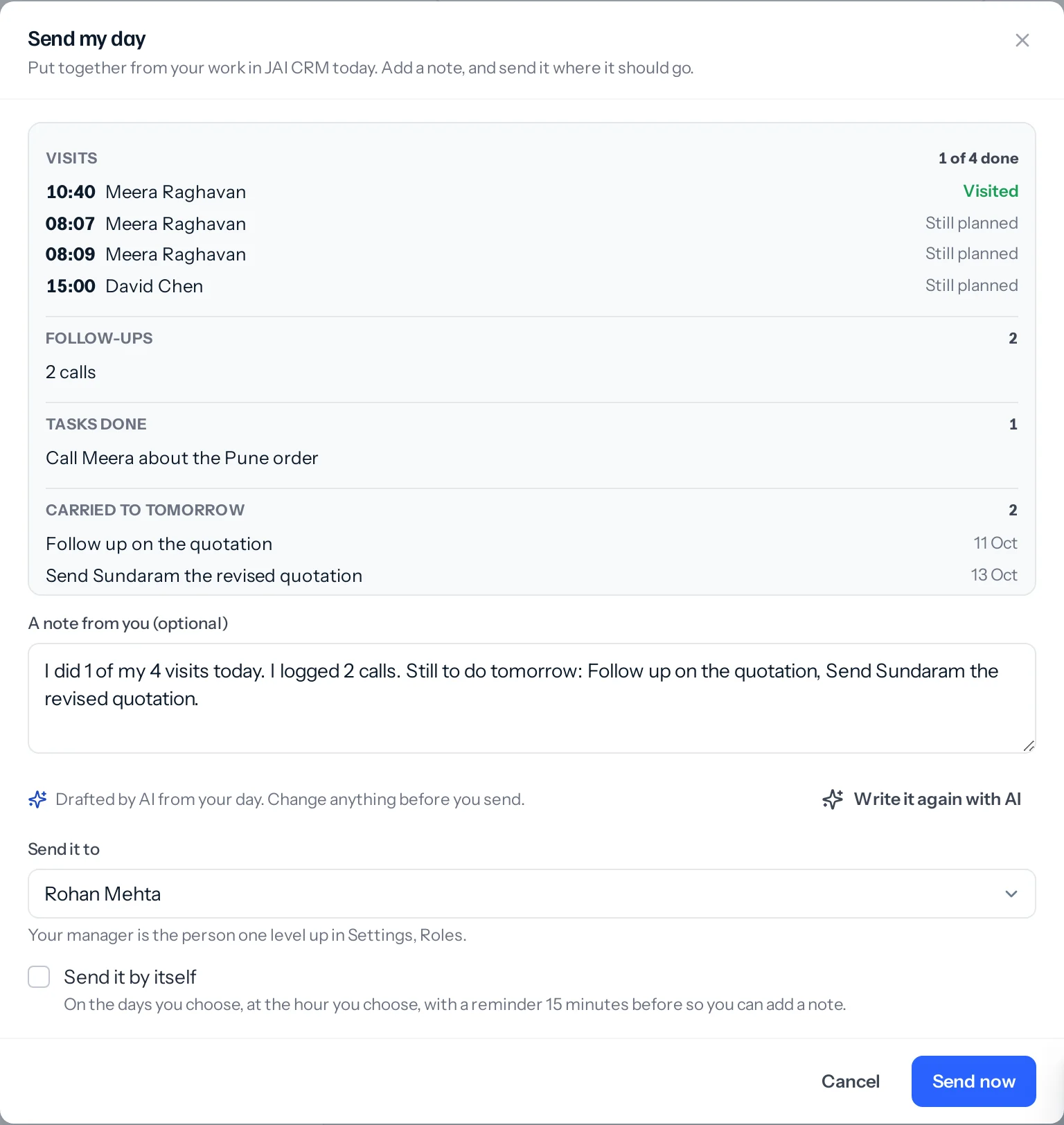
In Send my day, press Write it with AI. It writes two to four sentences in your name from the day’s visits, calls, quotations, deals and tasks, and uses only those figures. Change anything you like before you send it.
The words of a voice note
Under a voice note, press Show the words. It is written out once, for everyone in the chat, and the words stay on the message. A visit note you speak on How did the visit go? is written out the same way.
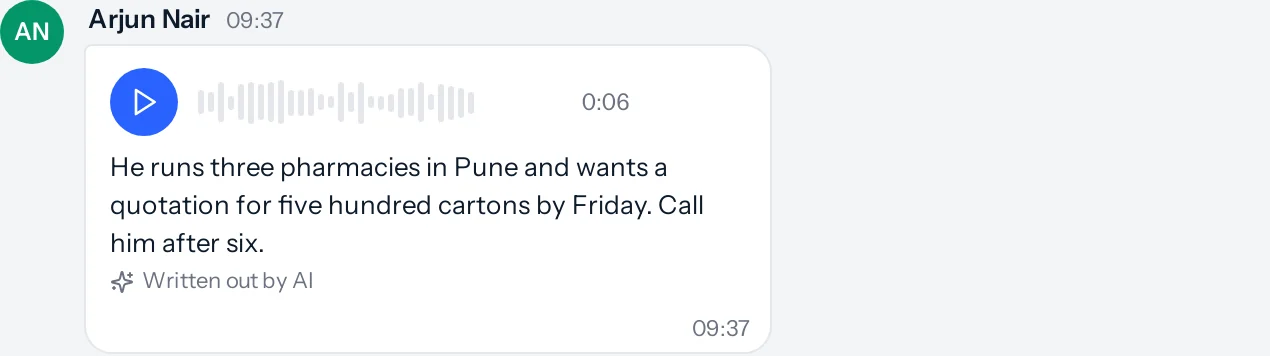
With Write out Charcha voice notes with AI switched on, an AI model writes them out. Switched off, or with no model available, they are written out on our own server and no recording leaves it.
Type by voice
Press the speech button in the message box and talk. Your words go into the box as you speak, with the words still being heard shown in grey. Choose the language you are speaking from the list: English (India), Hindi, Marathi, Gujarati, Tamil, Telugu, Kannada, Bengali, Malayalam or Punjabi. Press the square to stop, check the words, and send.
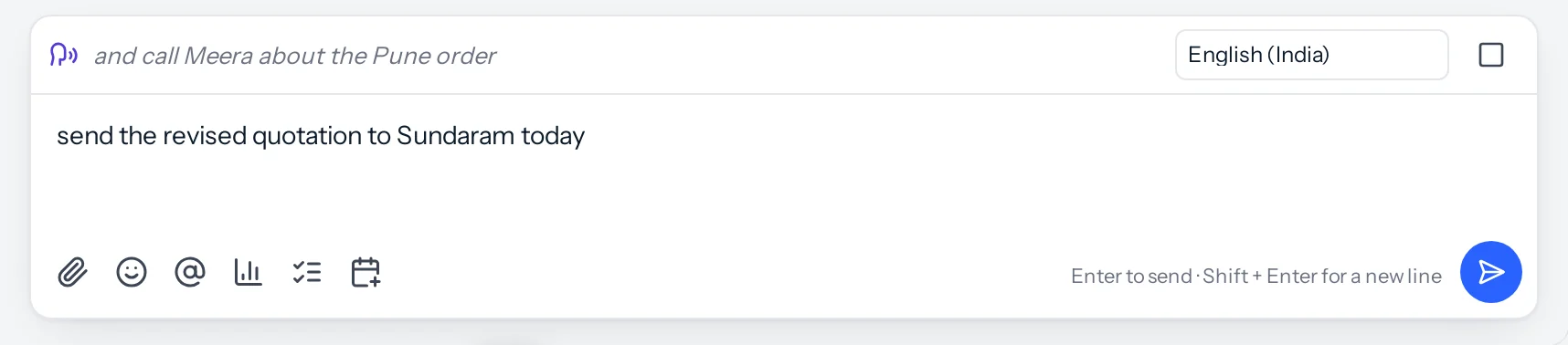
Choose the language before you speak, or change it while listening: Charcha stops listening in the old language and starts again in the new one, so Hindi comes out in Devanagari, Tamil in Tamil script, and so on. It remembers your choice on that device.
Typing by voice uses your browser’s own speech recognition, in Chrome and Edge, and costs nothing. Firefox does not have it. In the Android app it comes in a later update.
Switching each one on or off
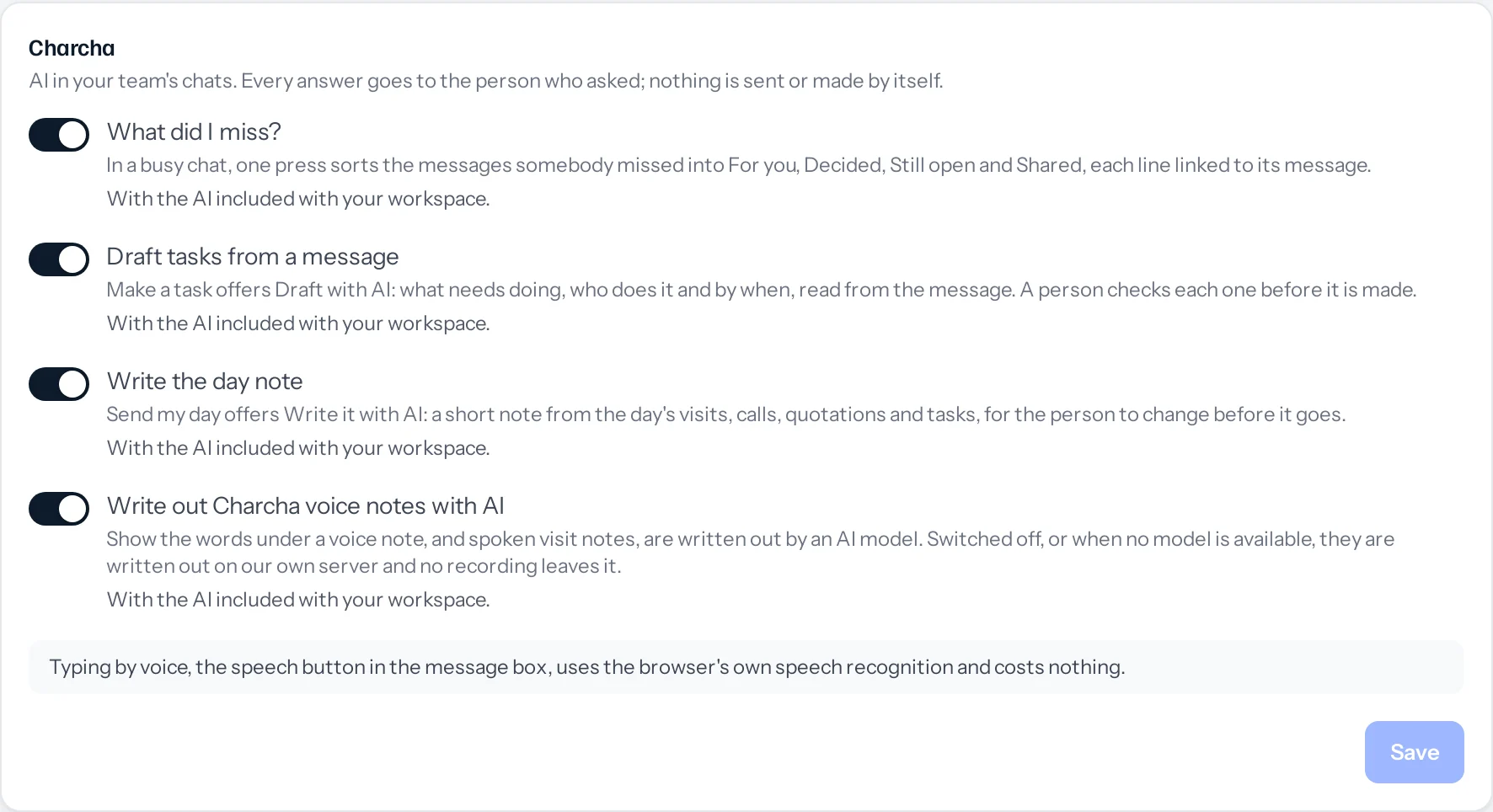
In Settings, AI writing, the Charcha card has a switch for each: What did I miss?, Draft tasks from a message, Write the day note, and Write out Charcha voice notes with AI. Each is on unless an administrator switches it off. Under each switch, the card says which AI it uses.
The AI buttons appear once Charcha’s AI is included with your workspace. Until then, the card says so, and a business with its own AI account can use them straight away by choosing a model for each one under Which model does what. Typing by voice never needs AI.
Something missing or wrong here? Tell us. A question that needed asking usually means a page that needed writing.