
Money arrives. Recording it against the right invoice is what keeps “what are we owed” a number rather than an argument.
Recording one
- Go to Sales documents → Payments and click New. Or open the invoice and record it from there, which pre-fills everything.
- Pick the customer.
- Enter the amount and the date it actually arrived — not today, if it landed on Friday.
- Choose the mode.
- Add the reference: the UTR, the cheque number, the transaction id.
- Allocate it across the invoices it settles.
- Save.
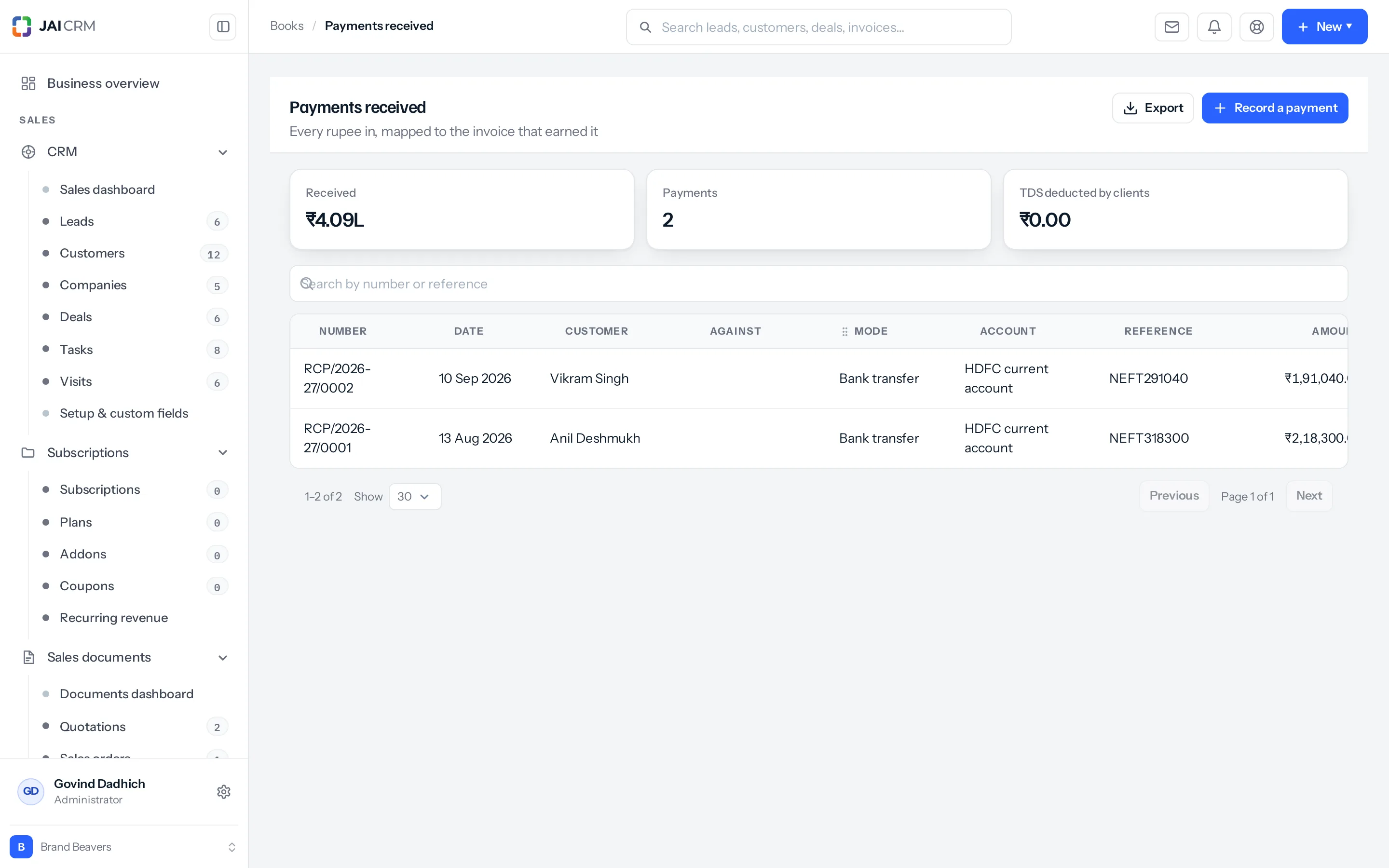
The seven modes
Bank transfer, UPI, cash, cheque, card, gateway, and adjustment. Adjustment is the one people miss: it is how you settle an invoice against a credit note or an advance rather than against money.
Allocation is the point
A payment is not just an amount, it is an amount against specific invoices. That allocation is what makes your outstanding figure true.
| Situation | What to do |
|---|---|
| Pays one invoice in full | Allocate it all to that invoice. |
| Pays part of one invoice | Allocate what came. The invoice goes partially paid. |
| One payment for four invoices | Split it across all four. |
| Pays more than is due | Allocate what is due; the rest is held on the payment. |
| Pays in advance | Record it with nothing allocated, and apply it later. |
| Pays a retainer invoice | Record it against the retainer. The money is held there as an advance, to be applied to the invoices that follow. |
An unallocated payment is not lost. It sits on the customer as money received and not yet applied, and can be put against an invoice raised next month.
Spending an advance on an invoice
Money on account, whether a payment left unallocated or one paid against a retainer invoice, is spent from the invoice it should settle:
- Open the invoice.
- Choose ⋯ › Apply an advance.
- The window lists every payment from this customer with money still on account. A retainer’s payment says Paid against and the retainer’s number.
- Type how much of each to apply, up to what the invoice owes, and press Apply.
The invoice is then paid, or partly paid, by that money, exactly as if the payment had been allocated to it on the day.
Correcting a payment
A payment typed wrong is corrected from the invoice. Under Payments received on the invoice, press the pencil beside the payment, change what was wrong and press Save. Only what you change is saved, so putting a reference right cannot move any money.
| When the payment | What correcting it does |
|---|---|
| It pays only this invoice | The invoice is paid by the new figure, up to what it owes. Anything more is kept on the customer as an advance, ready for their next invoice with ⋯ › Apply an advance. A smaller figure leaves the invoice owing the difference again. |
| It pays this invoice and others | Its share of each invoice stays as it is. Money added is kept as an advance; a figure below what it already pays is refused until it is taken off an invoice. To change its TDS, delete the payment and record it again with the TDS on each invoice. |
| Only the TDS was wrong | On a payment that pays one invoice, the corrected TDS settles that invoice too, and the TDS register follows. |
The invoice shows what a payment pays on it. When a payment is bigger than the invoice, the line under it reads, for example, of ₹16.00 received, ₹4.00 kept as an advance, so the invoice, Payments received and the ledger always say the same thing.
A retainer invoice keeps its own count
A retainer is a bill for an advance before the work. Once it is paid, its page shows an Advance panel: what it collected, how much has been applied, what is left, and the invoices it was applied to, each one press away.
It reads Paid while money is left on it, and closes on its own once all of it has been applied. There is no Close button: a retainer cannot be closed with money still unspent, and it opens again if a payment behind it is deleted.
Statuses
A payment is cleared when the money is in. A cheque can be recorded before it clears: choose Cheque as the mode and tick Not cleared yet. It is kept against the invoice it is for and settles nothing until it clears; the TDS on it is entered then.
- Open Payments received and tap the payment.
- Choose Mark cleared with the day it cleared, or It bounced.
A cheque that bounces is a status, not a deletion: the record that it was received and then failed is worth keeping. The invoice owes again, and a bounced cheque presented again is marked cleared the same way.
Refunding money held on account
Money a customer paid that no invoice took is theirs. Open the payment in Payments received and choose Refund what is on account, with the amount, the day and the account it was paid from. It comes out of their advance. Deleting the refund puts the money on account again.
GST on an advance for services
Money for a service paid before its invoice owes GST in the month it arrives. Money for goods paid ahead owes none. Two kinds of payment carry it:
- A payment on a retainer invoice, on the retainer’s service lines. A line is a service when its item is a service, or, with no item, when its SAC code starts with 99.
- A payment marked An advance for services, at the rate you choose, on what it leaves on account.
- Record the payment as above, with the customer and the amount.
- Tick An advance for services and choose the GST rate. The form says how much of what is left on account is GST.
- Save. To mark a payment already recorded, open it in Payments received and choose Advance for services.
The GST is declared in the month the money arrived, in GSTR-1 Table 11A and in 3B. When an invoice in a later month uses the money, or it is refunded, the GST comes off that month in Table 11B. An invoice in the same month uses it before anything is declared, and the invoice carries the tax. The payment’s window shows what it declared and took back, month by month.
From 1 October 2026. Advances received earlier stay as they were. Once GSTR-1 for a month is marked filed, a change that would move the GST on an advance in that month is refused; its reference and notes can still change.
Payments of zero
Allowed, and occasionally necessary. A customer who deducts TDS and pays nothing else that month has still had something recorded against the invoice. See TDS and TCS.
The statuses you cannot set by hand
An invoice becomes paid, partially paid or overdue because of the money and the dates, not because somebody chose it. Those options are not offered. Marking an invoice paid when no payment exists would be a lie the books would then carry.
Where to go next
Something missing or wrong here? Tell us. A question that needed asking usually means a page that needed writing.