
Press Design on a proposal and it opens full screen, as Google Docs does: one bar of tools, and A4 pages on a grey desk. What you see is what prints. Your template’s letterhead, header, footer and page numbers are drawn on every page as you type, and a page that fills up carries on onto the next.
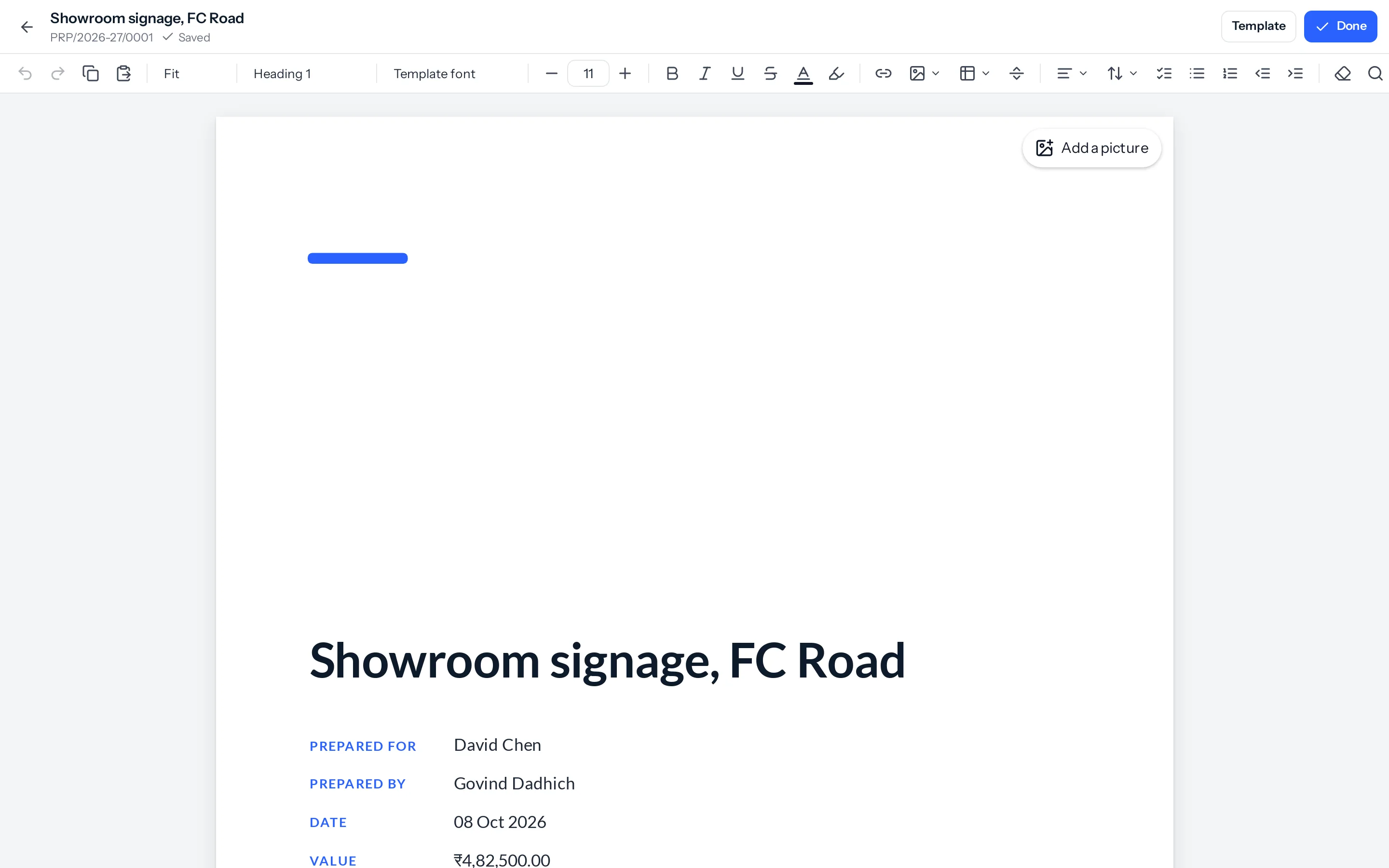
The tool bar
| Tools | What they do |
|---|---|
| Undo, redo, copy, paste | As buttons and as the usual keys. Pasting from Word or Google Docs keeps headings, bold, colours, lists and tables. |
| Zoom | Fit to the window, or 50% to 200%. |
| Style, font, size | Normal text and four headings; twelve fonts, each shown in its own face; sizes in points, with minus and plus. |
| B I U S, colour, highlight | Bold, italic, underline, strike-through, a colour for the text and a highlight behind it, from a palette or your own. |
| Link | A web address, email or phone number on the selected words (Ctrl+K). |
| Image | From this computer, Google Drive or Dropbox. |
| Table | Pick a size from the grid, up to eight by eight. |
| Page break | Starts a new page (Ctrl+Enter). |
| Signature block | The pen-and-line button: where the signatures print, ours on the left and the client’s on the right once they accept. See Signatures on a proposal. |
| Insert more | A chart, a text box, two or three columns, or a Word document. See Charts, text boxes and columns and Open a Word document. |
| Align, line spacing | Left, centre, right or justified; single, 1.15, 1.5 or double, or the template’s own. |
| Lists, indent | Check lists, bullets and numbers; indent and outdent a list item or a paragraph. |
| Clear formatting, Find | Back to plain text; find and replace (Ctrl+F). |
Pictures
A picture is made the right size before it is uploaded: no more than 2,000 pixels along its longest side, turned the right way up. A 12 MB photograph from a phone arrives as a few hundred kilobytes, so the proposal and its PDF stay quick. Select a picture to set its width (a quarter, half, three quarters or the full width of the page) and its position.
Google Drive and Dropbox are offered once you have connected your own account in Settings › Integrations. The picture is copied into your business’s files, so the proposal does not depend on the file staying shared.
Tables
Click into a table and a bar appears beside it: rows above and below, columns left and right, delete a row or column, merge and split cells, a header row, a colour for the selected cells, and how the table is ruled (every line, the outside only, or none). Drag a column’s edge to widen it.
Saving, and one person at a time
- It saves a moment after you stop typing, never on every key. The top bar says Saved, Saving or Not saved with a Try again.
- Only one person writes a proposal at a time. Anybody else who opens it reads it, with a note saying who is writing, and can edit as soon as they finish.
- A proposal that is accepted, converted or cancelled is read only. Revise it to change it.
Earlier versions
Every proposal keeps its earlier pages: before a stretch of editing (the first save after ten minutes or more), as they were when it was sent, and before a version is put back. The newest 100 are kept.
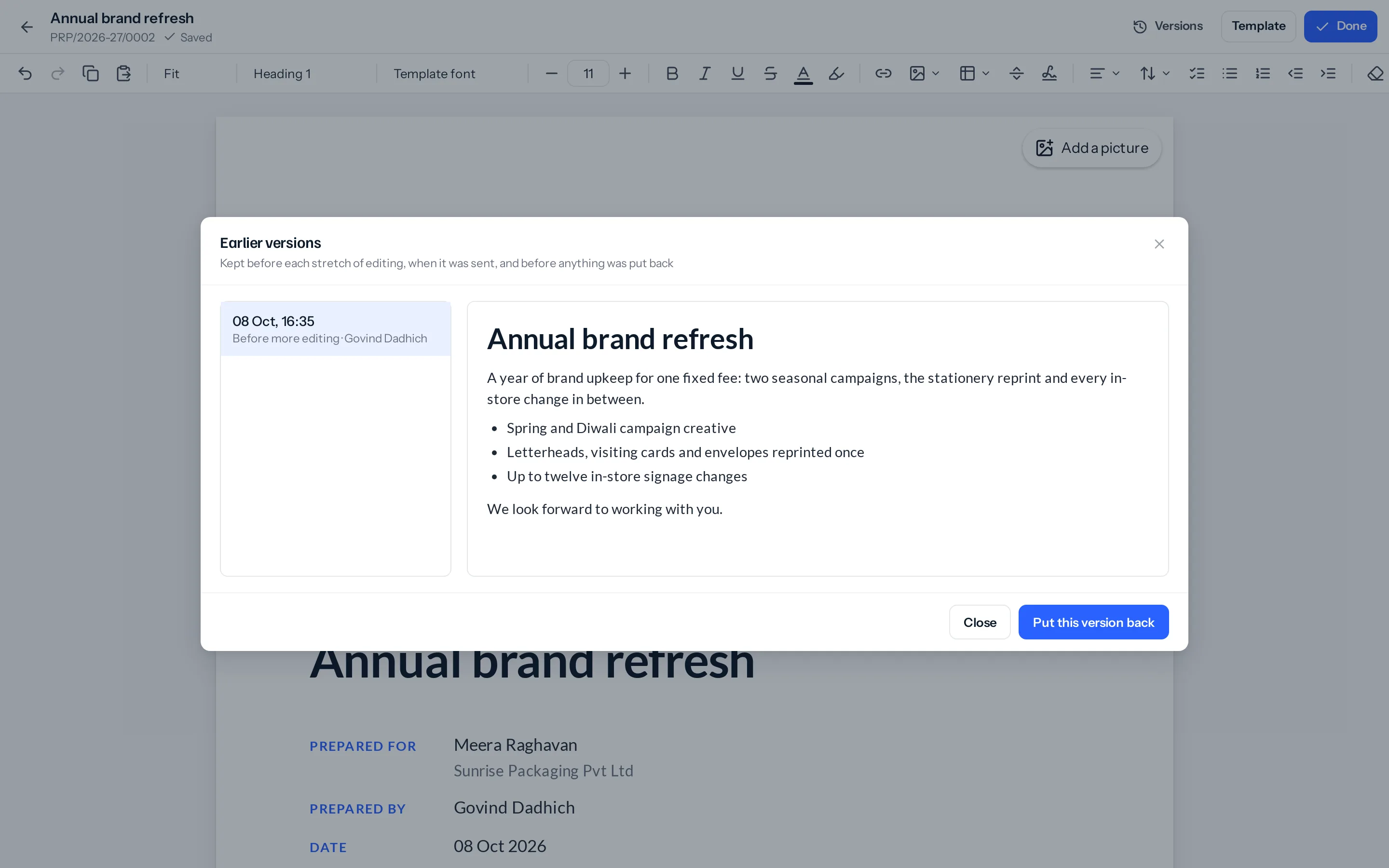
- Press Versions in the top bar. On a phone it is Earlier versions in the ⋮ menu, and on the proposal page in its menu.
- Put this version back makes it the pages again. What was there is kept as a version first, so putting one back can itself be undone.
- Putting one back needs Edit on proposals, and the proposal must still be changeable: Draft, Sent, Declined or Expired.
On a phone
The designer opens to read, at the phone’s own width, with Edit in the corner. Editing puts a slim bar on top of the keyboard: undo, redo, bold, italic, bullets, A for text and paragraph formatting in a sheet from the bottom, and + for a picture from the phone, Drive or Dropbox, a table, a page break or a link. Page view in the menu shows the real A4 pages, to pinch and zoom.
Things that catch people out
- A block taller than a page runs on. A paragraph or a table row is never split across pages, so a very long one carries on past the foot of the page. Break it in two.
- A heading stays with what follows it. If only the heading fits at the foot of a page, it moves to the next page with its paragraph, as it does in the PDF.
- Changing the template keeps your writing. Template in the top bar swaps the letterhead, header, footer, cover and fonts around your pages and leaves the pages as they are.
Where to go next
- Charts, text boxes and columns
- Open a Word document
- Proposal templates
- Approve, send and follow a proposal
Something missing or wrong here? Tell us. A question that needed asking usually means a page that needed writing.