
Proposals that already exist as Word files do not have to be typed again. Open one in the designer and it lands in the pages as if it had been written there, ready to change and send.
Opening one
- Open the proposal in the designer.
- Choose Insert more › Open a Word document. On a phone it is in the ⋮ menu, and under + while you edit.
- Choose a .docx file of up to 25 MB. An older .doc needs saving as .docx in Word first.
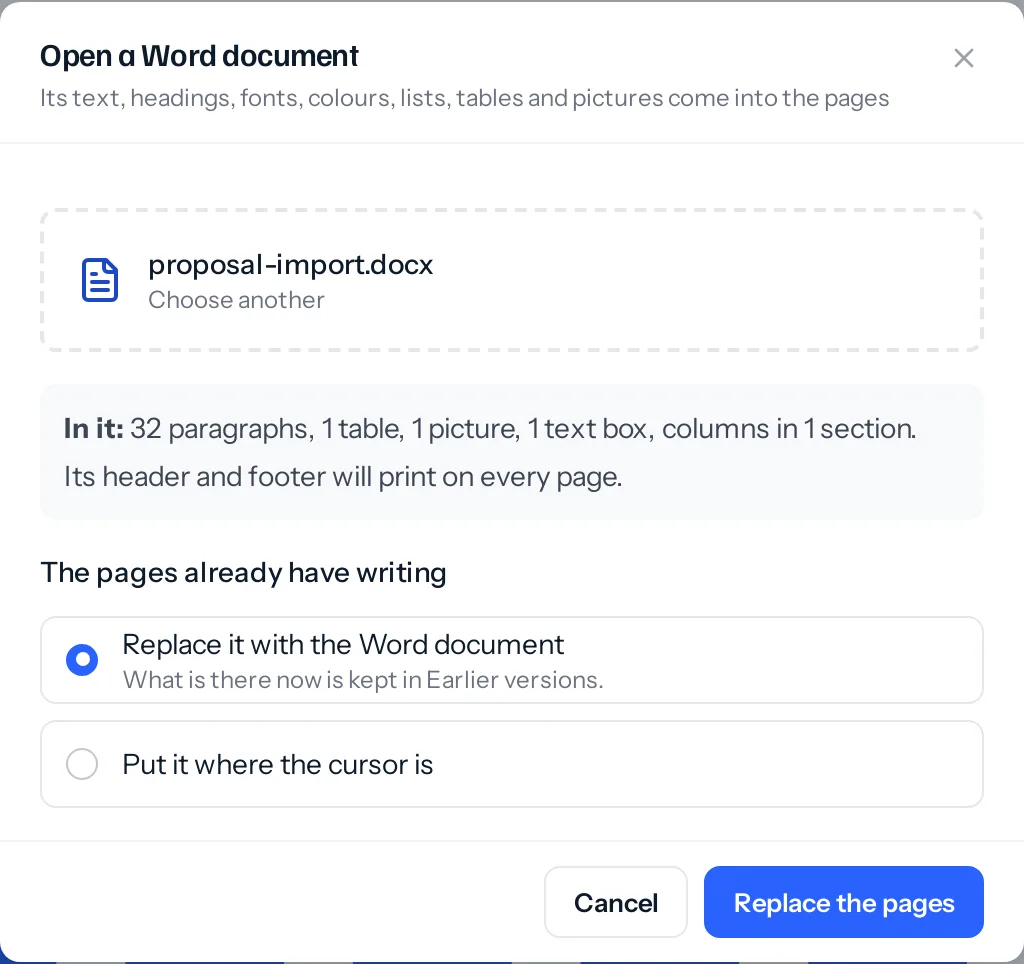
- The window says what is in it: how many paragraphs, tables, pictures and text boxes, and whether a header and footer will come too.
- If the pages already have writing, choose Replace it with the Word document or Put it where the cursor is.
- Press the button. The pictures are made the right size and uploaded, and the pages fill.
What comes across
| From the Word document | In the proposal |
|---|---|
| Headings | Title and Heading 1 to 4 as the designer’s four headings; deeper ones as the fourth. Their colours come too. |
| Text | Bold, italic, underline, strike-through, colours, highlight and shading, line spacing, indents and alignment. |
| Fonts | Each as the nearest of the twelve a proposal prints: Calibri and Aptos as Calibri, Cambria and Garamond as Georgia, Arial and Segoe UI as Arial, Mangal and other Devanagari fonts as Noto Sans. A font or size that matches the proposal’s own is not repeated on every word. |
| Lists | Bullets and numbers, nested, with lettered and Roman numbering kept. |
| Tables | Header rows, merged cells, cell shading and column widths, fitted to the page. |
| Pictures | PNG, JPEG, GIF and WebP, sized as a share of the page and placed as Word placed them. |
| Links and page breaks | As they were. |
From scratch: the header, footer, text boxes and columns too
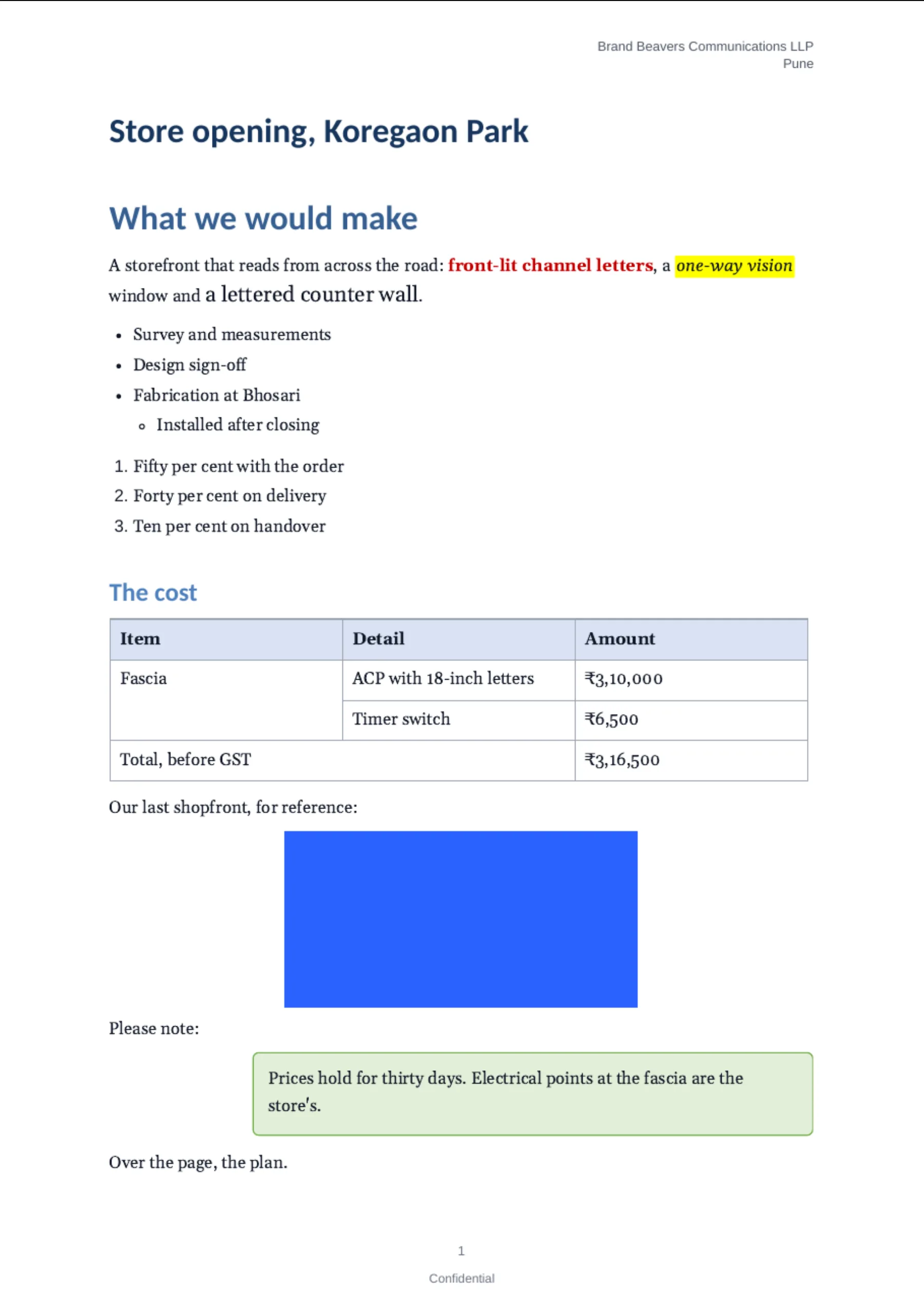
A proposal started from Scratch has no template, so it takes the Word document’s own layout as well:
- The header and footer, as up to four lines of text each, in the same place. Page numbers in them are left out, because the proposal prints its own.
- Text boxes, with their fill, edge, width and place. See Charts, text boxes and columns.
- Columns, two or three, split where Word broke the column or evenly where it did not.
On a proposal with a template, the template’s header and footer stay, and the text in boxes and columns comes in as ordinary paragraphs, so none of it is lost.
Header and footer, by hand
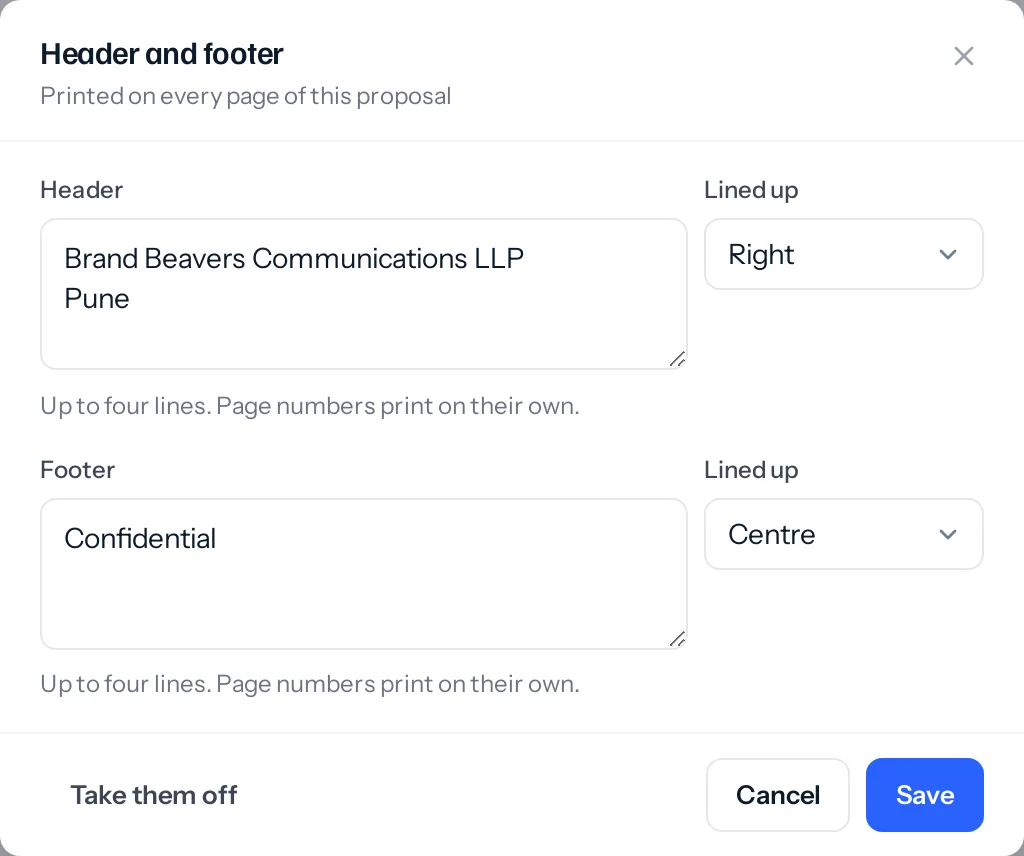
A proposal started from scratch has Header and footer in the designer’s top bar (in the ⋮ menu on a phone). Change the lines, line them up left, centre or right, or Take them off. They print on every page.
What is left out
- Pictures in EMF, WMF or SVG, the formats of some drawings and logos. The window says how many; save them as PNG in Word and add them to the pages.
- Comments, footnotes and deleted tracked changes. Text added with tracked changes on is kept.
- The page size and margins. The proposal prints on A4 with its own margins, so a document set for Letter flows onto the proposal’s pages.
Things that catch people out
- A font the proposal does not print falls back. Anything not among the twelve, or close to one, takes the proposal’s own font.
- Replace keeps the old pages. If the Word document was the wrong one, open Versions and put the earlier pages back.
- It is read on your phone or computer. The file is opened in the browser and only its pages and pictures are saved; the .docx itself is not kept.
Where to go next
Something missing or wrong here? Tell us. A question that needed asking usually means a page that needed writing.