
Approval
Approval rules for proposals are set in Settings › Approvals, the same as for quotations: every proposal, or proposals above a value in their currency, approved by a named person, anybody holding a role or in a circle, or the asker’s manager. A proposal with no value is allowed; a value rule simply does not apply to it.
- Send stays locked until it is approved. The band across the top says who it is waiting on.
- The approver can approve it as it is, or open the designer, change it and send it themselves.
- Changed after it was approved? Your business decides, once, in Settings › Sales documents: it needs approving again before it can go, or it can be sent and whoever approved it is told what changed.
Asking a named colleague
Where no rule applies, you can still ask for a second pair of eyes. On a draft, choose Ask someone to approve it from the menu, pick a colleague and add a note if you like. They are told in the app, and the band at the top says who it is waiting on.
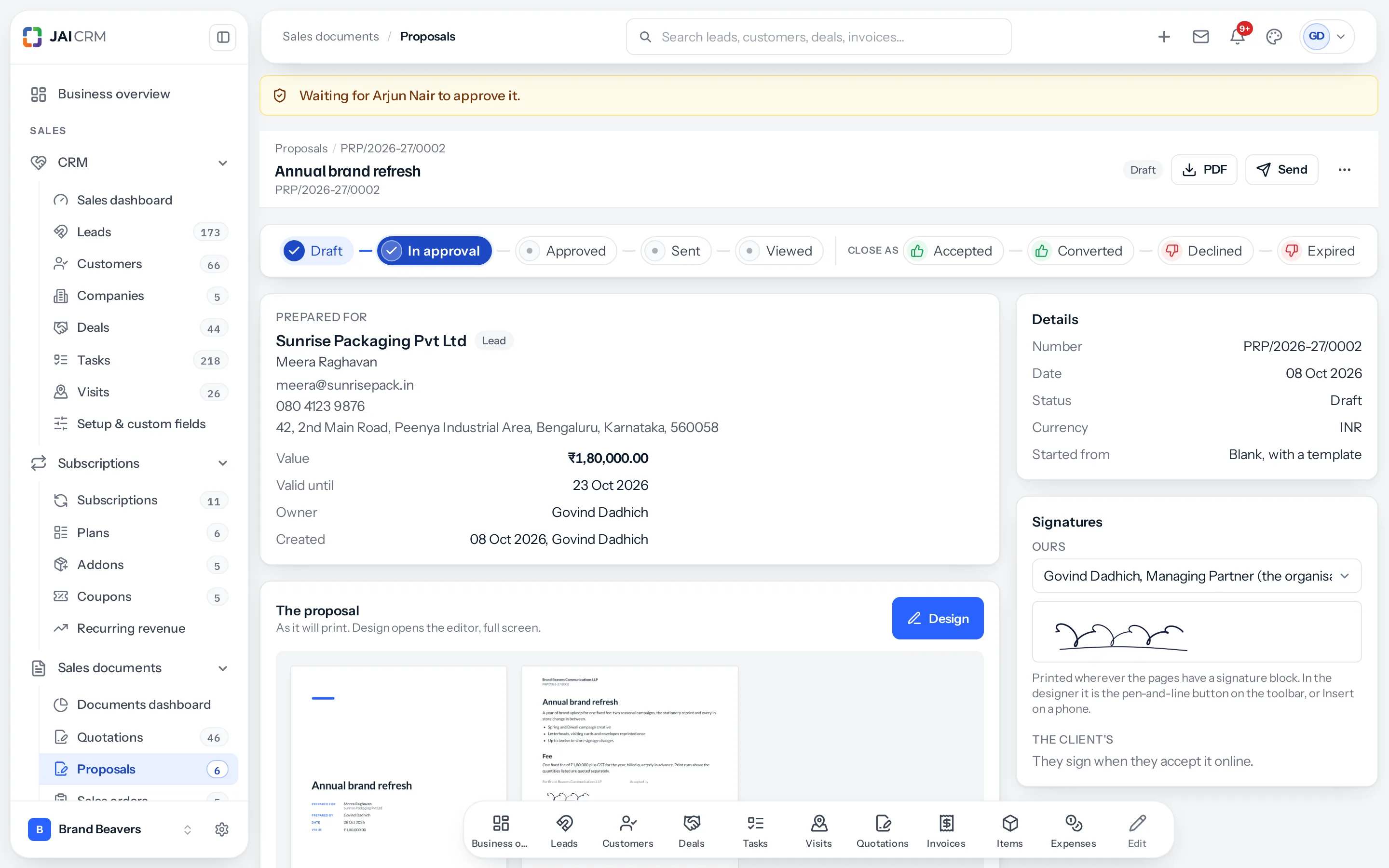
- Send and Mark as sent wait for them, exactly as for a rule.
- They approve or reject it on the band. If they do not approve it, Ask again asks them or somebody else.
- Changed after they approved it? They are told what changed, and it is not asked again.
- You cannot ask yourself, and asking needs Edit on the proposal.
Sending it
Press Send. The same window quotations use opens: the client’s address, a ready-written message from your email template, the proposal’s PDF attached, and a View proposal button in the email. Nothing goes until you press Send there; the proposal is then marked sent and the email is filed on the record.
For WhatsApp or a message of your own, The client’s link in the menu gives a link to copy. It neither emails nor marks the proposal sent.
What the client sees
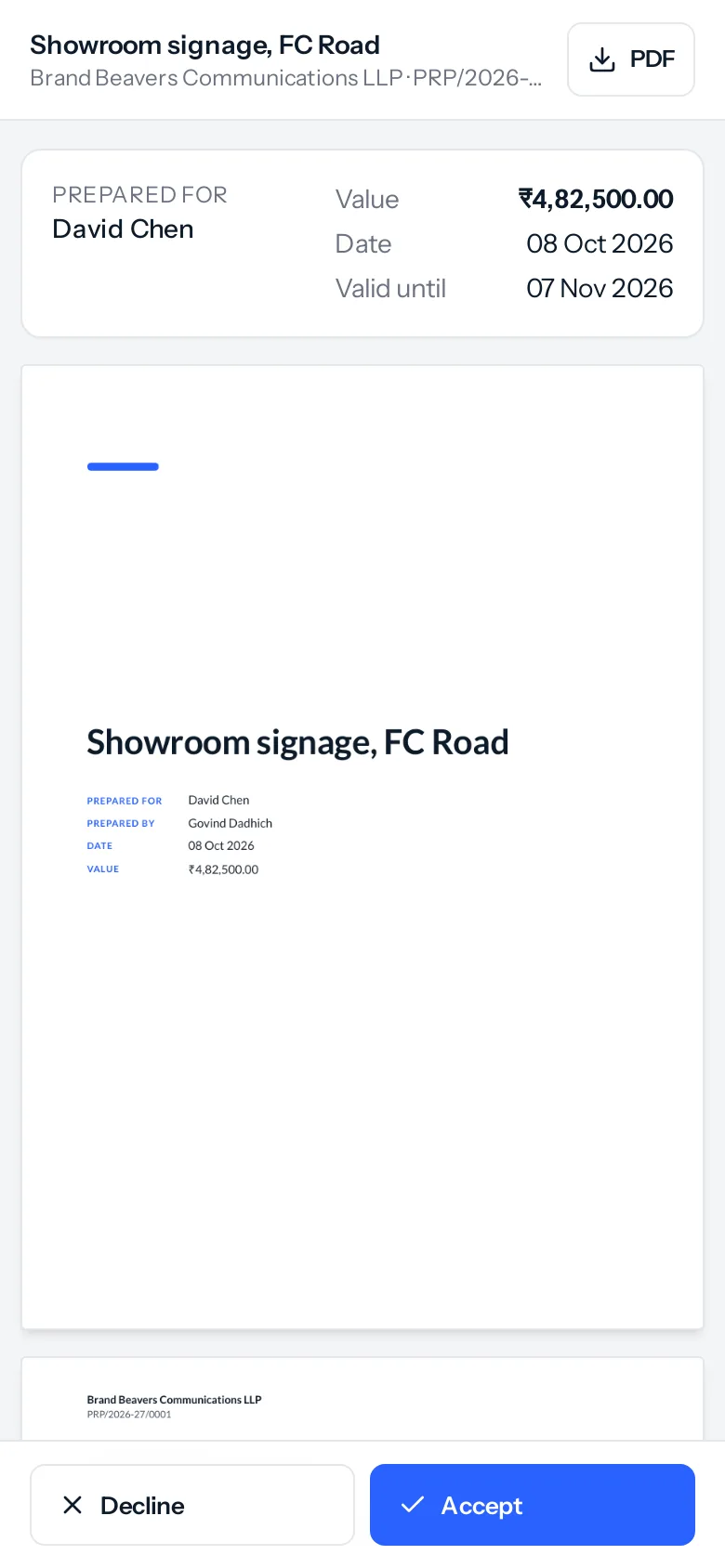
- The pages fit the screen, and pinch to zoom.
- Accept asks for their name and their signature, drawn with a finger or a mouse, kept with the time and where it was signed from. Decline asks for their name and, if they like, why. You are told either way. See Signatures on a proposal.
- After the valid-until time the page says the proposal has expired and cannot be accepted there.
Opens
Every time the client opens the link it is counted, with its time and device: Chrome on Android, Safari on iPhone. The owner is told the first time. A refresh by the same reader within half an hour is the same open. The client sees nothing of this.
After sending
| To | Do this |
|---|---|
| Send it again | Send again, at any stage before it is converted. If it expired, change valid until first, from the menu. |
| Record their answer | Accepted or Declined on the page or the stage path, at any time, including after it expired. |
| Change what it says | Revise: a new version, PRP/2026-27/0001-R1, with the same pages, template and value; the original is kept, marked superseded. |
| Raise the quotation, order or invoice | ⋯ › Convert to quotation, sales order or invoice, as on a quotation. See Convert a proposal to a quotation, sales order or invoice. |
| Withdraw it | Cancel proposal, from the menu. |
Who can do what
Proposals carry the same ten actions and four scopes as every sales document, in Settings › Roles and permissions › Sales documents › Proposals. Every role starts with the rights it has on quotations. Somebody only marked on a proposal can read it and change nothing.
Where to go next
Something missing or wrong here? Tell us. A question that needed asking usually means a page that needed writing.