
A proposal can carry two signatures. Ours says the business stands behind the offer. The client’s says they accept it. Both print in a signature block on the pages and in the PDF: the business on the left, the client on the right.
Your own signature
Keep one in Profile › Details › Your signature. Draw it with a mouse or a finger, or upload a scan as a PNG, JPEG or WebP picture of up to 1 MB. The name under it is yours to set, and a title such as Director prints below the name.

- Let the people who report to me use it. Ticked, everyone whose role reports to yours (the Reports to box in Settings › Roles and permissions) can choose it on their own proposals. Left off, only you can.
- Each person keeps one. Saving again replaces it.
- Keeping one needs Create on proposals, the same right as writing one.
The organisation's signatures
In Settings › Proposal templates, under the templates. Anyone who writes proposals can use these: a partner’s, a director’s, or the company seal with a signature over it. One can be marked The organisation’s default, and a new proposal carries it when its writer has no signature of their own.

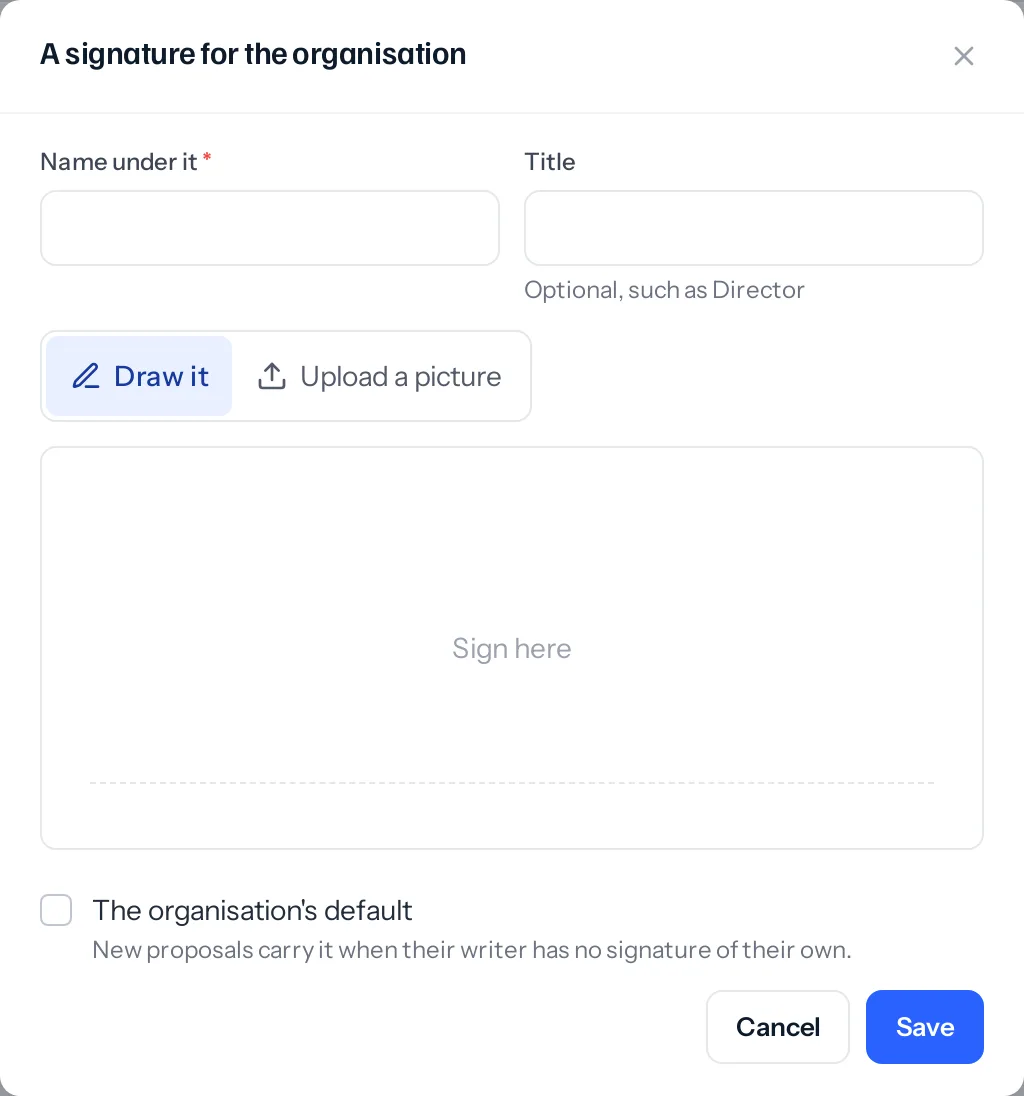
Adding, changing and removing these needs Edit on Settings › Templates, the permission that also looks after the organisation’s proposal templates. A signature that is removed keeps printing on the proposals that already carry it.
Choosing whose a proposal carries
A new proposal starts with your own signature, or the organisation’s default if you have none. To change it, use Signatures on the right of the proposal page.
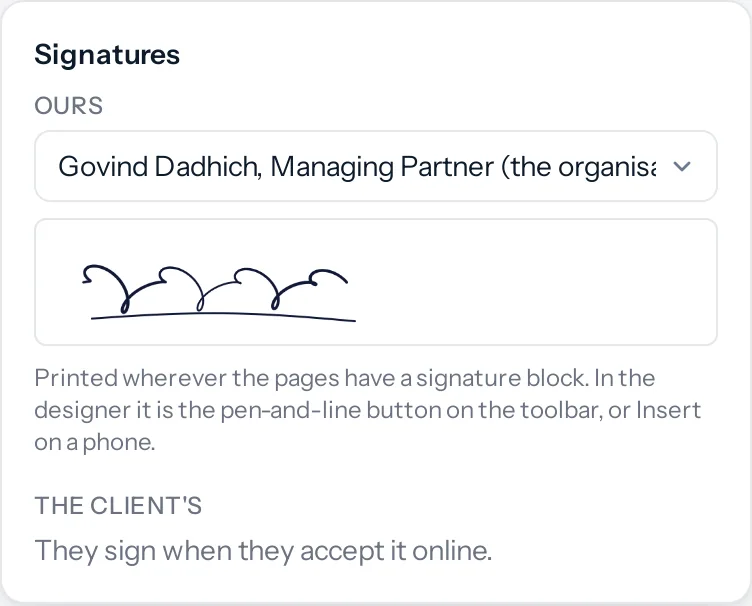
- The list offers None, the organisation’s, yours, and each manager’s that they have shared with their team.
- It can be changed while the pages can: in Draft, Sent, Declined and Expired. An accepted proposal keeps the signature it was accepted with.
- Changing it after the proposal was approved follows your business’s setting in Settings › Sales documents, as any other change does.
The signature prints wherever the pages have a signature block. Put one in from the designer with the pen-and-line button on the tool bar, or from + on a phone. It prints For and your business’s name, the signature, the name and the title, and beside it Accepted by with a line for the client.
The client signs to accept
On the client’s page, Accept asks for their name and their signature, drawn with a finger or a mouse. It cannot be accepted without both. Decline asks only for a name and, if they like, a reason.
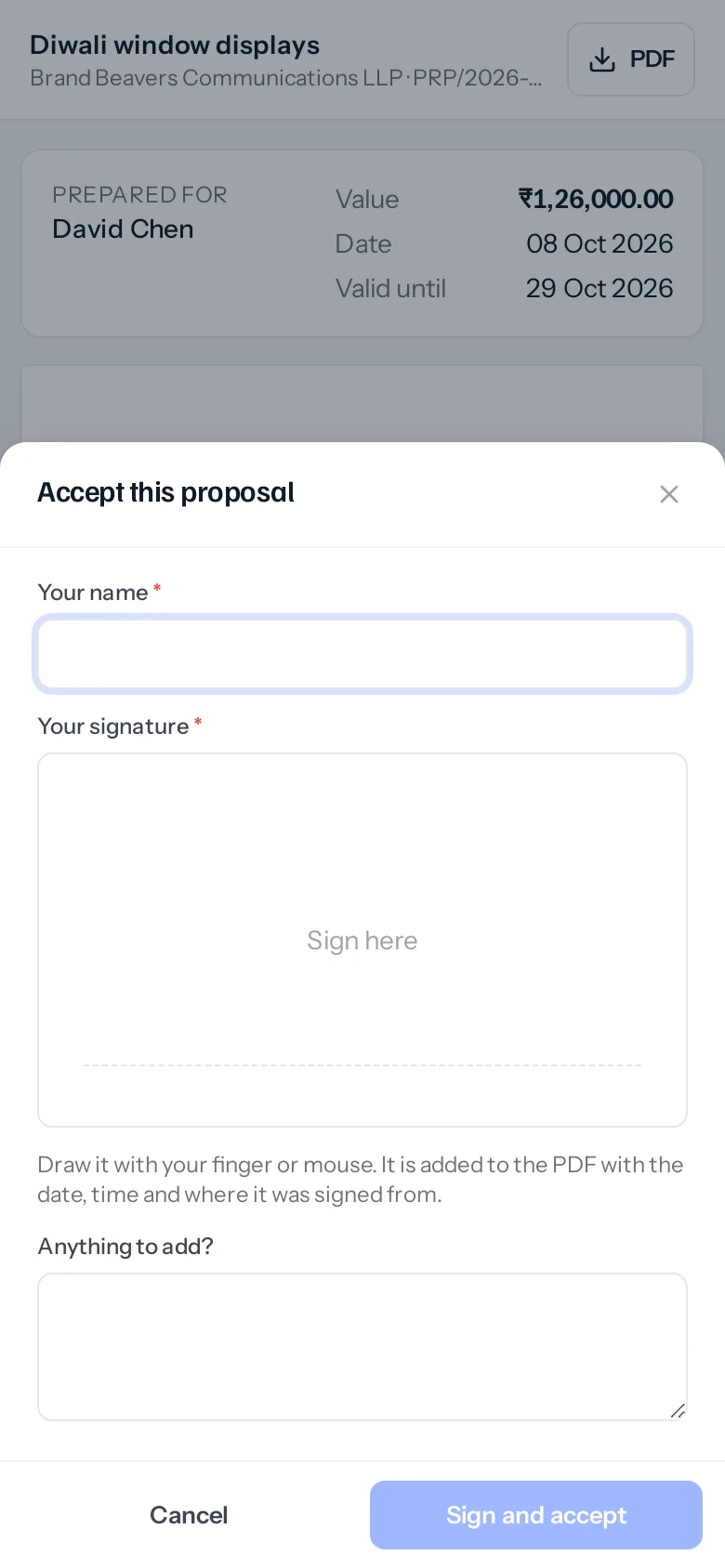
Kept with the proposal: the name they typed, the signature, the date and time, the IP address it came from and the browser. You are told when they accept. Their page then says who accepted it and when, and the PDF prints their signature with Signed 08 Oct 2026, 16:32 and the address.
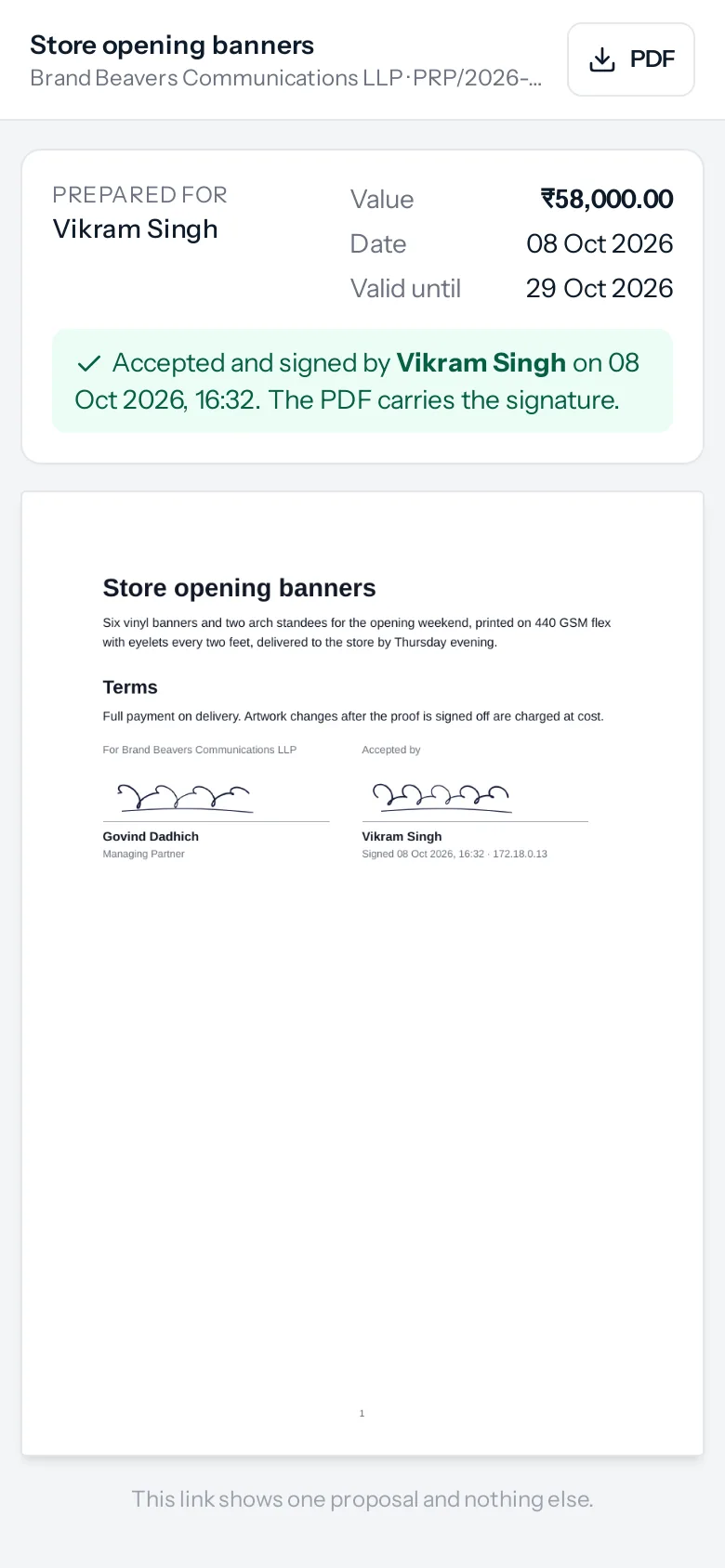
If the pages have no signature block, the PDF adds one at the end once the client has signed, so the copy never lacks the acceptance.
A worked example
- Govind, the managing partner, adds his signature as the organisation’s in Settings and marks it the default.
- Kavya writes Store opening banners for Vikram Singh, ₹58,000. She has no signature of her own, so the proposal carries the organisation’s.
- In the designer she puts a signature block under the terms, and sends it.
- Vikram opens it on his phone, presses Accept, types his name and signs with his thumb.
- The proposal reads Accepted, Kavya is told, and the PDF on file has both signatures with the time and the address it was signed from.
Things that catch people out
- It is an electronic signature, not a certificate. The record of who signed, when and from where is kept with the proposal. It is not a digital signature certificate (DSC) or Aadhaar eSign.
- No block, no signature on the pages. Choosing a signature does nothing visible until the pages have a block for it to sit in.
- A manager’s signature needs their tick. If a manager’s signature is not in your list, they have not ticked Let the people who report to me use it, or your role does not report to theirs.
Where to go next
Something missing or wrong here? Tell us. A question that needed asking usually means a page that needed writing.